Identity Alignment
Identity Alignment automates the removal of deprovisioned users from external services. When Directory Sync Service (DSS) detects that a user has been deleted from your internal Active Directory, Identity Alignment removes that user from all configured external platforms or notifies you to take action manually.
Identity Alignment focuses exclusively on user removal. It does not create or update users in external services.
What it does
- Reacts to DSS sync results and identifies deleted users
- Removes users from configured external services through Cloud Broker
- Supports both built-in service integrations and custom service definitions
- Sends email or ticketing notifications for each deletion action
- Provides configurable deletion scenarios per service: automatic deletion, notification only, or deletion with notification
Identity Alignment was previously named OneDirectorySync. If you see references to that name in logs or configurations, they refer to this service.
How it works
- A user is deleted from your internal Active Directory.
- DSS runs a sync cycle and detects the deletion.
- DSS sends a deletion event to Identity Alignment.
- Identity Alignment checks which services the deleted user is associated with.
- For each configured service, Identity Alignment takes the configured action:
- Delete without notification: Cloud Broker removes the user from the external service. If the user cannot be removed, the user is marked as "removed."
- Notify only: Identity Alignment sends an email notification that the user should be deleted manually. No automatic deletion occurs.
- Delete and notify: Cloud Broker removes the user, and Identity Alignment sends an email confirmation.
- For custom services, Identity Alignment checks if the user exists in the uploaded user list and sends a notification to remove the user manually.
When a user is a member of groups in the external service, Identity Alignment removes the relationship between the user and the group, rather than performing an immediate hard deletion.
Identity Alignment handles service configuration and orchestration. The actual deletion from external services is performed by Cloud Broker. You must configure the service in Cloud Broker with the required credentials before you add it in Identity Alignment.
User interface
The Identity Alignment interface consists of two pages:
- Services: View, add, and manage external services for user removal.
- Settings: Configure default notification email and ticketing email addresses.
Prerequisites
Before you configure Identity Alignment, verify the following:
- Directory Sync Service (DSS) is activated and running sync cycles.
- Directory Sync Agent (DSA) is installed on the customer's environment and connected to Active Directory.
- Cloud Broker is configured with the required credentials for each target service (for regular services).
When you activate Identity Alignment, the product service displays any missing dependencies (such as DSS) and offers to activate them automatically.
Configure Identity Alignment
Configure notification settings
Set up default notification email addresses on the Settings page. These defaults apply to all services.
- Navigate to Identity Alignment and select Settings in the left sidebar.
- On the Notifications tab, enter the Default email for notifications.
- Enter the Default ticketing system email for notifications if you want deletion events to create tickets in your IT service management system.
- Select Save.
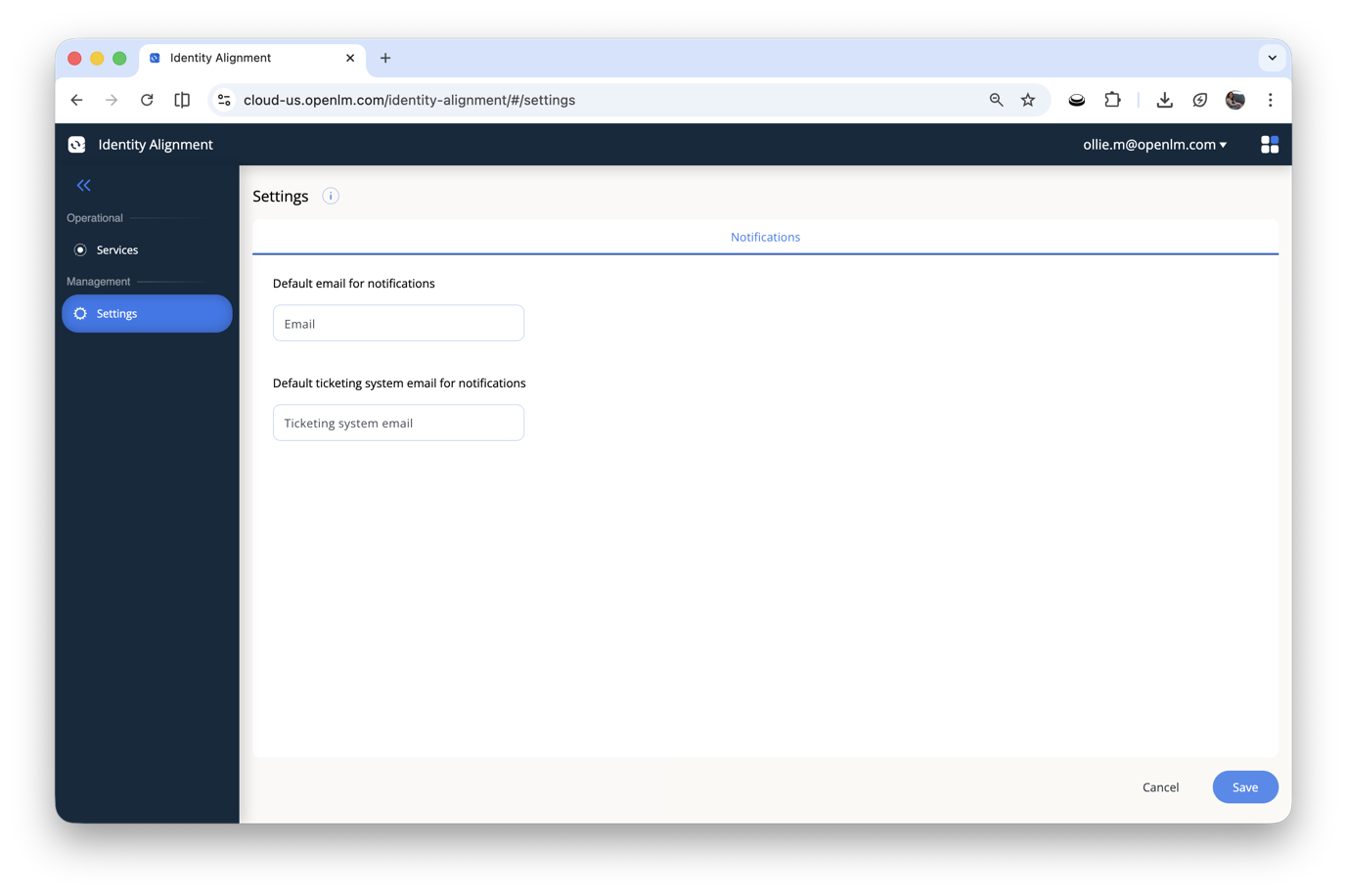 The Settings page with default notification and ticketing email fields.
Add a regular service
Before you add a service, make sure it is already configured in Cloud Broker with valid credentials.
- Select Services in the left sidebar.
- Select Add Service.
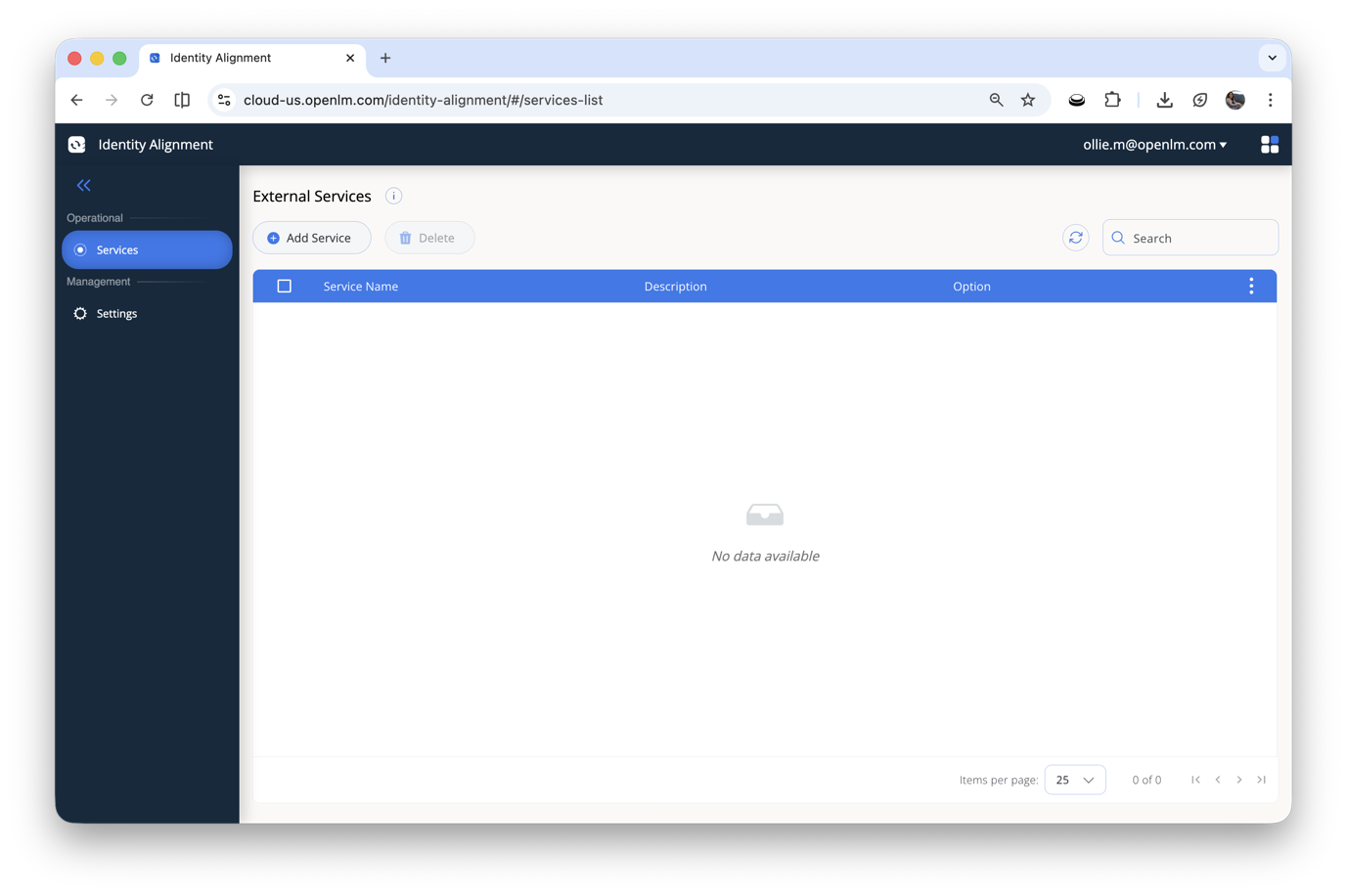 The External Services page with the Add Service button and service list.
- In the Add External Service dialog, open the Services dropdown and select a service. The list displays all services available from Cloud Broker.
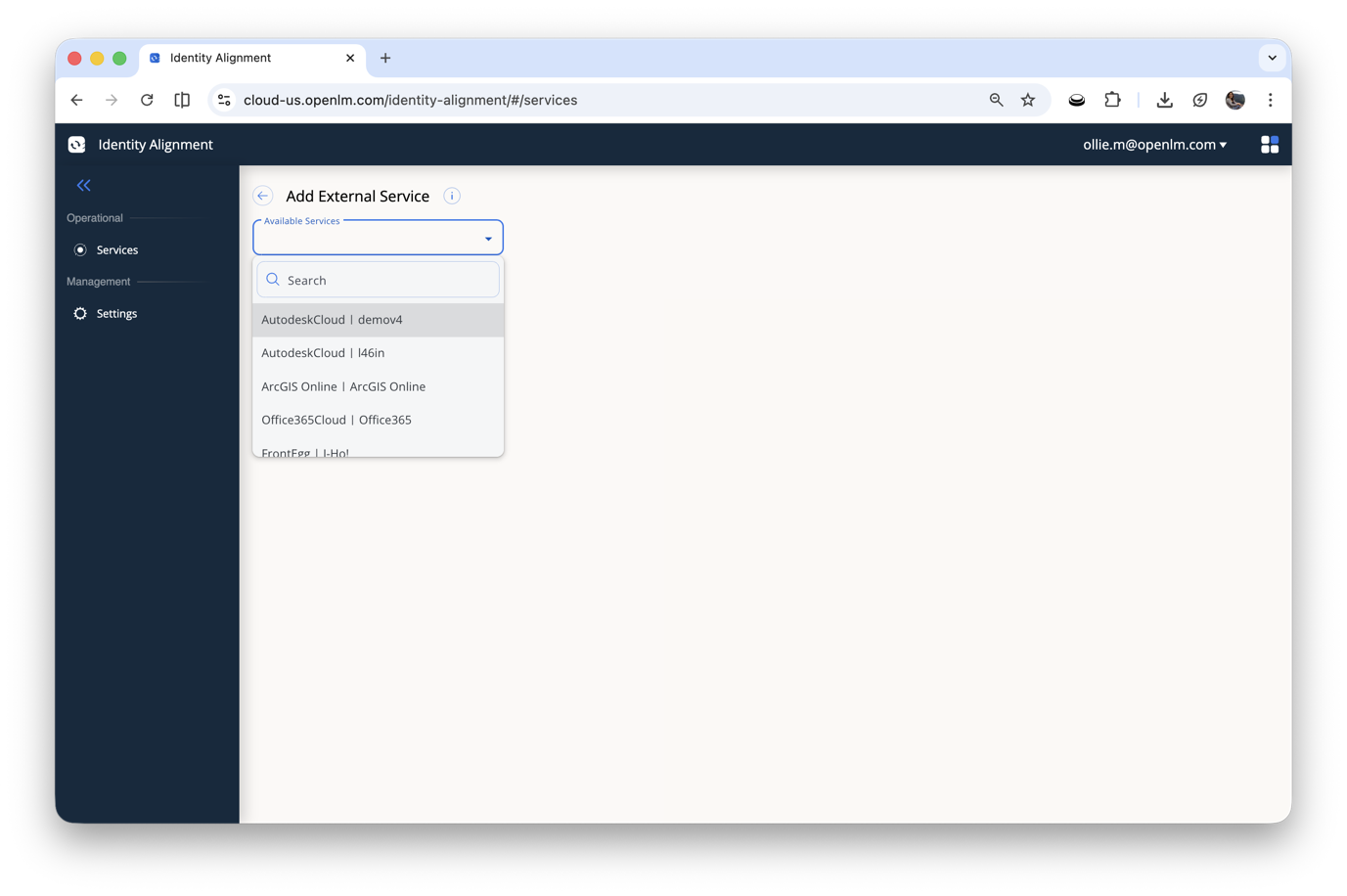 The Services dropdown lists all services available from Cloud Broker.
- Review the service details. The Account field displays the Cloud Broker configuration name for the selected service.
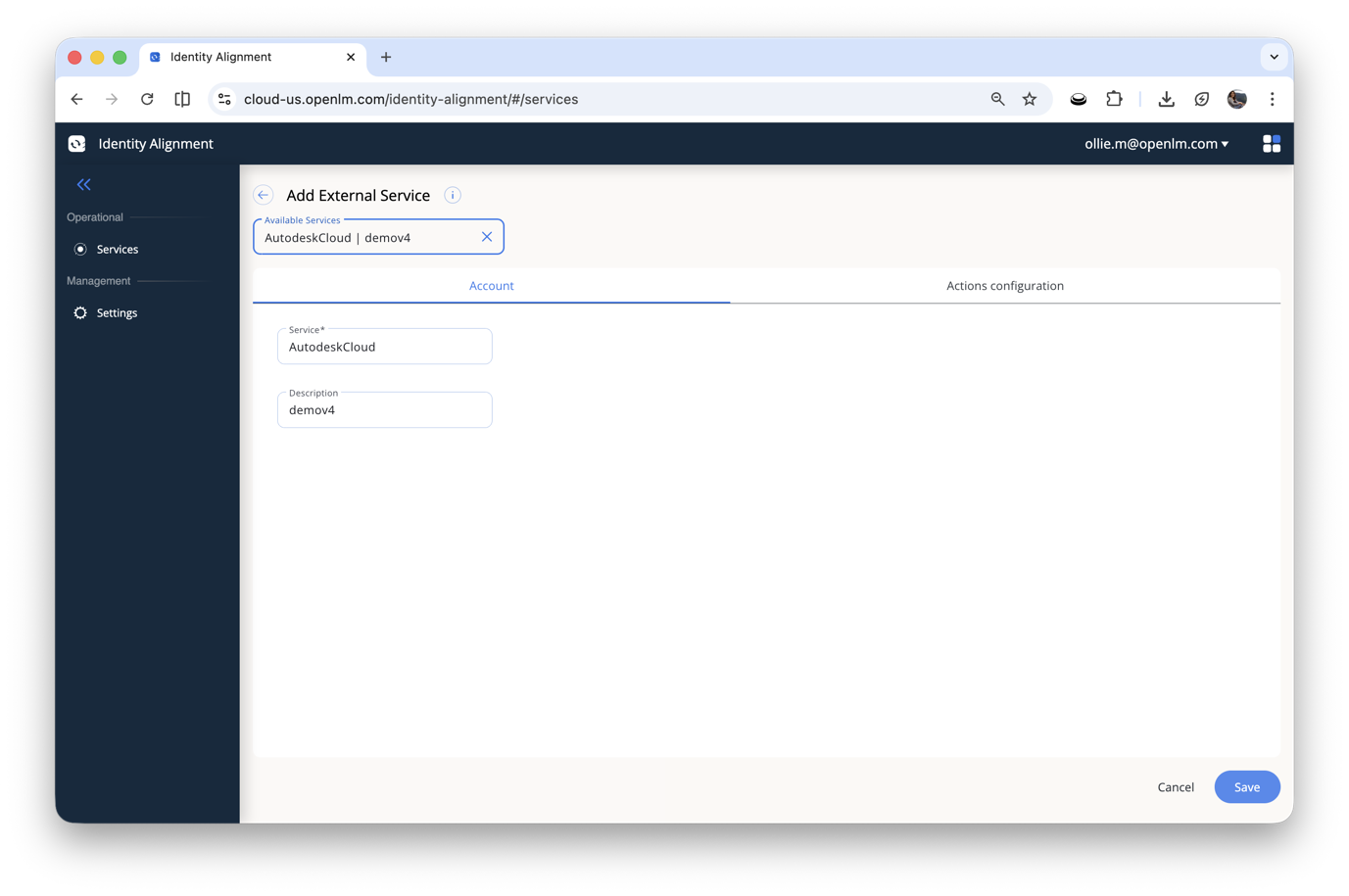 Service configuration showing the account name from Cloud Broker.
- Under Select the scenario of deleting, select one of the following options:
- Delete user without additional notification — Cloud Broker removes the user. If the user cannot be removed, the user is marked as "removed."
- Delete user and notify — Cloud Broker removes the user and Identity Alignment sends an email notification.
- Notify about user should be deleted — Identity Alignment sends a notification only. No automatic deletion occurs.
- (Optional) Enter a Custom email to override the default notification email for this service.
- (Optional) Enter a Custom ticketing system email to override the default ticketing email for this service.
- Select Save.
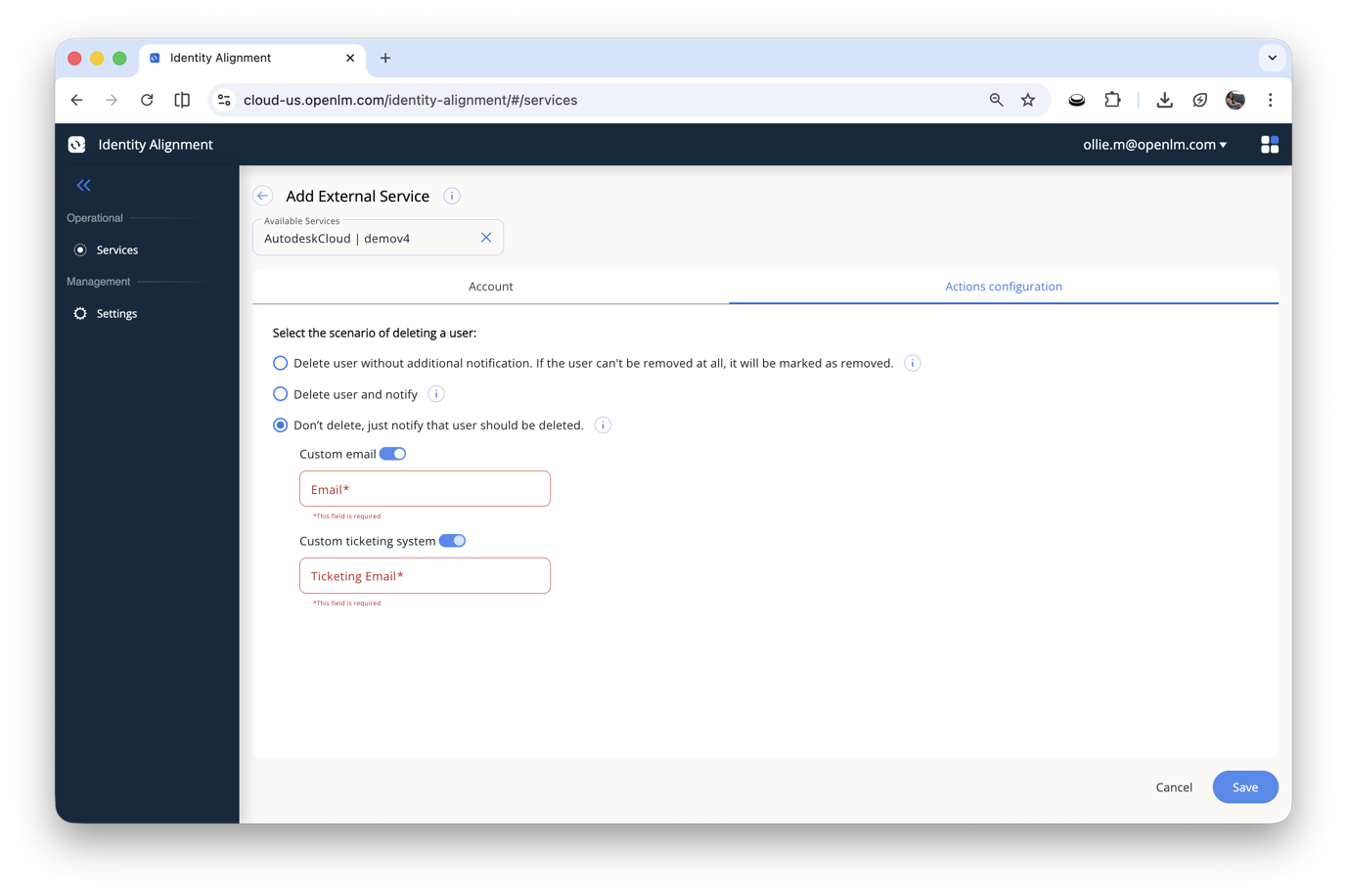 Deletion scenario options with optional custom email and ticketing email overrides.
Add a custom service
Custom services let you track user deprovisioning for platforms that are not natively supported by OpenLM, or when you prefer not to share API credentials.
Not all external platforms provide APIs that allow automatic user deletion. For these platforms, export users from the external service and upload the file to Identity Alignment for reference.
- Select Services in the left sidebar.
- Select Add Service.
- In the Services dropdown, select Custom.
- Upload a file (for example, CSV) that contains the list of users in your external service.
- Select Save.
When a user is deleted from Active Directory, Identity Alignment checks whether that user exists in the uploaded file. If a match is found, Identity Alignment sends a notification that the user must be removed from that service manually.
Custom services use the default notification settings configured on the Settings page. Per-service email overrides are not available for custom services.
Use custom services when:
- The external platform does not provide APIs for user management.
- The service is not supported by OpenLM Cloud Broker.
- You do not want to share credentials with OpenLM.
Service types
Identity Alignment supports two types of services.
Regular services
Regular services connect to external platforms through Cloud Broker. When a user is deleted from Active Directory, Identity Alignment instructs Cloud Broker to remove the user from the external service automatically.
You can add any service that is available in Cloud Broker, including:
- Autodesk Cloud
- Cloudflare
- GitLab
- Monday
- Office 365
Custom services
Custom services require a manually uploaded user list (for example, a CSV export). Identity Alignment does not connect to the external platform directly. Instead, it checks whether a deleted user exists in the uploaded file and sends a notification for manual removal.
Deletion scenarios
When you add a regular service, select one of the following deletion scenarios:
| Scenario | Behavior |
|---|---|
| Delete user without additional notification | Cloud Broker removes the user from the external service. If the user cannot be removed, the user is marked as "removed." No notification is sent. |
| Delete user and notify | Cloud Broker removes the user, and Identity Alignment sends an email confirmation of the deletion. |
| Notify about user should be deleted | Identity Alignment sends a notification only. No automatic deletion occurs. Use this when you want to review and confirm deletions manually. |
Error handling
If Cloud Broker fails to connect to an external service or encounters an error during the deletion process:
- Identity Alignment sends an email notification indicating that the delete action failed.
- The notification includes details from the Cloud Broker response to help you diagnose the issue.
Example: offboarding a departing employee
When an employee leaves your organization, you want to remove their access across all external platforms.
Scenario: John Doe leaves the company. He has accounts in Monday, GitLab, and a custom HR platform.
- An administrator deletes John Doe from Active Directory.
- DSS runs a sync cycle and detects the deletion.
- Identity Alignment receives the event and checks the configured services.
- For Monday and GitLab (configured as Delete and notify): Cloud Broker removes John Doe from both services. The administrator receives email confirmations.
- For the custom HR platform: The administrator receives a notification to remove John Doe manually.
Without Identity Alignment, the administrator would need to log in to each external platform individually and remove the user manually.
Troubleshooting
| Symptom | Likely cause | How to fix |
|---|---|---|
| User not removed from a regular service | Cloud Broker not configured or unreachable | Verify the service is configured in Cloud Broker with valid credentials. |
| No deletion events received | DSS not detecting deletions | Verify DSS is activated and sync cycles are completing. Confirm DSA is installed and connected to Active Directory. |
| No notifications received | Email settings not configured | Check the default notification email on the Settings page. |
| Custom service not matching users | Uploaded file is outdated or has a user name mismatch | Upload an updated file with current user data from the external service. |
| Service not appearing in the service list | Service not configured in Cloud Broker | Add the service in Cloud Broker first, then add it in Identity Alignment. |
| Deletion failed email received | Cloud Broker connection error | Review the error details in the email notification. Check Cloud Broker logs and verify the service credentials. |
| Missing dependencies warning on activation | Required services not activated | Activate DSS and other listed dependencies. The product service can activate them automatically. |
FAQ
Frequently asked questions about Identity Alignment
Does Identity Alignment create or update users in external services? No. Identity Alignment focuses exclusively on user removal. It does not create or update user accounts in external platforms.
Why only removal and not full synchronization? Customer feedback indicated that automatic user creation in external platforms can lead to higher licensing costs. Removing users when they leave the organization is the primary use case that provides clear cost savings without the risk of unintended account creation.
Does Identity Alignment delete users from the internal directory? No. Identity Alignment reacts to deletions that have already occurred in Active Directory. It removes users from external services, not from the directory itself.
Can I use Identity Alignment without Cloud Broker? For regular services, no. Cloud Broker handles the actual user removal from external platforms. For custom services, Cloud Broker is not required because Identity Alignment only sends notifications.
What happens if Cloud Broker fails during deletion? You receive an email notification indicating that Identity Alignment failed to run the delete action. The notification includes the error details from the Cloud Broker response.
Can I add a service that is not in the supported list? Yes. Use the custom service type and upload a file with your user list. You receive notifications to remove users manually.
Can I override notification emails for custom services? No. Custom services use the default notification settings configured on the Settings page. Per-service email overrides are available only for regular services.
What dependencies does Identity Alignment require? Identity Alignment requires DSS (Directory Sync Service) to be activated and DSA (Directory Sync Agent) to be installed. For regular services, Cloud Broker must be configured with the target service credentials. When you activate Identity Alignment, the product service displays any missing dependencies.
How often does DSS sync run? DSS sync frequency is configured in the DSS settings, not in Identity Alignment. Check your DSS configuration for the current schedule.