Altium License Manager
This integration allows OpenLM to monitor Altium License Manager for license usage, expirations, and denials.
Before you begin
- OpenLM Platform
- OpenLM Broker v25.x or higher installed on the same machine as Altium, and approve it in Broker Hub.
Monitoring capabilities
| Report resolution | License totals | License usage | Denials reporting | Borrowed license reporting | Expiration date reporting | Multiple server redundancy |
|---|---|---|---|---|---|---|
| By minute | Yes | Yes | No | No | Yes | No |
Configure OpenLM Broker
-
Open a web browser and go to http://localhost:5090 (or another configured port such as 5091, 5092).
-
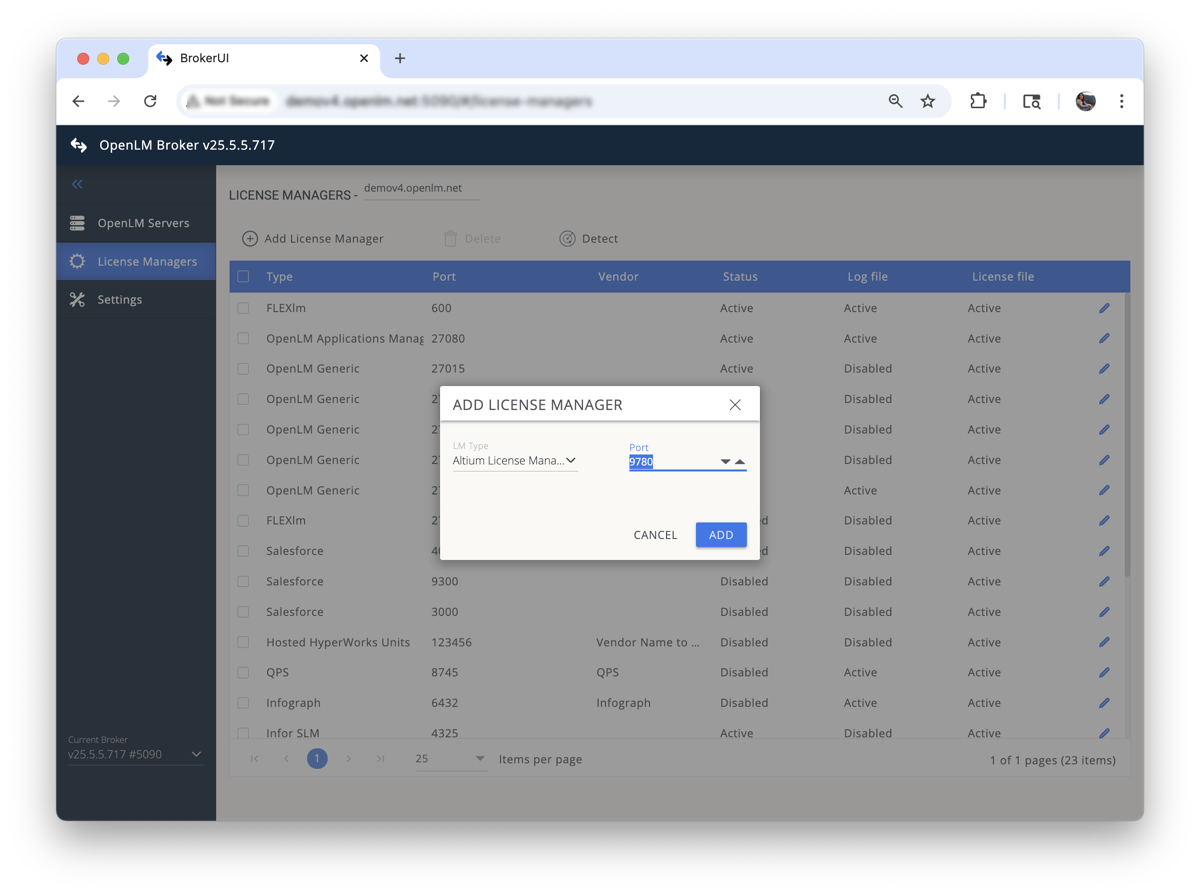
Go to the License Managers tab and select Add License Manager.
-
In the pop-up:
- Select Altium from the drop-down.
- Enter the port number (for example, 9780).
- Select Add.
 Commands tab
 -
In the Commands tab:
- Verify Data Inquiry is correctly set for your Altium instance.
- Edit the
altium@<port>file in C:\Program Files\OpenLM\OpenLM Broker\ and add the Altium username and password. - Save the file and return to the Broker interface.
- Select Execute to confirm valid data output.
-
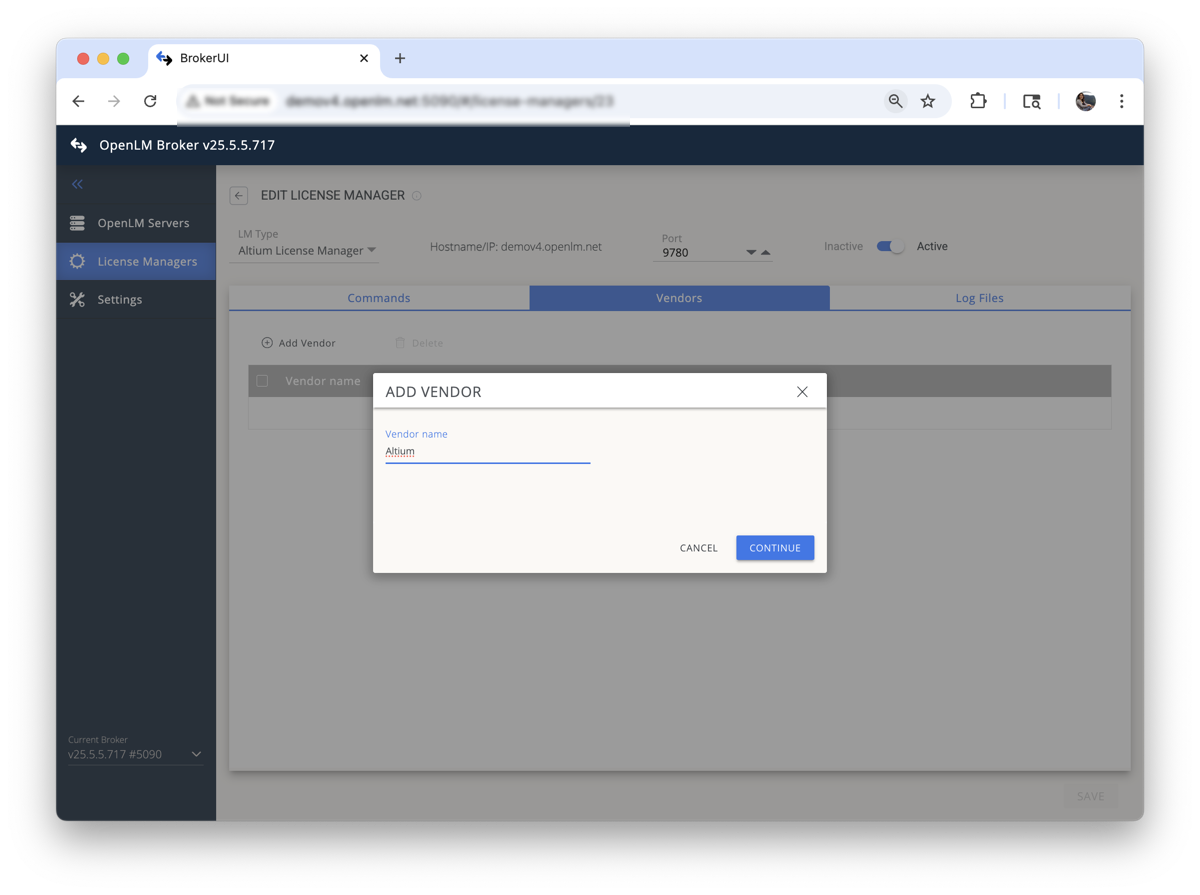
In the Vendors tab:
- Select Add Vendor.
- Enter Altium as the vendor name.
- Select Continue.
 Save action to complete Broker configuration
 -
Select Save to complete the Broker configuration.
Approve Altium License Manager in OpenLM Platform
- Sign in to OpenLM Platform.
- From the menu, go to License Servers → Pending Server.
- Select the Altium License Manager license manager, then select Approve and Merge.
Verify the integration
- In OpenLM Platform, go to License Servers Live → Server Statistics.
- Confirm Altium License Manager appears with a green status indicator.
note
It can take up to 3 minutes for the status to update for a new connection.