ArcGIS Online
OpenLM connects to ArcGIS Online to retrieve license quantities and usage data.
Before you begin
- OpenLM Platform.
- OpenLM Broker v25.x or later, installed and approved in Broker Hub.
- ArcGIS Online administrator credentials.
OpenLM cannot monitor ArcGIS Online accounts that have two-factor authentication (2FA) enabled. Disable 2FA on the monitoring account before you continue.
Add ArcGIS Online to OpenLM
-
In OpenLM Platform, go to License Manager Servers.
-
Select Add LM.
-
Enter a descriptive Display Name.
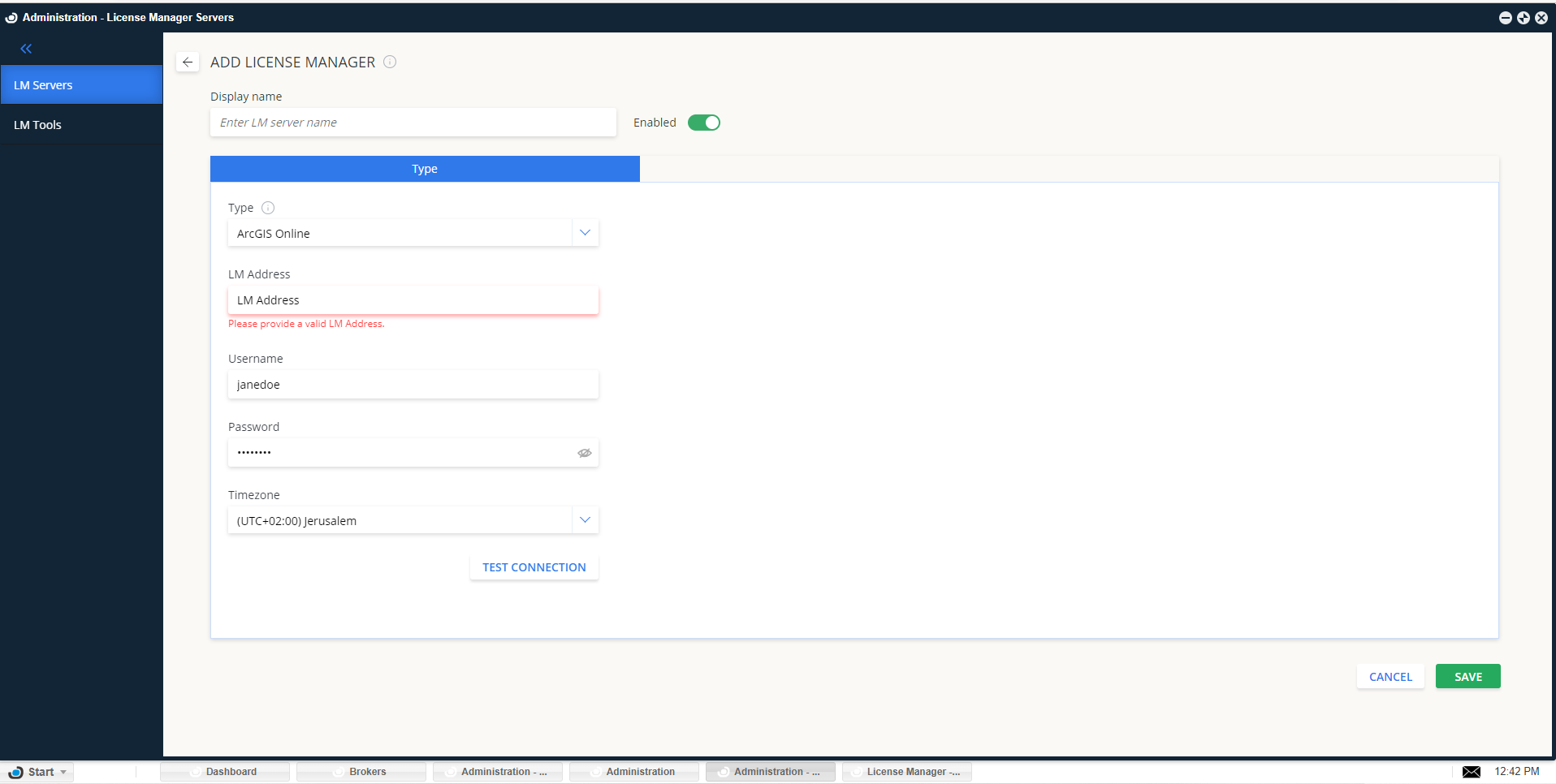 Enter a descriptive Display Name
 -
From Type, select ArcGIS Online.
-
In LM Address, enter
https://www.arcgis.com. -
Enter the ArcGIS Online administrator username and password.
-
Select the license manager's time zone.
-
Select Test Connection and confirm the test passes.
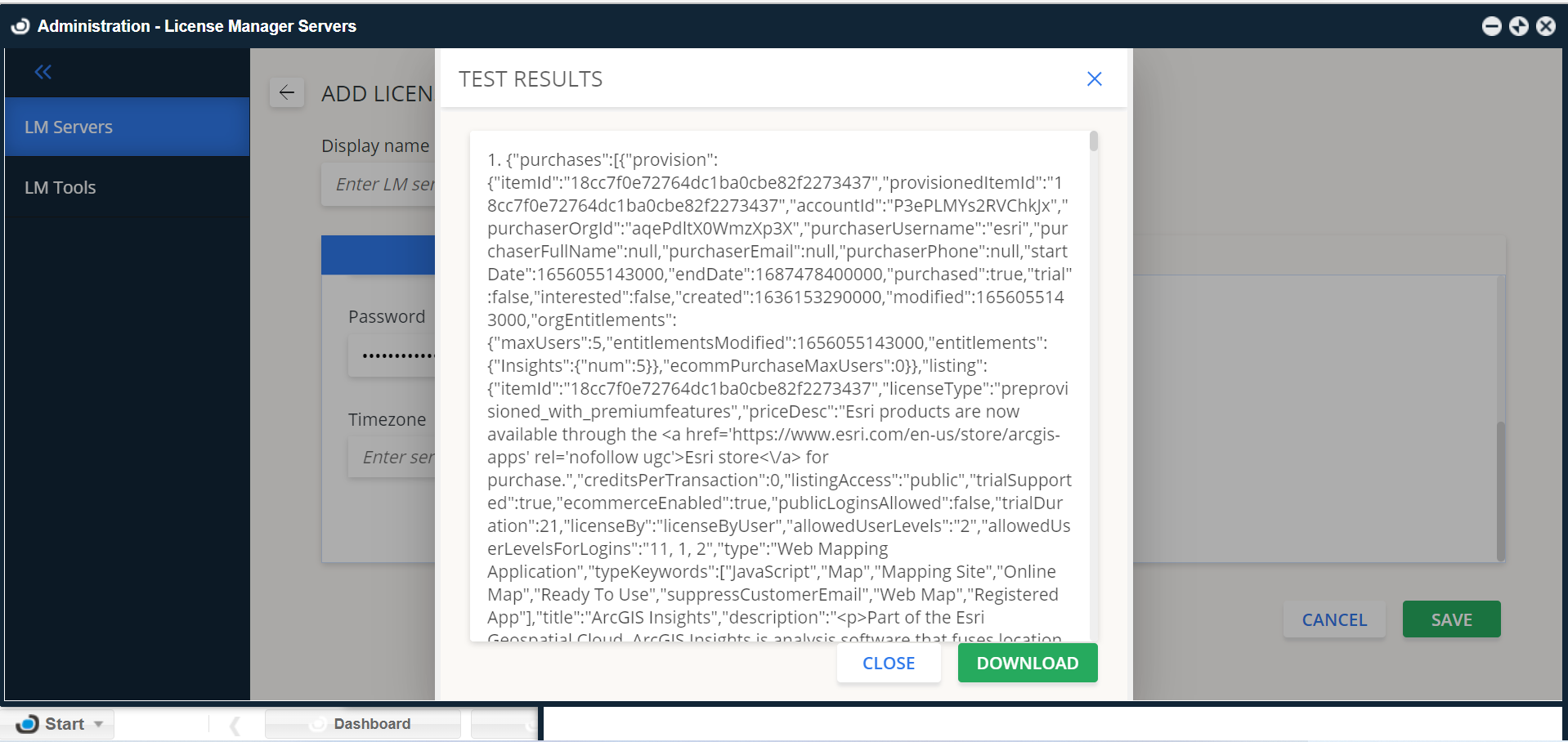 Successful connection
 -
Select Save.
License usage and allocation data appears in OpenLM reports within a few minutes.
Approve ArcGIS Online in OpenLM Platform
- Sign in to OpenLM Platform.
- From the menu, go to License Servers → Pending Server.
- Select the ArcGIS Online license manager, then select Approve and Merge.
Verify the integration
- In OpenLM Platform, go to License Servers Live → Server Statistics.
- Confirm ArcGIS Online appears with a green status indicator.
It can take up to 3 minutes for the status to update for a new connection.