ESPRIT
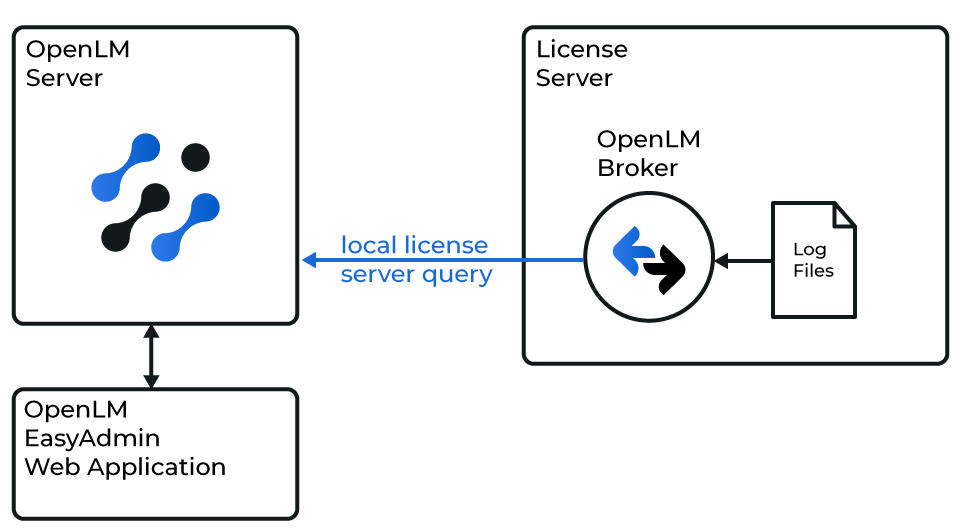 Diagram of how OpenLM Broker interfaces with ESPRIT License Manager and OpenLM Server
Before you begin
- OpenLM Platform
- OpenLM Broker v25.x or higher installed on the same machine as ESPRIT, and approve it in Broker Hub.
Configure OpenLM Broker
-
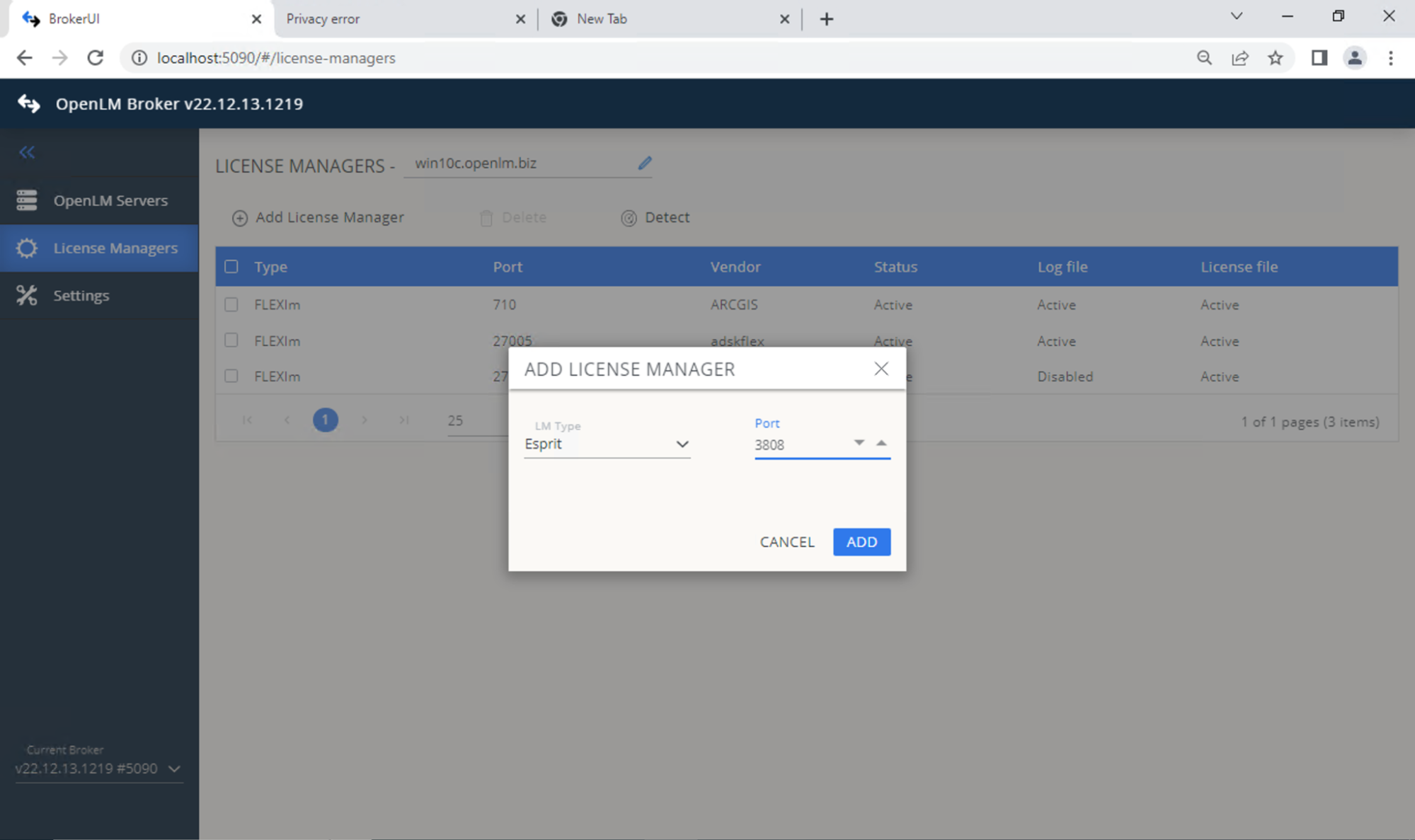
Open OpenLM Broker Web UI → License Managers tab (http://localhost:5090/#/license-managers).
-
Select Add License Manager.
-
Enter any port number and select ESPRIT as the license manager type.
 In the Settings tab, set the license file path:
- Auto-detect
- Or set manually → Continue
-
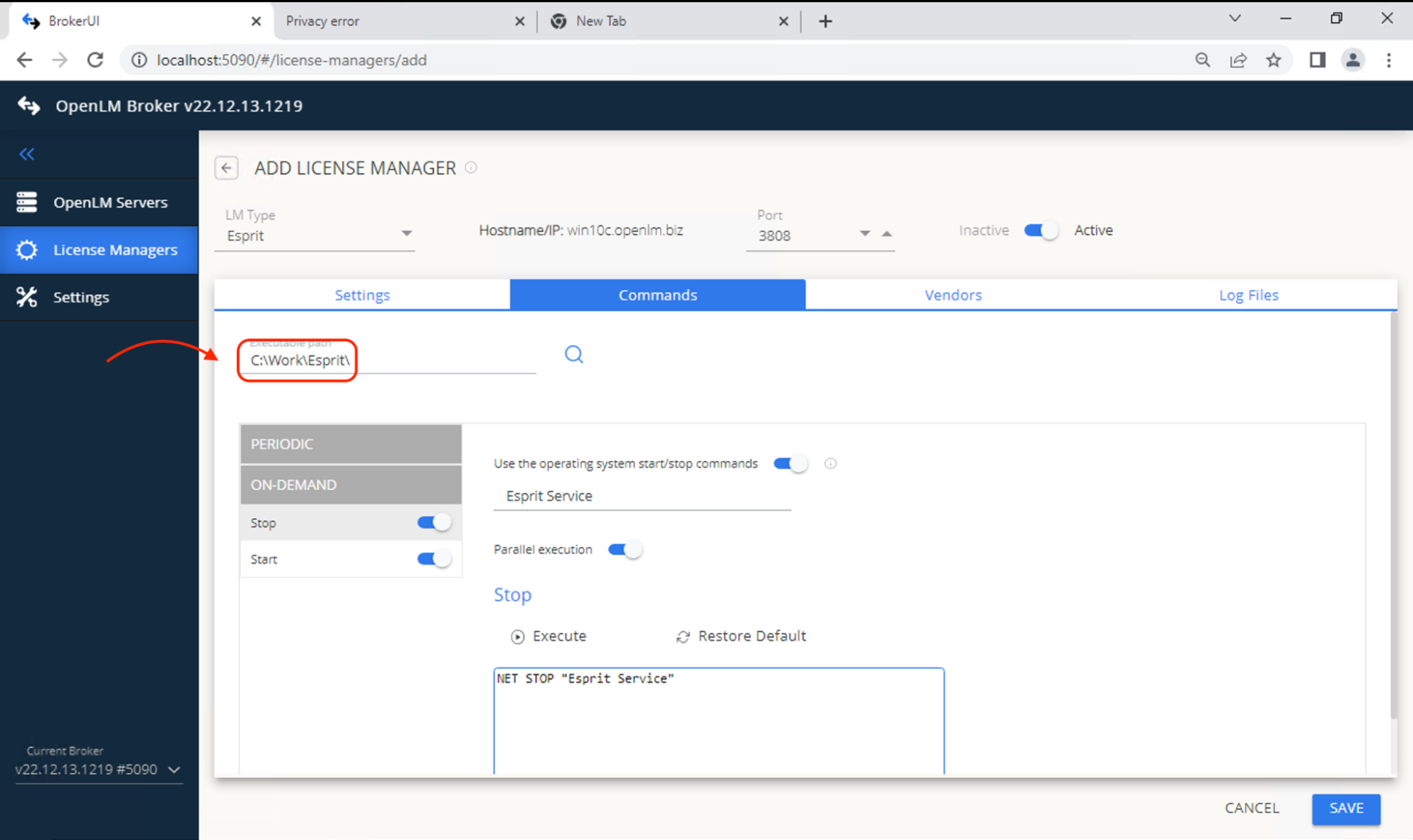
Go to Commands tab and set the ESPRIT executable path.
 Go to Vendors tab → Add Vendor. Enter a descriptive name.
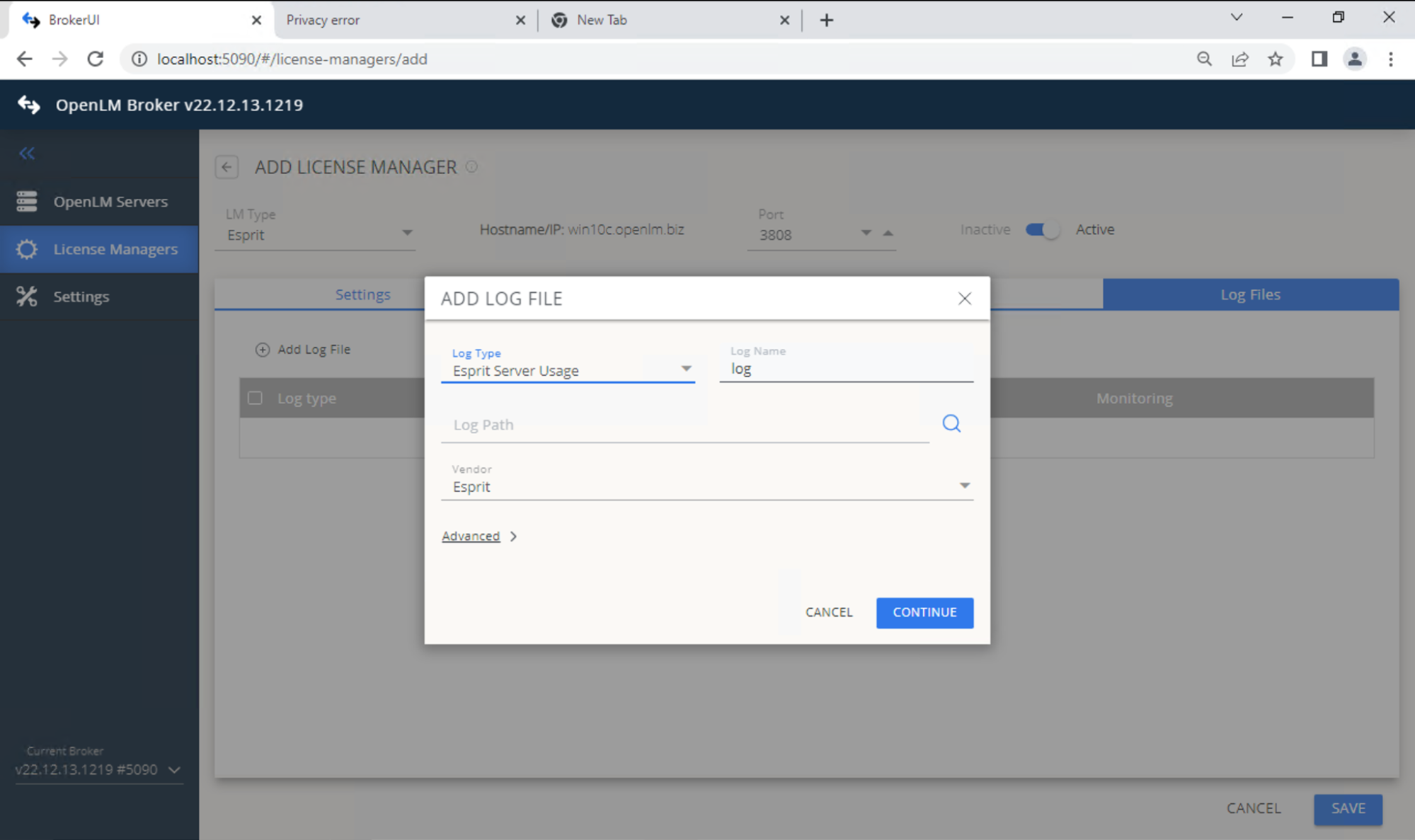
 Go to Log File tab → Add Log File. Configure:
- Type: ESPRIT Server Usage
- Log (Descriptive): name to identify the log
- Path: DptSecLogServerUsage.txt (in ESPRIT logs folder)
Vendor: select vendor from previous step
 Save configuration.
 -
Open OpenLM Web Interface (http://SERVER_IP:5015).
-
Approve the ESPRIT License Manager entry in License Managers Pending Approval.
Approve ESPRIT in OpenLM Platform
- Sign in to OpenLM Platform.
- From the menu, go to License Servers → Pending Server.
- Select the ESPRIT license manager, then select Approve and Merge.
Verify the integration
- In OpenLM Platform, go to License Servers Live → Server Statistics.
- Confirm ESPRIT appears with a green status indicator.
note
It can take up to 3 minutes for the status to update for a new connection.