IPG Lock
Follow these steps to configure OpenLM to monitor license usage and retrieve statistics from the IPGLock license manager.
Before you begin
- OpenLM Platform
- OpenLM Broker v25.x or higher installed on the same machine as IPGLock, and approve it in Broker Hub.
Monitoring capabilities
The current monitoring capabilities for IPGLock through OpenLM Broker are:
| Report resolution | License totals | License usage | Denials reporting | Borrowed license reporting | Expiration date reporting | Multiple server redundancy |
|---|---|---|---|---|---|---|
| By second | Yes | Yes | Yes | No | Yes | No |
Configure OpenLM Broker
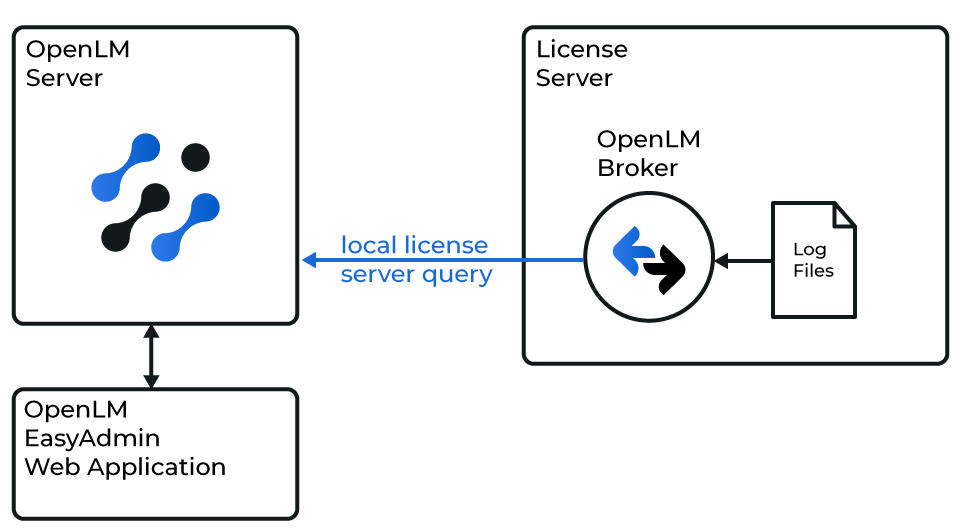 Diagram of how OpenLM interfaces with the IPGLock license manager
Install and configure OpenLM Broker before starting these steps.
Manual configuration (Broker web UI)
-
Open Broker UI at http://localhost:5090/.
-
Go to License Managers → Add License Manager.
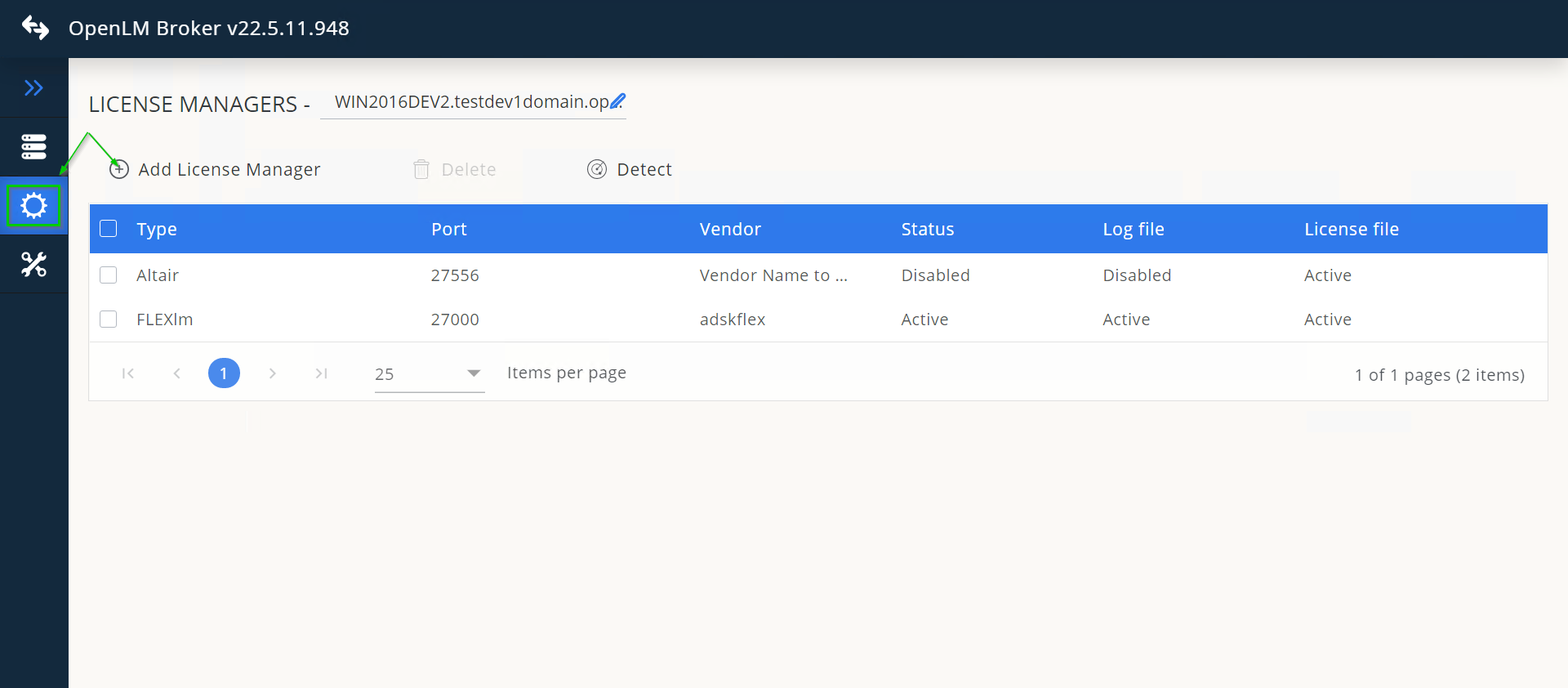 Select IPGLock, enter the port number, and select Add.
 In the Commands tab, confirm the Service Name is correct and select Execute to verify the Telnet command works.
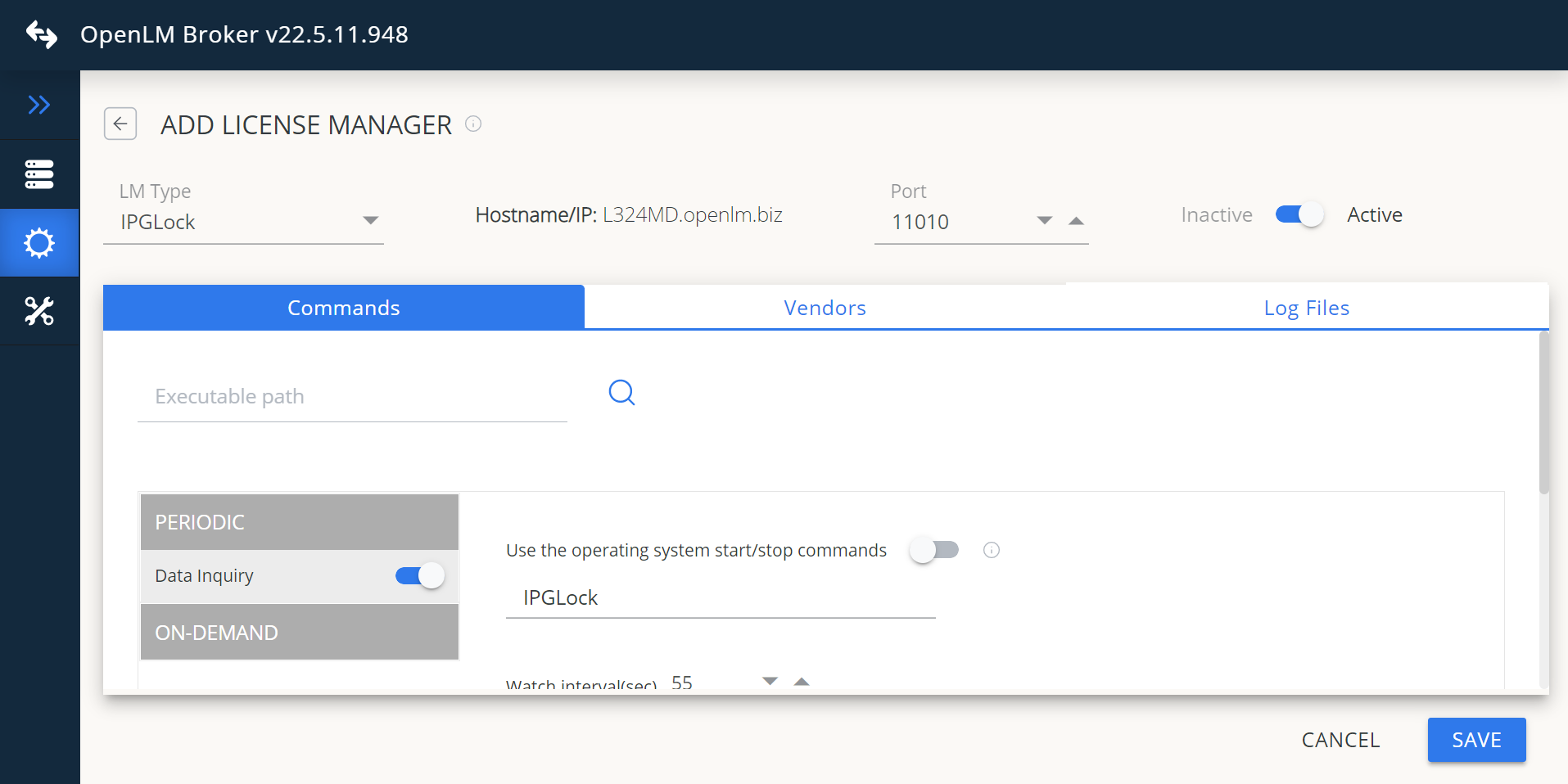 Go to the Vendors tab → Add Vendor, enter IPGLock, and select Continue.
 Go to the Log Files tab, browse to the IPGLock log file, and select Continue.
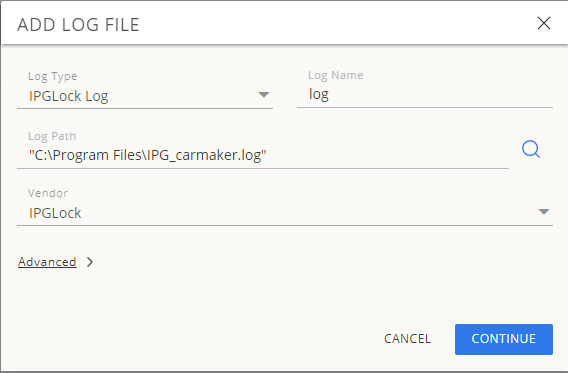 Select Save.
Approve IPG Lock in OpenLM Platform
- Sign in to OpenLM Platform.
- From the menu, go to License Servers → Pending Server.
- Select the IPG Lock license manager, then select Approve and Merge.
Verify the integration
- In OpenLM Platform, go to License Servers Live → Server Statistics.
- Confirm IPG Lock appears with a green status indicator.
It can take up to 3 minutes for the status to update for a new connection.