Salesforce
Follow these steps to configure OpenLM to monitor license usage and retrieve statistics from Salesforce.
Before you begin
Before starting, make sure you have:
- OpenLM Platform
- OpenLM Broker v25.x or higher installed on the same machine as Salesforce, and approve it in Broker Hub.
-
A Salesforce account
-
Salesforce API credentials (Consumer Key and Consumer Secret) generated through a Connected AppRefer to Salesforce's official guide:How to generate Consumer Key and Consumer Secret of a Connected App - Salesforce
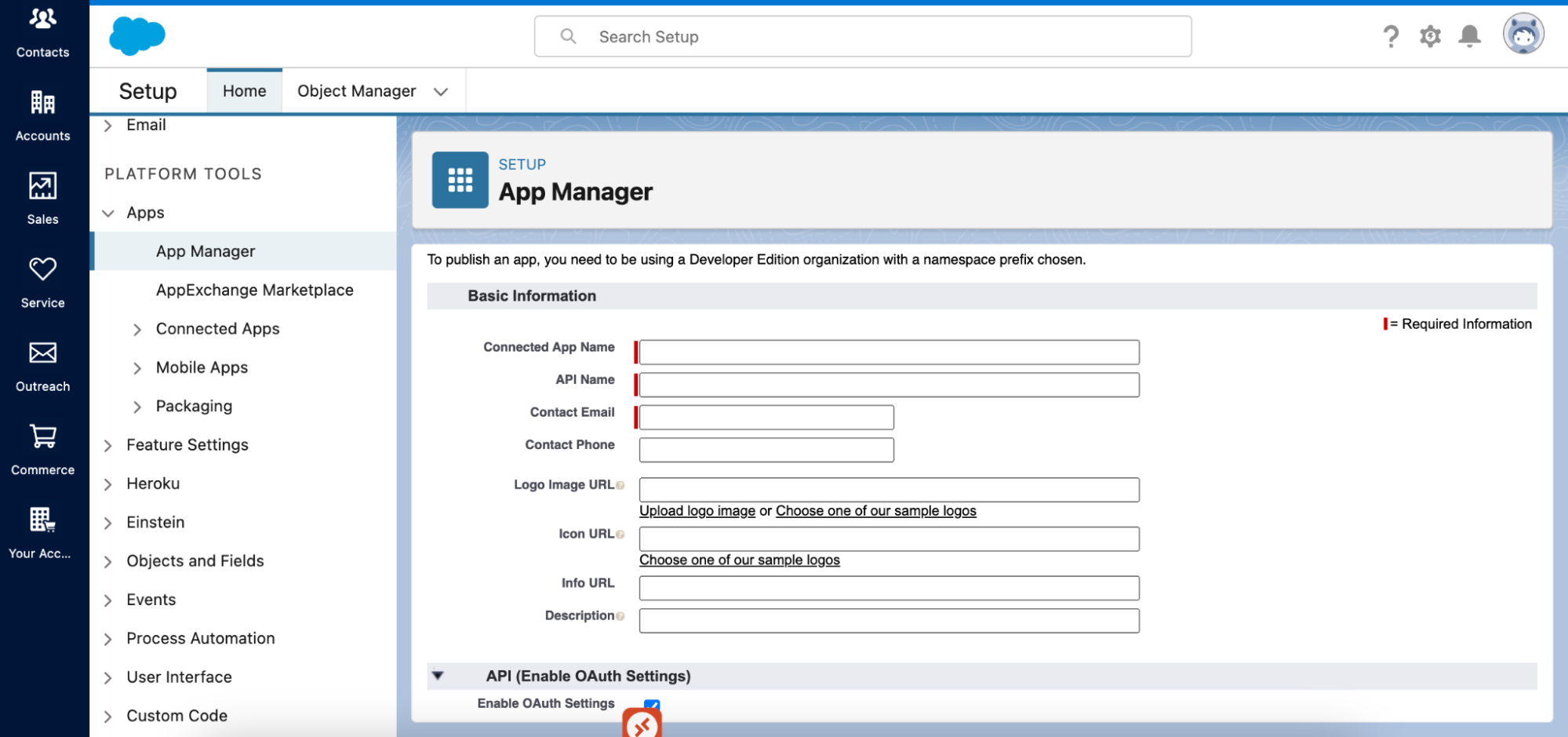 Enable the API OAuth setting and select Full OAuth scope when creating the Connected App. After setup, access Manage Consumer Details to retrieve and save your Consumer Key and Consumer Secret.
Activate the API OAuth setting and select Full OAuth scope when creating the Connected App. After setup, access Manage Consumer Details to retrieve and save your Consumer Key and Consumer Secret.
 Monitoring capabilities
Item Value LM Type in the Broker Salesforce License totals Yes License usage Yes Denials No Borrowing No Expiration date Yes Redundancy No Report resolution Depends on API polling Using the Broker also allows buffered communication and allows remote start and stop of the license manager service.
Configure OpenLM Broker
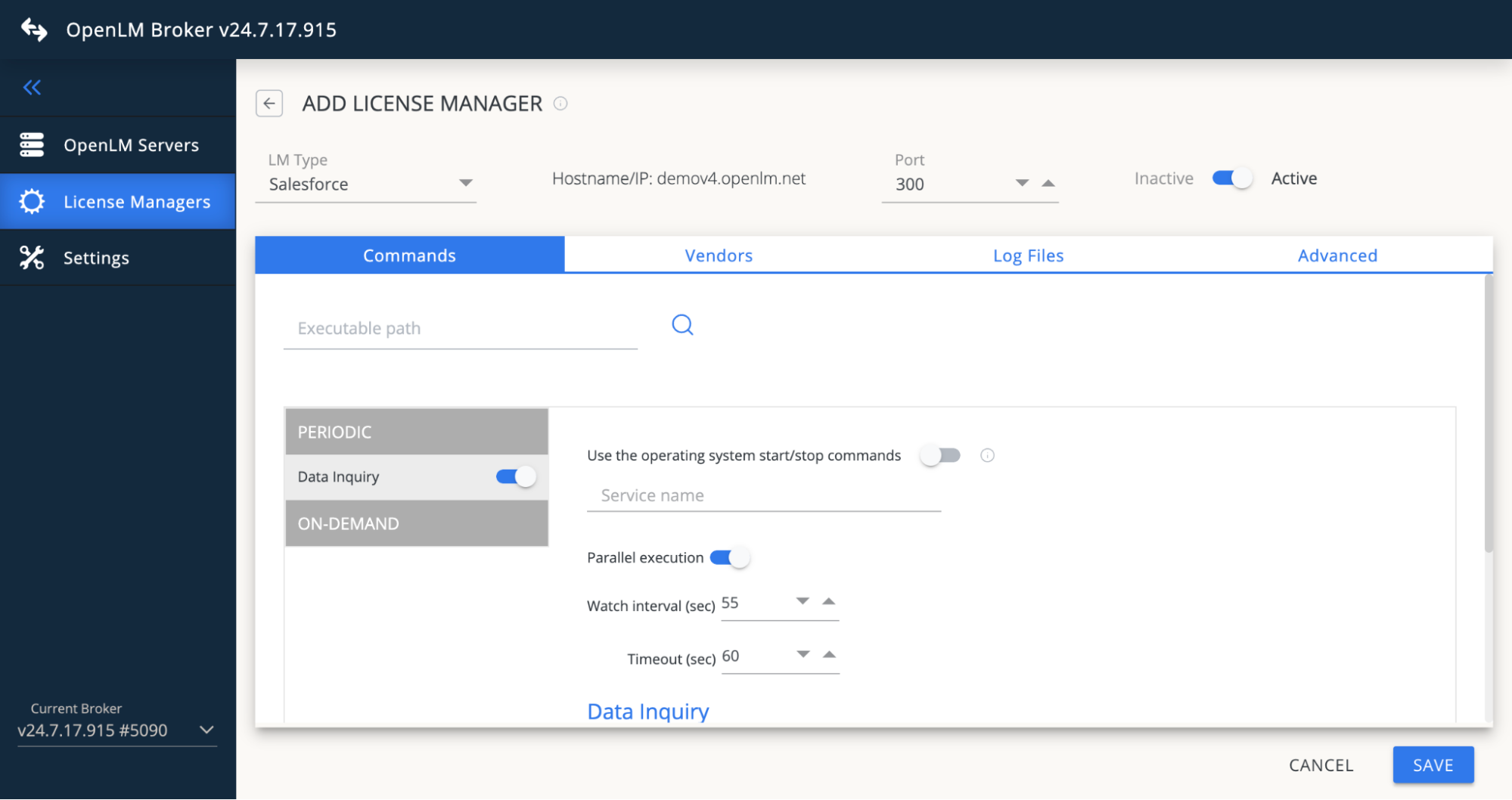 Diagram of how OpenLM interfaces with Salesforce
OpenLM Broker must be installed and configured to report to OpenLM before proceeding.
Add manually
-
Open the Broker web UI at http://localhost:5090. If the default port is in use, try 5091 or 5092.
-
Go to License Managers → Add License Manager.
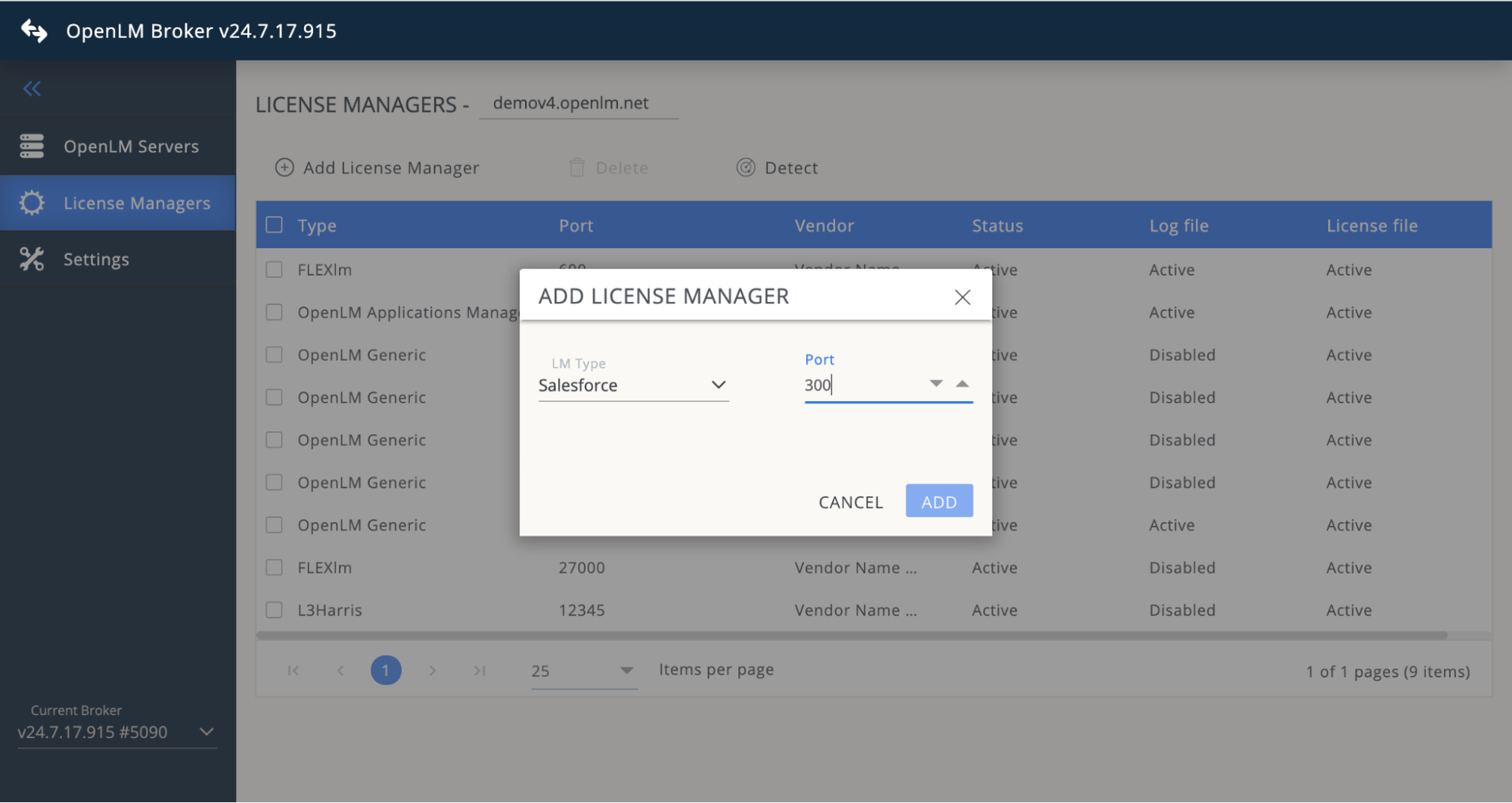 From the drop-down list, select Salesforce, enter any port number (required for setup even if unused), and select Add.
 -
Go to Vendors and optionally add Salesforce as the vendor.
-
Open the Advanced tab, select the Edit (pen) icon, and fill in:
- clientId = Salesforce Consumer Key
- clientSecret = Salesforce Consumer Secret
- username = Salesforce username
- password = Salesforce password
-
Select Save.
Approve Salesforce in OpenLM Platform
- Sign in to OpenLM Platform.
- From the menu, go to License Servers → Pending Server.
- Select the Salesforce license manager, then select Approve and Merge.
Verify the integration
- In OpenLM Platform, go to License Servers Live → Server Statistics.
- Confirm Salesforce appears with a green status indicator.
It can take up to 3 minutes for the status to update for a new connection.