Sentinel RMS
This guide explains how to configure OpenLM with Sentinel RMS to monitor license usage and generate license statistics.
Before you begin
To query Sentinel RMS:
-
OpenLM Platform
-
OpenLM Broker v25.x or higher installed on the same machine as Sentinel RMS, and approve it in Broker Hub.
Monitoring capabilities
Monitoring features depend on whether you use OpenLM Server alone or together with OpenLM Broker.
| Report resolution | License totals | License usage | Denials reporting | Borrowed license reporting | Expiration date reporting | Multiple server redundancy |
|---|---|---|---|---|---|---|
| By second | Yes | Yes | Yes | Yes | Yes | No |
-
Yellow cells: Features available with OpenLM Server.
-
Blue cells: Extra features available with OpenLM Server + Broker.
Using Broker also allows buffered communication and remote start/stop of the license manager service.
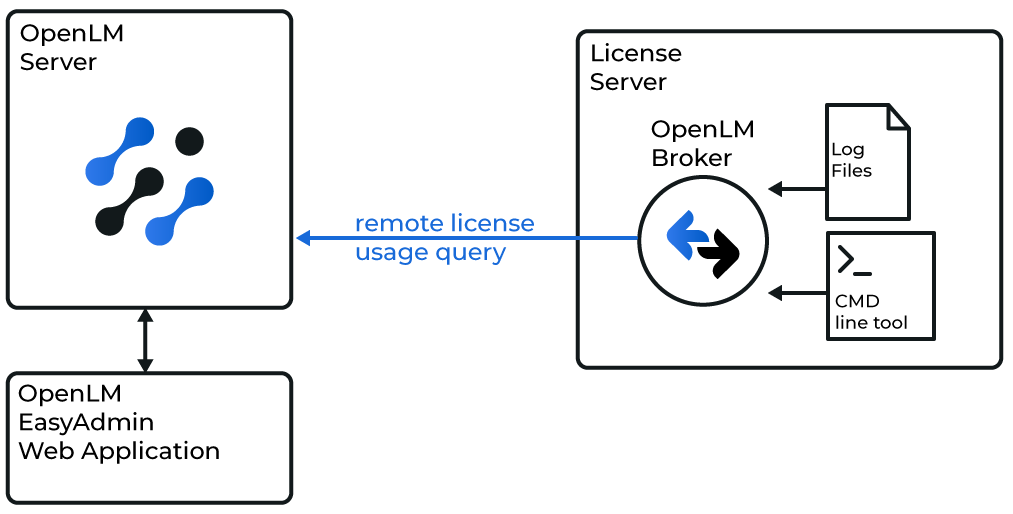 Diagram of OpenLM Broker querying Sentinel RMS locally
When Broker queries Sentinel RMS locally using RMS command-line utilities and log files, you gain full monitoring capabilities. Broker then forwards the data to OpenLM Server.
You must install and configure OpenLM Broker before continuing. See the Broker installation guide and the Broker configuration guide.
Automatic Broker configuration
-
Open Broker UI at http://localhost:5090/.
-
Go to License Managers → Detect
-
Sentinel RMS appears
-
Validate and save
Broker UI configuration
Alternatively, configure through the Broker UI in your browser:
-
Open Broker UI at http://localhost:5090/.
-
Go to License Manager → Add License Manager.
-
Select RMS, enter port, and add.
-
Check the executable path.
-
(Windows only) Set service to Sentinel RMS License Manager.
-
Run data_inquiry and verify output.
-
Add vendor information if required.
-
Configure Log Files for RMS usage logs.
-
Save changes.
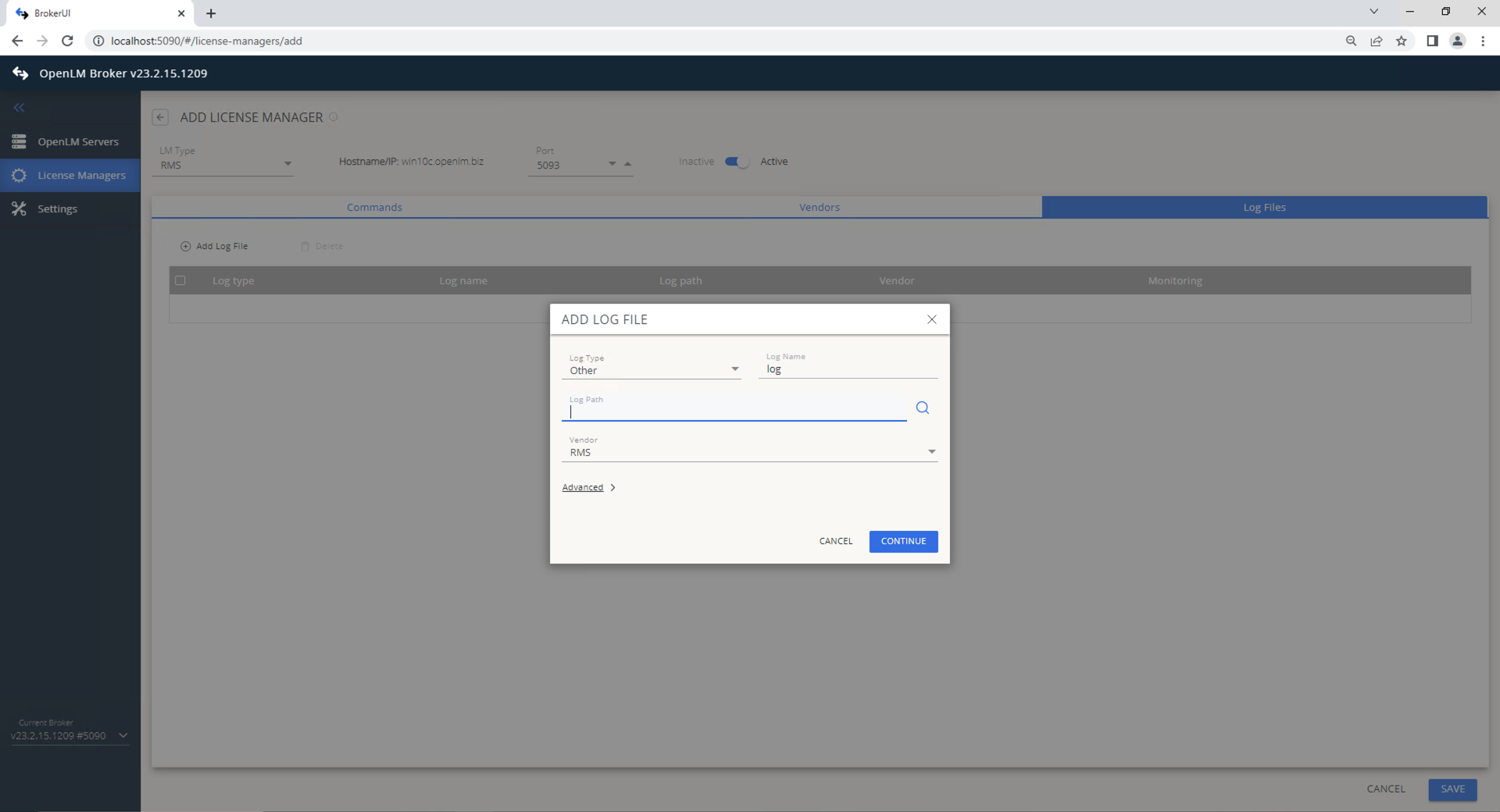 Broker UI settings for RMS
Activate token calculations
-
Back up
appsettings.json. -
Open the file (default location:
C:\Program Files\OpenLM\OpenLM Server\bin). -
Locate the following section:
},"AspenTokens": {"AspenTechTokensFile": "../config/aspen_tokens_breakdown.json","EnableTokenCalculations": false} -
Change
EnableTokenCalculationstotrue:},"AspenTokens": {"AspenTechTokensFile": "../config/aspen_tokens_breakdown.json","EnableTokenCalculations": true} -
Save the file.
-
Restart OpenLM Server:
net stop "OpenLM Server"net start "OpenLM Server" -
Verify in OpenLM Server that token calculations are activated.
Approve Sentinel RMS in OpenLM Platform
- Sign in to OpenLM Platform.
- From the menu, go to License Servers → Pending Server.
- Select the Sentinel RMS license manager, then select Approve and Merge.
Verify the integration
- In OpenLM Platform, go to License Servers Live → Server Statistics.
- Confirm Sentinel RMS appears with a green status indicator.
It can take up to 3 minutes for the status to update for a new connection.