SlickEdit
SlickEdit is a cross-platform, multi-language source code and text editor. It provides various coding tools and time-saving programming features. SlickEdit 2014 supports over 40 languages across 9 different platforms.
Usage of SlickEdit is licensed and managed by a proprietary license manager. This guide explains how to configure OpenLM to monitor the SlickEdit license manager, track license usage, and collect license statistics.
Before you begin
- OpenLM Platform
- OpenLM Broker v25.x or higher installed on the same machine as SlickEdit, and approve it in Broker Hub.
Configure OpenLM Broker
-
Open Broker UI at http://localhost:5090/.
-
Go to License Managers → Add License Manager.
-
Download and install the latest OpenLM Broker version from the Downloads page.
-
In Broker, select the license manager node. Select Add Port if Auto-Detect did not find SlickEdit.
-
Configure Broker to monitor the SlickEdit license server (for example, slickedit_license_server) on port 27100.
-
Set the vendor name to SlickEdit.
-
In the Commands node, enter the full path to the selicutil.exe executable. Select Update and Apply.
-
Set the SlickEdit commands for Status and Data_inquiry as shown in the following image, replacing
<fullpath>with the actual path to selicutil.exe. -
Configuring Broker commands for SlickEdit.
- Select Restart Broker.
- You can also configure Broker through the Broker web UI.
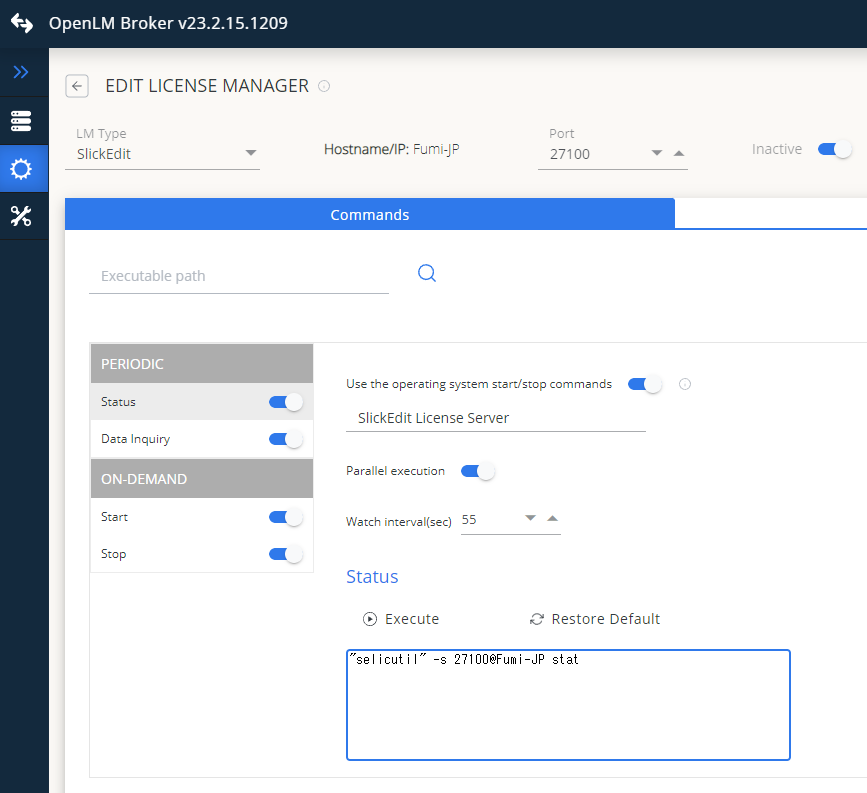 Configuring SlickEdit in Broker web UI.
Approve SlickEdit in OpenLM Platform
- Sign in to OpenLM Platform.
- From the menu, go to License Servers → Pending Server.
- Select the SlickEdit license manager, then select Approve and Merge.
Verify the integration
- In OpenLM Platform, go to License Servers Live → Server Statistics.
- Confirm SlickEdit appears with a green status indicator.
It can take up to 3 minutes for the status to update for a new connection.