Atlas MongoDB
Atlas MongoDB is a cloud-based database service for modern applications. It provides a flexible, scalable, and secure way to manage data. Organizations monitor Atlas MongoDB usage to manage data storage costs, optimize database performance, and ensure compliance.
Before you begin
To begin monitoring Atlas MongoDB, ensure you have the following components and permissions in place:
- OpenLM components: OpenLM Cloud Broker, approved in Broker Hub.
- Platform-specific Requirements: You'll need administrative access to your MongoDB Atlas account to generate a public and private API key with the necessary read permissions for cluster and usage data.
Configure data collection
- Follow these step-by-step instructions to set up data collection for Atlas MongoDB in OpenLM Cloud Broker:
- In Atlas, go to the Organization Access Manager page.
- If it's not already displayed, select your desired organization from the Organizations menu in the navigation bar.
- Select Organization Access from the Access Manager menu in the navigation bar.
- Select Access Manager in the sidebar.
- The Organization Access Manager page displays.
- Select Add new Service Account.
- Enter the service account information.
- Enter a Name.
- Enter a Description.
- Select a duration from the Client Secret Expiration menu.
- From the Organization Permissions menu, select the new role or roles for the service account.
- Select Create.
- Copy and save the Client Secret
- Add an API Access List Entry.
- Select Add Access List Entry.
- Enter an IP address or CIDR block from which you want Atlas to accept API requests for this service account.
- You can also select Use Current IP Address if the host you are using to access Atlas will also make API requests using this service account.
- Select Save.
Add Credentials: In the OpenLM Cloud Broker dashboard, find the Atlas MongoDB integration and enter your Organization ID, Public Key and Private Key.
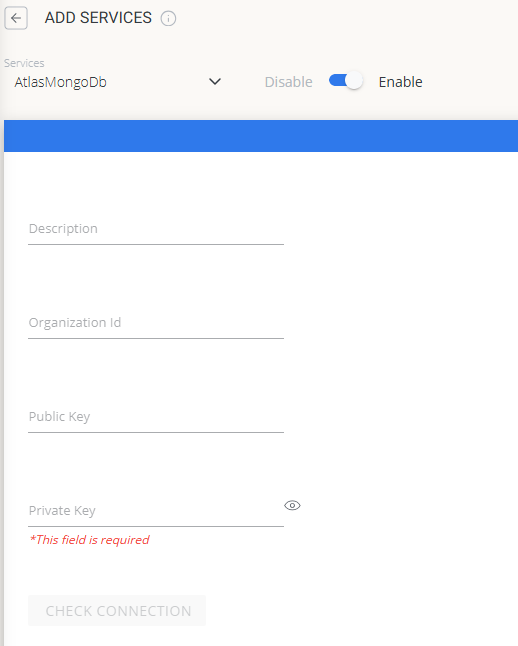 Atlas MongoDB credential configuration in Cloud Broker
Verify Connection: Test the connection to ensure that OpenLM can successfully retrieve data.
Approve in OpenLM: Approve the new data source within the License Servers section.
See Data: Usage data for Atlas MongoDB will now be visible in the OpenLM Allocation service.
Approve Atlas MongoDB in OpenLM Platform
- Sign in to OpenLM Platform.
- From the menu, go to License Servers → Pending Server.
- Select the Atlas MongoDB data source, then select Approve and Merge.
Verify the integration
- In OpenLM Platform, go to Allocation.
- Confirm Atlas MongoDB usage data appears.
It can take up to 3 minutes for data to appear after approval.
Viewing reports
- User activity trends — see which users are most active in the platform; reallocate seats accordingly.
- Expired or unused licenses — identify inactive users and reclaim their seats.