GitLab
OpenLM monitors GitLab seat usage and license assignments through OpenLM Cloud Broker.
Before you begin
- An active OpenLM Platform tenant.
- OpenLM Cloud Broker, approved in Broker Hub.
- A GitLab Owner, Maintainer, or instance Administrator account that can issue a personal access token.
Generate the GitLab personal access token
- Sign in to GitLab as a user with permission to issue tokens (Owner, Maintainer, or instance Administrator).
- Go to your avatar in the top-right corner and select Edit profile.
- In the left sidebar, select Access tokens.
- Select Add new token.
- Enter a token name and (optional) expiration date.
- Grant the token at least the
read_apiandread_userscopes so OpenLM Cloud Broker can read seat and user data. - Select Create personal access token.
- Copy the token and store it securely — GitLab shows the token value only once.
tip
For self-managed GitLab, the token UI lives at https://<your-gitlab-host>/-/user_settings/personal_access_tokens. For GitLab.com, use https://gitlab.com/-/user_settings/personal_access_tokens.
Add the credential in OpenLM Cloud Broker
-
Open the OpenLM Cloud Broker dashboard.
-
Locate the GitLab integration.
-
Enter the following values:
- GitLab host URL (for example,
https://gitlab.comor your self-managed URL) - Personal access token
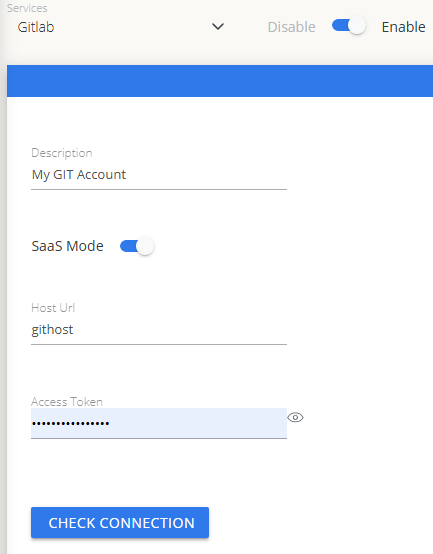 GitLab credential configuration in Cloud Broker
 - GitLab host URL (for example,
-
Select Test connection and confirm the test passes.
-
Select Save.
Approve GitLab in OpenLM Platform
- Sign in to OpenLM Platform.
- From the menu, go to License Servers → Pending Server.
- Select the GitLab data source, then select Approve and Merge.
Verify the integration
- In OpenLM Platform, go to Allocation.
- Confirm GitLab usage data appears.
note
It can take up to 3 minutes for data to appear after approval.
Approve GitLab in OpenLM Platform
- Sign in to OpenLM Platform.
- From the menu, go to License Servers → Pending Server.
- Select the GitLab data source, then select Approve and Merge.
Verify the integration
- In OpenLM Platform, go to Allocation.
- Confirm GitLab usage data appears.
note
It can take up to 3 minutes for data to appear after approval.
Viewing reports
- User activity trends — see which users are most active in the platform; reallocate seats accordingly.
- Expired or unused licenses — identify inactive users and reclaim their seats.