Humaans
Humaans is a modern HR platform that helps companies with employee data management, onboarding, and reporting. It's designed to provide a centralized hub for all HR-related information.
Before you begin
To begin monitoring Humaans, ensure you have the following components and permissions in place:
- OpenLM components: OpenLM Cloud Broker, approved in Broker Hub.
- Platform-specific Requirements: You'll need administrative access to your Humaans account to generate an API token with the necessary read permissions.
Configure data collection
- Log into the platform
- From the sidebar, select the three dots to extend the drop-down menu. Then select "API access tokens."
- Create or edit an existing API Key
- If you have an existing API key, you can use the edit button to update the scopes on the key
- If you do not have an existing key, use the "Generate new token" button to create a new key:
- Configure the scopes you will need for your integration
-
At a minimum, you will need "View public data" to retrieve basic employee data like name, email, and job title
-
"View public and private data" is required for to pull pre-hires to detect off-boarded employees. Without this scope, employees will not be picked up until their date of hire and employees will not be identified as terminated.
-
Activating "View public and private data" allows us to read information including:
-
gender
-
date of birth
-
country
-
city
-
state
-
zip_code
-
remote_id
-
job_title
-
phone_number
-
email_address
-
data for new hires and offboarded employees
-
If you need compensation data for your integration, activate "View compensations"
- Add Credentials: In the OpenLM Cloud Broker dashboard, find the Humaans integration and enter the API key.
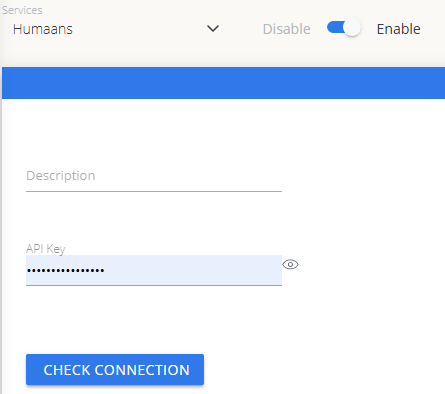 Humaans credential configuration in Cloud Broker
Approve Humaans in OpenLM Platform
- Sign in to OpenLM Platform.
- From the menu, go to License Servers → Pending Server.
- Select the Humaans data source, then select Approve and Merge.
Verify the integration
- In OpenLM Platform, go to Allocation.
- Confirm Humaans usage data appears.
It can take up to 3 minutes for data to appear after approval.
Viewing reports
- User activity trends — see which users are most active in the platform; reallocate seats accordingly.
- Expired or unused licenses — identify inactive users and reclaim their seats.