Jira
Jira is a powerful project management and issue-tracking tool used by software development and IT teams. It helps teams plan, track, and release software.
Before you begin
To begin monitoring Jira, ensure you have the following components and permissions in place:
- OpenLM components: OpenLM Cloud Broker, approved in Broker Hub.
- Platform-specific Requirements: You'll need administrative access to your Jira instance to generate API tokens and keys with the necessary read permissions for user and license data.
Configure data collection
-
To create an API token with scopes in Jira:
-
Log in to https://id.atlassian.com/manage-profile/security/api-tokens.
-
Select Create API token with scopes.
-
Give your API token a name that describes its purpose.
-
Select an expiration date for the API token.
-
Token expiration is 1 to 365 days.
-
Select the app you'd like the API token to access.
-
Select the scopes to determine what the API token can do in Jira or Confluence.
-
Select Create.
-
Select Copy to clipboard, then paste the token to your script, or save it somewhere safe.
-
Add Credentials: In the OpenLM Cloud Broker dashboard, select the Jira integration and input organization ID and API Key.
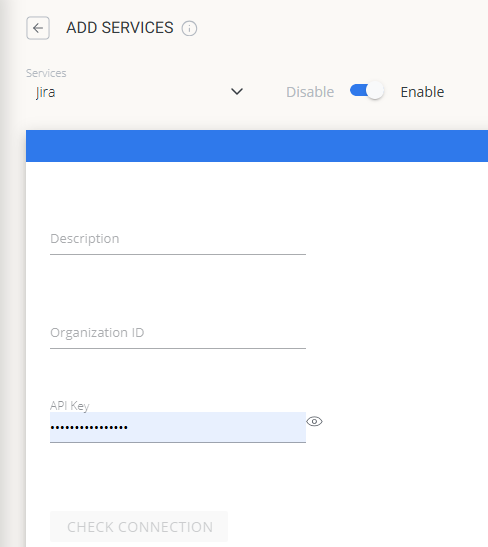 Jira credential configuration in Cloud Broker
Approve Jira in OpenLM Platform
- Sign in to OpenLM Platform.
- From the menu, go to License Servers → Pending Server.
- Select the Jira data source, then select Approve and Merge.
Verify the integration
- In OpenLM Platform, go to Allocation.
- Confirm Jira usage data appears.
It can take up to 3 minutes for data to appear after approval.
Viewing reports
- User activity trends — see which users are most active in the platform; reallocate seats accordingly.
- Expired or unused licenses — identify inactive users and reclaim their seats.