PagerDuty
PagerDuty is an incident management platform that helps IT and DevOps teams respond to operational issues quickly. It centralizes alerts, automates on-call schedules, and streamlines incident resolution.
Before you begin
To begin monitoring PagerDuty, ensure you have the following components and permissions in place:
- OpenLM components: OpenLM Cloud Broker, approved in Broker Hub.
- Platform-specific Requirements: You'll need administrative access to your PagerDuty account to generate a new API key with read permissions for user and team data.
Configure data collection
- Activate API Access:
In the web app, navigate to Integrations Developer Tools API Access Keys.
Select Create New API Key.
Enter a Description to help you identify the key later.
Optionally check Read-only API Key if you'd like the key to only make GET calls.
Select Create Key.
- Add Credentials: In the OpenLM Cloud Broker dashboard, find the PagerDuty integration and enter the API key.
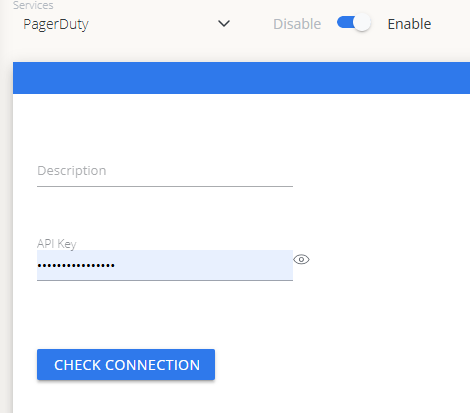 PagerDuty credential configuration in Cloud Broker
Approve PagerDuty in OpenLM Platform
- Sign in to OpenLM Platform.
- From the menu, go to License Servers → Pending Server.
- Select the PagerDuty data source, then select Approve and Merge.
Verify the integration
- In OpenLM Platform, go to Allocation.
- Confirm PagerDuty usage data appears.
note
It can take up to 3 minutes for data to appear after approval.
Viewing reports
- User activity trends — see which users are most active in the platform; reallocate seats accordingly.
- Expired or unused licenses — identify inactive users and reclaim their seats.