Sentry
Sentry is an application monitoring platform that helps developers diagnose, fix, and optimize the performance of their code. It provides real-time error tracking and performance monitoring.
Before you begin
To begin monitoring Sentry, ensure you have the following components and permissions in place:
- OpenLM components: OpenLM Cloud Broker, approved in Broker Hub.
- Platform-specific Requirements: You'll need administrative access to your Sentry organization to generate an API key with the necessary read permissions.
Configure data collection
- Activate API Access: In your Sentry organization settings, create a new internal integration and generate a token with read access to members and organizations.
Under "Permissions" select the permissions required for the APIs you wish to call. Each API endpoint docs page lists the required permissions, in the "Scopes" section. For example, the Create a New Project endpoint requires project:write permissions or higher.
Select "Save Changes".
Scroll down to the bottom of the page and copy the generated token under "Tokens".
- Add Credentials: In the OpenLM Cloud Broker dashboard, find the Sentry integration and enter the API token.
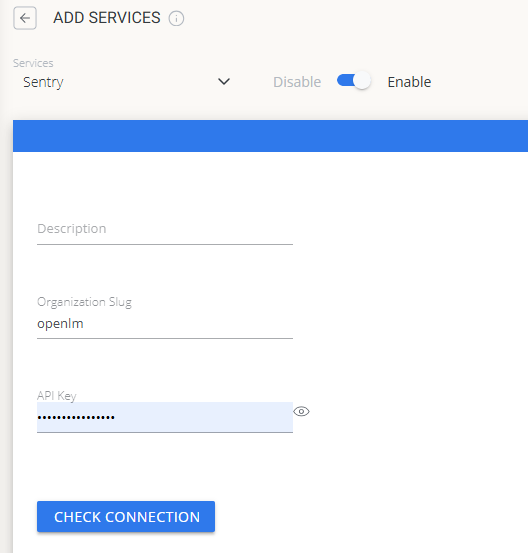 Sentry credential configuration in Cloud Broker
Approve Sentry in OpenLM Platform
- Sign in to OpenLM Platform.
- From the menu, go to License Servers → Pending Server.
- Select the Sentry data source, then select Approve and Merge.
Verify the integration
- In OpenLM Platform, go to Allocation.
- Confirm Sentry usage data appears.
It can take up to 3 minutes for data to appear after approval.
Viewing reports
- User activity trends — see which users are most active in the platform; reallocate seats accordingly.
- Expired or unused licenses — identify inactive users and reclaim their seats.