License File Management (LFM)
Use License File Management (LFM) to view, edit, validate, and deploy license files for your license servers. LFM brings license file management into one place, so you can test changes in a draft without affecting the active file, validate them before pushing, track every change, and keep license servers in sync.
What you can do with LFM
- View all license files in one place. LFM collects license files from Broker Hub and shows you the latest version.
- See the parsed contents. LFM parses FlexLM and RLM files and lists each feature, vendor, version, license type, dates, quantity, and key alongside the raw text.
- Work safely with drafts. Create a draft, edit the license text, and save changes without touching the active file.
- Validate before you push. Run a pre-validation check on a draft to catch syntax, feature, hostname, port, and server-availability problems before deployment.
- Deploy changes with control. Push a draft to one Broker or to all Brokers in a triad cluster.
- Track full history. Review every event for a license file, including drafts, deployments, deactivations, and deletions.
- Synchronize with SLM. Keep license files linked to the correct SLM server name automatically, including triad configurations.
- Stay informed. Get alerts if deployments fail or if a draft is rejected.
Overview
- Without triad: Deploy changes to a single Broker.
- With triad: Deploy the same license file to all three Brokers for redundancy. If one server fails, the others continue to serve licenses.
- Draft-first workflow: You always work with drafts before pushing changes to production.
- Feature parsing: LFM parses each FlexLM and RLM file so you see a structured feature list, not just raw text.
- Pre-validation: Run a check on each draft for common issues before it reaches the Broker.
- Automation: LFM integrates with Broker Hub and communicates over Kafka to send updates.
- SLM synchronization: LFM can keep license-file to license-server links in sync with SLM, including triad members.
- Audit and alerts: LFM stores full change history and integrates with audit and alert services.
LFM detects files that you change directly on the local machine. The Broker sends updates to Broker Hub on a regular interval, so LFM stays in sync.
Viewing license files
LFM automatically retrieves license files from Broker Hub. For each file you can see:
- The current file text and a parsed list of its features.
- The full update history (drafts, deployments, deactivations, deletions).
- Whether a draft exists, and how the draft compares with the original file.
Parsed license features
LFM parses the contents of FlexLM and RLM license files and stores the extracted features alongside the raw text.
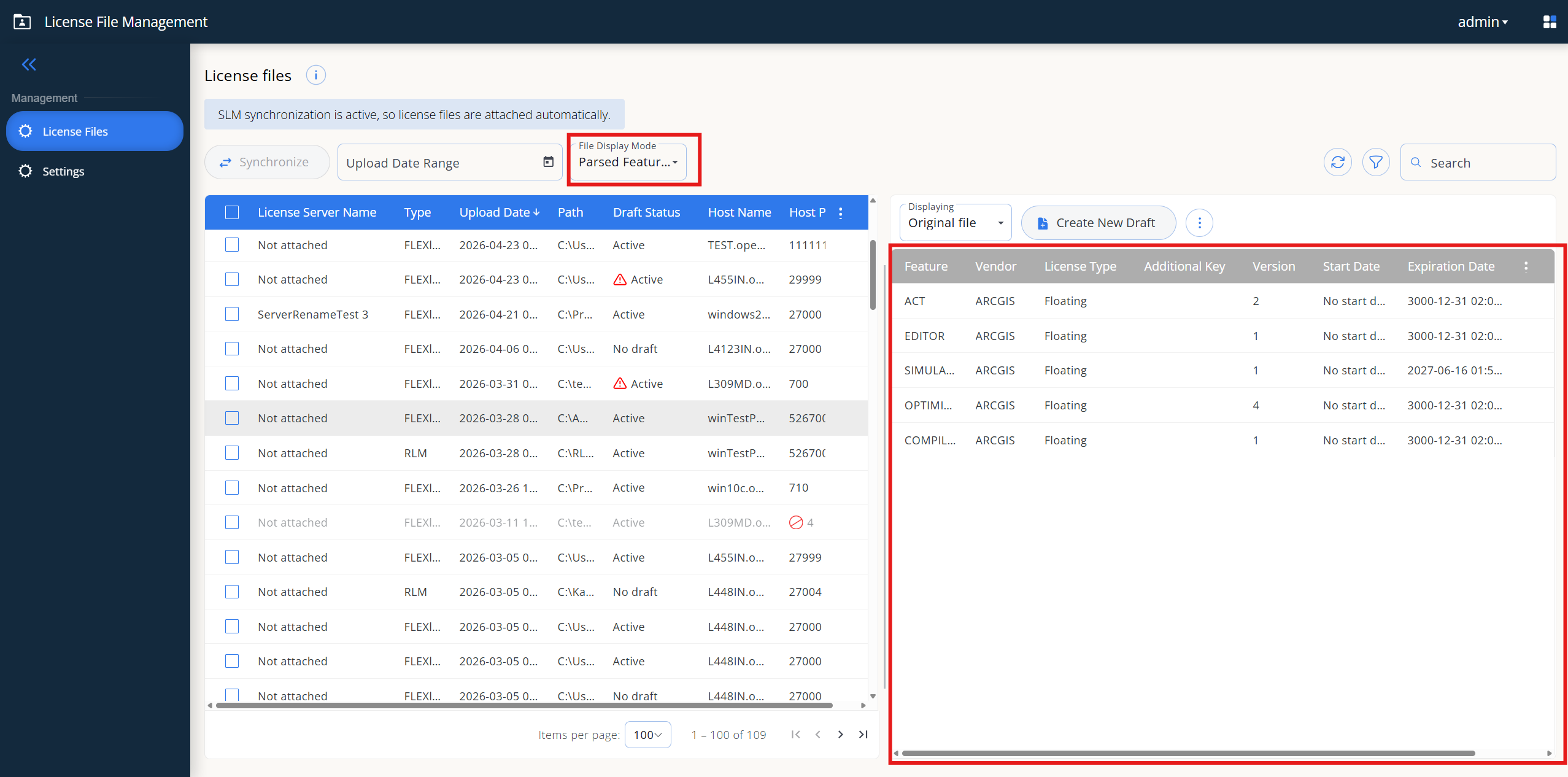 Parsed Features panel for a selected license file
For each file, LFM lists:
- Feature name
- Vendor
- Version
- License type
- Start date
- Expiration date
- Quantity
- Key
When you compare an original file to a draft, LFM highlights feature-level changes, for example "2 features added" or "3 features removed". This helps you confirm that a draft does what you expect before you push it.
Parsing supports FlexLM and RLM license file formats.
Creating a draft
- Open the license file you want to modify.
- Start a new draft.
- Enter or edit the license file text.
- Save the draft as many times as needed.
You can compare a draft with the original file. Differences are highlighted at the text level, and the parsed feature list shows which features were added, removed, or changed.
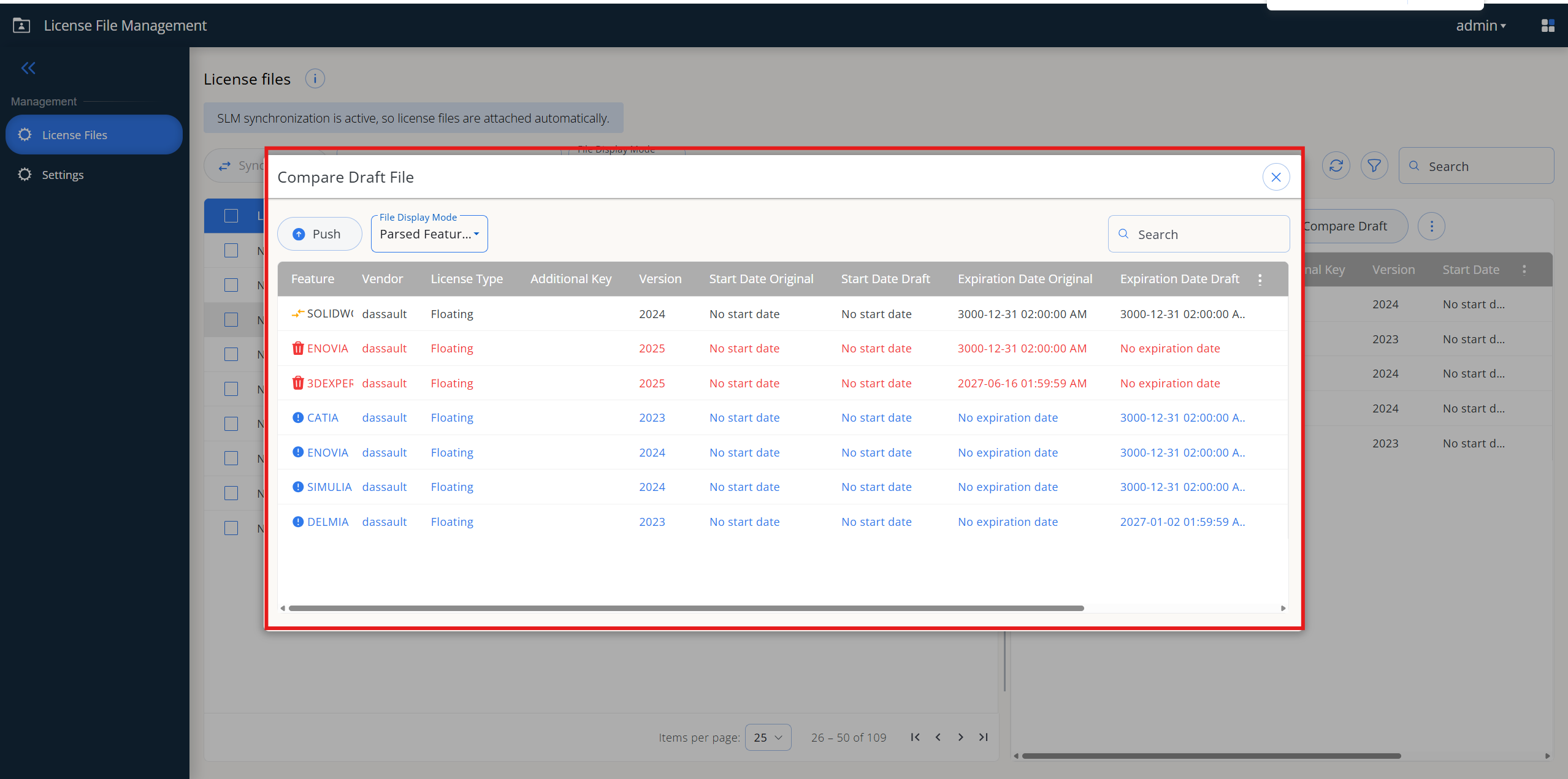 Compare Draft File dialog showing feature-level differences between the original file and the draft
Pre-validate a draft before pushing
Before you push a draft to the Broker, run a pre-validation check. LFM runs three groups of checks against the draft and returns a list of messages, each tagged with a severity.
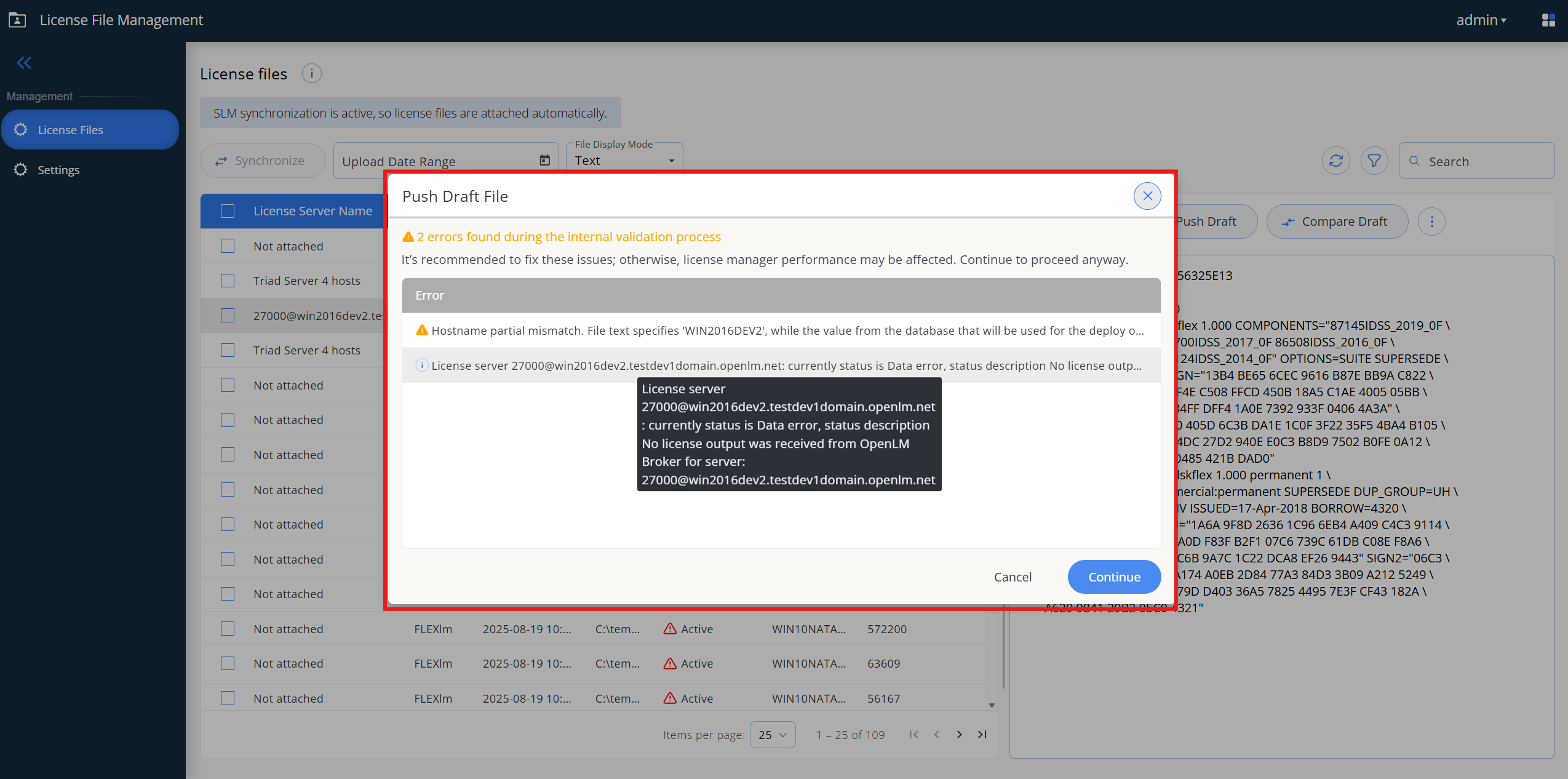 Push Draft File dialog with errors found during pre-validation
What is checked
- Structural checks. The file is not empty, the format is recognized, and required keywords are present. For FlexLM, LFM looks for
SERVER,VENDORorDAEMON, and at least oneFEATUREorINCREMENTline. RLM files are checked against their format-specific keywords. - Semantic checks. Hostname matches the configured server, port matches, features parse cleanly, feature names are present, and features are not expired or about to expire. FlexLM-specific checks also flag duplicate
FEATURElines,PACKAGEentries without a matchingFEATUREorINCREMENT, and zero or negative feature quantities. - Server checks. When SLM synchronization is enabled, LFM checks that the target server is reachable and reports triad members linked to the file.
Severity levels
| Severity | Meaning |
|---|---|
| Error | A problem that likely causes the Broker to reject the file. Review and fix before pushing. |
| Warning | A potential issue, such as a feature that expires soon or a duplicate FEATURE line. Review, but you can still push. |
| Info | Contextual information, such as the reported server status or detected triad members. |
SLM synchronization must be enabled to check service availability and triad information. Without it, the server checks are skipped.
Pre-validation does not block a push. It surfaces likely problems early so that you can decide whether to push, edit, or cancel.
Pre-validation supports FlexLM and RLM file formats.
Deploying a draft
If your Broker is not in a triad
- Open your draft.
- Run pre-validation and review any errors or warnings.
- Select Push Draft.
- The draft replaces the old file on that Broker.
If your Broker is in a triad
- Open your draft.
- Run pre-validation. The triad members linked to this file appear as Info messages.
- Select Push Draft.
- The draft replaces the file on all three Brokers in the cluster.
For triads, file paths must match across all Brokers. If file paths differ, the deployment fails.
Deployment notes
- Status awareness. LFM does not check whether Brokers are up before sending. After the push, LFM reports any failures through the update history and alerts.
- Error handling. If a Broker cannot apply the file, the error appears in the deployment response, and LFM records it in the file's update history.
Synchronization with SLM
LFM can keep the link between a license file and its SLM-managed license server in sync automatically. When the setting is enabled, LFM:
- Resolves the correct SLM server name for each license file from its host and port.
- Updates the license file's server linkage when SLM data changes.
- Detects triad configurations and records each member's status (UP, UNKNOWN).
When to enable SLM synchronization
Enable SLM synchronization if you want LFM to:
- Show the live SLM server name and status for each license file.
- Support triad deployment, where the same license file is pushed to all members of a triad.
- Run the server-availability and triad checks during pre-validation.
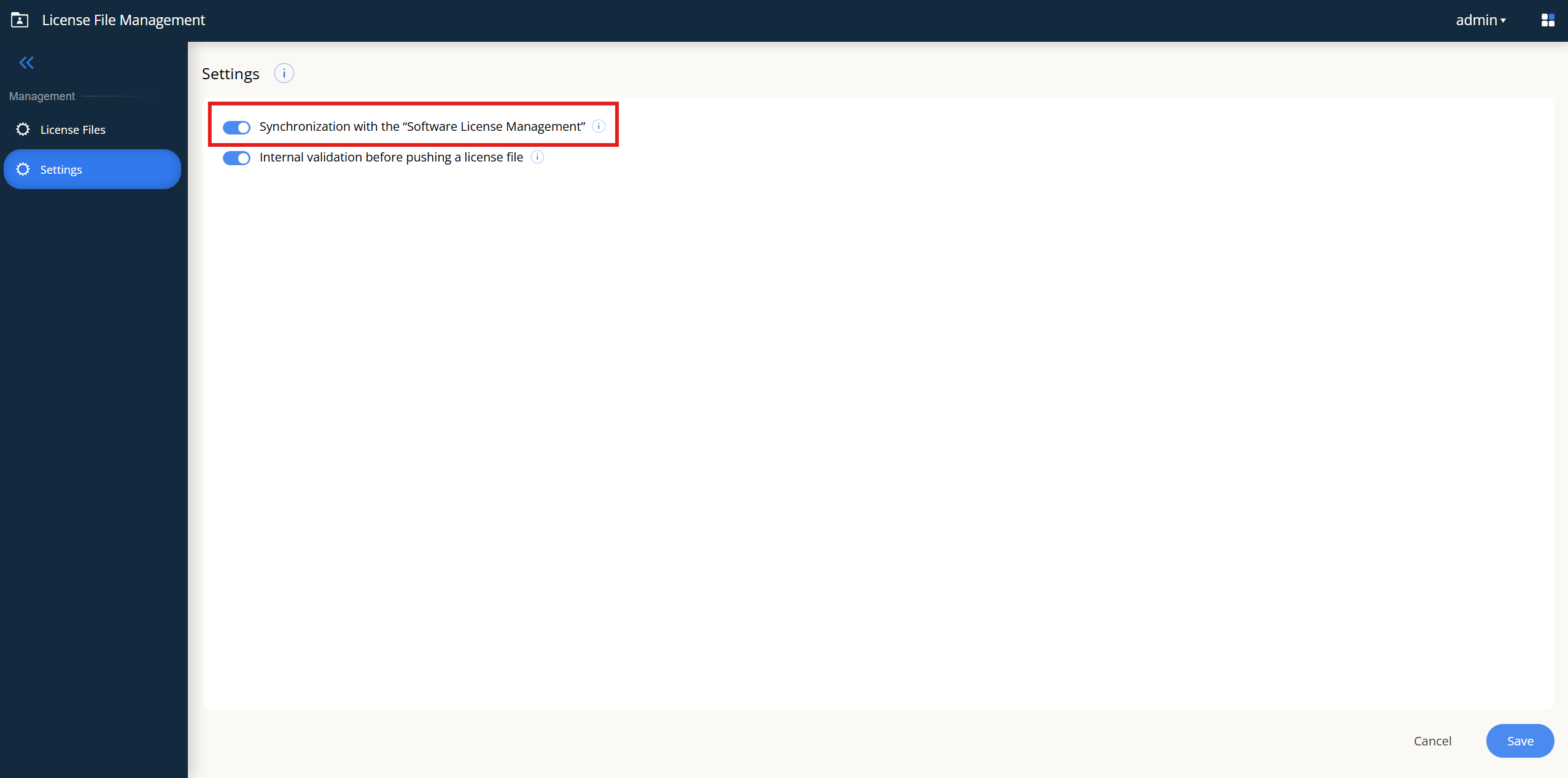 Settings page with SLM synchronization enabled
When SLM synchronization is on, the License files page displays a banner confirming that license files are attached to servers automatically.
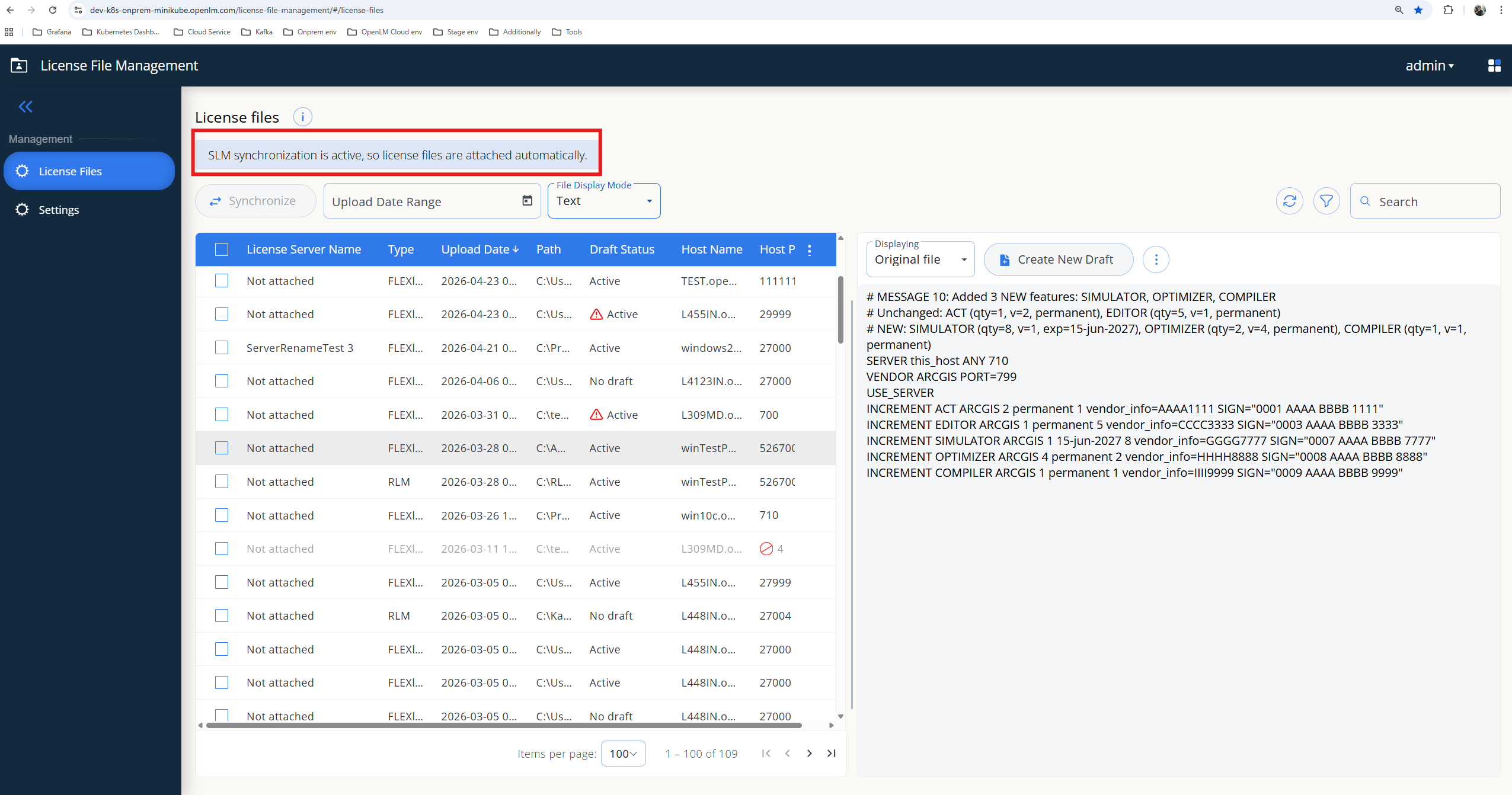 License files page when SLM synchronization is active
After you enable synchronization, the initial sync runs in the background. The time to complete depends on the number of license servers and license files in your environment.
Update history
Every license file has a detailed update history. LFM automatically records each change to the file, with an explicit status, a timestamp, and a human-readable note.
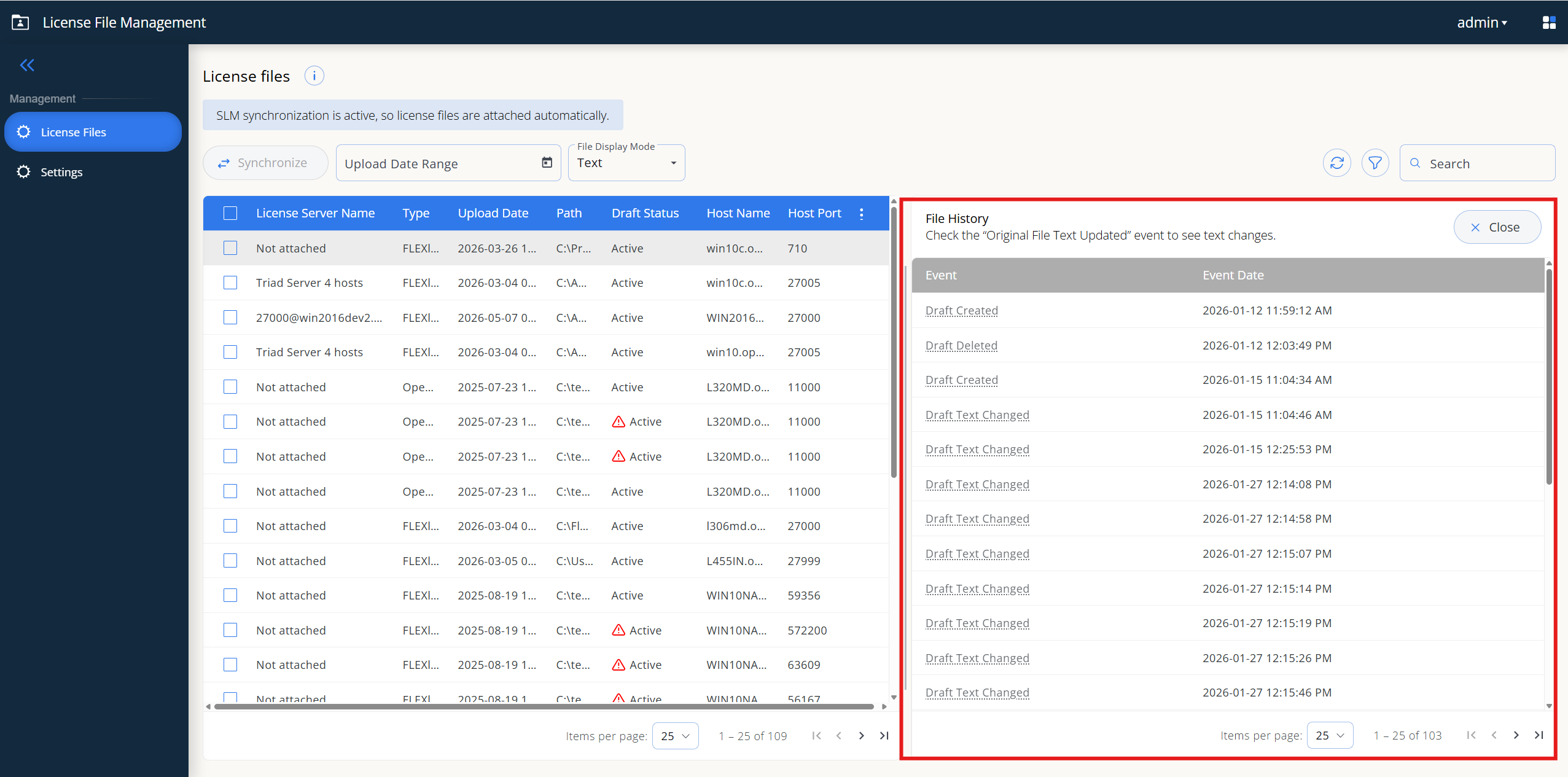 File History panel for a selected license file
What is recorded
LFM records three categories of events:
- License file lifecycle. When the Broker first reports the file, when you update its text directly on the host, when an incoming update matches the stored content, and when the file is deactivated or deleted.
- Draft lifecycle. When you create, edit, delete, or push a draft, and when a deployment succeeds or fails.
- Server data updates. When the file's linked server identity changes, for example after an SLM synchronization run.
For deployment-related events, the history note explains what happened, for example whether the push targeted a single host or every member of a triad, and the reason for any failure.
What you see for each entry
Every history entry includes:
- Event — the type of change, such as Draft created or Draft deployed successfully.
- Event date — when the change happened.
- Note — a short, human-readable description of the action or error.
For three license file lifecycle events — when the file is first reported, when its original text changes, and when it is deleted — LFM also stores a snapshot of the license text at that moment, so you can inspect the historical content of the file.
How to use the history
- Audit and compliance. See what changed, when, and by which path (Broker update, draft push, deletion).
- Troubleshooting. Trace a failed deployment back to the draft, the Broker response, and the surrounding events.
- Customer support. Reconstruct the timeline of an issue from the file's events instead of correlating logs by hand.
Example scenario
You need to update a vendor license file:
- Open the license file in LFM.
- Review the parsed feature list to confirm what is active.
- Create a draft.
- Edit or paste the new license text.
- Save the draft until you are ready.
- Run pre-validation and review any errors or warnings.
- Push the draft:
- If single Broker, the file updates directly.
- If triad, the file updates across all three Brokers.
- Open the file's update history to confirm the deployment status, and review alerts for any failures.