OpenLM License Manager
License Manager lets you observe the current state of your OpenLM license and update it when your entitlements change. The two main workflows are:
- Check license status — Review your subscriptions, the feature records they include, and the current usage against licensed limits. This workflow is the same in OpenLM Cloud and OpenLM On-Premises.
- Update the license — In OpenLM Cloud, trigger a license synchronization to pull the latest data from OpenLM Licensing and the CRM (subscription system). In OpenLM On-Premises, upload a new license file through the Settings UI.
To access License Manager, go to Platform Administration → OpenLM License in OpenLM Platform navigation.
How licensing is organized
In License Manager, licensing follows a three-level hierarchy. The Subscriptions and Features pages work the same way in both OpenLM Cloud and OpenLM On-Premises. The difference between the two deployment models is how the license is updated: OpenLM Cloud uses synchronization, while OpenLM On-Premises uses license file upload.
- A plan is a purchasable offering from OpenLM, such as Engineering Automation or SaaS Management Automation. A subscription is a regular payment for a plan, and each customer subscription maps to an OpenLM license.
- A product is a capability group within a plan, such as Alerts, Directory Sync, or License Access Control.
- A feature is an individual licensed item inside a product. For example,
SLM_LicenseManagerscontrols the number of license-server connections you can monitor,DM_UniqueDongleslimits the number of unique dongles tracked, andPM_OfflineMonitoringenables offline monitoring for Process Manager.
Each plan contains a predefined set of products and features. The Subscriptions page lists the subscriptions in your environment. A customer can have multiple subscriptions, and their combination represents the full OpenLM license the customer owns. The Features page shows the individual feature records that the subscriptions provide.
View your subscriptions
The Subscriptions page lists the subscriptions present in the environment. A customer can hold multiple subscriptions, and together they define the customer's full OpenLM license.
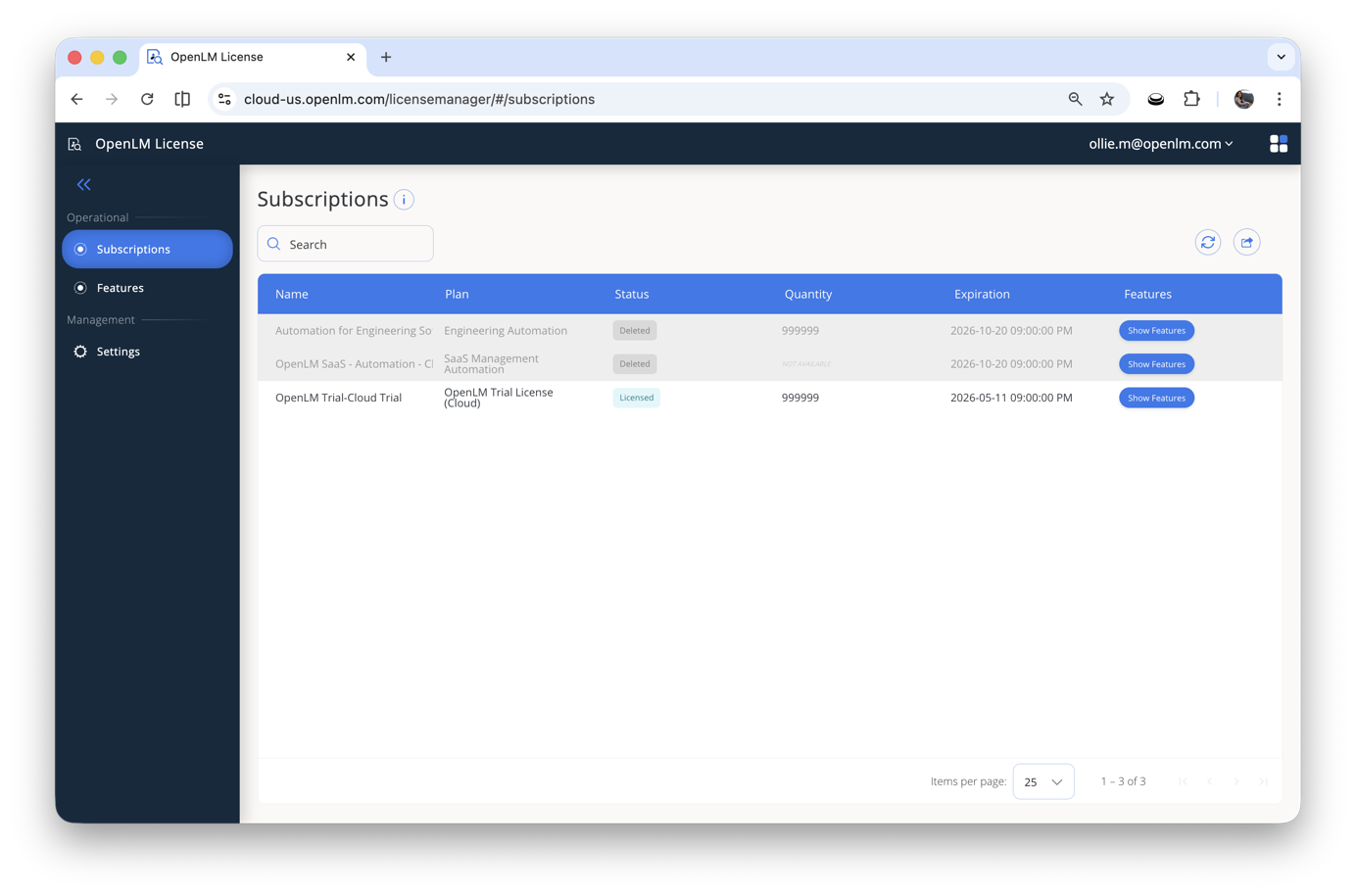 Figure 1. The Subscriptions page shows each subscription, its status, quantity, expiration date, and the option to view included features.
Subscriptions page columns
Use the search bar to filter subscriptions by name. Select the refresh icon to reload the list from the server.
| Column | Description |
|---|---|
| Name | The display name of the subscription. |
| Plan | The plan template associated with the subscription, such as Engineering Automation or OpenLM Trial License. |
| Status | The current state of the subscription: Licensed (active) or Deleted (no longer active). |
| Quantity | The licensed count for the subscription, based on the main measurable feature of the plan. For example, for Engineering plans the quantity reflects the number of engineering users (the SLM_Users_Engineering feature). |
| Expiration | The date and time when the subscription expires. |
| Features | Select Show Features to inspect the individual feature records included in the subscription. |
View licensed features
The Features page shows every individual feature record licensed in the environment, aggregated across all active subscriptions.
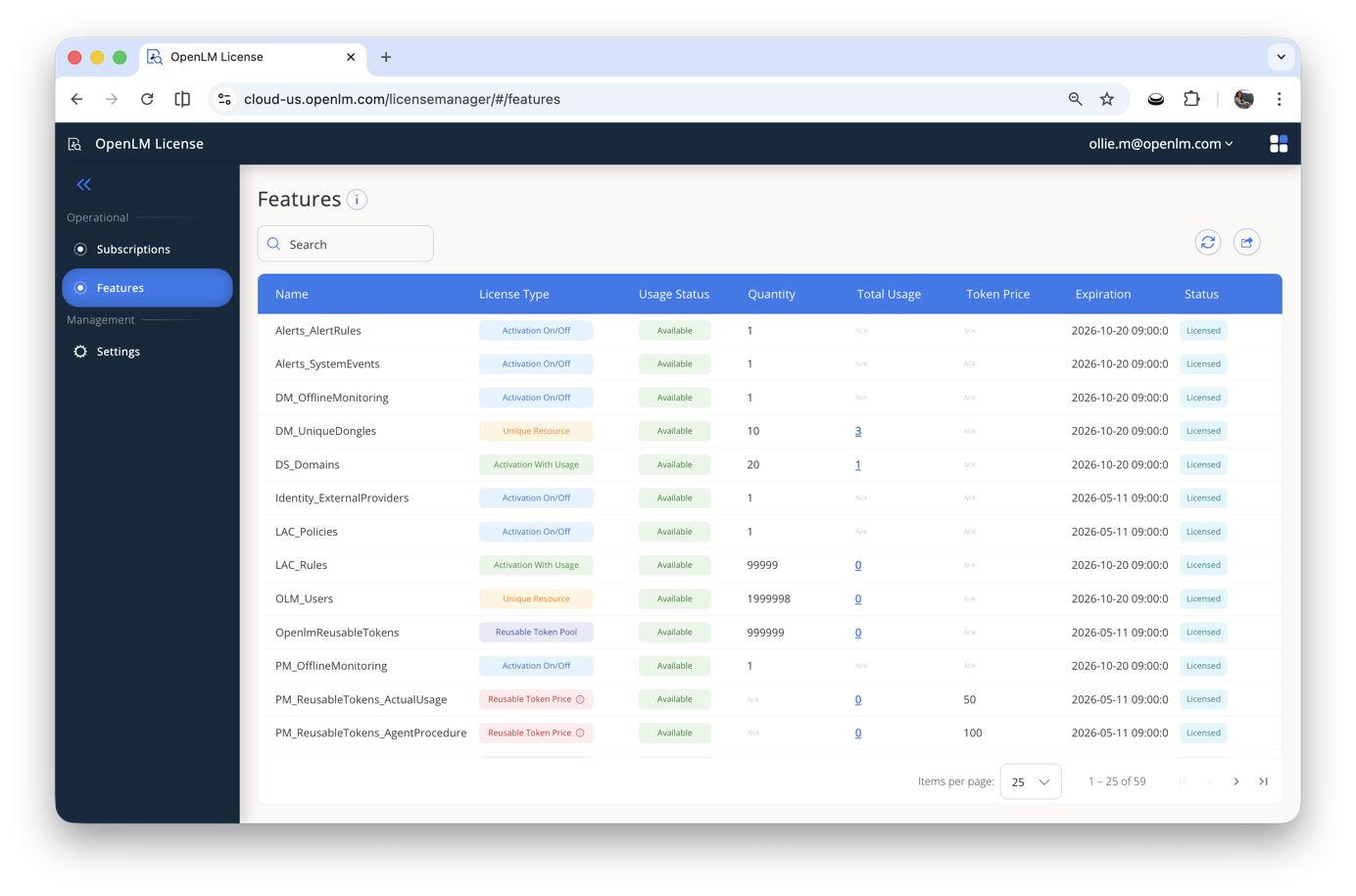 Figure 2. The Features page shows individual feature records, their license type, usage state, quantity, usage, expiration date, and overall status.
Features page columns
| Column | Description |
|---|---|
| Name | The unique identifier for the feature record, such as Alerts_AlertRules or DS_Domains. |
| License Type | The license model applied to the feature. See Understand feature license types for details. |
| Usage Status | Whether the feature is currently Available or Unavailable in the environment. |
| Quantity | The licensed limit for the feature, such as the number of allowed domains or rules. |
| Total Usage | The current consumption count for features that track usage, such as unique resources or activation-with-usage features. |
| Token Price | The token cost per unit of consumption for reusable-token-priced features. |
| Expiration | The date and time when the feature license expires. |
| Status | The overall license state of the feature: Licensed or Unlicensed. |
Sync the license (OpenLM Cloud only)
License synchronization refreshes the license data displayed in the UI so that it reflects the latest information from OpenLM subscription and licensing systems. A sync pulls updated data from the CRM, which tracks subscriptions and payments, and from the License Generator, which stores OpenLM licensing model. Use the Settings page to view the last sync result and to start a new sync manually.
OpenLM On-Premises instances do not use license synchronization. Instead, they use license file upload. See Upload a license file (OpenLM On-Premises only).
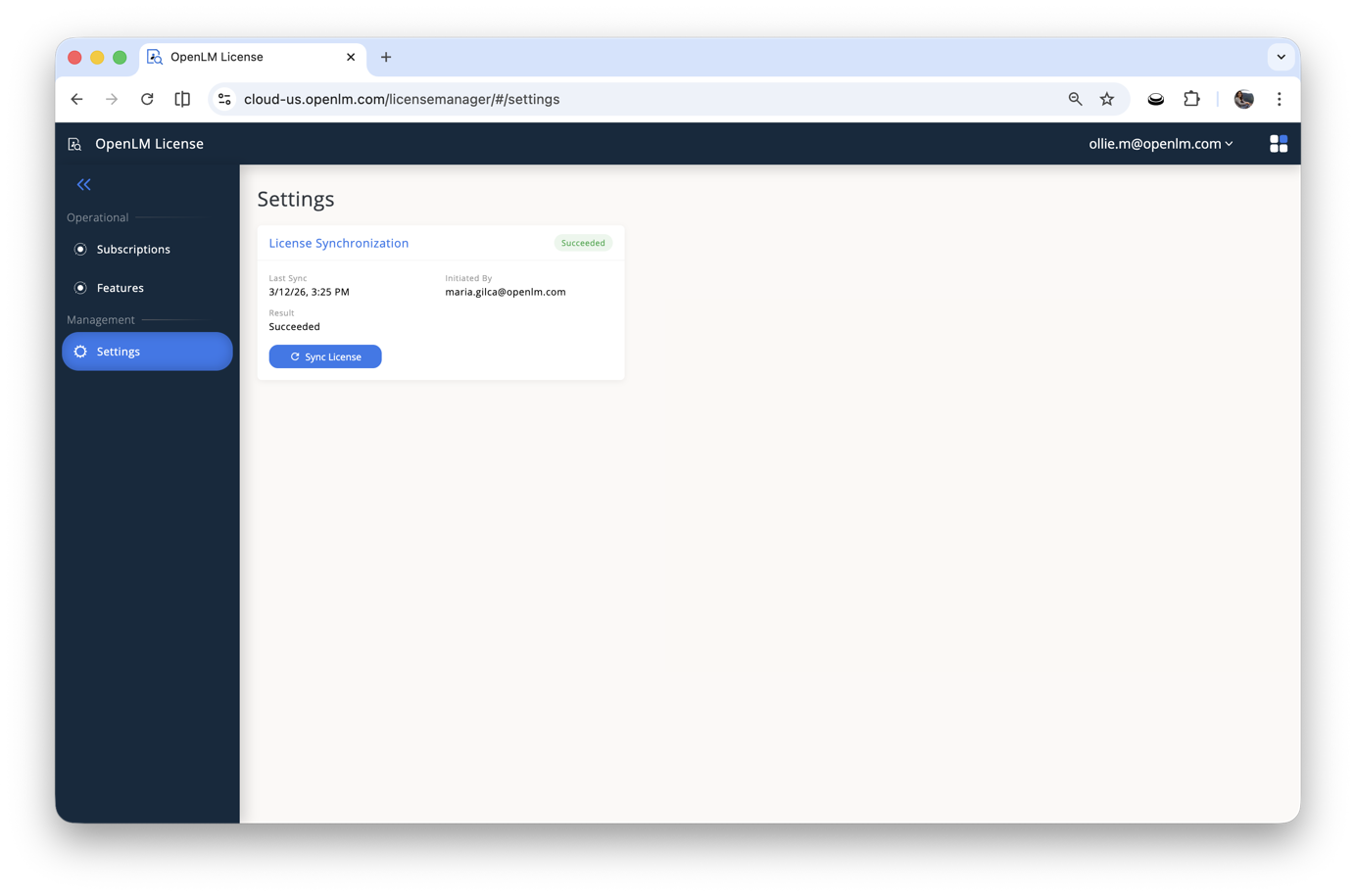 Figure 3. The Settings page shows the last license synchronization result and provides the Sync License button.
Start a manual sync
If you expect to have access to a feature or subscription that does not appear in License Manager, for example after purchasing a new subscription or after OpenLM adds new features to your plan, run a manual sync to update your license:
- In the left navigation, under Management, select Settings.
- Review the Last Sync time, the Initiated By user, and the Result status.
- Select Sync License to start a new synchronization.
- Wait for the sync to complete. The result updates automatically.
A sync ensures that your environment reflects your latest purchases and any recent changes to OpenLM licensing model, such as newly introduced features.
Upload a license file (OpenLM On-Premises only)
On-Premises instances do not synchronize with OpenLM Cloud licensing systems. Instead, you manage your license by uploading a license file through the Settings page. The Settings page displays a Licenses tab that lists your available license files and provides an Upload New License File button.
Upload a new license file
If your license has been renewed, upgraded, or updated with new features, upload the new license file to apply the changes:
- In the left navigation, under Management, select Settings.
- Select Upload New License File.
- Browse to the license file you received from OpenLM and confirm the upload.
After the upload completes, the new license file appears in the Available Licenses list. The Subscriptions and Features pages update to reflect the new license.
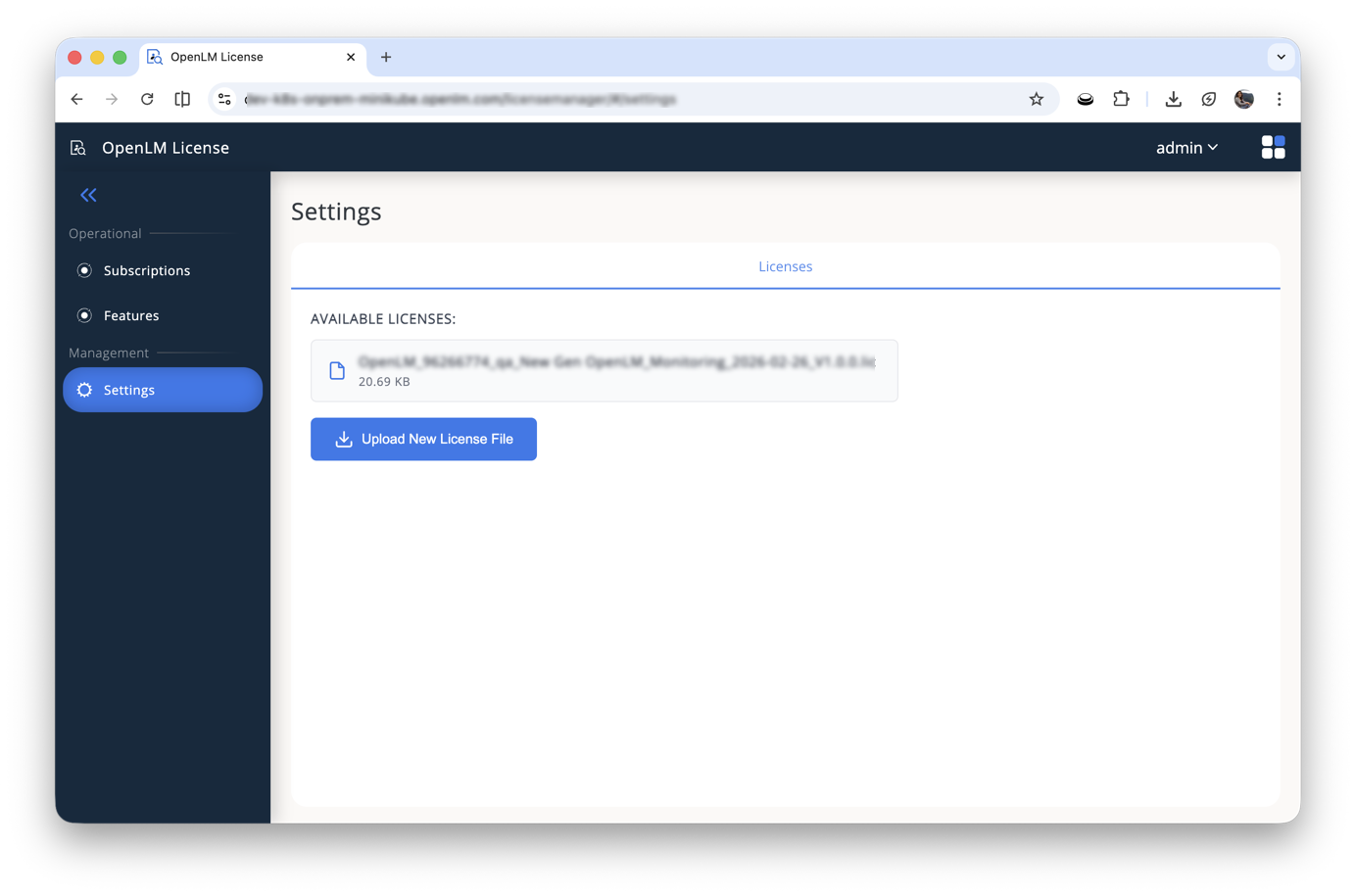 Figure 4. The On-Premises Settings page shows the Licenses tab with the current license file and the Upload New License File button.
Understand feature license types
Each feature record in License Manager has a license type that determines how the feature is metered and enforced. The following table describes the license types that appear in the License Type column on the Features page.
| License type | What it means | Examples |
|---|---|---|
| Activation on/off | The feature is either available or not available for the plan. No usage tracking. | Alerts_SystemEvents, Product_Audit, Product_Compliance |
| Activation with usage | The feature is enabled and also has a licensed usage limit. The Total Usage column tracks consumption. | DS_Domains, LAC_Rules, Projects_Count, VLM_Licenses |
| Unique resource | Each license consumption is tied to a specific resource identifier, for example a username, a dongle ID, or a license-server ID. You can see the exact resource names consuming the license on the Features page. | OLM_Users, PM_Users, DM_UniqueDongles |
| Reusable token pool | The platform has a shared pool of reusable tokens that token-priced features can consume. | OpenlmReusableTokens, PM_ReusableTokens |
| Reusable token price | The feature consumes tokens from a reusable token pool. The Token Price column shows the cost per use. | PM_ReusableTokens_Autocad (400), PM_ReusableTokens_Matlab (400) |
| Check-in/out | The feature uses a checked capacity instead of a simple on-or-off state. | SLM_LicenseManagers |
Product-to-feature mapping
The following table maps each platform product to its related feature records. Use this reference when you need to verify that a specific product is licensed in your environment.
OpenLM licensing model is continuously updated with new features, new products, and renamings over time. The following mapping reflects the current state and might change. Always check License Manager in your environment for the most up-to-date information.
| Product | Related feature records | What to expect |
|---|---|---|
| Alerts | Product_Alerts, Alerts_SystemEvents, Alerts_AlertRules | A product-level feature and alert-specific feature records. |
| Directory Sync | Product_DS, DS_Domains | A base product feature and a domain-based usage feature. |
| Dongle Monitoring | Product_DM, DM_OfflineMonitoring, DM_UniqueDongles | The base feature, offline monitoring, and a unique dongle count. |
| Identity | Product_Identity, Identity_ExternalProviders, Product_IdentityAlignment | The base product, external identity provider support, and identity alignment. |
| License Access Control | Product_LAC, LAC_Policies, LAC_Rules | The base product plus policy and rule features. |
| Process Manager | Product_PM, PM_OfflineMonitoring, PM_Users | The base product, offline monitoring, and user-based limits. |
| Projects | Product_Projects, Projects_Billing, Projects_Count | The base product plus billing and project count features. |
| Software License Monitoring | Product_SLM, SLM_LicenseManagers, SLM_Allocations, SLM_Denials, SLM_Features, SLM_Usage | Core monitoring, license manager ports, allocations, denials, features, and usage tracking. |
| Virtual License Manager | Product_VLM, VLM_Licenses | The base product and the virtual license count. |
| Website Monitoring | Product_WSM, WSM_OfflineMonitoring | Website monitoring and offline monitoring. |
| Users and Groups | OLM_Users, SLM_Users_Engineering, SLM_Users_SaaS | Shared and product-specific user counters. |
Reusable token pricing reference
Features that use the Reusable Token Price license type consume tokens from a shared pool each time they are invoked. The token price for each feature is defined inside the customer's license, so it is fixed for a given license file. The following table shows the current token cost for each supported application.
| Feature | Token price per use |
|---|---|
PM_ReusableTokens_ActualUsage | 50 |
PM_ReusableTokens_AgentProcedure | 100 |
PM_ReusableTokens_SuspendResume | 100 |
PM_ReusableTokens_ArcGis | 400 |
PM_ReusableTokens_ArcGisPro | 400 |
PM_ReusableTokens_Autocad | 400 |
PM_ReusableTokens_Matlab | 400 |
PM_ReusableTokens_Solidworks | 400 |
PM_ReusableTokens_CATIA | 1000 |
PM_ReusableTokens_Harmony | 1000 |
PM_ReusableTokens_Kingdom | 1000 |
PM_ReusableTokens_Petra | 1000 |
Check entitlements in a customer environment
Follow these steps to verify that the expected license entitlements are in place:
- On the Subscriptions page, confirm that the expected plans are present and not in a Deleted state.
- On the Features page, confirm that the required product-level features are licensed and show a status of Licensed.
- Check usage-based features, such as
DS_Domains,LAC_Rules,Projects_Count, orVLM_Licenses. Verify that the Quantity value is sufficient for the deployment. - Check unique resource features, such as
OLM_Users,PM_Users, orDM_UniqueDongles. Compare the Total Usage against the licensed Quantity. - If the UI does not match the latest license state, go to Settings and select Sync License (OpenLM Cloud only). For OpenLM On-Premises, upload the latest license file instead.
Products without separate feature records
Some products and UI areas are not individually licensed as separate feature records. They fall into three groups:
- Items that map to features under a parent product, such as Denials under Software License Monitoring.
- Items that are part of core OpenLM infrastructure and do not require separate licensing, such as Broker Hub, License Manager, and core Identity.
- Items that are not currently licensed but might be licensed in the future if they are not considered core infrastructure.
The following table describes how each item is represented.
| Product or area | How it appears in the entitlement model |
|---|---|
| Denials | Represented as the SLM_Denials feature under Software License Monitoring. |
| License Servers | Covered by Software License Monitoring and the SLM_LicenseManagers capacity feature. |
| Licenses | Covered by Software License Monitoring features such as SLM_Features and SLM_Usage. |
| Notifications | Aligns with alerts-related entitlements. No separate feature record. |
| Process Sessions | Related to Process Manager. Not exported as a separate feature record. |
| Products | A UI navigation area. Not a separate licensed feature record. |
| Agent Activity Manager | Not represented as a separate feature record in the license template. |
| Agents Hub | Not represented as a separate feature record in the license template. |
| Broker Hub | Core OpenLM infrastructure that handles communication between platform services. Not exposed as a separate feature record. |
| License Manager | Core infrastructure that manages the license itself. Not exposed as a separate feature record. |
| Identity (core) | Core Identity functionality — baseline authentication and user identity — is OpenLM infrastructure and is always available. Advanced Identity capabilities such as external provider support (Identity_ExternalProviders) and identity alignment (Product_IdentityAlignment) are separately licensed and appear in the Product-to-feature mapping. |