Altium License Manager
本連携により、OpenLM で Altium License Manager のライセンス使用状況、有効期限、拒否を監視できます。
はじめに
- OpenLM Platform。
- Altium と同じマシンにインストールされ、Broker Hub で承認された OpenLM Broker v25.x 以降。
監視機能
| Report resolution | License totals | License usage | Denials reporting | Borrowed license reporting | Expiration date reporting | Multiple server redundancy |
|---|---|---|---|---|---|---|
| By minute | Yes | Yes | No | No | Yes | No |
OpenLM Broker の設定
-
Web ブラウザーを開き、
http://localhost:5090(または 5091、5092 など設定済みの別のポート) にアクセスします。 -
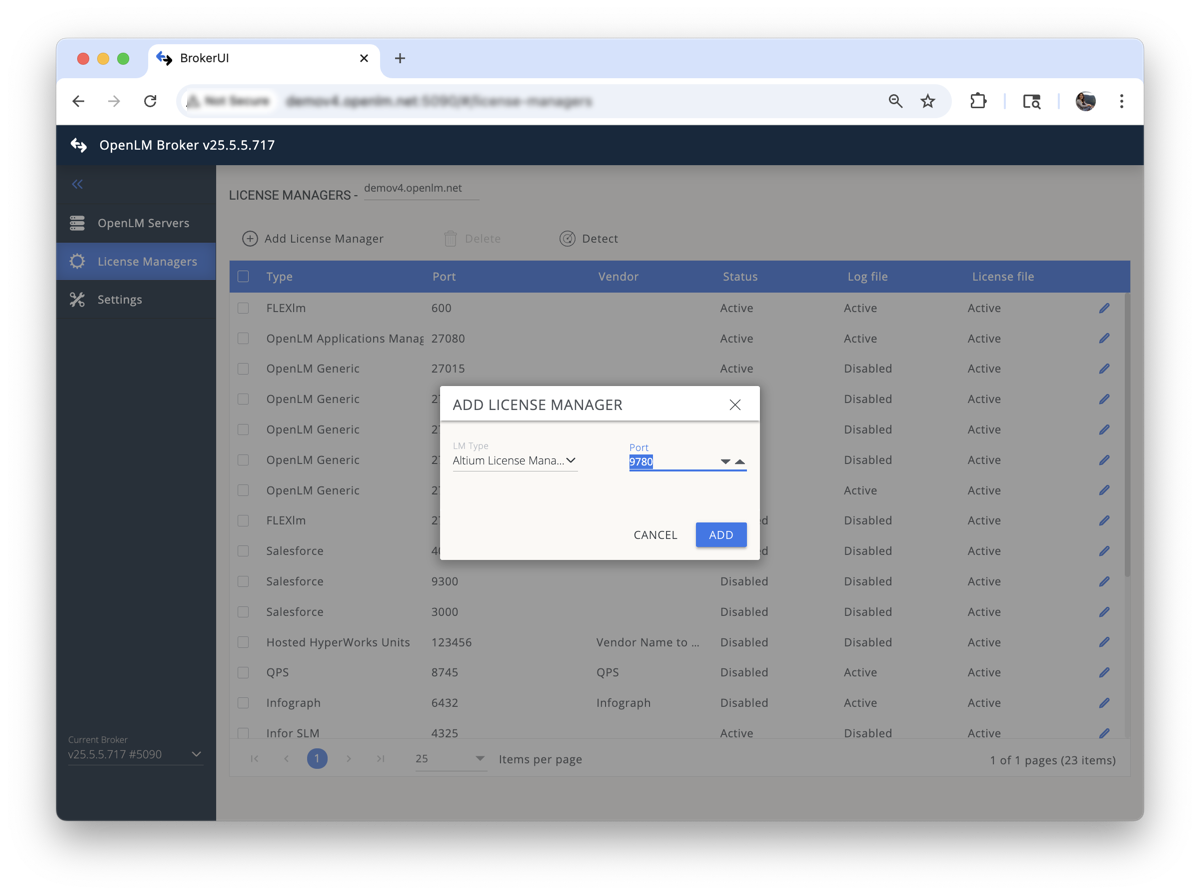
License Managers タブに移動し、Add License Manager をクリックします。
-
ポップアップで、次を行います。
- ドロップダウンから Altium を選択します。
- ポート番号 (例: 9780) を入力します。
- Add をクリックします。
 Commands タブ
 -
Commands タブで、次を行います。
- Altium インスタンスに対して Data Inquiry が正しく設定されていることを確認します。
- C:\Program Files\OpenLM\OpenLM Broker\ 内の
altium@<port>ファイルを編集し、Altium のユーザー名とパスワードを追加します。 - ファイルを保存し、Broker インターフェイスに戻ります。
- Execute をクリックして、有効なデータが出力されることを確認します。
-
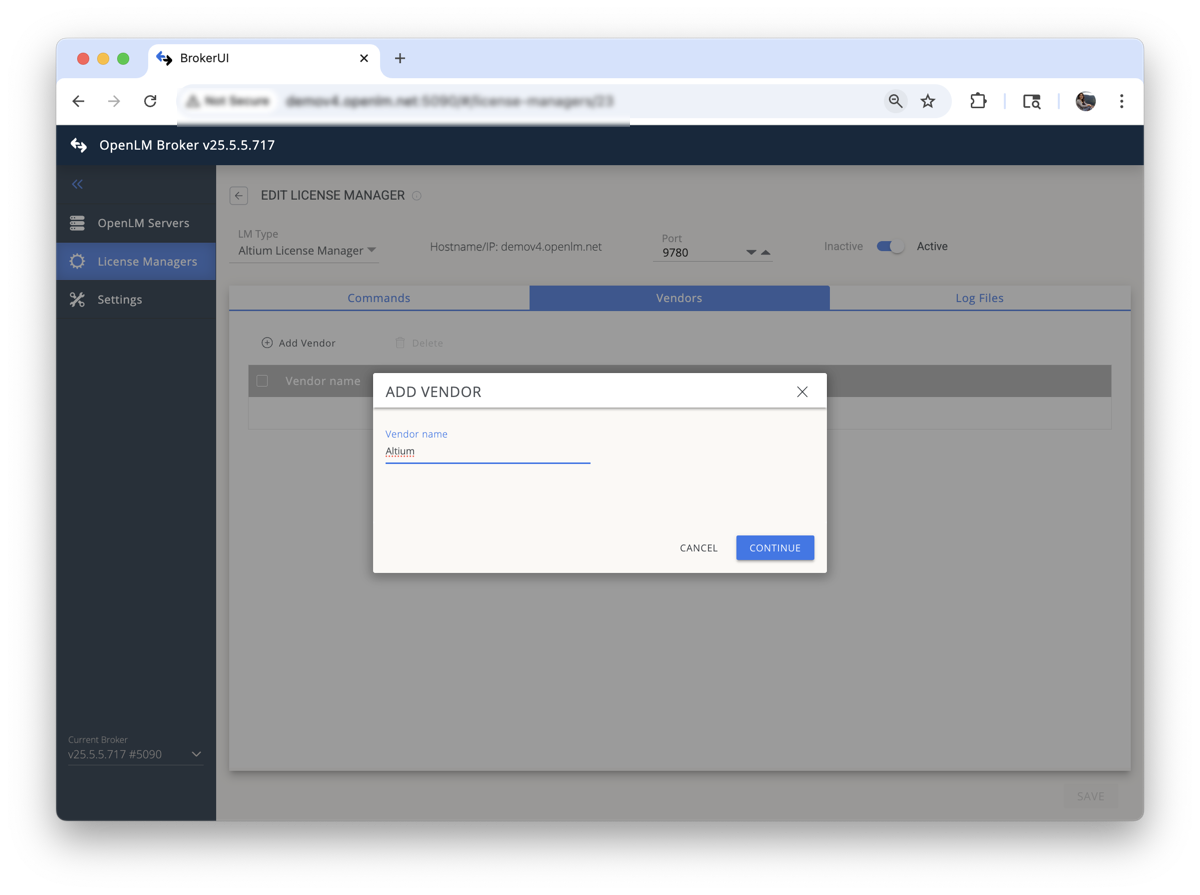
Vendors タブで、次を行います。
- Add Vendor をクリックします。
- ベンダー名として Altium を入力します。
- Continue をクリックします。
 Broker の設定を完了するための Save 操作
 -
Save をクリックして、Broker の設定を完了します。
OpenLM Platform で Altium License Manager を承認
- OpenLM Platform にサインインします。
- メニューから License Servers → Pending Server を開きます。
- Altium License Manager ライセンスマネージャーを選択し、Approve and Merge をクリックします。
連携の検証
- OpenLM Platform で License Servers Live → Server Statistics を開きます。
- Altium License Manager が緑のステータスで表示されることを確認します。
注意
新規接続の場合、ステータスの反映まで最大 3 分かかります。