Comos
Comos ライセンスマネージャーからライセンス使用状況の監視と統計の収集を行うように OpenLM を設定するには、次の手順に従います。
はじめに
-
OpenLM Platform。
-
Comos と同じマシンにインストールされ、Broker Hub で承認された OpenLM Broker v25.x 以降。
Item Value Report resolution By second License totals Yes License usage Yes Denials reporting Yes Borrowed license reporting No Expiration date reporting Yes Multiple server redundancy No
OpenLM Broker の設定
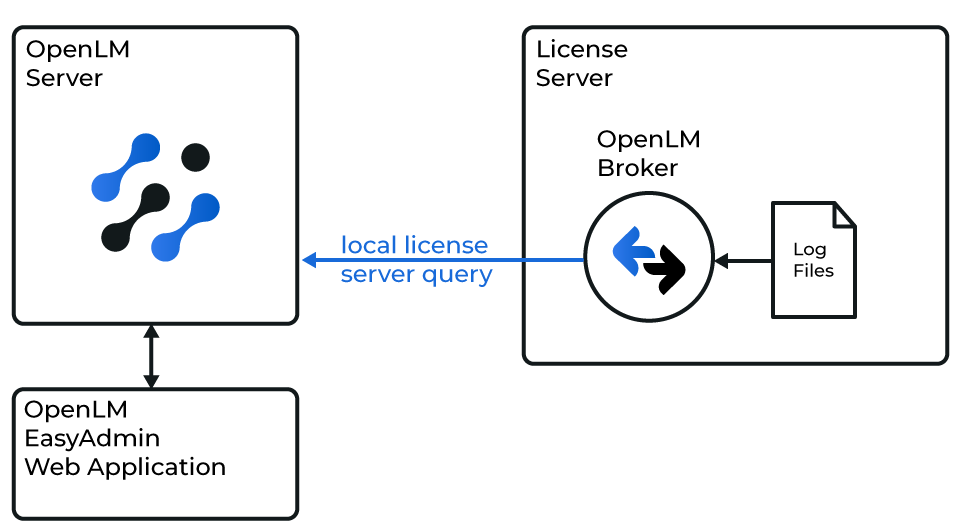 OpenLM と Comos ライセンスマネージャーの連携の概要図
これらの手順を開始する前に、OpenLM Broker をインストールして設定しておいてください。
オプション 1 — 自動検出
-
Broker UI を開きます:
http://localhost:5090/。 -
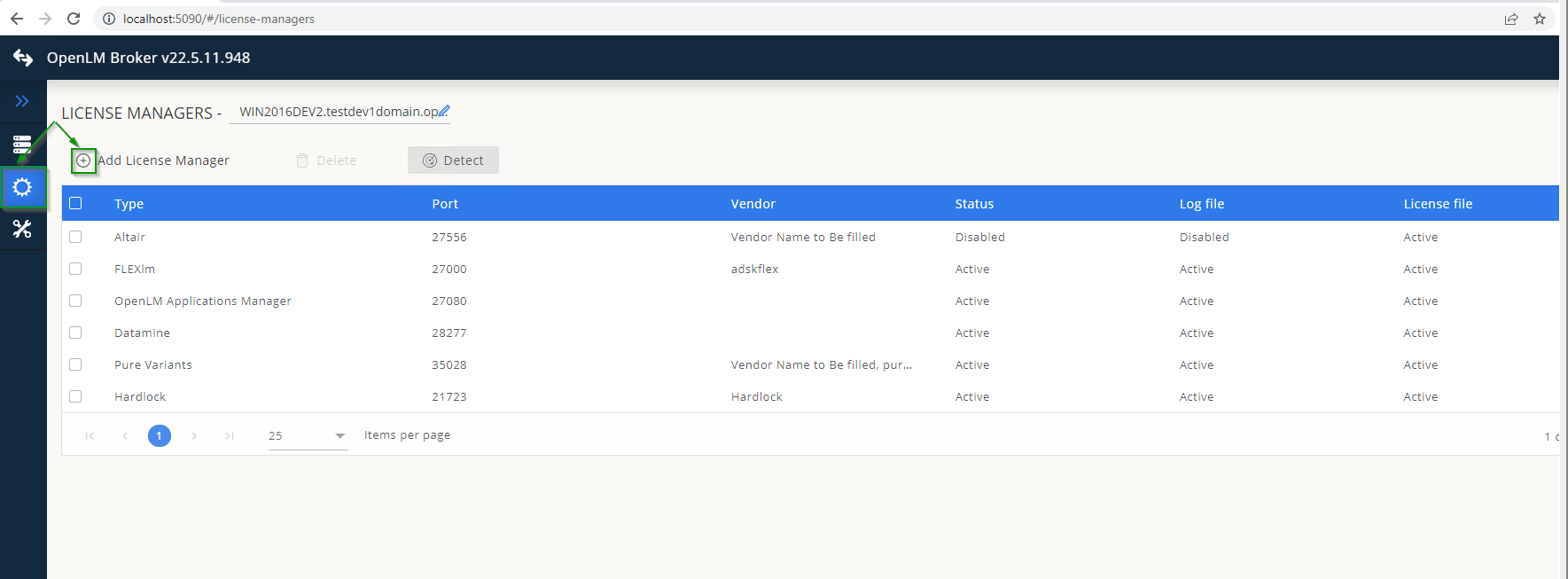
License Managers → Detect に移動します。
-
Comos が表示されます。
-
検証して保存します。
オプション 2 — 手動で追加
-
ブラウザーを開き、
http://localhost:5090/にアクセスします。 -
License Managers → Add License Manager に移動します。
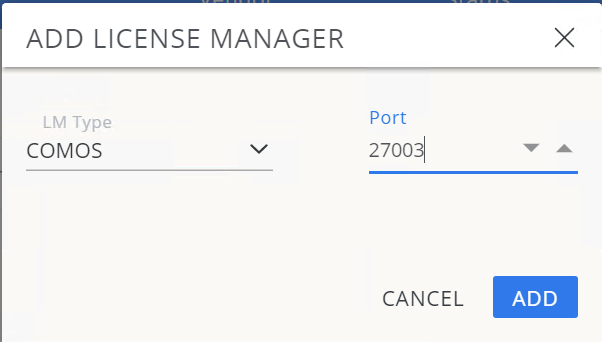
 タイプのドロップダウンから Comos を選択し、ポート番号を入力して Add をクリックします。
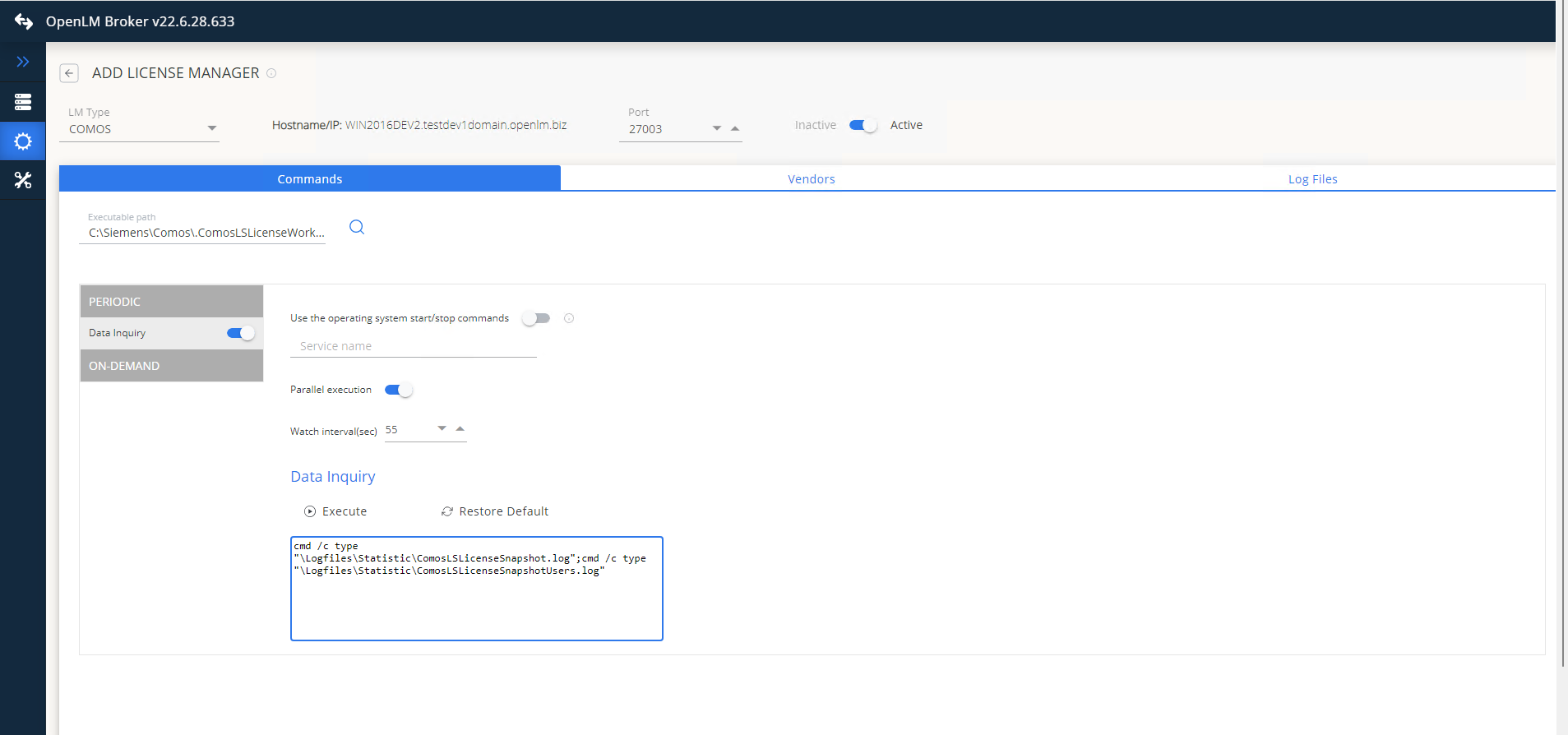
 Commands タブで Comos のインストールパスを設定し、Execute をクリックしてエラーがないか確認します。
 Vendors タブ → Add Vendor に移動し、Comos を入力して Continue をクリックします。
 Log Files タブ → Add Log File に移動し、Comos のログファイルを参照して、Watch file by pattern を有効にし、Continue をクリックします。
 -
Log Files タブ → Add Log File に移動し、Comos のログファイルを参照して、Watch file by pattern を有効にし、Continue をクリックします。
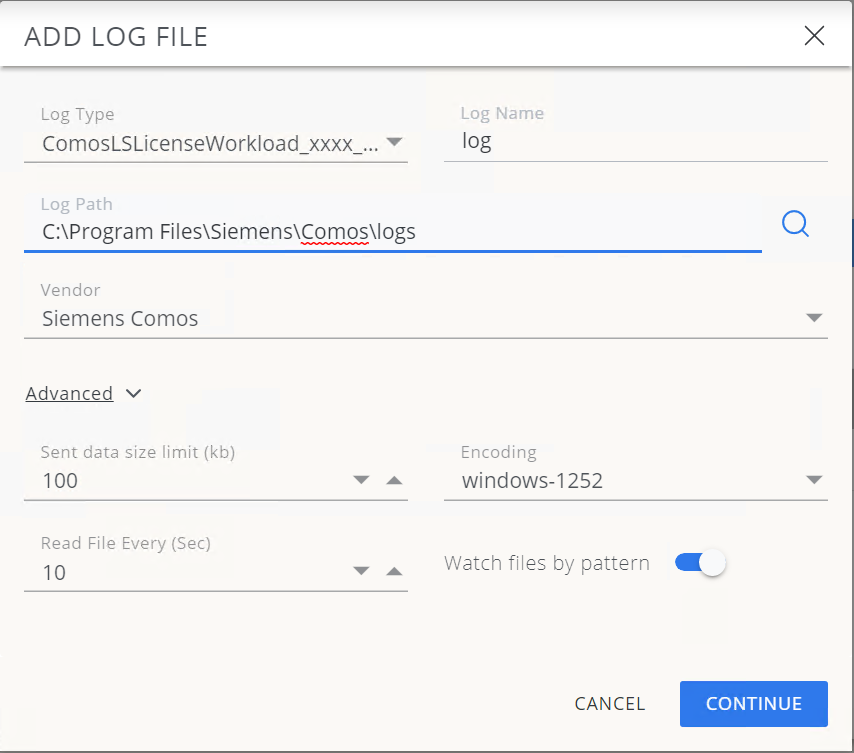 Save をクリックします。
OpenLM Platform で Comos を承認
- OpenLM Platform にサインインします。
- メニューから License Servers → Pending Server を開きます。
- Comos ライセンスマネージャーを選択し、Approve and Merge をクリックします。
連携の検証
- OpenLM Platform で License Servers Live → Server Statistics を開きます。
- Comos が緑のステータスで表示されることを確認します。
新規接続の場合、ステータスの反映まで最大 3 分かかります。