DSLS Cloud
OpenLM で Managed DSLS ライセンスマネージャーのライセンス使用状況および統計を収集するための設定手順は以下のとおりです。
はじめに
開始前に、次が揃っていることを確認してください。
- OpenLM Platform。
- Managed DSLS と同じマシンにインストールされ、Broker Hub で承認された OpenLM Broker v25.x 以降。
監視機能
監視機能はクエリ方法によって異なります。
- OpenLM Server を介してリモートでクエリを実行する場合:
- ライセンス総数
- 一時的なネットワーク障害を克服するためのバッファリングされた通信
- ライセンスマネージャーサービスをリモートで開始/停止する機能
- ライセンス拒否のレポート
- ライセンス使用状況レポートの 1 分間隔の解像度
- Managed DSLS のライセンスファイルおよびログファイルの読み取り
- OpenLM Web Interface でのライセンスファイルの内容の表示
OpenLM Broker の設定
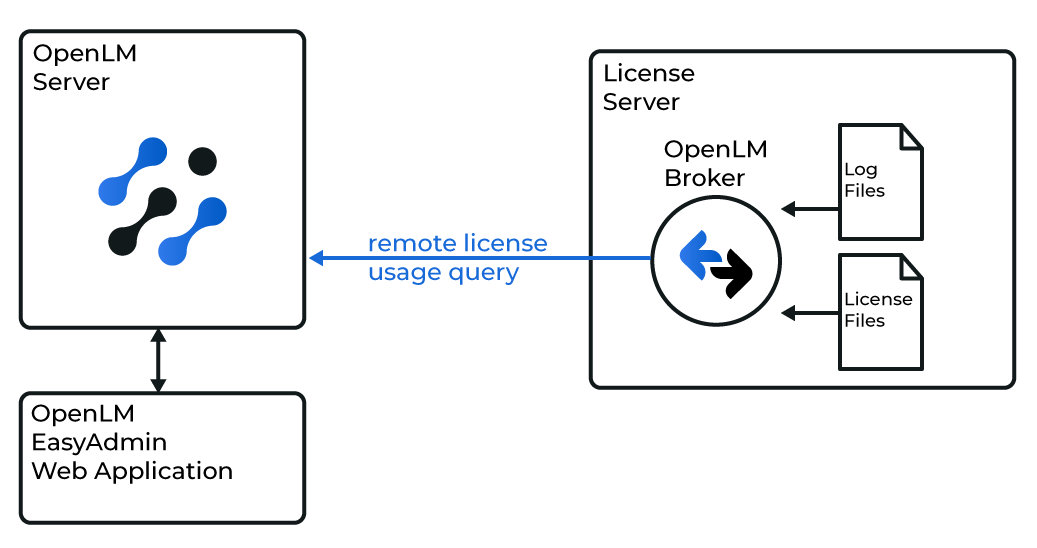 OpenLM が Managed DSLS ライセンスマネージャーと連携する仕組みの図
続行する前に、Managed DSLS と同じマシンに OpenLM Broker をインストールして設定します。
オプション 1 — 自動検出
-
Managed DSLS のマシンで Broker の Web UI にアクセスします。
-
License Managers を開き、Detect をクリックします。
-
Managed DSLS が表示されます。
-
内容を確認して保存します。
サービスが実行中の場合、Broker は必要なすべての設定を自動的に構成します。正確を期すため、次の「手動設定」セクションを確認してください。
オプション 2 — 手動で追加
-
Broker UI を
http://localhost:5090/で開きます。 -
License Managers → Add License Manager を開きます。
-
LM Type から DSLS Cloud を選択し、ポート番号を入力して、Add をクリックします。
-
Commands タブを開き、Managed DSLS ユーティリティへの実行ファイルのパスを設定します。
-
サービスとして実行している場合は、Use operating system start/stop commands file をオンにし、サービス名を設定します。
-
Data Inquiry をオンにし、Execute をクリックして接続をテストします。
-
Vendors タブ → Add Vendor を開き、ベンダー名を入力して、Continue をクリックします。
-
Log Files タブ → Add Log File を開き、最新の Managed DSLS ログファイルを選択し、ベンダーを選択して、Continue をクリックします。
-
Save をクリックします。
OpenLM Platform で DSLS Cloud を承認
- OpenLM Platform にサインインします。
- メニューから License Servers → Pending Server を開きます。
- DSLS Cloud ライセンスマネージャーを選択し、Approve and Merge をクリックします。
連携の検証
- OpenLM Platform で License Servers Live → Server Statistics を開きます。
- DSLS Cloud が緑のステータスで表示されることを確認します。
新規接続の場合、ステータスの反映まで最大 3 分かかります。