GitLab
OpenLM で GitLab のライセンス使用状況および統計を収集するための設定手順は以下のとおりです。
はじめに
- OpenLM Platform。
- Gitlab と同じマシンにインストールされ、Broker Hub で承認された OpenLM Broker v25.x 以降。
監視機能
OpenLM Broker を介した GitLab の現在の監視機能は次のとおりです。
| Report resolution | License totals | License usage | Denials reporting | Borrowed license reporting | Expiration date reporting | Multiple server redundancy |
|---|---|---|---|---|---|---|
| By minute | Yes | Yes | Yes | No | Yes | No |
OpenLM Broker の設定
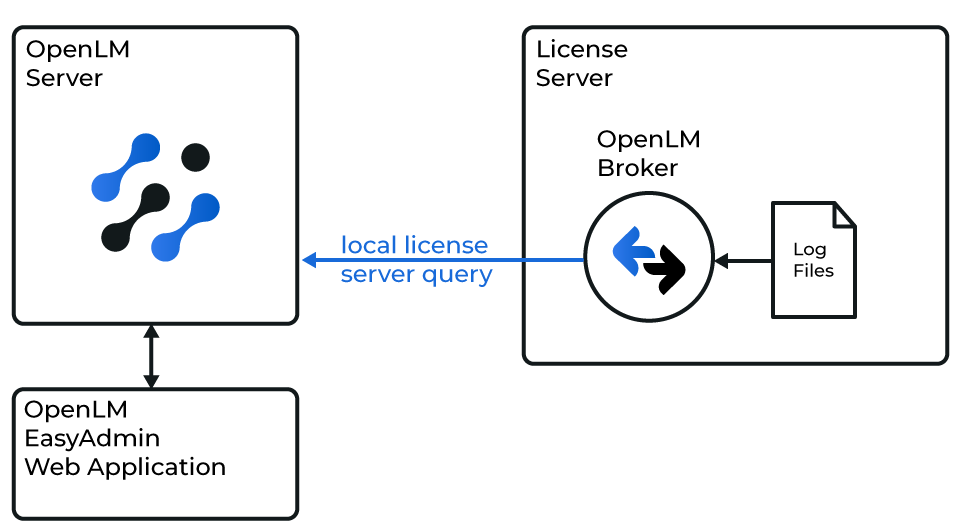 OpenLM が GitLab と連携する仕組みの図
注意
続行する前に、OpenLM Broker をインストールし、OpenLM Server へレポートするように設定しておく必要があります。
手動で追加
-
Broker UI を
http://localhost:5090/で開きます。 -
License Managers → Add License Manager を開きます。
-
Gitlab を選択し、ポート番号を入力して、Add をクリックします。
-
Commands ノードで Data Inquiry を選択し、ユーザー用の GitLab API エンドポイントを入力します。例: http://FQDN:80/api/v4/users
-
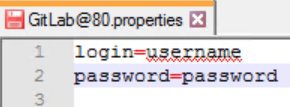
C:\Program Files\OpenLM\OpenLM Broker で gitlab@80.properties ファイルを開き、ログイン情報を入力して保存します。
 Broker で Execute をクリックし、次に Apply をクリックします。ライセンスデータの出力が表示されることを確認します。
 -
Vendors で、ベンダーのプレースホルダーノードを選択し、GitLab と入力して、Apply をクリックします。
-
Restart Broker をクリックします。
OpenLM Platform で GitLab を承認
- OpenLM Platform にサインインします。
- メニューから License Servers → Pending Server を開きます。
- GitLab ライセンスマネージャーを選択し、Approve and Merge をクリックします。
連携の検証
- OpenLM Platform で License Servers Live → Server Statistics を開きます。
- GitLab が緑のステータスで表示されることを確認します。
注意
新規接続の場合、ステータスの反映まで最大 3 分かかります。