INFOR SLM
OpenLM を設定して、Infor SLM License Manager のライセンス使用状況を監視し、ライセンス統計を収集する手順は次のとおりです。
はじめに
ライセンスマネージャーを照会する前に、次をインストールします。
- OpenLM Platform
- Infor SLM と同じマシンにインストールされた OpenLM Broker v25.x 以降。Broker Hub で承認します。
OpenLM Broker の設定
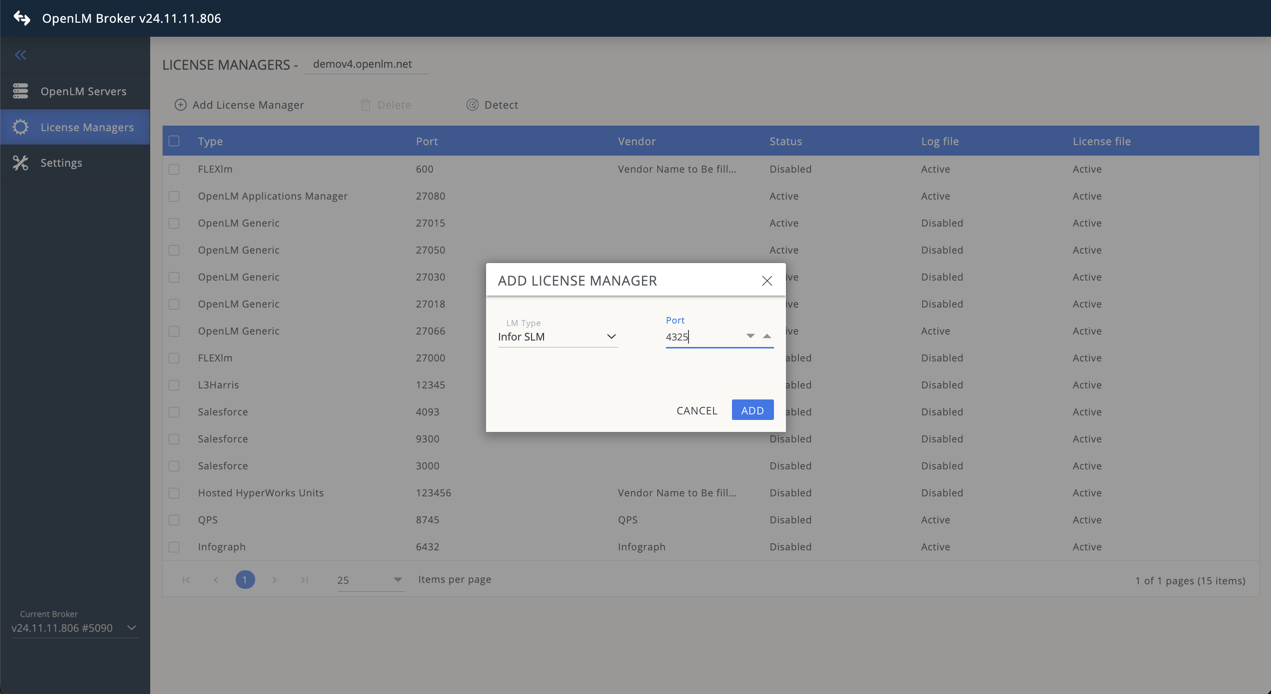 OpenLM Broker で Infor SLM ライセンスマネージャーを追加
続行する前に、OpenLM Broker をインストールし、OpenLM Server にレポートするように設定しておく必要があります。
-
Broker Web UI を
http://localhost:5090で開きます。既定のポートが使用中の場合は、5091 または 5092 を試します。 -
License Managers → Add License Manager に移動します。
-
LM Type ドロップダウンリストから Infor SLM を選択します。
-
ポート番号(例: 4325)を入力し、Add をクリックします。
-
Settings タブに移動します。
- Broker がライセンスファイルのパスを自動検出する場合があります。
- 検出されない場合は、Set license file path manually を選択し、license.xml ファイルに移動します。
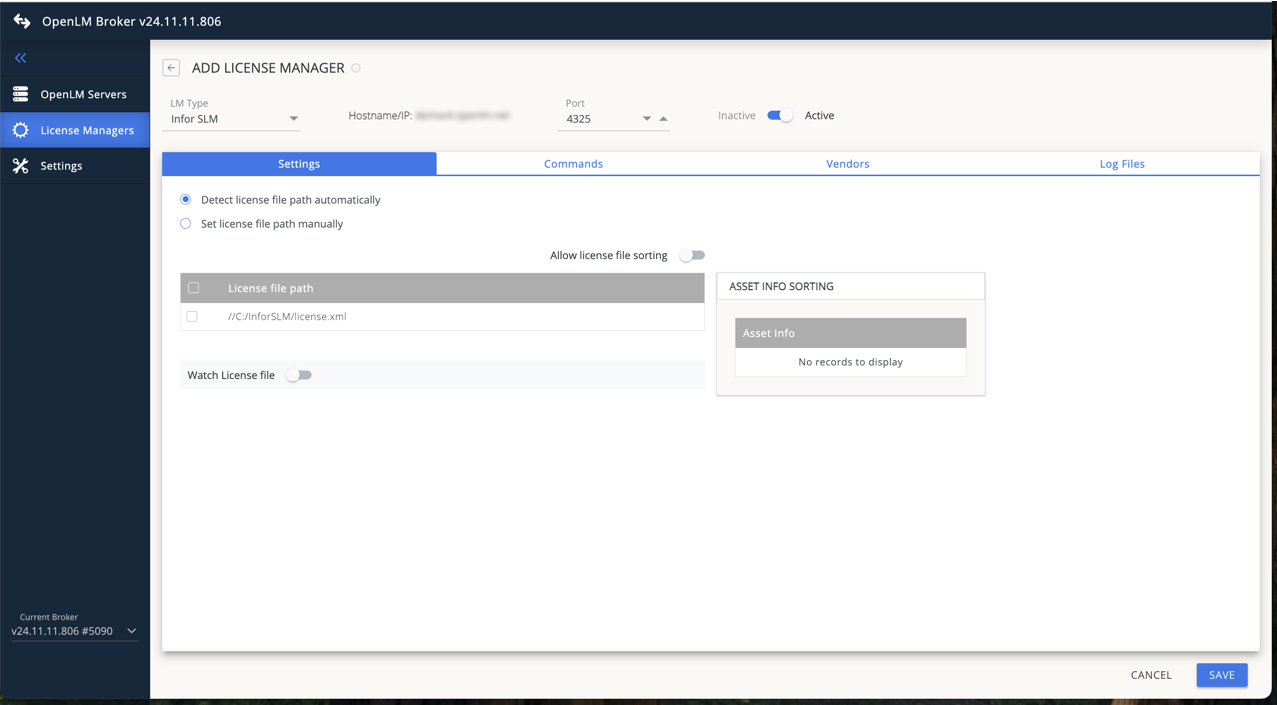 OpenLM Broker での Infor SLM ライセンスファイルパスの設定
 -
Commands タブに移動します。Data Inquiry フィールドに Infor SLM のホストとポートを入力します。
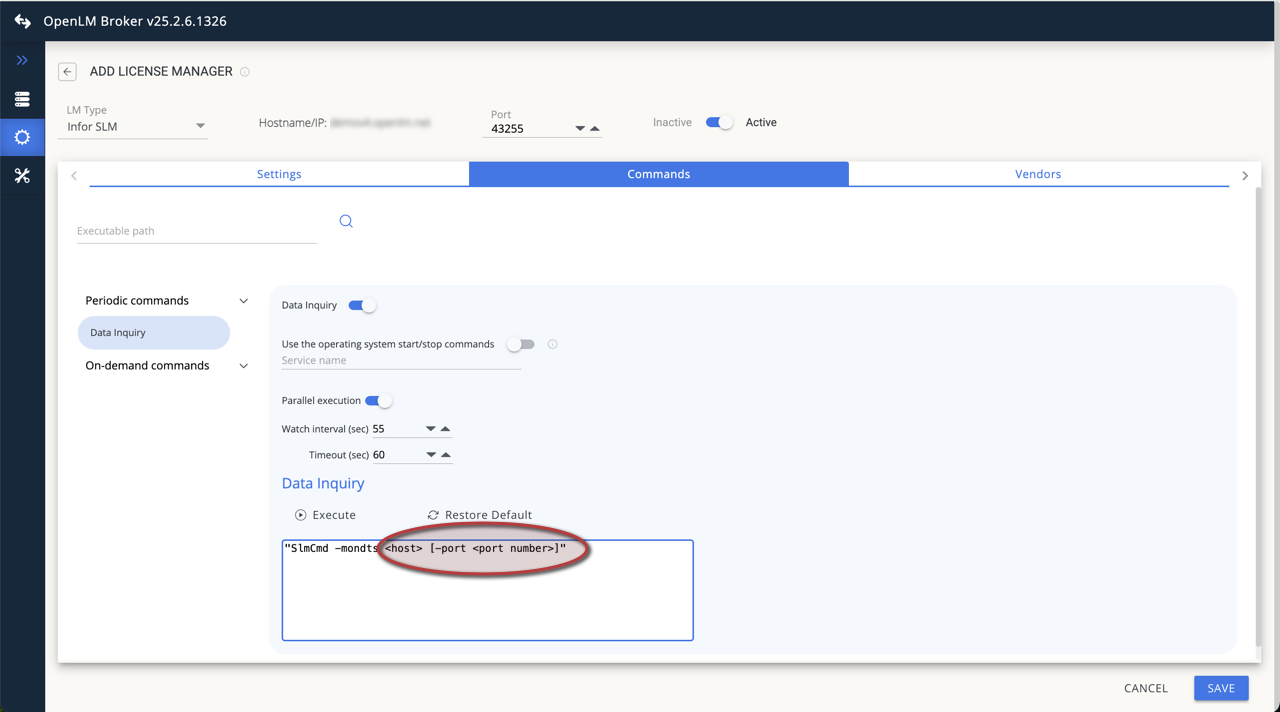 OpenLM Broker での Infor SLM データ問い合わせの設定
 -
Save をクリックし、続いて Execute をクリックして設定をテストします。
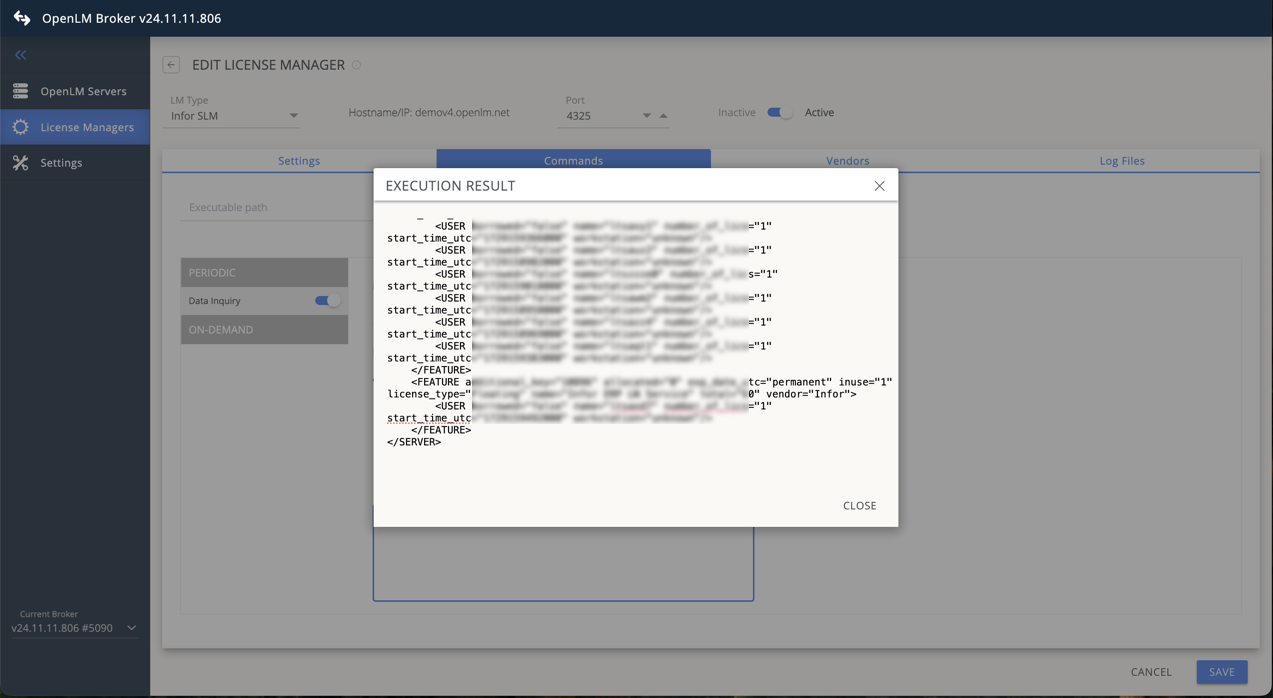 Infor SLM ライセンスマネージャーの実行結果が成功した例
 -
Vendors タブに移動します。Add Vendor をクリックし、Infor SLM と入力して Continue をクリックします。
-
Save をクリックします。
OpenLM Platform で INFOR SLM を承認
- OpenLM Platform にサインインします。
- メニューから License Servers → Pending Server を開きます。
- INFOR SLM ライセンスマネージャーを選択し、Approve and Merge をクリックします。
連携の検証
- OpenLM Platform で License Servers Live → Server Statistics を開きます。
- INFOR SLM が緑のステータスで表示されることを確認します。
新規接続の場合、ステータスの反映まで最大 3 分かかります。