Intergraph SPLM
本ドキュメントでは、OpenLM を Intergraph SmartPlant License Manager (SPLM) と連携させ、ライセンスの使用状況を監視してライセンス統計を取得する方法について説明します。
はじめに
- OpenLM Platform。
- Intergraph SPLM と同じマシンにインストールされ、Broker Hub で承認された OpenLM Broker v25.x 以降。
監視機能
OpenLM は、次の Intergraph SPLM のアクティビティを監視できます。
| Report resolution | License totals | License usage | Denials reporting | Borrowed license reporting | Expiration date reporting | Multiple server redundancy |
|---|---|---|---|---|---|---|
| By minute | Yes | Yes | No | No | No | No |
SPLM ホストマシンに OpenLM Broker をインストールすると、ネットワークが中断した場合でも OpenLM Server へのバッファリングされた通信が可能になります。
OpenLM Server のみでの連携
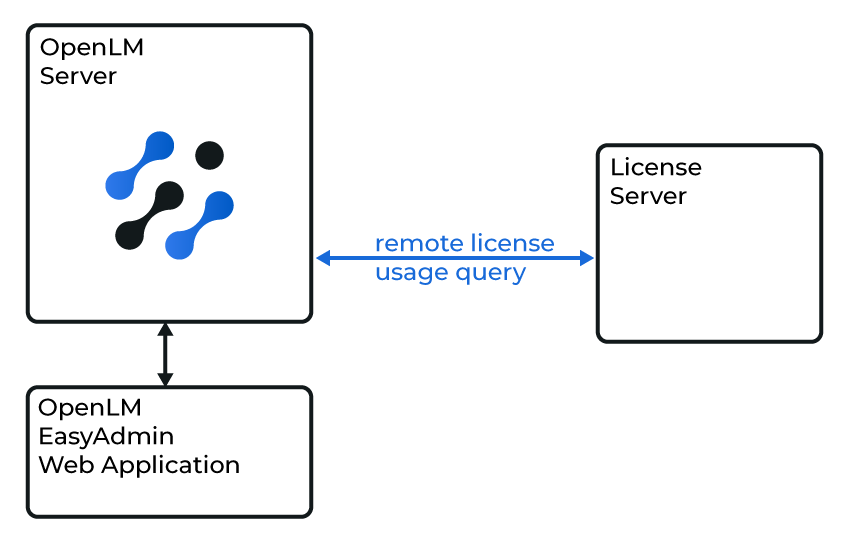 図: OpenLM Server が SPLM に直接クエリを実行する構成
これで OpenLM Server が SPLM にリモートでクエリを実行し、OpenLM Web Interface に使用状況データを表示できるようになります。
OpenLM Server + Broker での連携
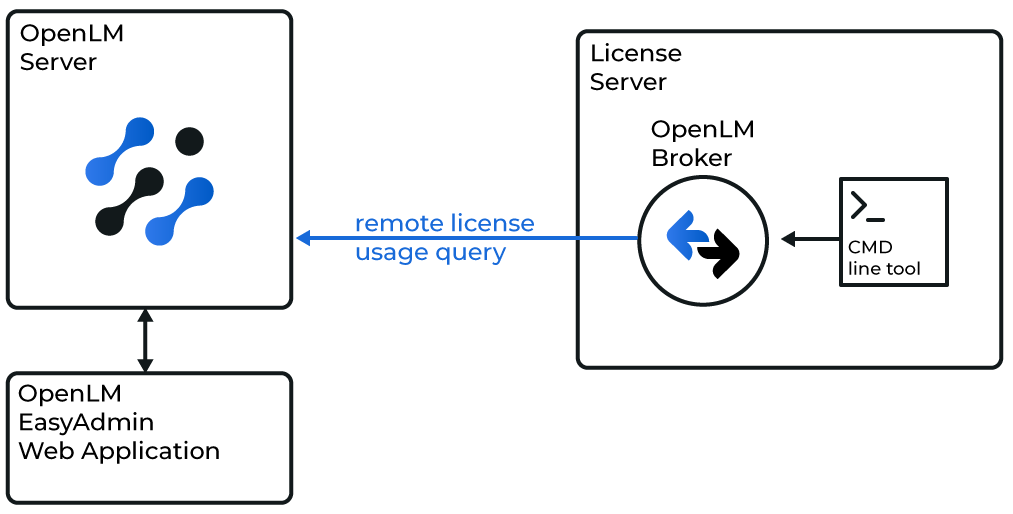 図: OpenLM Broker が SPLM にローカルでクエリを実行する構成
このオプションでは、OpenLM Broker を使用して SPLM のコマンドラインユーティリティ (pdlice.exe) を実行します。Broker は使用状況データをバッファリングするため、サーバー接続が中断された場合でも継続性が確保されます。
Broker の設定
-
Broker UI を
http://localhost:5090/で開きます。 -
License Managers → Add License Manager を開きます。
-
License Manager Type メニューから SPLM を選択します。
-
SPLM のポート番号 (例: 807) を入力します。Add をクリックします。
-
Commands で、pdlice.exe ユーティリティへの実行ファイルのパス (例: C:\Win32applingr\pdlice\bin\pdlice) を設定します。
-
Vendors で、新しいベンダーを追加し、名前 (例: SPLM) を付けます。
-
設定を保存します。
OpenLM Platform で Intergraph SPLM を承認
- OpenLM Platform にサインインします。
- メニューから License Servers → Pending Server を開きます。
- Intergraph SPLM ライセンスマネージャーを選択し、Approve and Merge をクリックします。
連携の検証
- OpenLM Platform で License Servers Live → Server Statistics を開きます。
- Intergraph SPLM が緑のステータスで表示されることを確認します。
新規接続の場合、ステータスの反映まで最大 3 分かかります。