L3Harris Geospatial
OpenLM で L3Harris License Manager のライセンス使用状況および統計を収集するための設定手順は以下のとおりです。
はじめに
開始前に、次が揃っていることを確認してください。
- OpenLM Platform。
- L3Harris と同じマシンにインストールされ、Broker Hub で承認された OpenLM Broker v25.x 以降。
監視機能
| Report resolution | License totals | License usage | Denials | Borrowing | Expiration date | Redundancy |
|---|---|---|---|---|---|---|
| By second | Yes | No | No | No | No | No |
Broker により、バッファリングされた通信が可能になり、ライセンスマネージャーサービスをリモートで開始/停止できます。
OpenLM Broker の設定
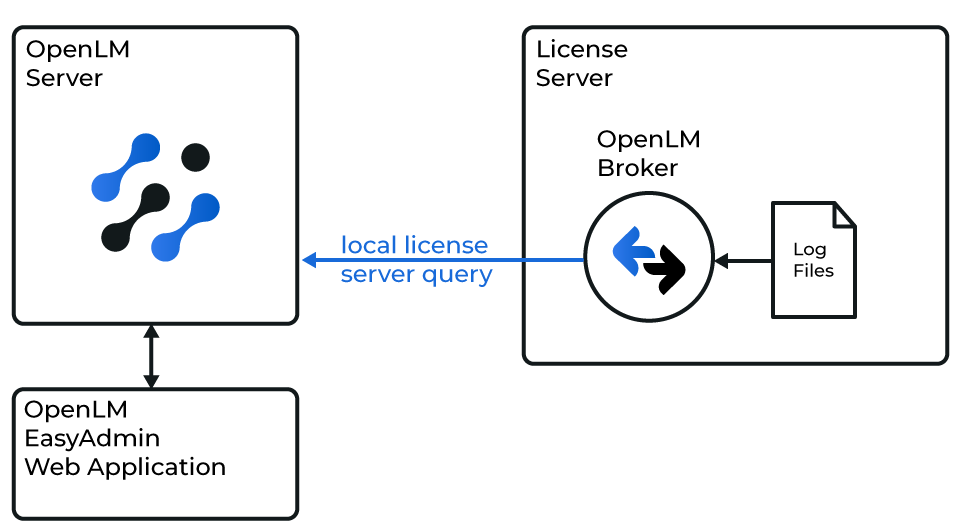 OpenLM が L3Harris と連携する仕組みの図
続行する前に、OpenLM Broker をインストールし、OpenLM へレポートするように設定しておく必要があります。
-
Broker の Web UI を
http://localhost:5090で開きます (既定のポートが使用中の場合は 5091 または 5092)。 -
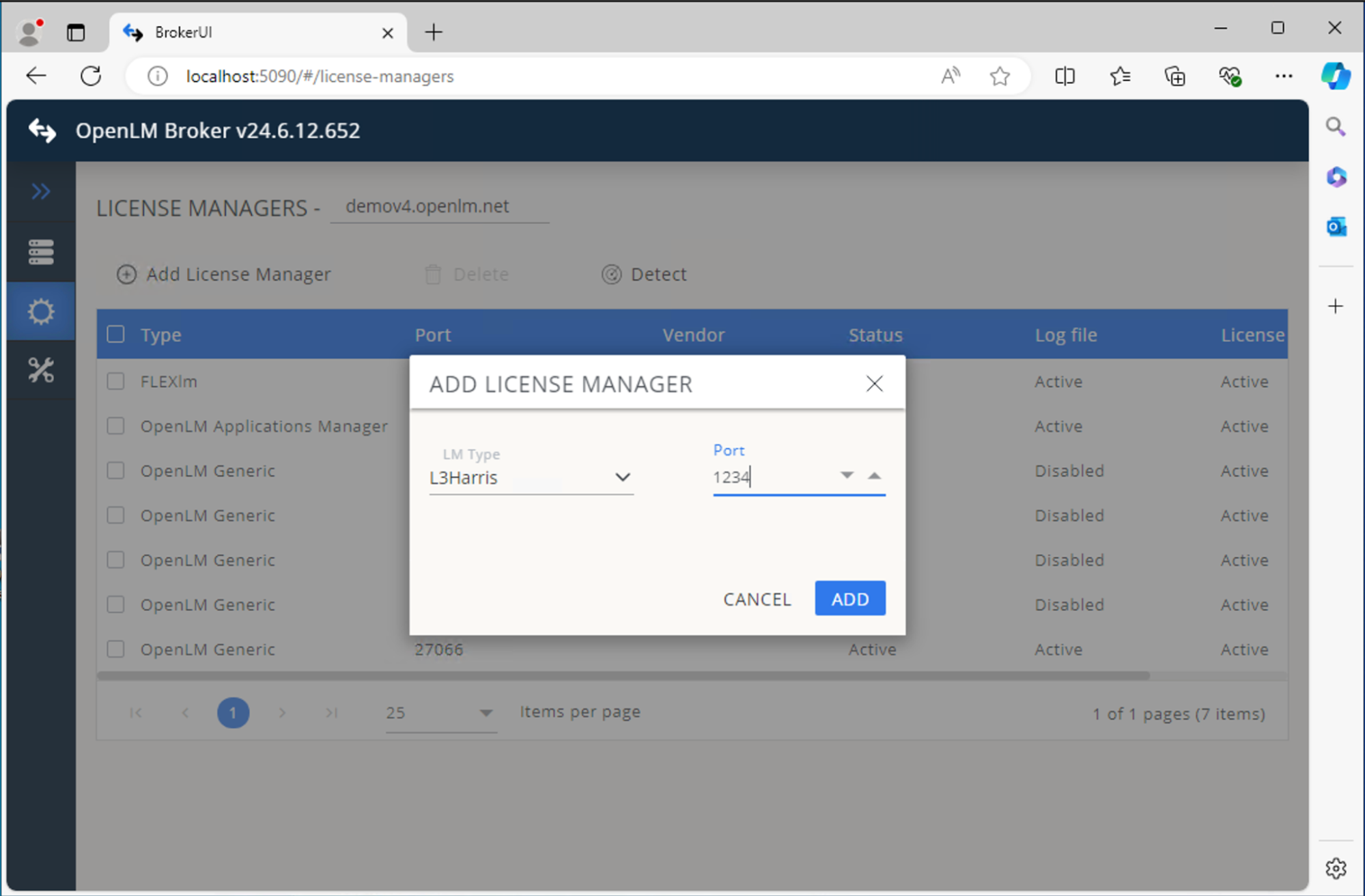
License Managers → Add License Manager を開きます。
-
ドロップダウンから L3Harris を選択し、ポート番号を入力します。ポート番号はデータのキャプチャには使用されませんが、ライセンスの目的で必要です。
-
Add をクリックします。
 Commands タブで、L3Harris のログファイルを含むフォルダーを参照し、Apply をクリックします。
 -
Executable path フィールドに、L3Harris ライセンスサーバー上の実行ファイルのパスを指定します。
-
Vendors を開き、ベンダー名を設定します。
-
Log Files → Add Log File を開き、次のように設定します。
- Log type - Usage Log
- Log name (descriptive) - ログを識別するための任意の名前
- Log path - L3Harris のログフォルダーを参照します
- Vendor - Vendors タブで定義したベンダー
- Set data size limit (KB) - デフォルトは 100
- Read file every (sec) - デフォルトは 10
- Watch file by pattern - オフ
- Encoding - windows-1252
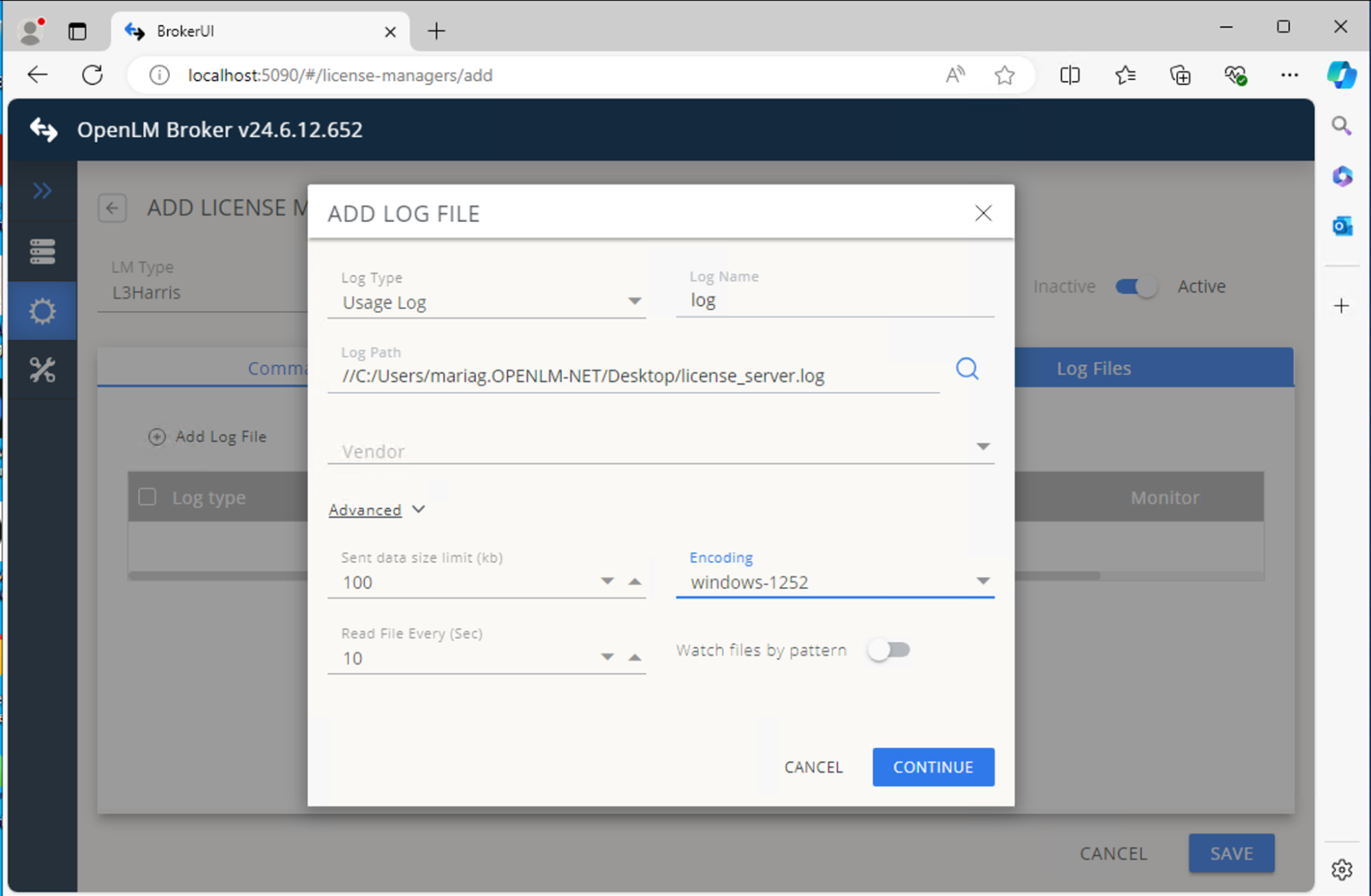 Continue をクリックし、続いて Save をクリックします。
OpenLM Platform で L3Harris Geospatial を承認
- OpenLM Platform にサインインします。
- メニューから License Servers → Pending Server を開きます。
- L3Harris Geospatial ライセンスマネージャーを選択し、Approve and Merge をクリックします。
連携の検証
- OpenLM Platform で License Servers Live → Server Statistics を開きます。
- L3Harris Geospatial が緑のステータスで表示されることを確認します。
注意
新規接続の場合、ステータスの反映まで最大 3 分かかります。