LexFloatServer
LexFloat Server からライセンス使用状況の監視とライセンス統計の収集を行うように OpenLM を設定するには、次の手順に従います。
はじめに
ライセンスマネージャーへ照会する前に、次をインストールしてください。
- OpenLM Platform。
- LexFloat と同じマシンにインストールされ、Broker Hub で承認された OpenLM Broker v25.x 以降。
監視機能
| LM Type in the Broker | Commands | Logs | Quantity | Expiration date | Denied | Borrowing | Allocations | Report resolution |
|---|---|---|---|---|---|---|---|---|
| LexFloat Server | No | Yes | No | No | No | No | No | Seconds |
Broker を使用すると、バッファリングされた通信や、ライセンスマネージャーサービスのリモートでの開始/停止も可能になります。
OpenLM Broker の設定
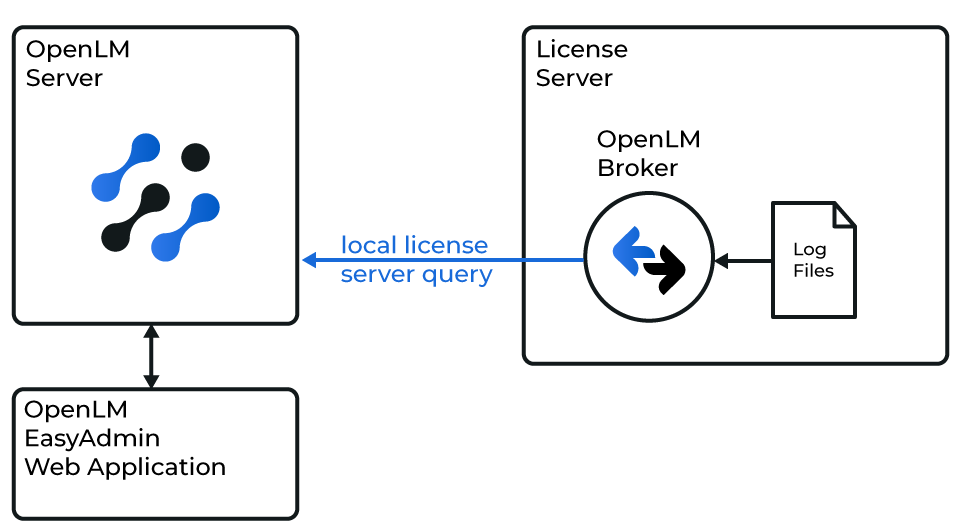 OpenLM と LexFloat Server License Manager の連携の概要図
続行する前に、OpenLM Broker がすでにインストールされ、OpenLM Server へ報告するように設定されている必要があります。
手動で追加
-
Broker Web UI を開きます:
http://localhost:5090。 -
License Managers → Add License Manager に移動します。
-
LM Type のドロップダウンリストから LexFloat Server を選択します。
-
ポート番号 (例: 889) を入力し、Add をクリックします。
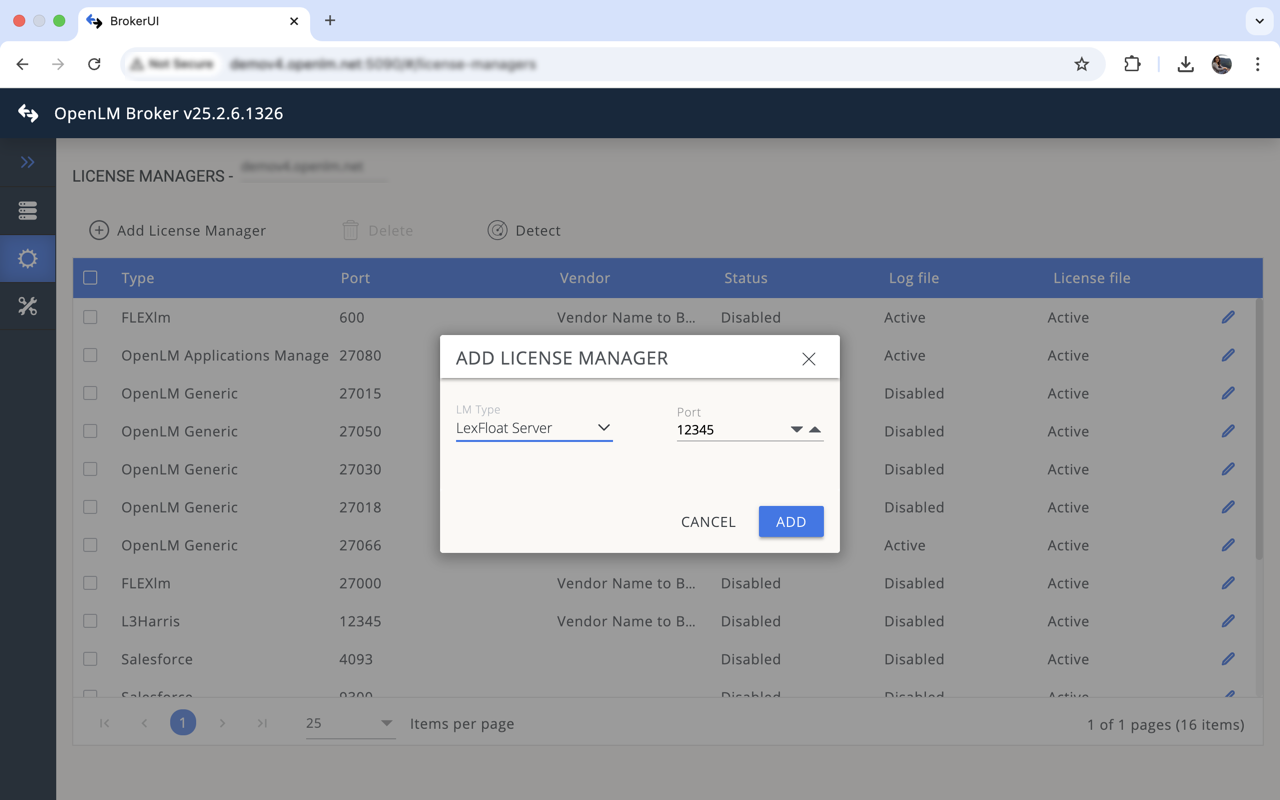 OpenLM Broker での LexFloat Server ライセンスマネージャーの追加
 -
Vendors タブに移動します。Add Vendor をクリックし、LexFloat Server を入力して Continue をクリックします。
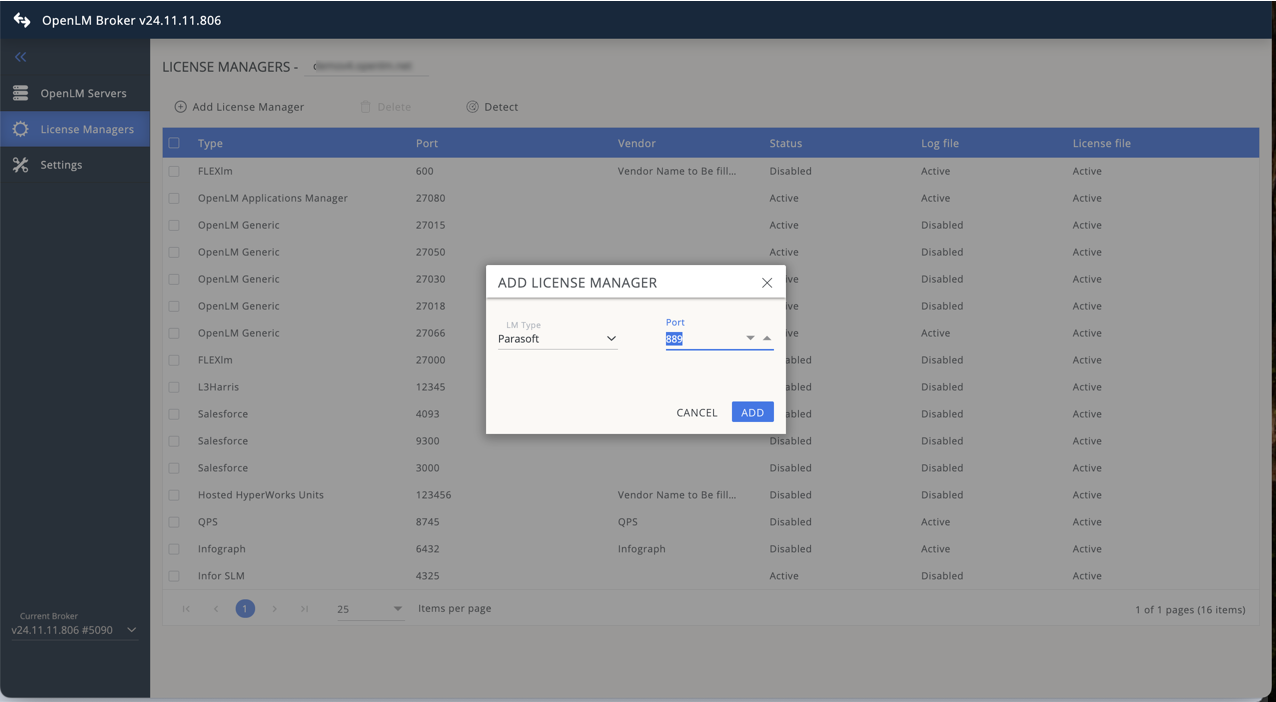 OpenLM Broker での LexFloat Server ベンダーの追加
 -
Log Files タブに移動します。Add Log File をクリックします。Watch file by pattern をオフにします。複数のログを追加できます。Continue をクリックします。
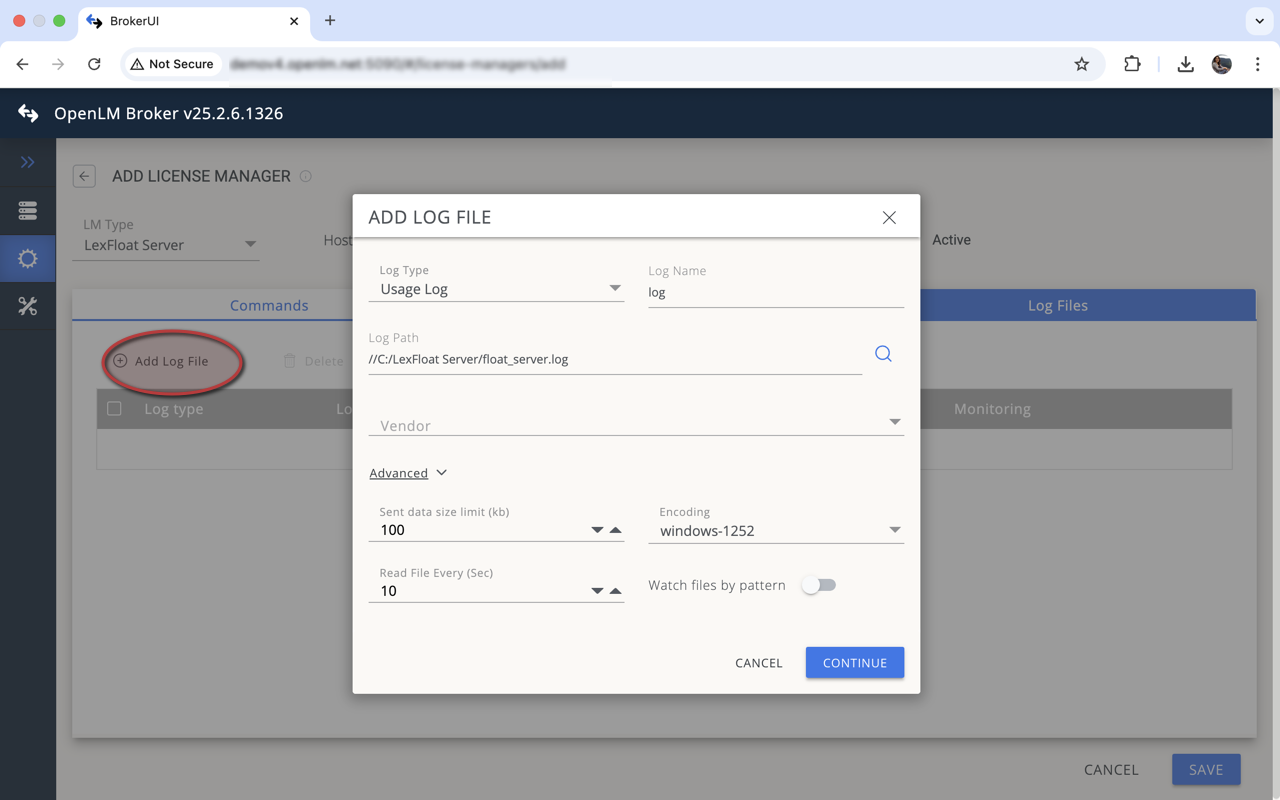 OpenLM Broker での LexFloat Server 用ログファイルの追加
 -
Save をクリックします。
OpenLM Platform で LexFloatServer を承認
- OpenLM Platform にサインインします。
- メニューから License Servers → Pending Server を開きます。
- LexFloatServer ライセンスマネージャーを選択し、Approve and Merge をクリックします。
連携の検証
- OpenLM Platform で License Servers Live → Server Statistics を開きます。
- LexFloatServer が緑のステータスで表示されることを確認します。
新規接続の場合、ステータスの反映まで最大 3 分かかります。