License4J
OpenLM は、幅広く、かつ増え続ける多様なライセンスマネージャーの監視をサポートしています。本記事では、License4J License Manager と連携し、ライセンス使用状況レポートを生成するように OpenLM を設定する方法を説明します。この機能は、License4J バージョン 4.3.4 以降で利用できます。
はじめに
License4J ライセンスサーバーを監視するには、次のコンポーネントをインストールします。
- OpenLM Platform。
- License4J と同じマシンにインストールされ、Broker Hub で承認された OpenLM Broker v25.x 以降。
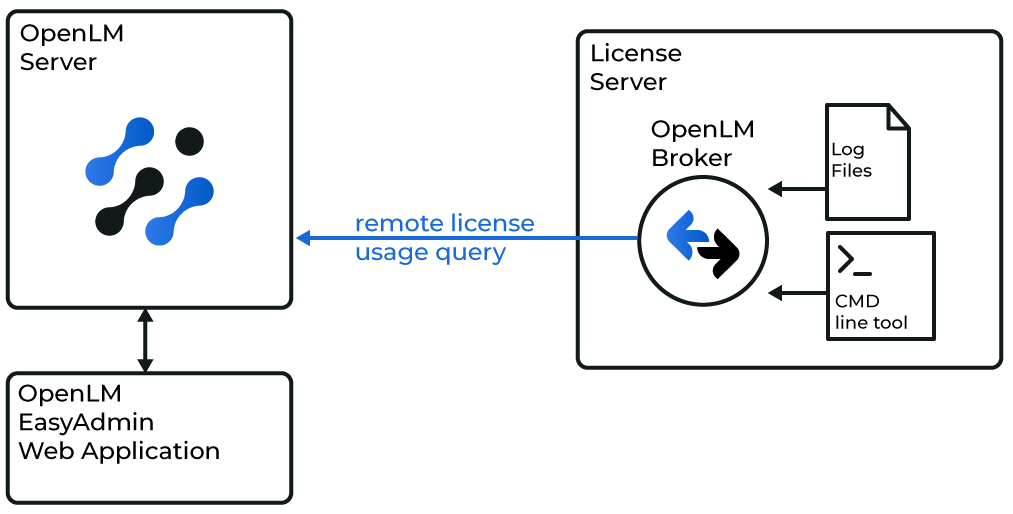 OpenLM Broker の設定
- Broker UI を開きます:
http://localhost:5090/。
-
License Managers → Add License Manager に移動します。
-
通信ポートを設定します。デフォルトは 5015 です。OpenLM Server のポートが受信通信用に開放されていることを確認します。
-
OpenLM Server の設定に合わせて、ライセンスサーバーの詳細を設定します。
- License Servers ノードを選択します。
- 同じホスト名 (例: license4j_server) を入力し、Apply をクリックします。
-
ライセンスサーバーのポートを追加します。
- license4j_server ノードを選択します。
- Add Port をクリックします。
- OpenLM Server で設定したものと同じポート番号 (例: 16090) を入力します。
- License Manager Type のドロップダウンで、OpenLM Generic を選択します。
- Apply をクリックし、続いて OK をクリックします。
-
License4J アドオンをダウンロードし、License4J サーバー上で解凍します (例: C:\tmp へ)。
-
Commands セクションを開き、data_inquiry ノードを選択します。License4J コマンドのフルパスを入力します。
java -jar "<FullPath>\FloatingLicenseServerQueryOpenLM.jar" <ServerNameOrIP>:<PortNumber> -
例:
java -jar "C:\tmp\FloatingLicenseServerQueryOpenLM\FloatingLicenseServerQueryOpenLM.jar" license4j_server:16090 -
Execute をクリックして、Data Inquiry コマンドをテストします。
-
Apply をクリックします。
-
Status コマンドについて、手順 7 ~ 9 を繰り返します。
-
Vendors ノードを展開します。ベンダー名として License4J を入力します。
-
Apply をクリックします。Vendor details changed と表示された場合は、No を選択します。
-
Restart Broker をクリックします。
OpenLM Platform で License4J を承認
- OpenLM Platform にサインインします。
- メニューから License Servers → Pending Server を開きます。
- License4J ライセンスマネージャーを選択し、Approve and Merge をクリックします。
連携の検証
- OpenLM Platform で License Servers Live → Server Statistics を開きます。
- License4J が緑のステータスで表示されることを確認します。
新規接続の場合、ステータスの反映まで最大 3 分かかります。