OLicense
OLicense は、OpenLM がサポートするライセンスマネージャーの 1 つです。本ガイドでは、OpenLM を OLicense-Server と連携させ、ライセンス使用状況を監視し、ライセンス統計を取得する方法を説明します。
Broker 方式: OpenLM Broker を OLicense-Server マシンにインストールし、ローカルで照会して OpenLM Server にデータを送信します。
OpenLM Server のみを使用した照会(直接方式)
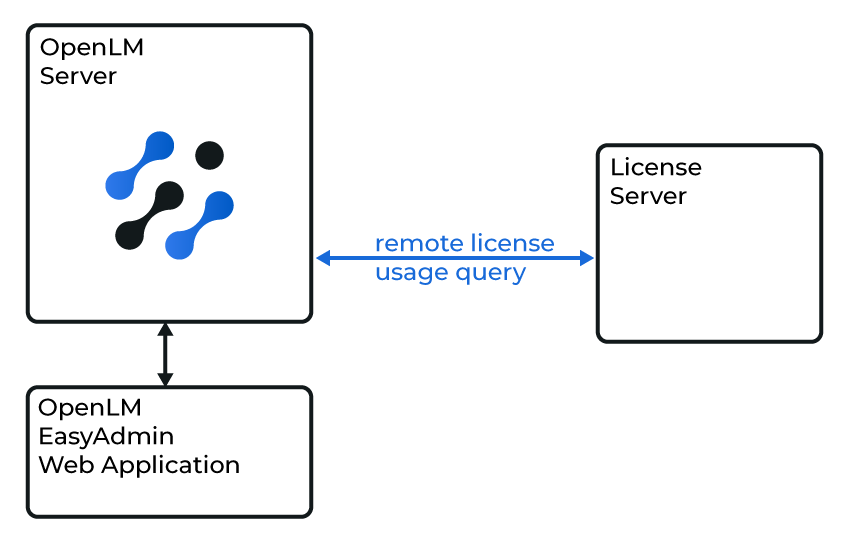 OpenLM Server と OLicense の間の直接照会
はじめに
-
OpenLM Platform。
-
OLicense と同じマシンにインストールされた OpenLM Broker v25.x 以降。Broker Hub で承認します。
OpenLM Broker は OLicense をローカルで照会して OpenLM Server にデータを送信し、ネットワーク障害時にもバッファリングされた通信を保証します。
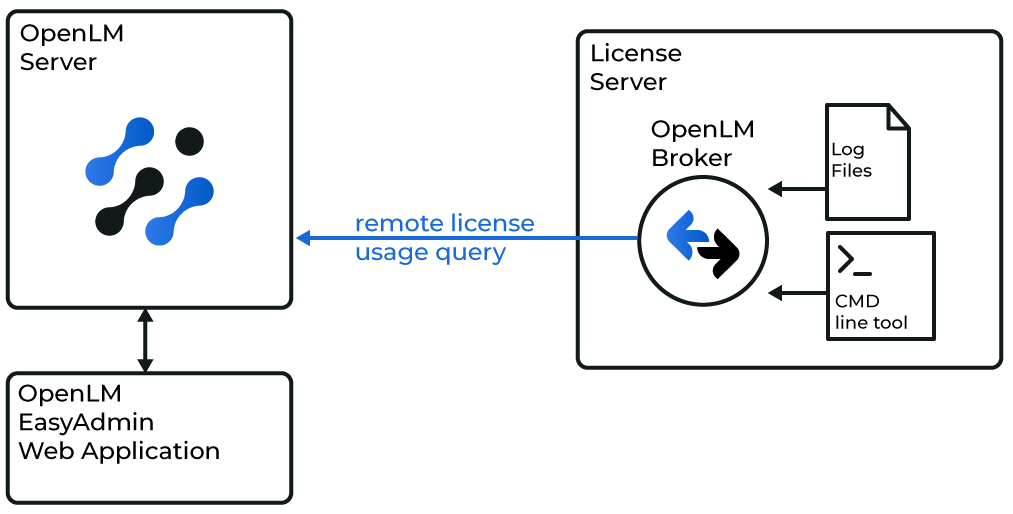 OLicense との OpenLM Broker のセットアップ
OpenLM Broker の設定
-
Broker UI を
http://localhost:5090/で開きます。 -
License Managers に移動します。
- OLicense が自動的に検出された場合は、確認して保存します。
- 検出されない場合は、Add License Manager をクリック → OLicense を選択 → ポートを入力(既定: 80)→ ADD をクリックします。
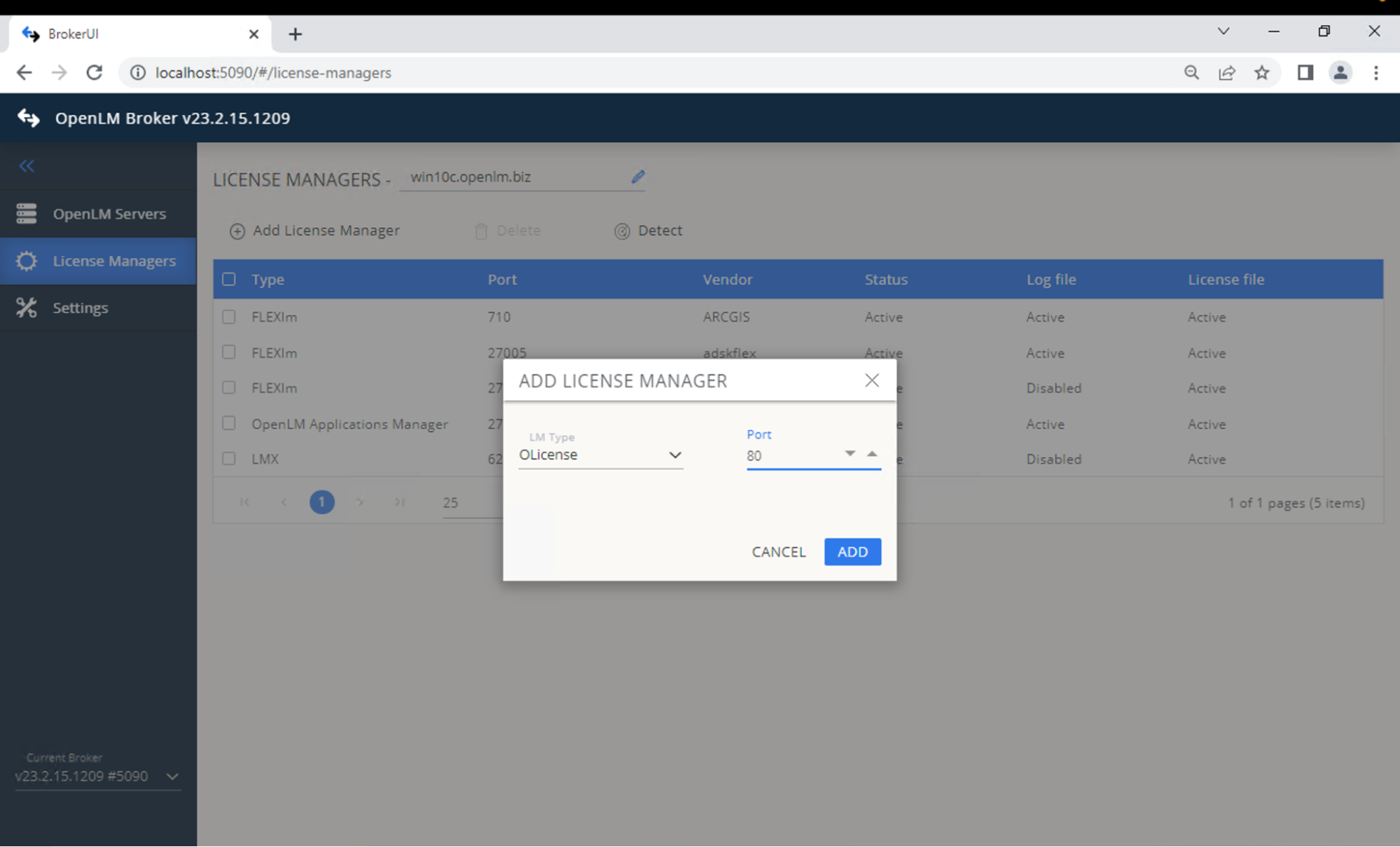 Broker で OLicense を手動で追加
 -
Commands で、olixtool.exe へのパスを設定します。Execute で出力を確認します。
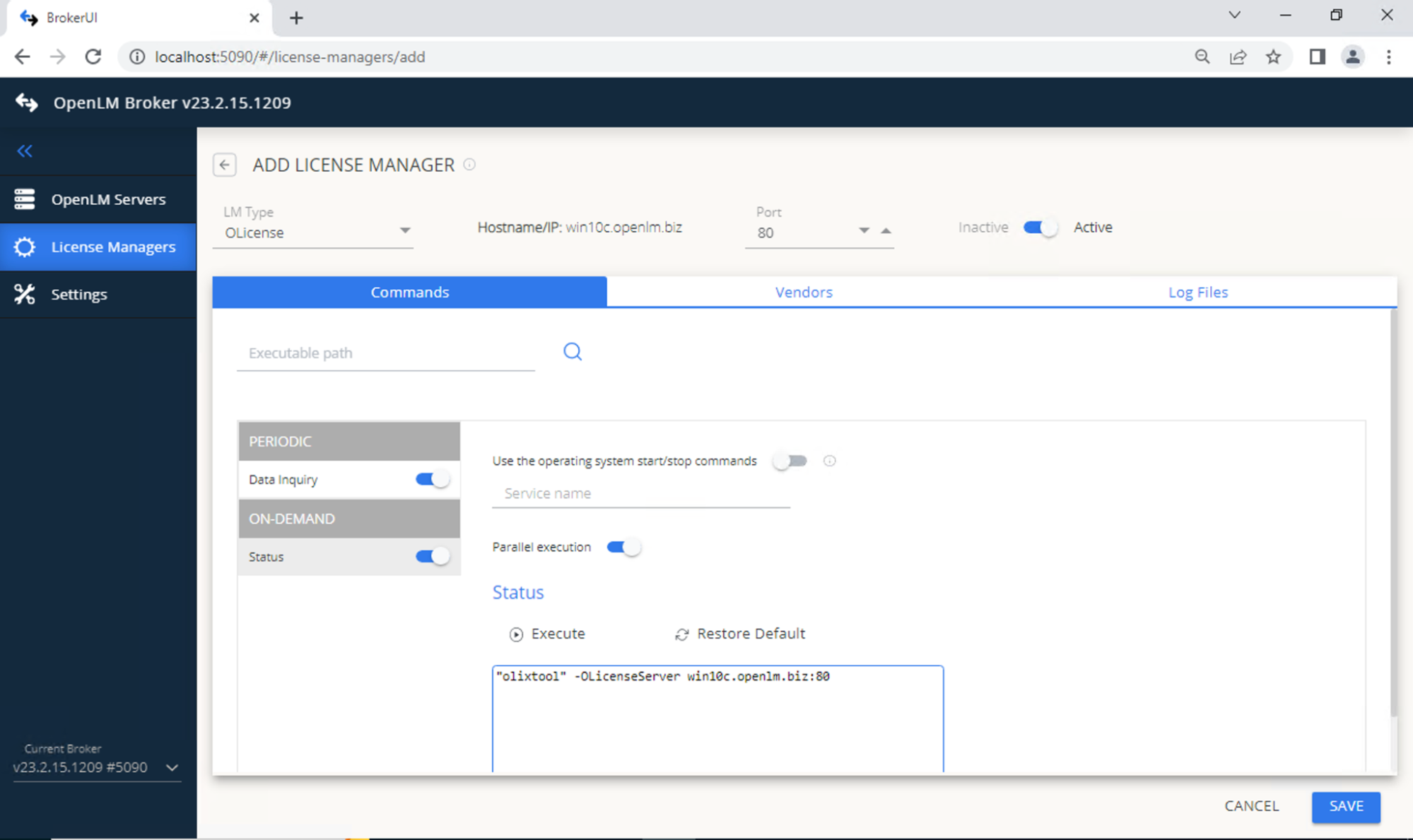 Broker Web UI でのコマンドパス指定
 -
Vendors で、Add Vendor をクリック → 「OLicense」と入力 → Continue をクリックします。
-
SAVE をクリックします。
-
前述のとおり OpenLM Server を設定します。
OpenLM Platform で OLicense を承認
- OpenLM Platform にサインインします。
- メニューから License Servers → Pending Server を開きます。
- OLicense ライセンスマネージャーを選択し、Approve and Merge をクリックします。
連携の検証
- OpenLM Platform で License Servers Live → Server Statistics を開きます。
- OLicense が緑のステータスで表示されることを確認します。
注意
新規接続の場合、ステータスの反映まで最大 3 分かかります。