OpenText (Spicer)
OpenLM は OpenText と連携して、ライセンス使用状況を監視し、統計を取得できます。本ガイドは、OpenLM Broker v4.8.8 以降との連携を前提としています。EventLog Monitor ツールを使用する旧バージョンの Broker については、こちらの KB を参照してください。
はじめに
- OpenLM Platform。
- OpenText と同じマシンにインストールされ、Broker Hub で承認された OpenLM Broker v25.x 以降。
監視機能
| Report resolution | License totals | License usage | Denials reporting | Borrowed license reporting | Expiration date reporting | Multiple server redundancy |
|---|---|---|---|---|---|---|
| By second | Yes | Yes | Yes | No | Yes | No |
Broker を使用すると、バッファリングされた通信や、ライセンスマネージャーサービスのリモートでの開始/停止も可能になります。
OpenLM Broker の設定
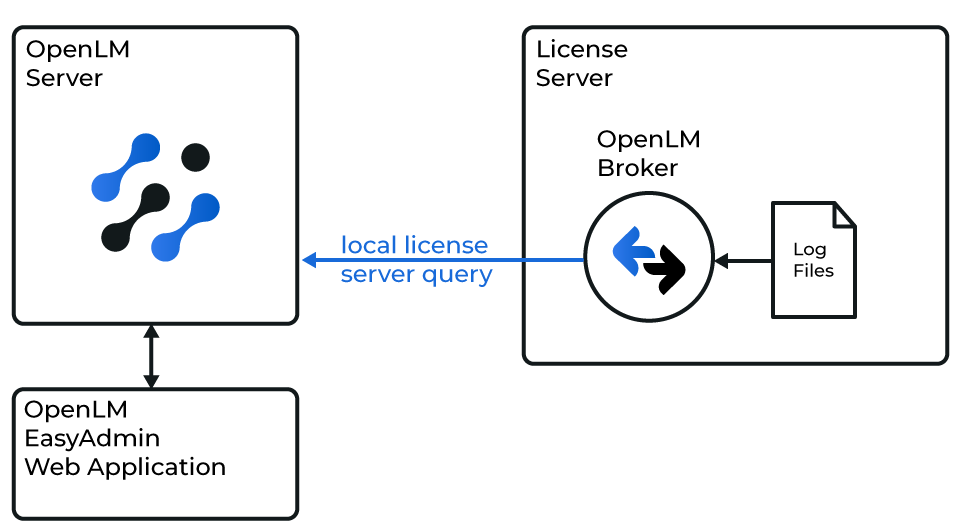 OpenLM と OpenText の連携
-
Broker UI を開きます:
http://localhost:5090/。 -
License Managers → Add License Manager に移動します。
-
License Manager Type で OpenText を選択します。Apply をクリックします。
-
Vendors に、レポートに表示する名前 (例: OpenText) を入力します。
-
Log Files で Add Log File をクリックし、OpenText のログファイルのパス (例: C:\OpenText\ImgLM_######.txt) を参照します。
-
Advanced をクリックし、Watch Files by Pattern を有効にします。
-
Apply をクリックします。
-
Broker のインストールフォルダーにある opentext@PORT.properties ファイルを開き、設定を調整します。
-
monitored.log.next: newest (デフォルト)。テスト用には newer。
-
date.format: デフォルトは MM/dd/yyyy HH:mm:ss。
-
opentext.feature.name: 監視するフィーチャー (例: OpenText Desktop Viewer)。
-
total.<FeatureName>: そのフィーチャーのライセンス総数 (例: total. OpenText Desktop Viewer=10)。
-
-
変更を保存し、Restart Broker をクリックします。
OpenLM Platform で OpenText (Spicer) を承認
- OpenLM Platform にサインインします。
- メニューから License Servers → Pending Server を開きます。
- OpenText (Spicer) ライセンスマネージャーを選択し、Approve and Merge をクリックします。
連携の検証
- OpenLM Platform で License Servers Live → Server Statistics を開きます。
- OpenText (Spicer) が緑のステータスで表示されることを確認します。
新規接続の場合、ステータスの反映まで最大 3 分かかります。