SEH-UTN
本連携により、OpenLM で SEH-UTN ライセンスドングルサーバーのライセンス使用状況と空き状況を監視できます。
はじめに
- OpenLM Platform。
- SEH-UTN と同じマシンにインストールされ、Broker Hub で承認された OpenLM Broker v25.x 以降。
SEH Control Center
SEH Control Center は、SEH-UTN ドングルサーバーを設定するための Web インターフェイスです。
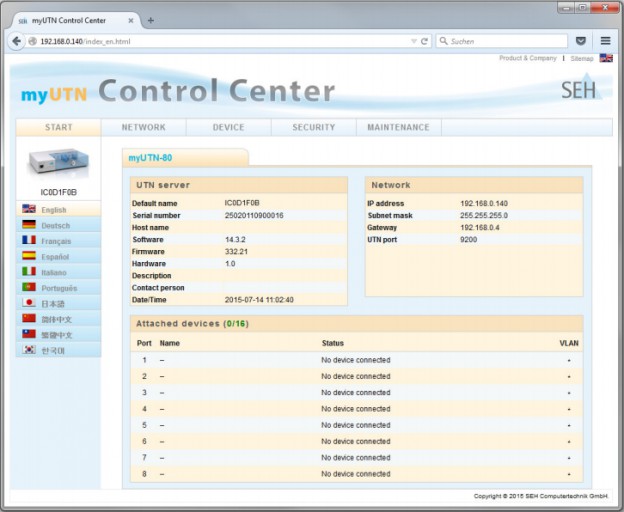 Control Center で次の項目を確認します。
-
ライセンスドングルサーバーの IP アドレス (例: 192.168.0.140) とサーバー名。
-
UTN ポート番号 (例: 9200)。
-
Attached devices ウィンドウ内のデバイス名。
OpenLM の設定時にこれらの情報を使用します。
OpenLM Broker の設定
ドングルライセンスを消費するワークステーションには OpenLM Broker をインストールしないでください。utnm.exe は、ライセンスを消費するマシン上ではホストやユーザーの詳細を報告しないためです。
-
SEH Control Center と utnm.exe ファイルにアクセスできるサーバーまたはワークステーションに OpenLM Broker をインストールします。
-
Broker UI を
http://localhost:5090/で開きます。 -
License Managers → Add License Manager を開きます。
-
OpenLM Broker Configuration で次の操作を行います。
- ライセンスマネージャーノードを選択します。
- Auto-Detect が失敗する場合は Add Port をクリックします。
- UTN ポート番号 (例: 9200) を入力します。
- License Manager Type を SEH-UTN に設定します。
- Apply → OK をクリックします。
-
Commands ノードを開き、SEH ドングルホスト上の utnm.exe へのパスを設定します。
-
status コマンドと data_inquiry コマンドが設定されていることを確認します。
-
Vendors で、ベンダー名を入力します。
-
Restart Broker をクリックします。
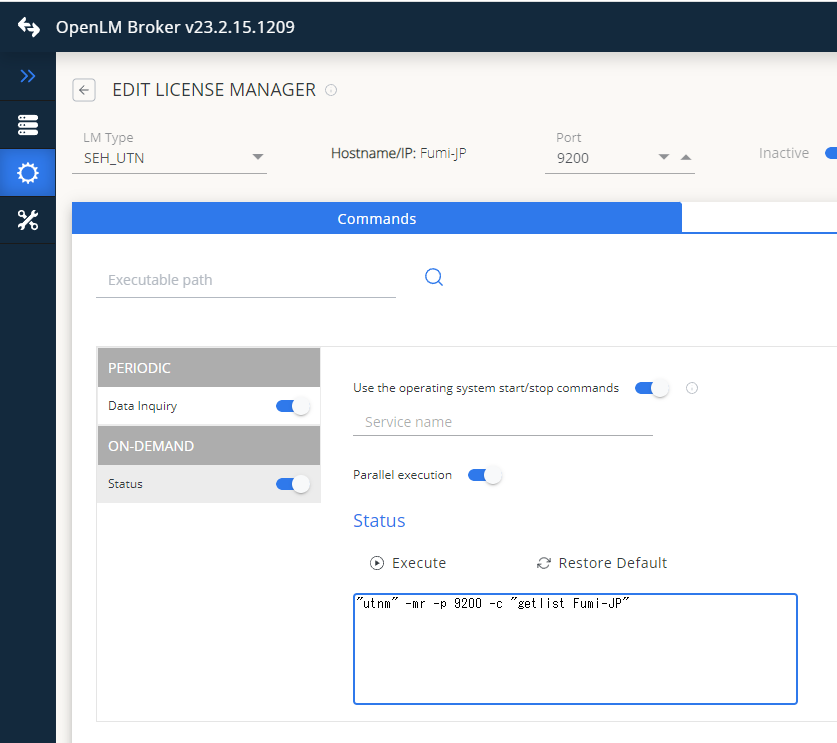 この時点で OpenLM は SEH ライセンス情報の収集を開始します。
この時点で OpenLM は SEH ライセンス情報の収集を開始します。
OpenLM Platform で SEH-UTN を承認
- OpenLM Platform にサインインします。
- メニューから License Servers → Pending Server を開きます。
- SEH-UTN ライセンスマネージャーを選択し、Approve and Merge をクリックします。
連携の検証
- OpenLM Platform で License Servers Live → Server Statistics を開きます。
- SEH-UTN が緑のステータスで表示されることを確認します。
新規接続の場合、ステータスの反映まで最大 3 分かかります。