tNavigator
tNavigator License Manager からライセンス使用状況と統計を収集できるよう、次の手順で OpenLM を設定します。
はじめに
開始前に、次が揃っていることを確認してください。
- OpenLM Platform。
- tNavigator と同じマシンにインストールされ、Broker Hub で承認された OpenLM Broker v25.x 以降。
監視機能
| Report resolution | License totals | License usage | Denials | Borrowing | Expiration date | Redundancy |
|---|---|---|---|---|---|---|
| By second | Yes | Yes | No | No | Yes | No |
OpenLM Broker の設定
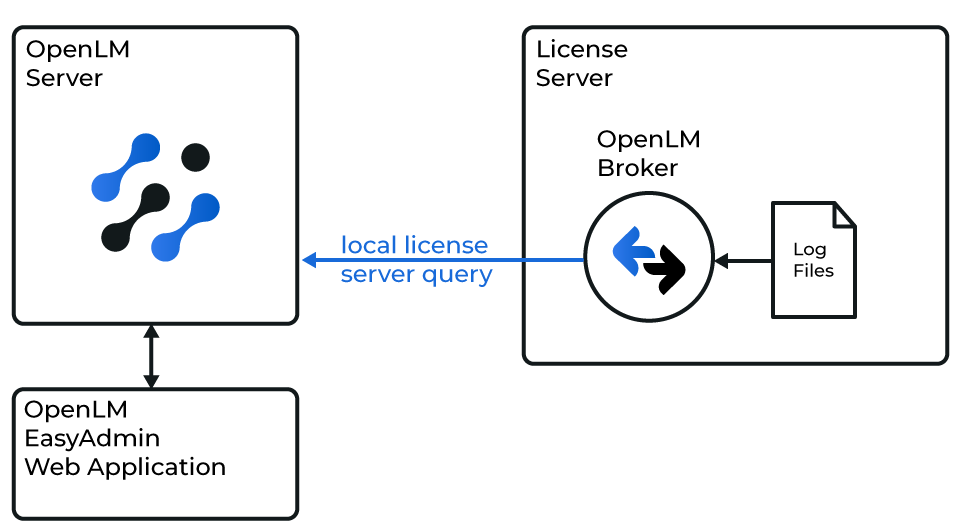 OpenLM と tNavigator License Manager の連携の概要
続行する前に、OpenLM Broker をすでにインストールし、OpenLM に報告するように設定しておく必要があります。
手動で追加
-
tNavigator ライセンスマネージャーのマシンで、Broker Web UI を
http://localhost:5090/で開きます。 -
License Managers → Add License Manager を開きます。
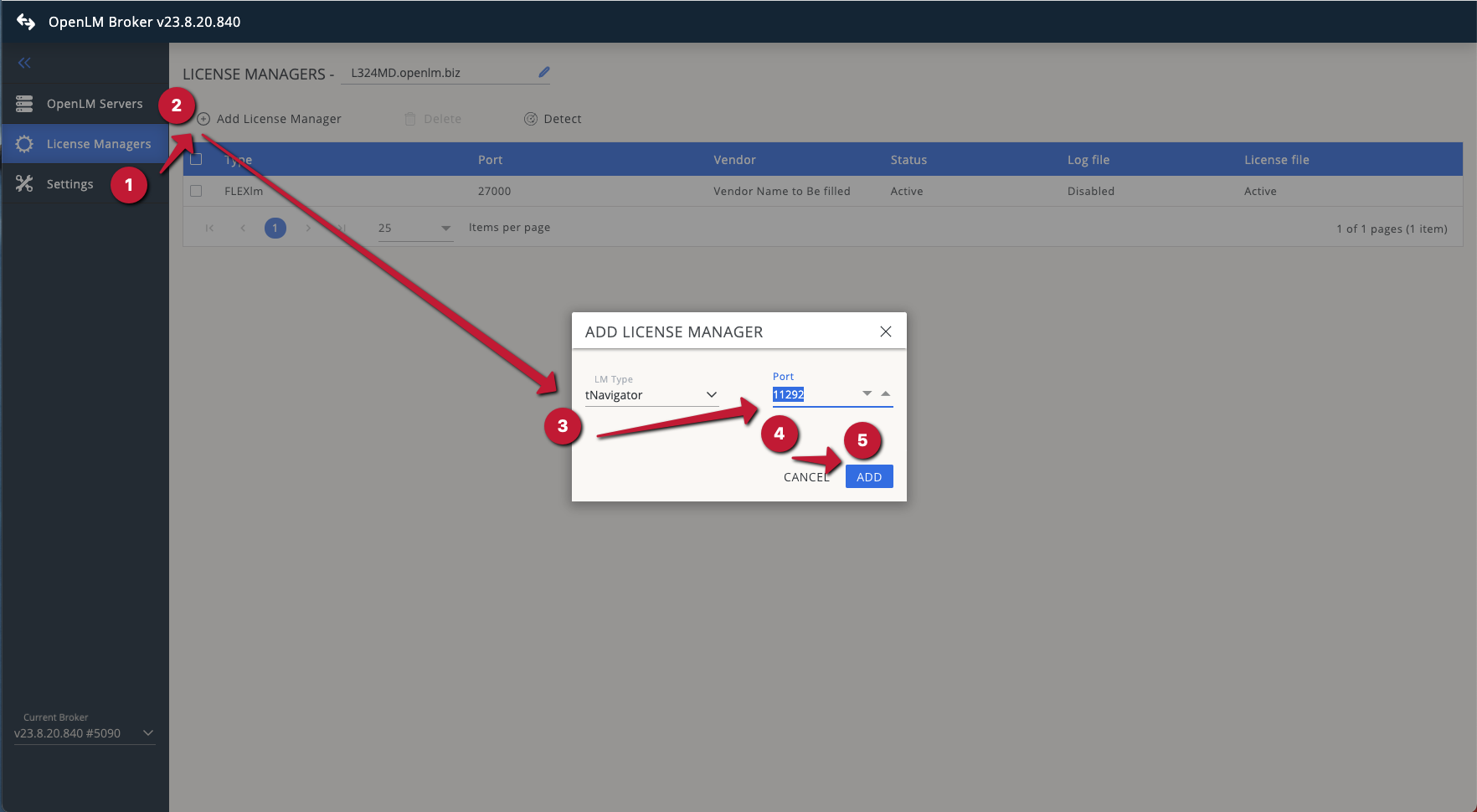 ドロップダウンリストから tNavigator を選択し、ポート番号を入力します。Add をクリックします。
 -
Commands タブで、tNavigator License Manager のインストールパスを参照するか、入力します。
-
Execute をクリックして、エラーがないことを確認します。
-
Vendors → Add Vendor を開きます。tNavigator と入力して Continue をクリックします。
-
Log Files → Add Log File を開きます。tNavigator のログファイルの場所を参照し、Watch File by Pattern をオンにして Continue をクリックします。
-
Save をクリックします。
OpenLM Platform で tNavigator を承認
- OpenLM Platform にサインインします。
- メニューから License Servers → Pending Server を開きます。
- tNavigator ライセンスマネージャーを選択し、Approve and Merge をクリックします。
連携の検証
- OpenLM Platform で License Servers Live → Server Statistics を開きます。
- tNavigator が緑のステータスで表示されることを確認します。
注意
新規接続の場合、ステータスの反映まで最大 3 分かかります。