UniSim
本ドキュメントでは、OpenLM を UniSim License Manager と連携させてライセンス使用状況を監視し、統計を収集する方法を説明します。
はじめに
UniSim ライセンスマネージャーを照会するには、次をインストールします。
- OpenLM Platform
- UniSim と同じマシンにインストールされた OpenLM Broker v25.x 以降。Broker Hub で承認します。
監視機能
OpenLM Broker 経由での現在の監視機能は次のとおりです。
| Report resolution | License totals | License usage | Denials reporting | Borrowed license reporting | Expiration date reporting | Multiple server redundancy |
|---|---|---|---|---|---|---|
| By minute | No | Yes | Yes | No | No | No |
Broker を使用すると、バッファリングされた通信が可能になり、ライセンスマネージャーサービスをリモートで開始または停止できます。
OpenLM Broker の設定
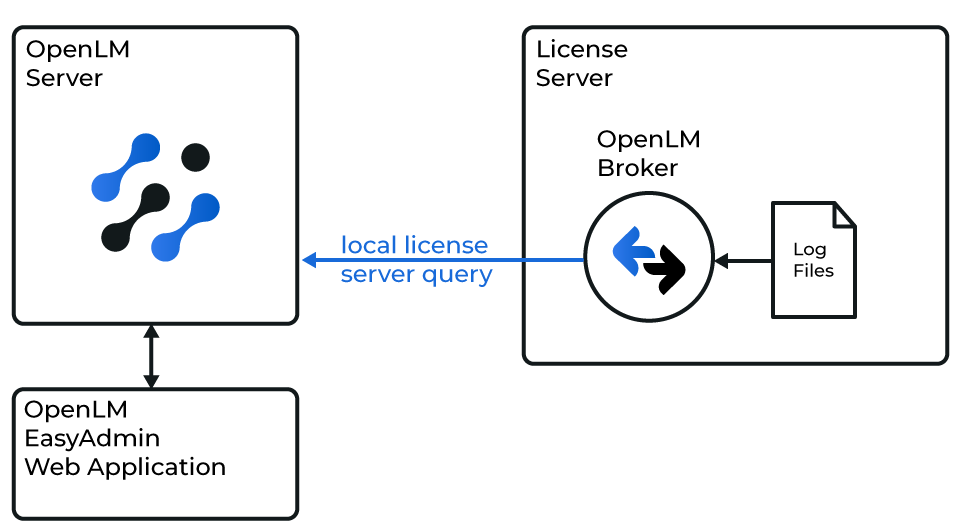 OpenLM と UniSim の連携の概要
オプション 1 — 自動検出
-
Broker UI を
http://localhost:5090/で開きます。 -
License Managers → Detect に移動します。
-
UniSim が表示されます。
-
内容を検証して保存します。
オプション 2 — 手動で追加
自動検出が機能しない場合は、ライセンスマネージャーを手動で追加して設定します。
-
Broker UI を
http://localhost:5090/で開きます。 -
License Managers → Add License Manager に移動します。
-
UniSim LM のポート番号(例: 6607)を入力します。
-
License Manager Type リストから UniSim を選択します。Apply をクリックします。
-
Commands に移動します。Update path for commands で、UniSim のインストールルートフォルダーを入力するか参照します。Update をクリックし、続いて Apply をクリックします。
-
Broker はベンダー名とログファイルのパスを自動的に追加します。
-
Apply をクリックします。
-
Restart Broker をクリックします。
OpenLM Platform で UniSim を承認
- OpenLM Platform にサインインします。
- メニューから License Servers → Pending Server を開きます。
- UniSim ライセンスマネージャーを選択し、Approve and Merge をクリックします。
連携の検証
- OpenLM Platform で License Servers Live → Server Statistics を開きます。
- UniSim が緑のステータスで表示されることを確認します。
新規接続の場合、ステータスの反映まで最大 3 分かかります。