BambooHR
データ収集の構成
OpenLM Cloud Broker で BambooHR のデータ収集を構成するには、次の手順に従います。
BambooHR は認証に OAuth 2.0 を使用します。必要な認証情報を取得するには、BambooHR アプリケーションを作成する必要があります。
手順 1: 必要な BambooHR の情報を収集する
BambooHR アカウントから、次の情報を収集します。
-
会社サブドメイン
https://mycompany.bamboohr.comで BambooHR にアクセスする場合、サブドメインはmycompanyです。 -
OAuth アプリケーションの認証情報
- Client ID
- Client secret
- Redirect URI
詳細なセットアップ手順については、BambooHR の公式ドキュメントを参照してください。
https://documentation.bamboohr.com/docs/getting-started#section-authentication
手順 2: アプリケーションを認可する
ブラウザーまたは curl を使用して認可リクエストを開始します。
https://<company-domain>.bamboohr.com/authorize.php?request=authorize&state=new&response_type=code&scope=<scopes separated by +>&client_id=<your client ID>&redirect_uri=<your redirect URI>
認可後、BambooHR は一時的な認可コードを付与して、指定された redirect_uri にリダイレクトします。
?code=<temporary authorization code>
認可コードは安全に保管してください。最初のアクセストークンを生成するために一度だけ必要になります。
手順 3: アクセストークンを生成する
認可コードをアクセストークンと交換します。
Endpoint
https://<company-domain>.bamboohr.com/token.php?request=token
Request body
{
  "client_secret": "<your client secret>",
  "client_id": "<your client ID>",
  "code": "<temporary authorization code>",
  "grant_type": "authorization_code",
  "redirect_uri": "<redirect URI>"
}
Response
{
  "access_token": "<temporary access token>",
  "expires_in": 3600,
  "token_type": "Bearer",
  "scope": "<scopes separated by space>",
  "refresh_token": "<temporary refresh token>",
  "id_token": "<unique ID>",
  "companyDomain": "<your company domain>"
}
以降の API 呼び出しには access_token を使用します。Postman などのツールでは、Bearer Token を選択し、Token フィールドにアクセストークンを貼り付けます。
refresh_token は、認可リクエストに offline_access スコープを含めた場合にのみ返されます。
手順 4: アクセストークンを更新する(オプション)
アクセストークンの有効期限が切れた場合は、リフレッシュトークンを使用して新しいトークンを取得します。
Endpoint
https://<company-domain>.bamboohr.com/token.php?request=token
Request body
{
  "client_secret": "<your client secret>",
  "client_id": "<your client ID>",
  "refresh_token": "<temporary refresh token>",
  "grant_type": "refresh_token",
  "redirect_uri": "<redirect URI>"
}
手順 5: OpenLM に認証情報を追加する
- OpenLM Cloud Broker ダッシュボードを開きます。
- BambooHR 連携を見つけます。
- 次の値を入力します。
- BambooHR の会社ドメイン
- API アクセストークン
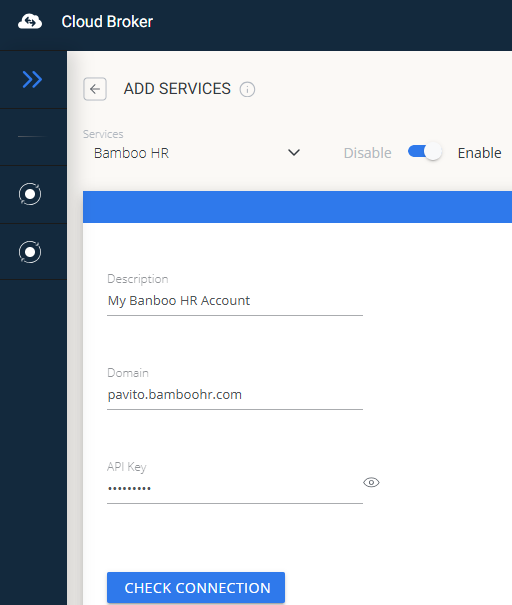 BambooHR 認証情報の設定
手順 6: 接続を検証して承認する
- 接続をテストして、OpenLM がデータを取得できることを確認します。
- License Servers セクションで新しいデータソースを承認します。
承認すると、BambooHR の利用状況データが OpenLM の Allocation サービスで利用できるようになります。
OpenLM Platform で BambooHR を承認
- OpenLM Platform にサインインします。
- メニューから License Servers → Pending Server を開きます。
- BambooHR データソースを選択し、Approve and Merge をクリックします。
連携の検証
- OpenLM Platform で Allocation を開きます。
- BambooHR の利用状況データが表示されることを確認します。
承認後、データの反映まで最大 3 分かかります。
レポートの閲覧
- ユーザーアクティビティの推移 — プラットフォームで活発に活動しているユーザーを把握し、シートの再配分に活用できます。
- 期限切れまたは未使用ライセンス — 非アクティブなユーザーを特定し、シートを回収します。