LS-DYNA
この設定を開始する前に、OpenLM Broker をインストールし、OpenLM Server にレポートするよう設定しておく必要があります。
概要
LS-DYNA は Livermore Software Technology Corporation (LSTC) が開発した有限要素解析ツールです。LS-DYNA には LS-OPT、LS_PREPOST、LS_TASC、THUMS などの周辺ツールが含まれ、流体解析から車両安全まで幅広い物理シミュレーションを扱います。
LS-DYNA は独自のライセンスマネージャーでネットワークライセンスの配布を管理します。OpenLM により、ライセンス利用状況の確認、使用統計/傾向の分析、アイドルライセンス管理が可能になります。
OpenLM は Flexera FLEXnet Publisher (FLEXlm) や Sentinel RMS など複数のライセンスマネージャーに対応しています。本書では LS-DYNA の監視設定方法を説明します。
LS-DYNA ライセンスサーバーを問い合わせる方法は 2 通りあります:
- OpenLM Server からライセンスサーバーを直接問い合わせる。
- OpenLM Broker でローカルに問い合わせ、OpenLM Server に情報を転送する。
OpenLM Server 直接方式
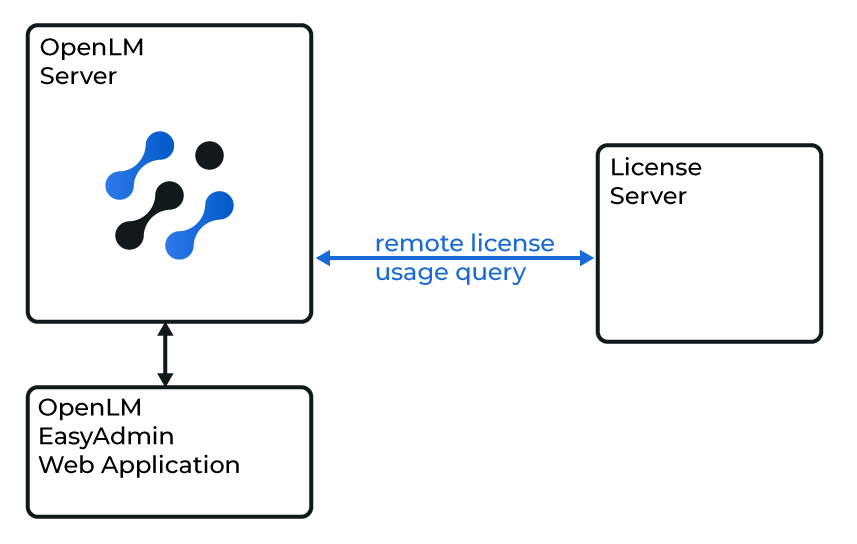
OpenLM Server が LS-DYNA ライセンスマネージャーを直接問い合わせる構成
OpenLM Server を LS-DYNA と連携させる
OpenLM Server を設定するには:
- OpenLM Server をダウンロードしてインストールします。
- EasyAdmin で Start → Administration → License Manager Servers に移動します。
- LM Tools タブを選択し、LSDYNA を選びます。
lstc_qrun.exeとlstc_qkill.exeを OpenLM Server のフォルダにコピーします。例:C:\Program Files\OpenLM\OpenLM Server\LM\- EasyAdmin でこれらのパスを入力します。
- Save をクリックします。
- Windows Services で OpenLM Server サービスを再起動します。
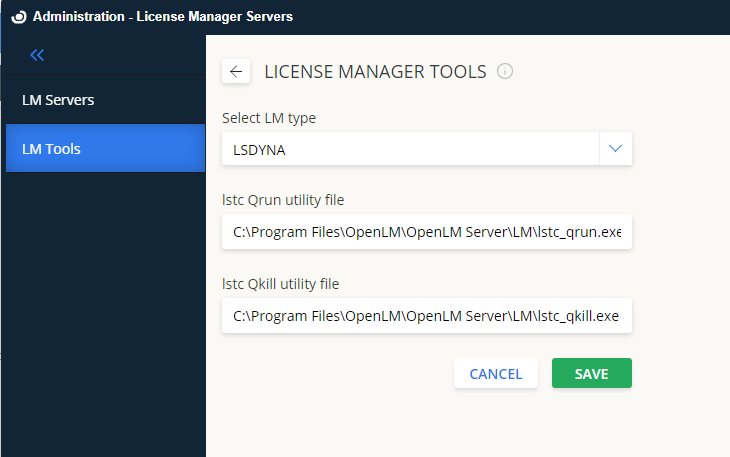
EasyAdmin で LS-DYNA ツールを設定
LS-DYNA サーバーの追加
- EasyAdmin で Start → Administration → License Manager Servers → LM Servers タブに移動します。
- Add License Manager をクリックします。
- Type のドロップダウンから LSDYNA を選択します。
- Display Name にわかりやすい名前(例: LS-DYNA license server)を入力します。
- ライセンスサーバーの Time zone を設定します。
- Hostname と Port を入力します(例:
lsdyna_license_serverと31010)。 - Is Triad Configuration はオフのままにします。LS-DYNA は複数サーバー冗長化に対応していません。
- Use Broker はオフのままにします。
- Save をクリックします。
- Windows Services で OpenLM Server サービスを再起動します。
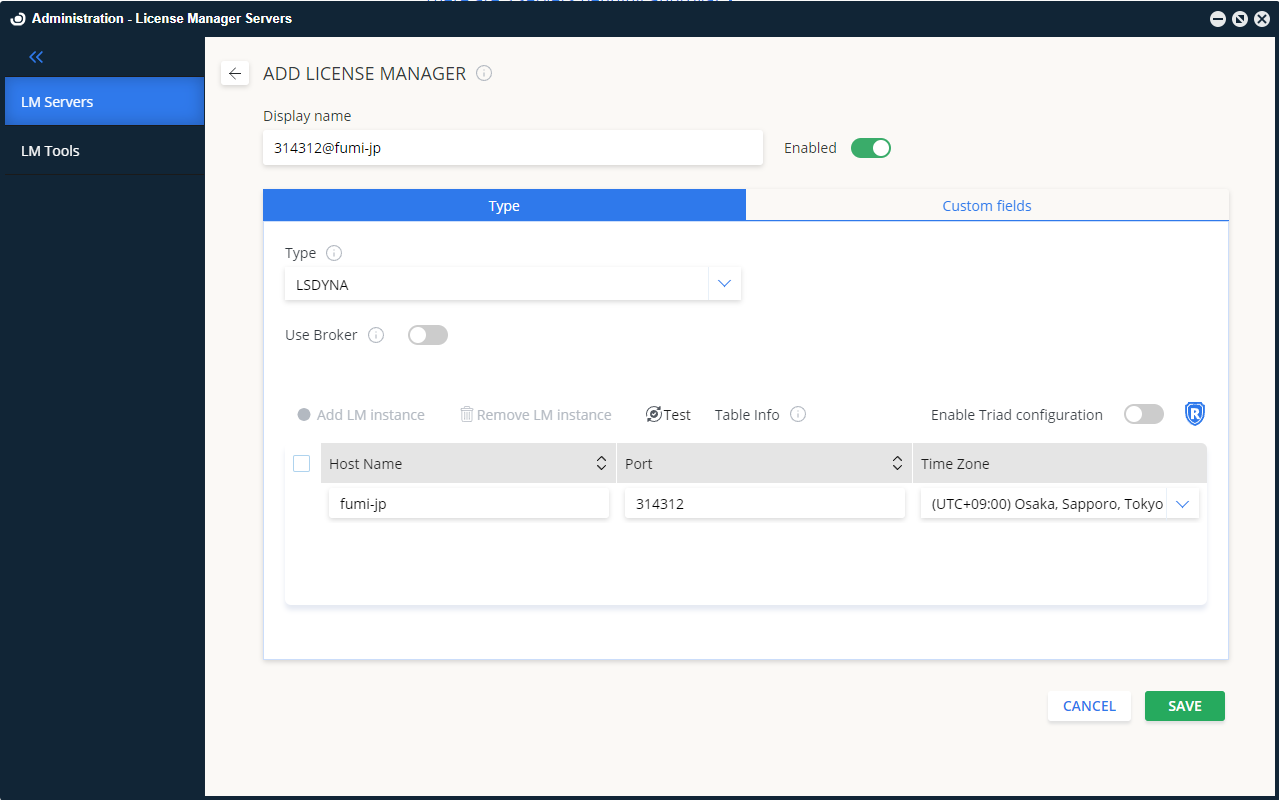
EasyAdmin で LS-DYNA サーバーを追加
これで OpenLM Server が LS-DYNA ライセンスを監視できるようになります。
Broker による監視
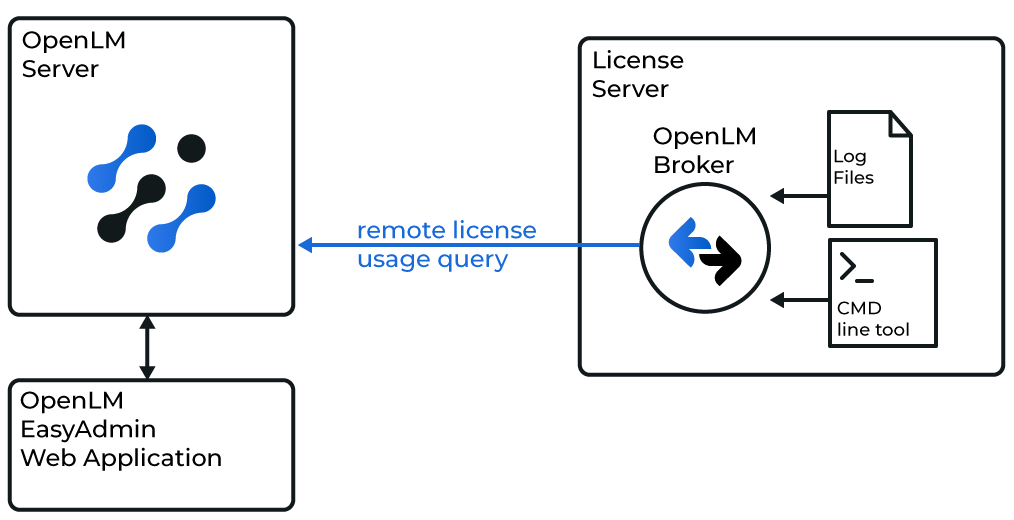
Broker と OpenLM Server の連携図
LS-DYNA ライセンスサーバーのマシンに OpenLM Broker をインストールして設定します。Broker がローカルで問い合わせ、OpenLM Server にデータを転送します。ネットワーク障害やセキュリティ制限にも耐えられるバッファ付き通信が提供されます。
OpenLM Broker の設定
- ダウンロードページから最新の OpenLM Broker をインストールします。
- Broker でライセンスマネージャーノードを選択します。Auto-Detect で LS-DYNA が見つからない場合は Add Port をクリックします。
- LS-DYNA ライセンスサーバー(例:
lsdyna_license_server)のポート31010を監視するよう設定します。 - Commands ノードで
lstc_qrun.exeのフルパスを入力します。 - Apply をクリックします。
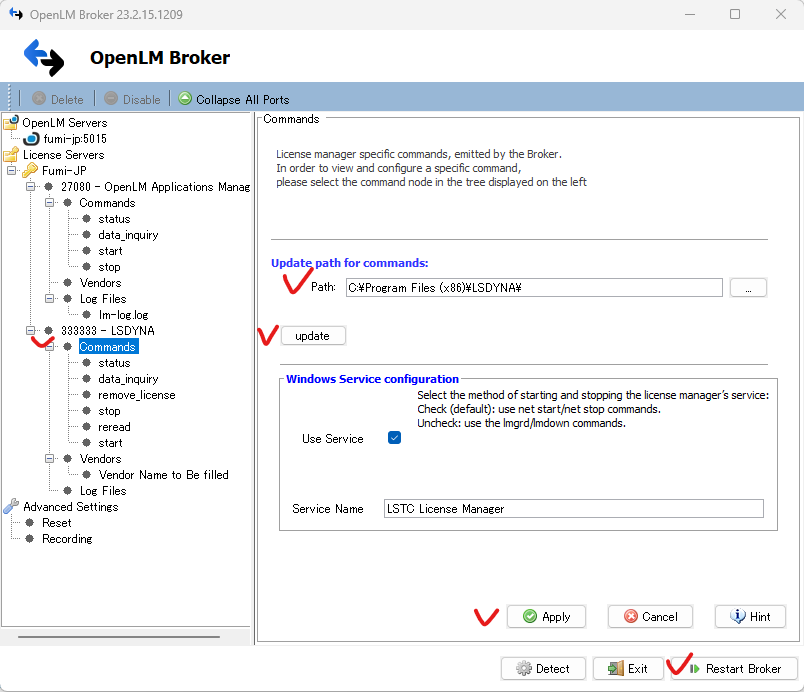
Broker で LS-DYNA コマンドを設定
- Vendors ノードでベンダー名を入力します。
- Restart Broker をクリックします。
- Broker web UI から設定することもできます。
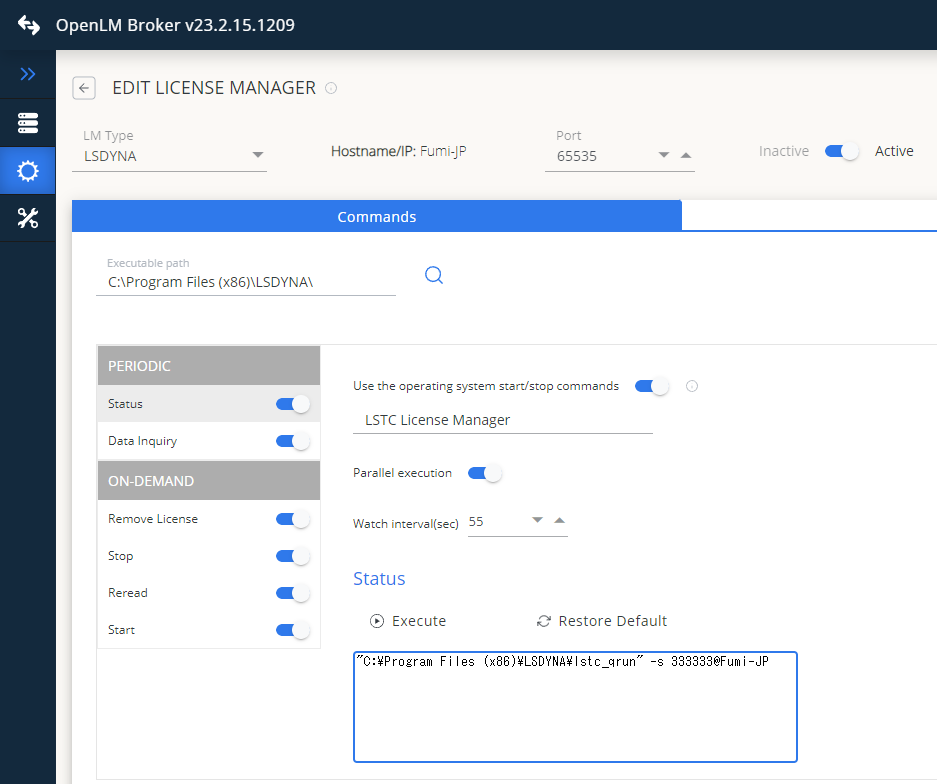
Broker Web UI で LS-DYNA を設定
設定の確認
LS-DYNA の設定を確認するには:
- ブラウザで EasyAdmin を開きます。
- Pending Approval のリンクをクリックし、LS-DYNA を承認します。
- サーバー一覧にライセンスマネージャーが表示されることを確認します。
緑色の丸アイコンは接続が有効であることを示します。

EasyAdmin で LS-DYNA を承認
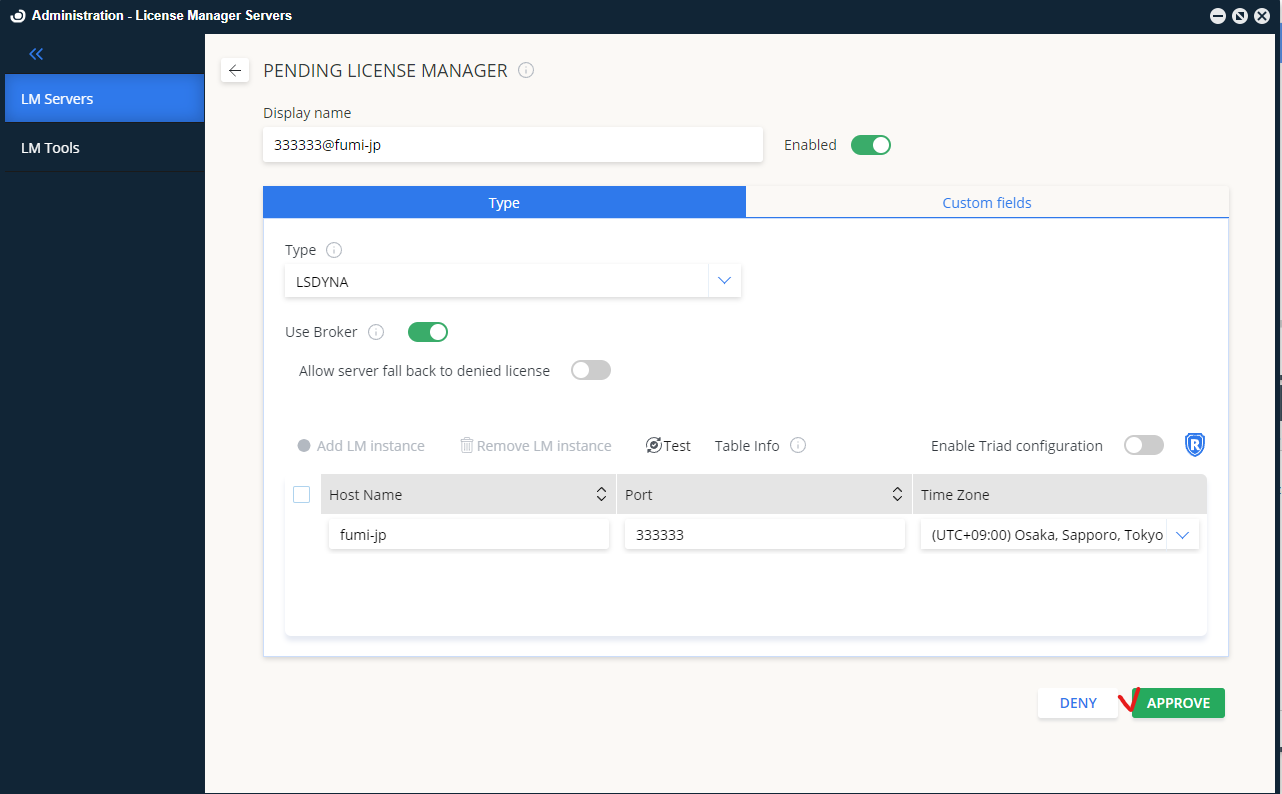
EasyAdmin で LS-DYNA サーバー承認済み
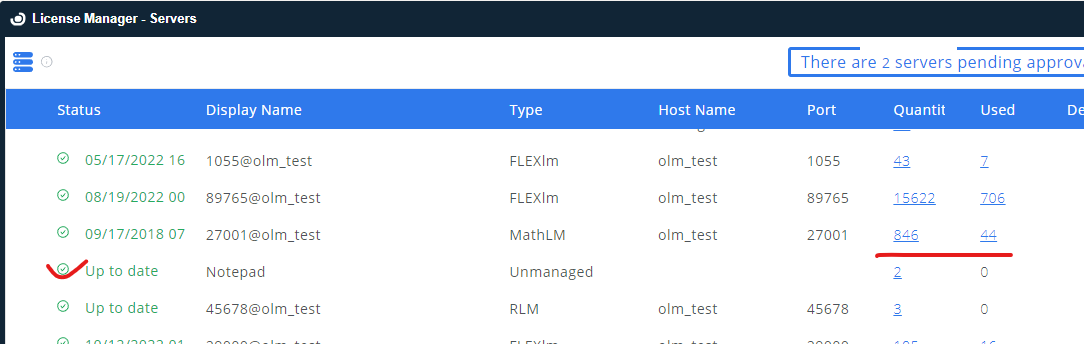
LS-DYNA ライセンスマネージャーのアクティブ接続表示