Sentinel SuperPro
以下の手順で OpenLM を設定し、Sentinel SuperPro ライセンスマネージャーのライセンス使用状況を監視して統計情報を取得します。
要件
開始前に次を用意してください:
- 組織内のマシンに OpenLM Server v2.x 以降をインストール済み、または OpenLM Cloud(SLMC)アカウント
- Sentinel SuperPro と同じマシンに OpenLM Broker v21.8.25 以降
監視機能
OpenLM Broker 経由で Sentinel SuperPro に対して利用できる監視機能は次のとおりです:
| 機能 | 粒度 | ライセンス総数 | ライセンス使用状況 | 拒否レポート | 借用ライセンスのレポート | 有効期限のレポート | 冗長化(複数サーバー) |
|---|---|---|---|---|---|---|---|
| 対応 | 分 | ✔ | ✔ | ❌ | ❌ | ✔ | ❌ |
Broker コンポーネントを使用すると、次の利点もあります:
- OpenLM Server へのバッファ付き通信
- ライセンスマネージャーサービスのリモート起動・停止
OpenLM Broker の設定
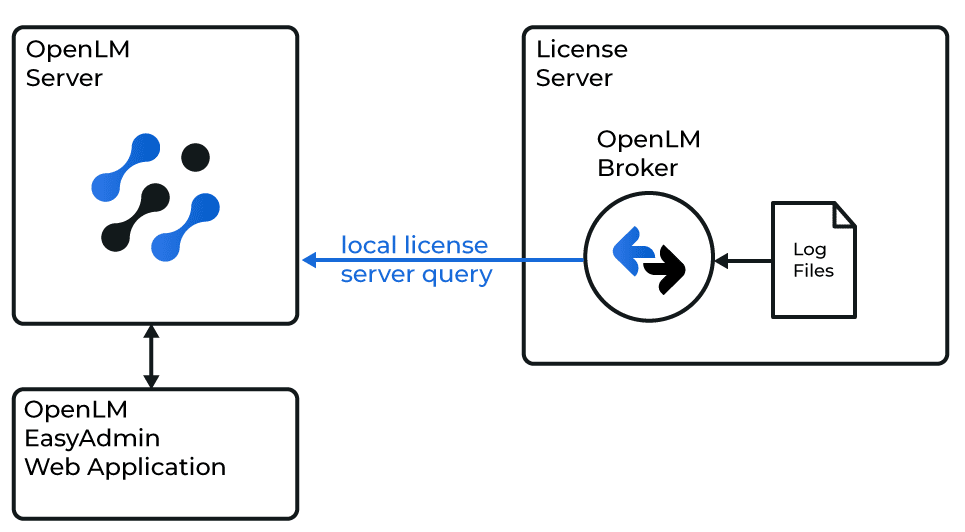
OpenLM と Sentinel SuperPro ライセンスマネージャーの連携図
注意
OpenLM Broker は事前に Sentinel SuperPro と同じマシンにインストールして設定しておいてください。
自動設定
- Broker 設定ツールの右下にある Detect をクリックします。
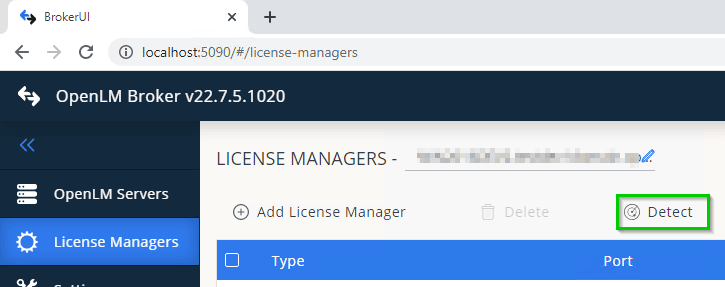
- Sentinel SuperPro のプロセスまたはサービスが稼働していれば、Broker が必要な設定を自動構成します。
- 確認するには、追加したライセンスマネージャーの Commands タブで Execute をクリックします。出力に
Failed to execute commandエラーが表示されなければ成功です。
手動設定
- Sentinel SuperPro がインストールされているマシンで Broker Web UI にアクセスします。
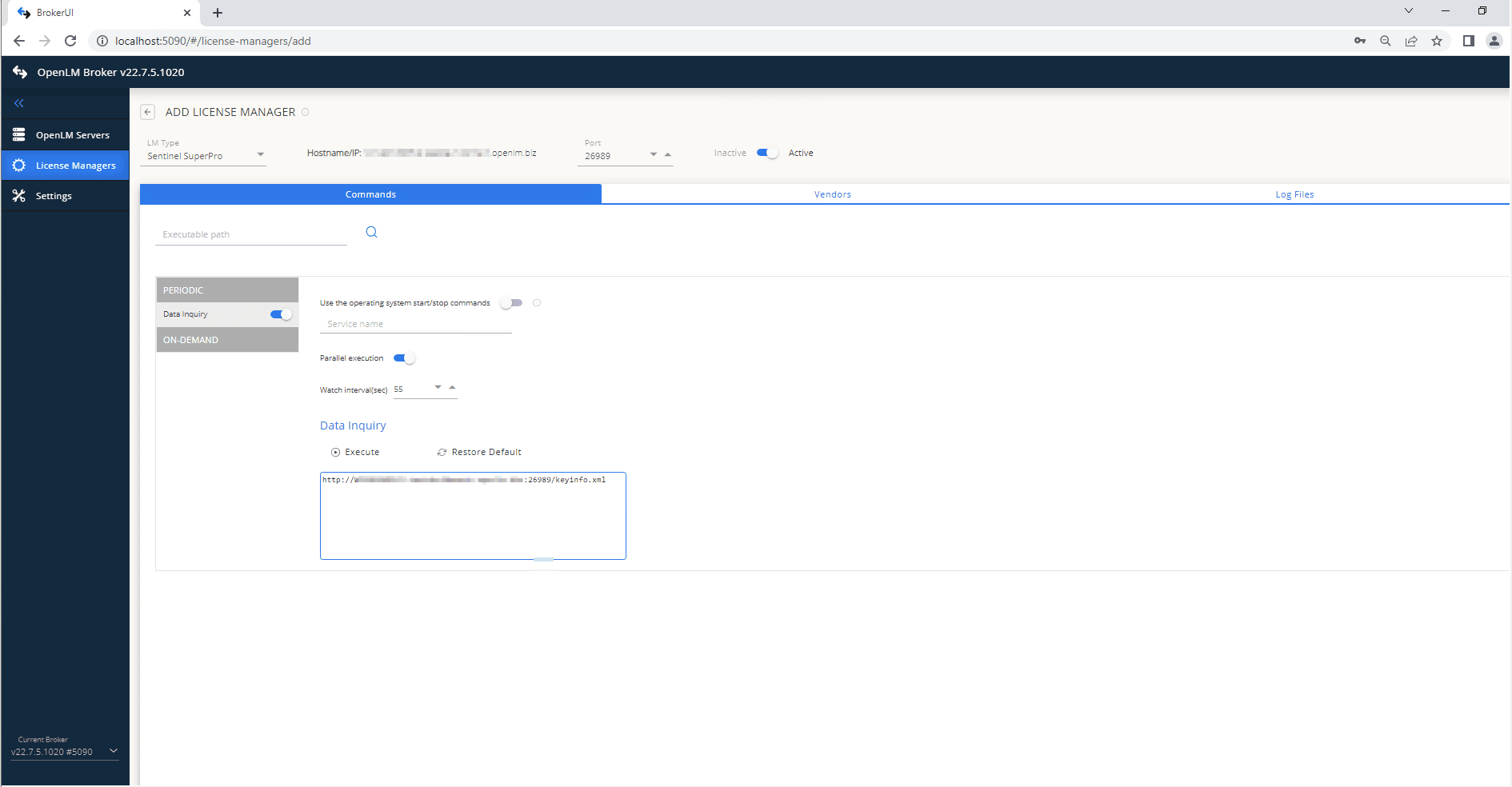
- License Managers → Add License Manager に移動します。
- ポート番号を入力し、LM Type のドロップダウンから Sentinel SuperPro を選択して Add をクリックします。
- Commands タブで Data Inquiry のコマンドパスが正しいことを確認します。
- Vendors タブ → Add Vendor に進み、Sentinel SuperPro を入力して Continue をクリックします。
- Save をクリックします。

OpenLM Server の設定
EasyAdmin による自動設定
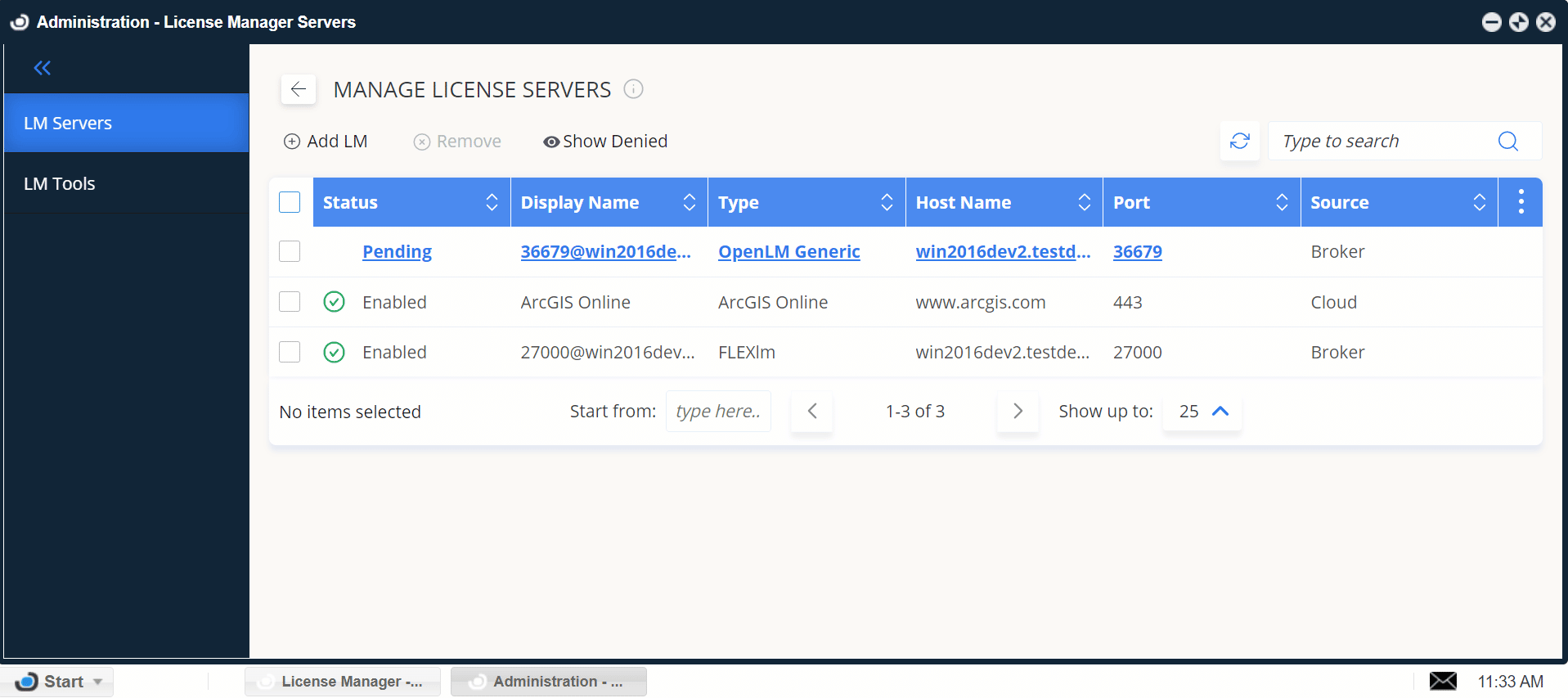
Broker が正しくレポートしている場合は、EasyAdmin で設定を承認します:
- EasyAdmin を開きます(Start → Widgets → License Manager - Servers)。
- There are x servers pending approval をクリックします。
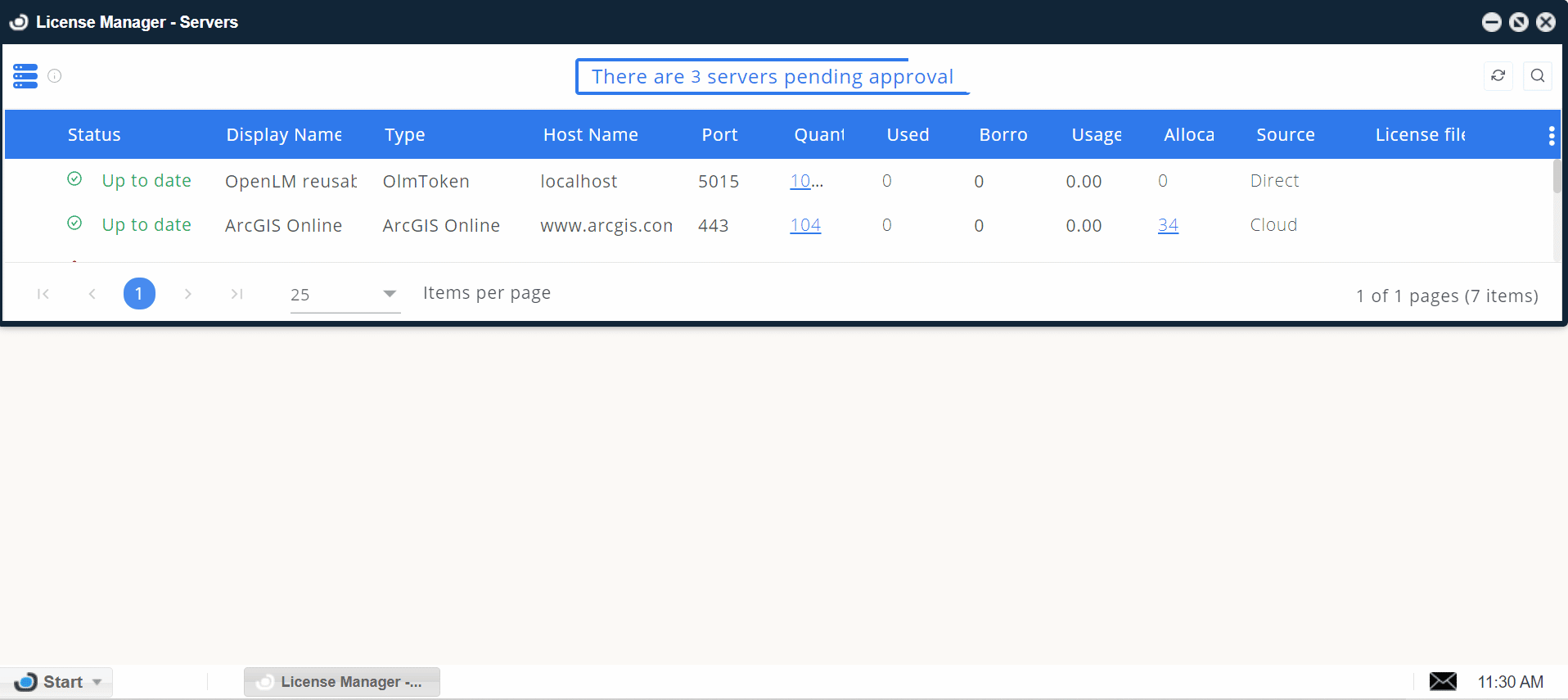
- Sentinel SuperPro のエントリをダブルクリックします(種別は OpenLM Generic です)。
- Host Name、Port、Time Zone を確認して Approve をクリックします。
設定の確認
- EasyAdmin を開きます。
- Start → Widgets → License Manager - Servers に移動します。
- 一覧に Sentinel SuperPro ライセンスマネージャーが表示され、緑色の丸アイコンになっていることを確認します。
注意
新しい接続の後、アクティブ表示まで最大 3 分かかることがあります。