OpenLM にユーザーを手動でインポートする方法 (HT900)
このドキュメントでは、外部データソースから OpenLM データベースへユーザーを手動でインポートする方法を説明します。外部データソースは、ディレクトリサービス(例: Active Directory)、会計システム、またはユーザー情報を保持する任意のデータベースなどです。
OpenLM ユーザーテーブル形式の CSV を準備する
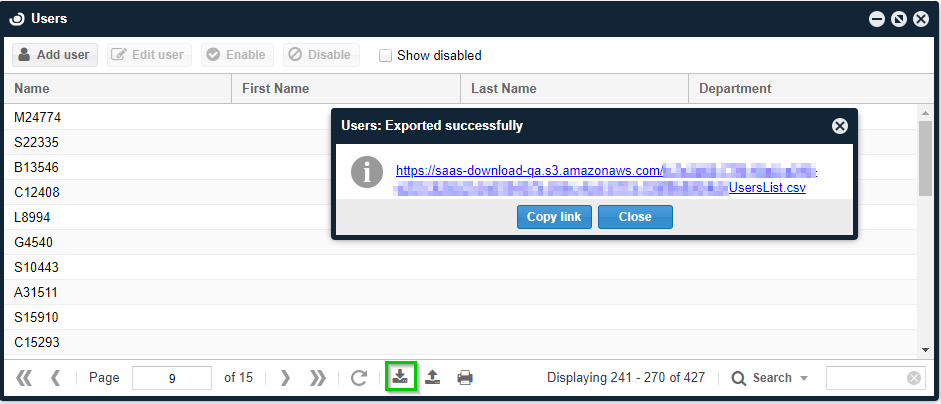
最も簡単な方法は、OpenLM から現在のユーザーをエクスポートしてサンプル CSV を取得することです。
- OpenLM EasyAdmin User Interface を開きます。
- Start をクリックし、Users & Groups に移動します。
- Users を開きます。
- Export をクリックします。
- CSV ファイルをダウンロードします。
CSV は以下の OpenLM ユーザーテーブル形式で作成する必要があります。
| 列名 | 必須 | 備考 |
|---|---|---|
| Username | はい | 一意である必要があります。単一値。 |
| First Name | いいえ | 単一値。 |
| Last Name | いいえ | 単一値。 |
| Department | いいえ | 単一値。 |
| Display Name | いいえ | 単一値。 |
| Title | いいえ | 単一値。 |
| Phone | いいえ | 単一値。 |
| Office | いいえ | 単一値。 |
| Description | いいえ | 単一値。 |
| いいえ | 単一値。 | |
| Enabled | はい | TRUE または FALSE。 |
| Groups | いいえ | 複数指定する場合はパイプ ` |
| Default Group | いいえ | 単一値。 |
| Projects | いいえ | 複数指定する場合はパイプ ` |
| Default Project | いいえ | 単一値。 |
注: CSV で参照するグループやプロジェクトは、インポート前に OpenLM データベース内に存在している必要があります。存在しない場合、インポートは失敗します。
CSV を OpenLM にインポートする
- OpenLM EasyAdmin User Interface を開きます。
- Start をクリックし、Users & Groups に移動します。
- Users を開きます。
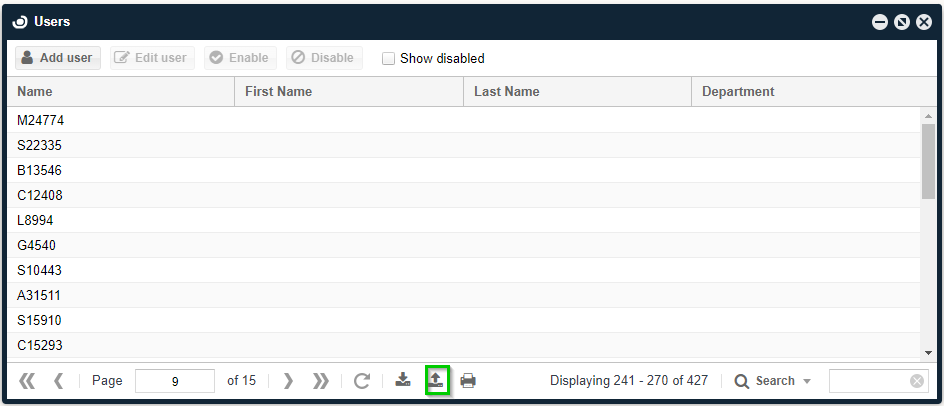
- Import をクリックします。
- CSV ファイルを参照して Open をクリックします。
- 成功または失敗のダイアログを確認します。
Active Directory からユーザーをインポートする
OpenLM は Directory Sync コンポーネントによる Active Directory との完全同期に対応していますが、CSV を使って特定のユーザーだけを手動でインポートすることもできます。手順は、Active Directory からのエクスポート、OpenLM 形式に合わせた CSV 編集、そしてインポートの順です。
Active Directory からユーザーをエクスポートする
- Active Directory Users and Computers を開きます。
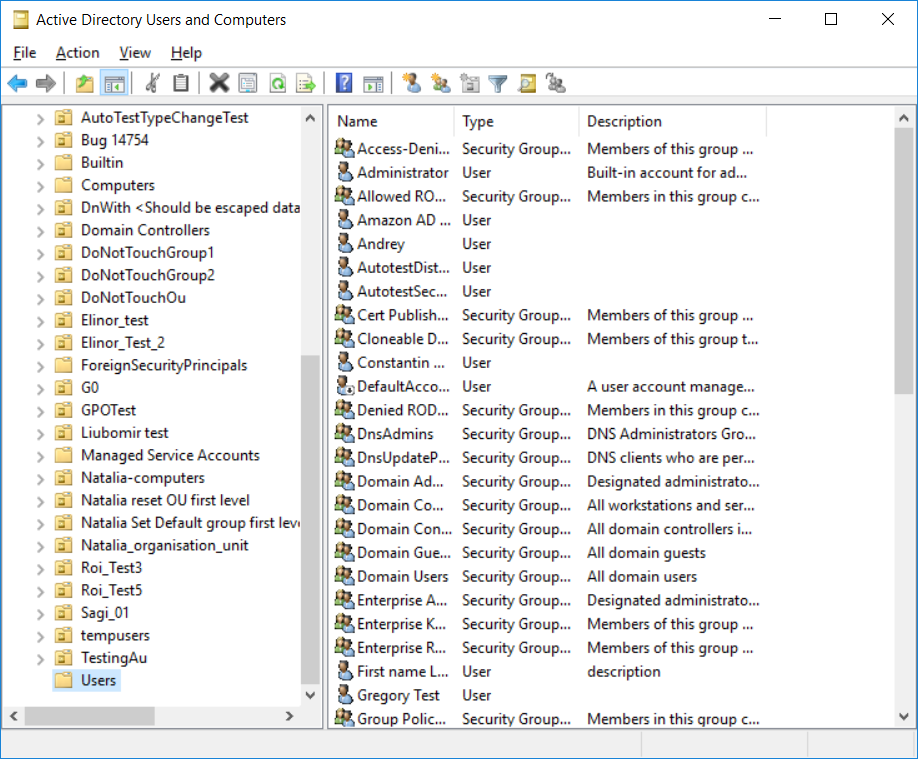
- 左ペインでドメインを展開し、Users フォルダーを選択します。
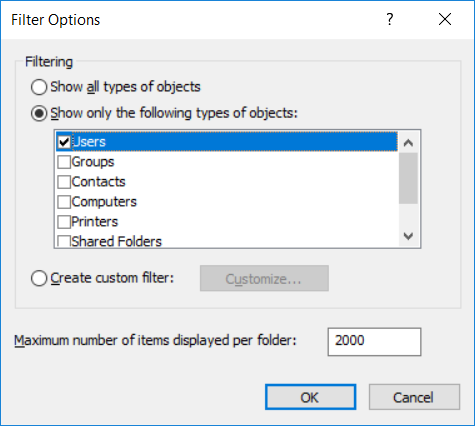
- Filter アイコンをクリックします。
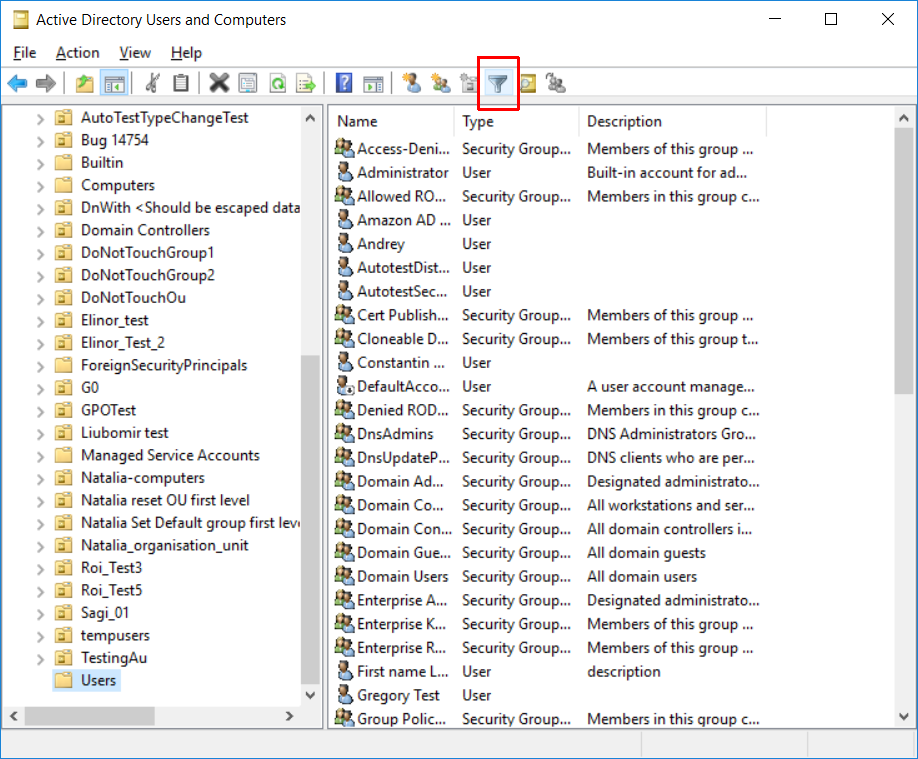
- Show only the following types of objects を選択し、Users をチェックして OK をクリックします。
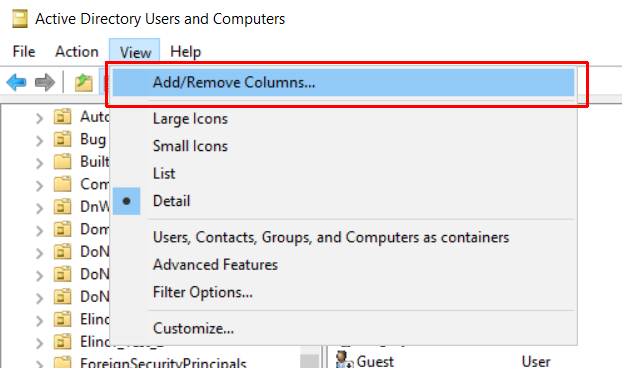
- メニューの View をクリックし、Add/Remove Columns を選択します。
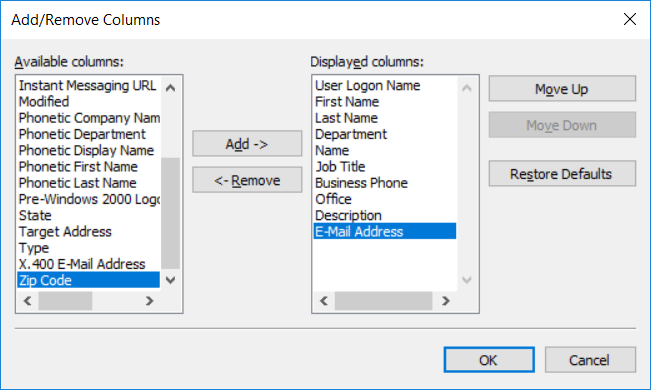
- 次の列をこの順序で追加し、OK をクリックします:
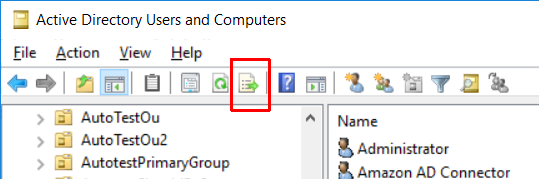
User Logon Name,First Name,Last Name,Department,Name,Job Title,Business Phone,Office,Description,E-mail Address。 - Export アイコンをクリックします。
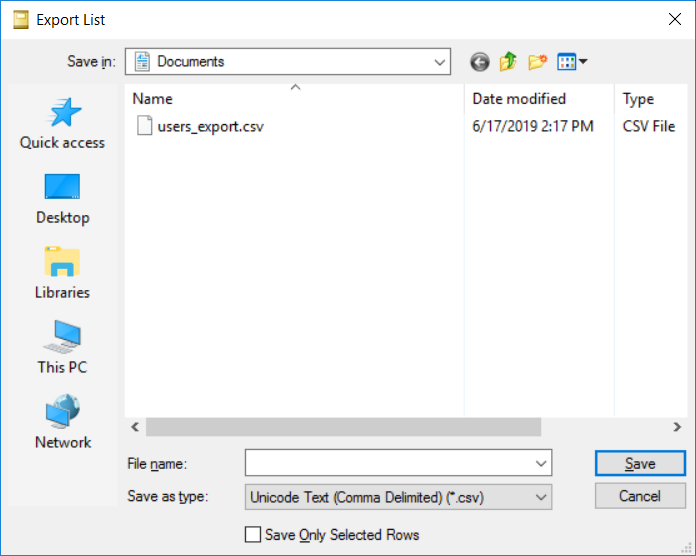
- 保存先を選択します。
- Save as type で Unicode Text (Comma Delimited) (*.csv) を選択します。
- 任意: 選択したユーザーのみをエクスポートする場合は Save Only Selected Rows をチェックします。
- Save をクリックします。
OpenLM 形式に合わせて CSV を編集する
- エクスポートした CSV をスプレッドシートアプリで開きます。
- 次の列ヘッダーを変更します。
| 変更前 | 変更後 |
|---|---|
| User Logon Name | Username |
| Name | Display Name |
| Job Title | Title |
| Business Phone | Phone |
| E-mail Address |
- 次の列ヘッダーをファイル末尾にこの順で追加します:
Enabled,Groups,Default Group,Projects,Default Project。 Enabled列は必須です。TRUE は有効、FALSE は無効を示します。- CSV 形式で保存します。
編集した CSV を OpenLM にインポートする
- OpenLM EasyAdmin User Interface を開きます。
- Start をクリックし、Users & Groups に移動します。

- Users を開きます。
- Import をクリックし、編集済み CSV ファイルを参照します。
- 成功ダイアログを確認します。