ログ・アップローダー
ログアップローダーは、FlexLM ライセンスマネージャーとの連携における「Manual」方式を指します。ライセンスマネージャーファイルは EasyAdmin ユーザーインターフェイスに手動でアップロードする必要があります。
この手順を実行できる管理者ロールがあることを確認してください。
設定
-
EasyAdmin ユーザーインターフェイスを開きます:
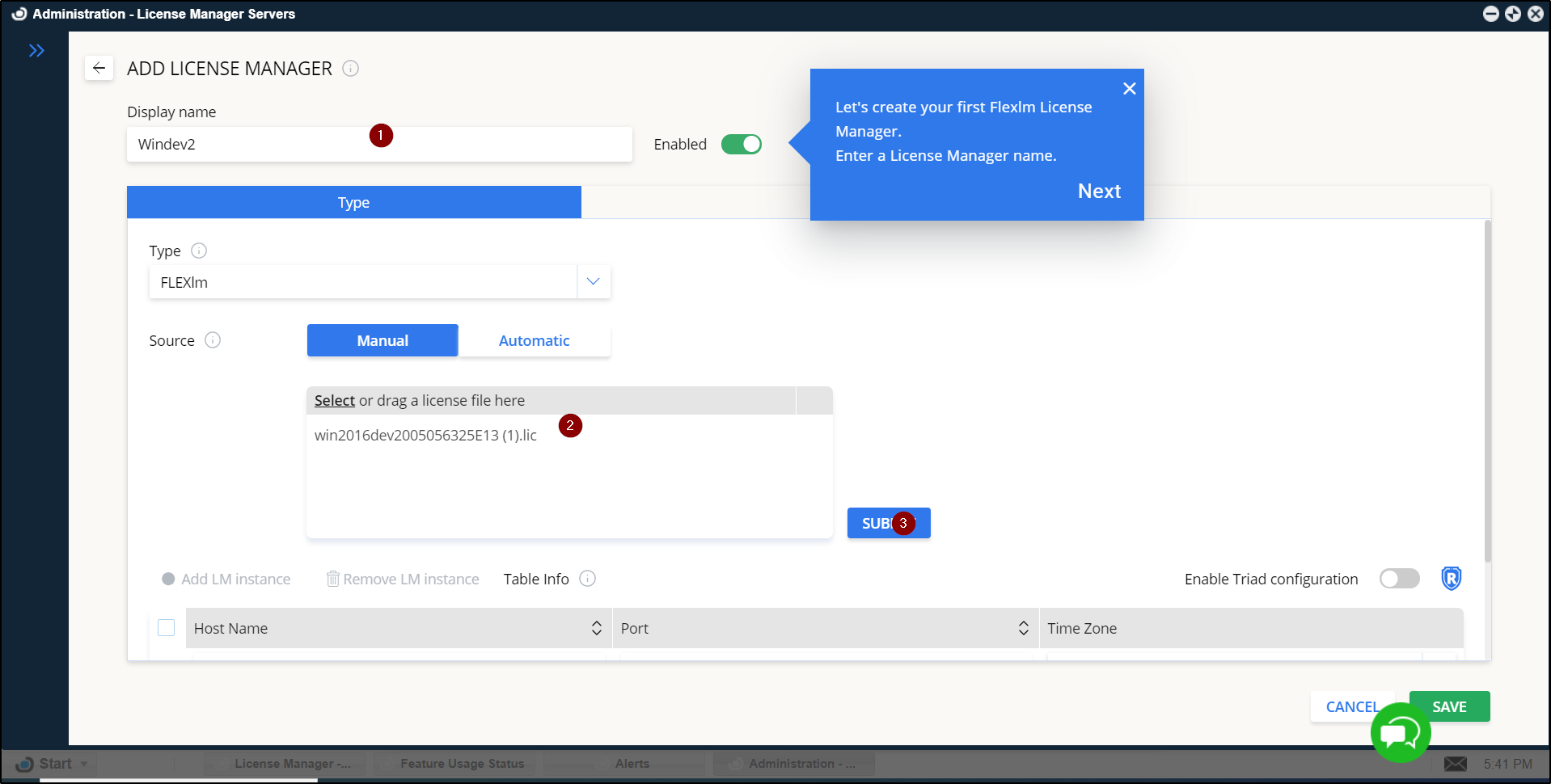
- Start → Administration → License Manager Servers → Add LM に移動します。
-
ライセンスマネージャーの詳細を設定します:
- Unique Name: ライセンスマネージャーを識別するための一意な名前を入力します。(1)
- License File: 指定された領域にライセンスファイルをドラッグ&ドロップします。(2)
-
ライセンスファイルを送信します:
- Submit をクリックします。(3)
-
接続設定を行います:
- Port Number: ライセンスマネージャーのポート番号を設定します。(4)
- Time Zone: ライセンスマネージャーのタイムゾーンを選択します。(5)
-
Save をクリックして設定を完了します。

-
次にデバッグログをアップロードします。右上のクラウドアイコンをクリックします:
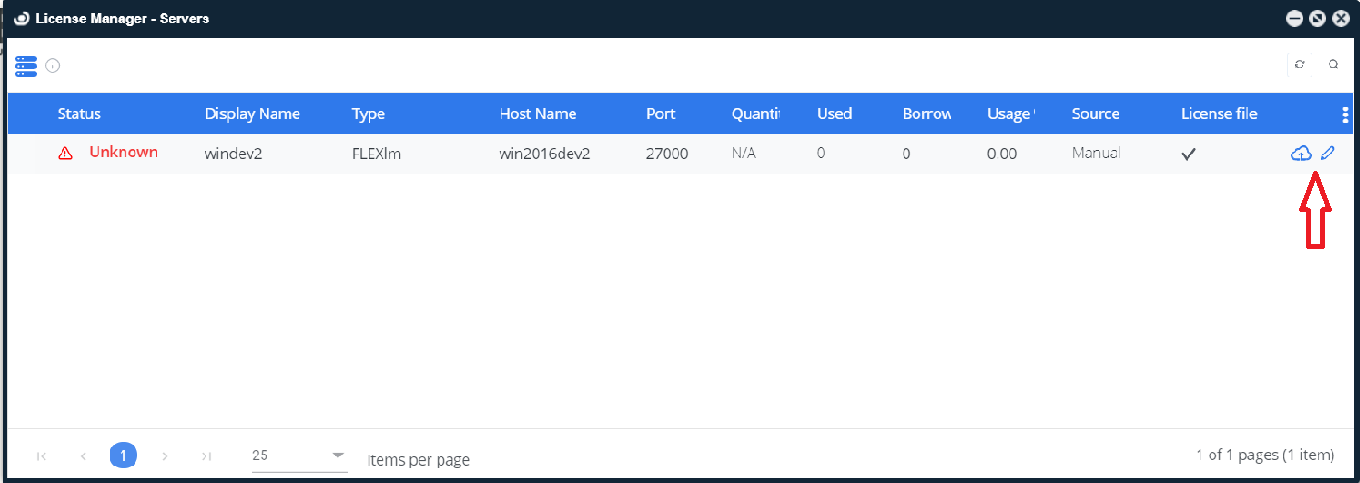
図 2: デバッグログのアップロードアイコン
-
デバッグログをドラッグ&ドロップし、Upload をクリックします。
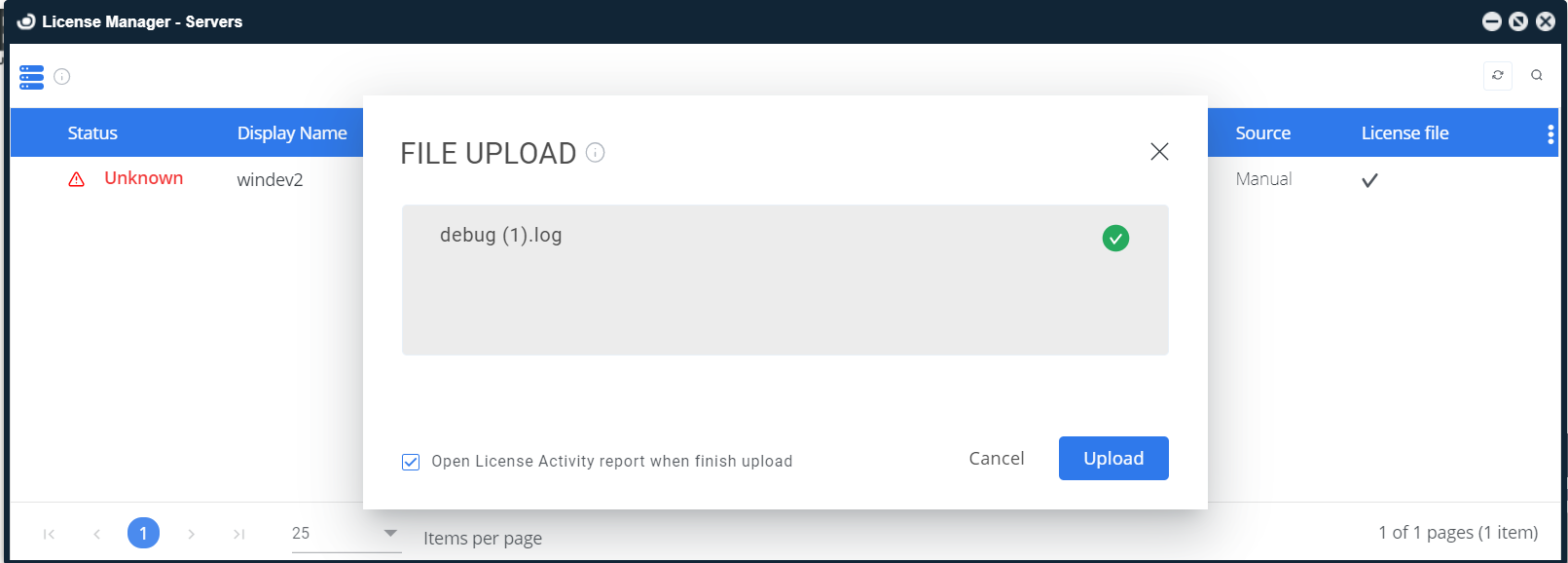
図 3: デバッグログのドラッグ&ドロップ画面
-
その後、ライセンスデータが License Activity などの OpenLM レポートに表示されます。
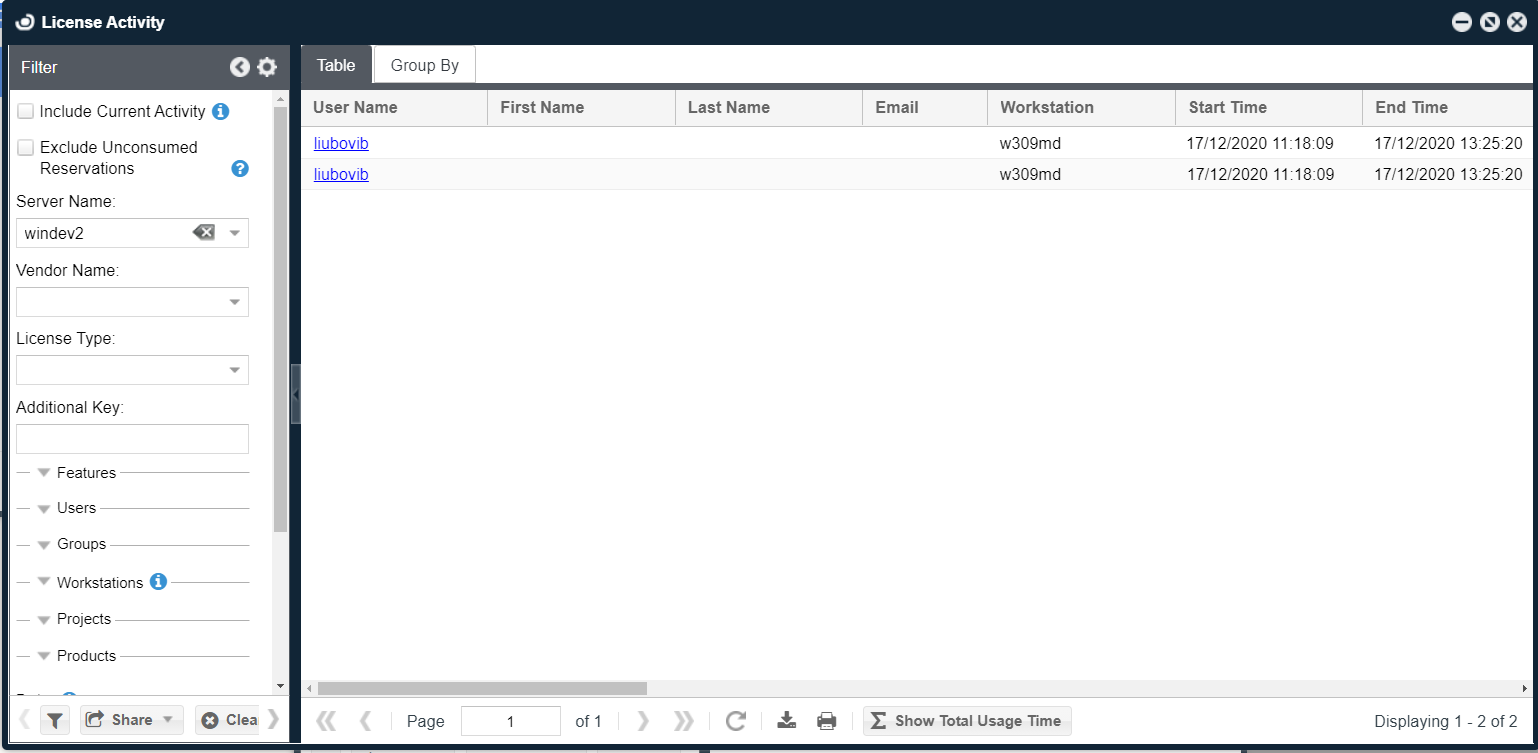
図 4: License Activity ウィンドウ