BetaLM
OpenLM supports monitoring a wide and growing variety of license managers.
This guide describes how to configure OpenLM to monitor the BetaLM license manager, track license usage, and collect license statistics.
There are two ways to query the BetaLM license server:
- Query the license server directly from OpenLM Server.
- Install OpenLM Broker on the license server, query locally, and forward results to OpenLM Server.
Option one: OpenLM direct server method
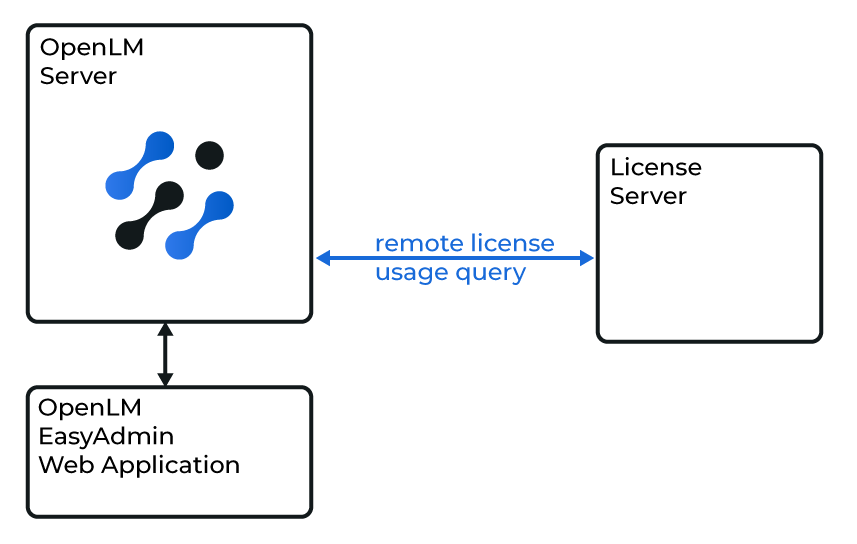
OpenLM Server configuration
To activate OpenLM to access the BetaLM license server:
- Open EasyAdmin.
- Go to Start → Administration → License Manager Servers.
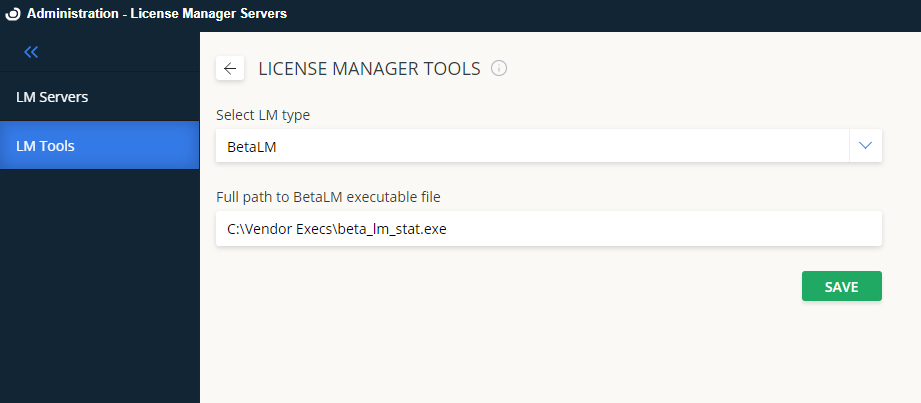
- Select LM Tools.
- From LM Type, select BetaLM.
- Copy
beta_lm_stat.exetoC:\Program Files\OpenLM\OpenLM Server\LM\and enter the full path. - Select Save.
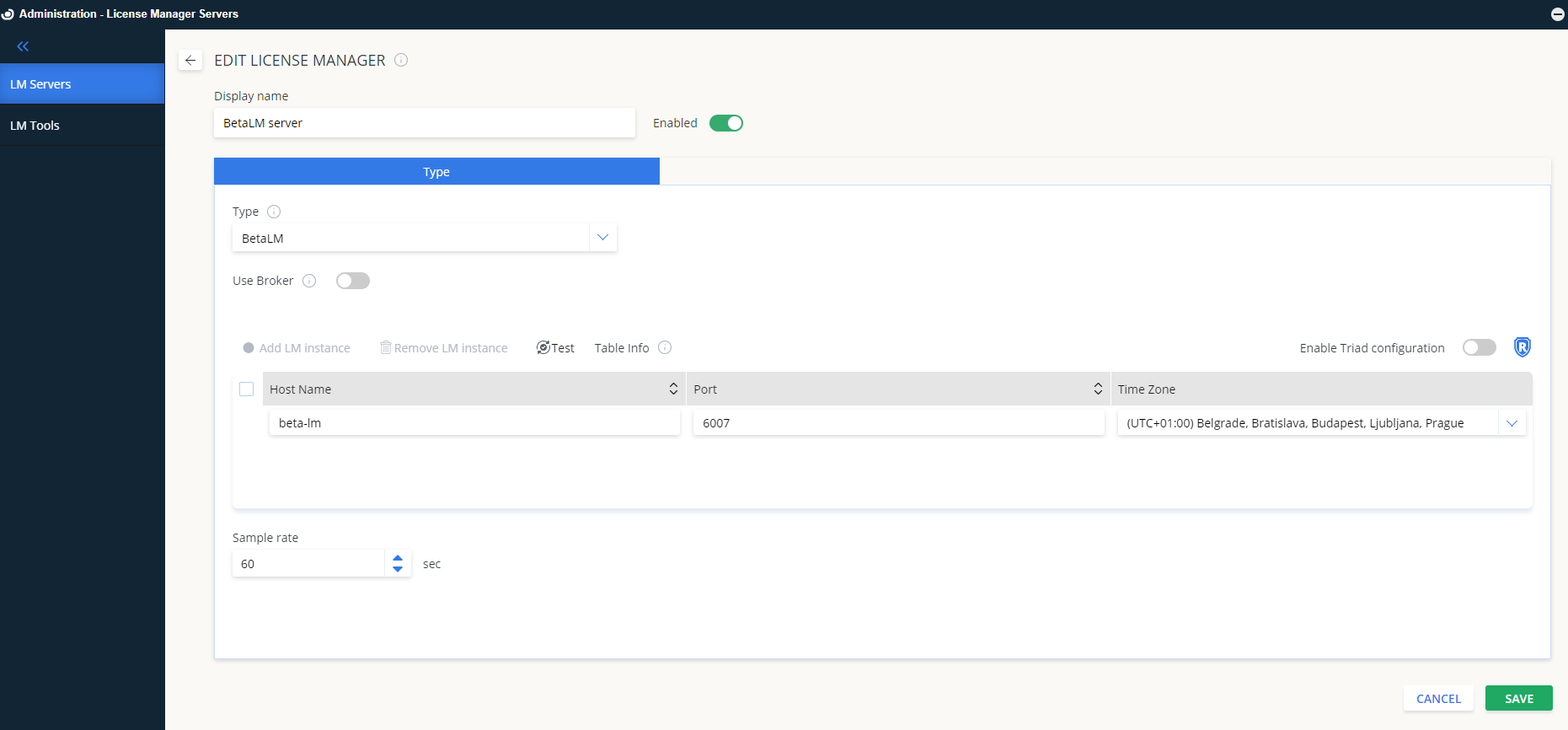
Add a new BetaLM server
- Switch to LM Servers.
- Select Add LM.
- Enter a descriptive Display name.
- From Type, select BetaLM.
- Enter the Hostname and Port (default: 6007).
- Select the correct Time Zone for the license server.
- If using a redundant setup, you may activate Triad Configuration. (Not all license managers support this.)
- Set Use Broker:
- Off (default): OpenLM Server queries the license manager directly.
- On: OpenLM Server relies on Broker installed on the license server.
- Select Save.
Your OpenLM Server is now ready to query BetaLM and display results in EasyAdmin.
Option two: through OpenLM Broker
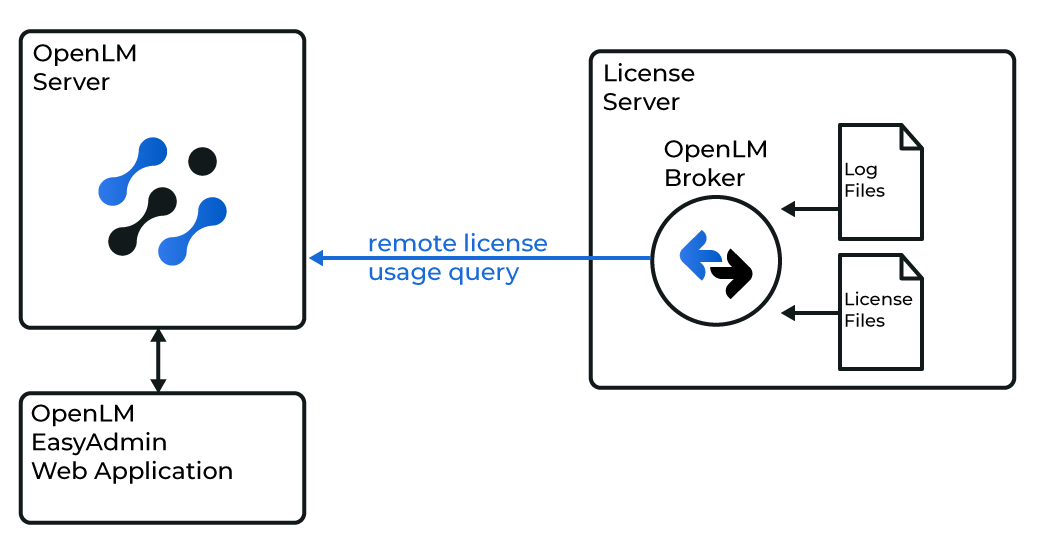
The OpenLM Broker is optional but recommended. Install it on the BetaLM license server to activate local queries and buffered communication with OpenLM Server. This prevents data loss during temporary network failures.
OpenLM Server configuration
Follow the same steps as in Option one, but turn Use Broker on.
OpenLM Broker configuration
- Download and install the latest OpenLM Broker.
- Select Add Port.
- Enter the BetaLM license server port (default: 6007).
note
The port number must exactly match the configuration in OpenLM Server.
- In the status and data_inquiry nodes, enter the full path to
beta_lm_stat.exe. Example:C:\Program Files\OpenLM\OpenLM Server\LM\beta_lm_stat.exe
Then select Apply.
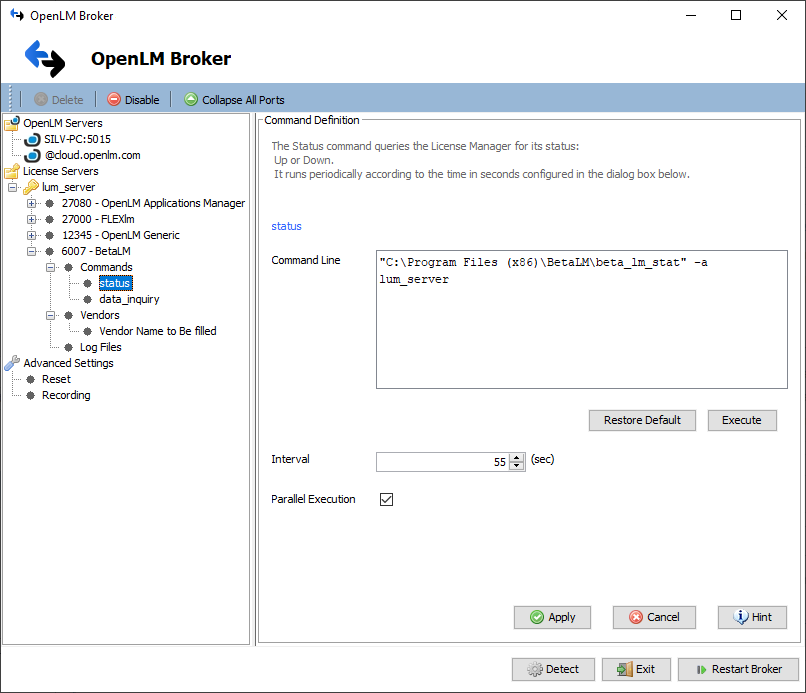
- Select Restart Broker.
- Alternatively, configure through the Broker Web UI at
http://localhost:5090/.
Verify the configuration in EasyAdmin
To confirm that BetaLM is being monitored:
- Open EasyAdmin in your browser at
http://<OpenLM Server hostname>:5015. - Check that the configured BetaLM license server appears in the list.
- A green circle indicates an active connection.
Once active, license usage data from BetaLM is available in reports and dashboards.