GEOVIA
This guide describes how to configure OpenLM with GEOVIA License Manager to monitor license usage and collect statistics.
Requirements
To query GEOVIA License Manager, ensure the following:
- OpenLM Server v5.6 or higher installed on-premises or on a Cloud account.
- OpenLM Broker v4.10 or higher installed on the same machine as the GEOVIA License Manager.
Monitoring capabilities
Monitoring capabilities available through OpenLM Broker are shown in the following table:
| Feature | Resolution | License totals | License usage | Denials reporting | Borrowed license reporting | Expiration date reporting | Multiple server redundancy |
|---|---|---|---|---|---|---|---|
| Support | By second | ✔* | ✔ | ✔ | ❌ | ✔ | ❌ |
* License totals are reported according to the "max" concurrent license limit for all versions. Individual version limits are not counted. Classes are not currently supported.
Additionally, OpenLM Broker provides buffered communication and the ability to remotely start or stop the license service.
Configuring OpenLM Broker
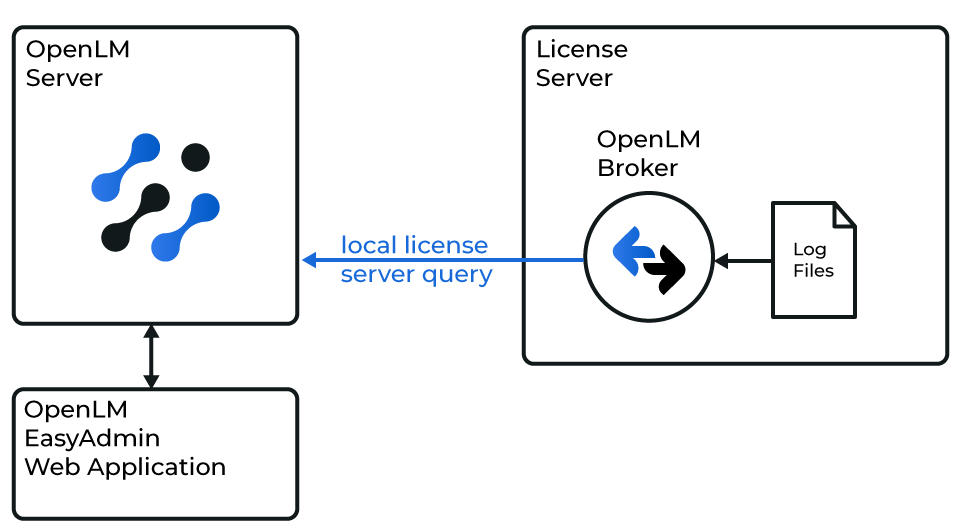
Diagram of how OpenLM interfaces with GEOVIA License Manager
Broker queries license usage through the NetworkLicenceManager tool and the ssilm.log file. This data is sent to OpenLM Server for processing.
Make sure OpenLM Broker is already installed and configured before continuing.
Automatic configuration
- In the Broker configuration tool, select Detect.

- If the GEOVIA service is running, Broker creates a port node with all required settings.
- Select Apply.
- Select Restart Broker.
- Verify setup: go to Commands → data_query and select Execute. There should be no errors in the output.
Manual configuration
If autodetect fails:
- Select Add Port and enter the GEOVIA port (default: 1234).
- From License Manager Type, select GEOVIA. Select Apply.
- Under Commands, set the path to the
GEOVIA\LicenceManager\##.#\Binfolder whereNetworkLicenceManager.exeis located (##.#is the version number, for example, 14.7). Select Update → Apply. - Under Vendors, replace "Vendor Name to Be Filled" with Dassault Systèmes (or other descriptive text). Select Apply.
- Add a log file: under Log Files, select Add Log File → select Other.
- Point to the GEOVIA log file (default:
C:\Users\Public\GEOVIA\LicenceManager\share\etc\ssilm.log). Select Apply. - Select Restart Broker.
- Continue with OpenLM Server configuration.
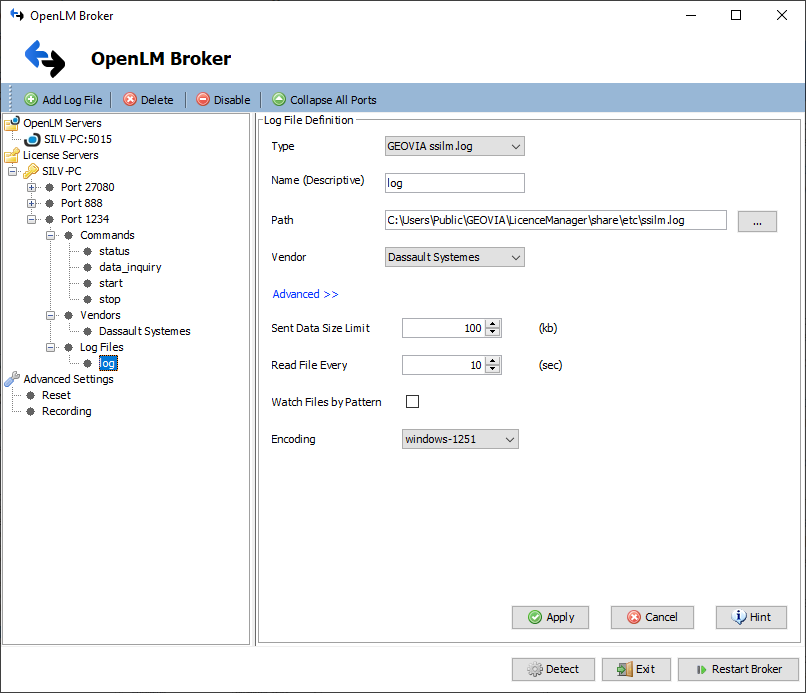
Alternative: Broker web UI configuration
You can also configure GEOVIA through the Broker Web UI (http://localhost:5090/):
- Go to License Managers → Add License Manager.
- Select GEOVIA from the drop-down and enter the port number.
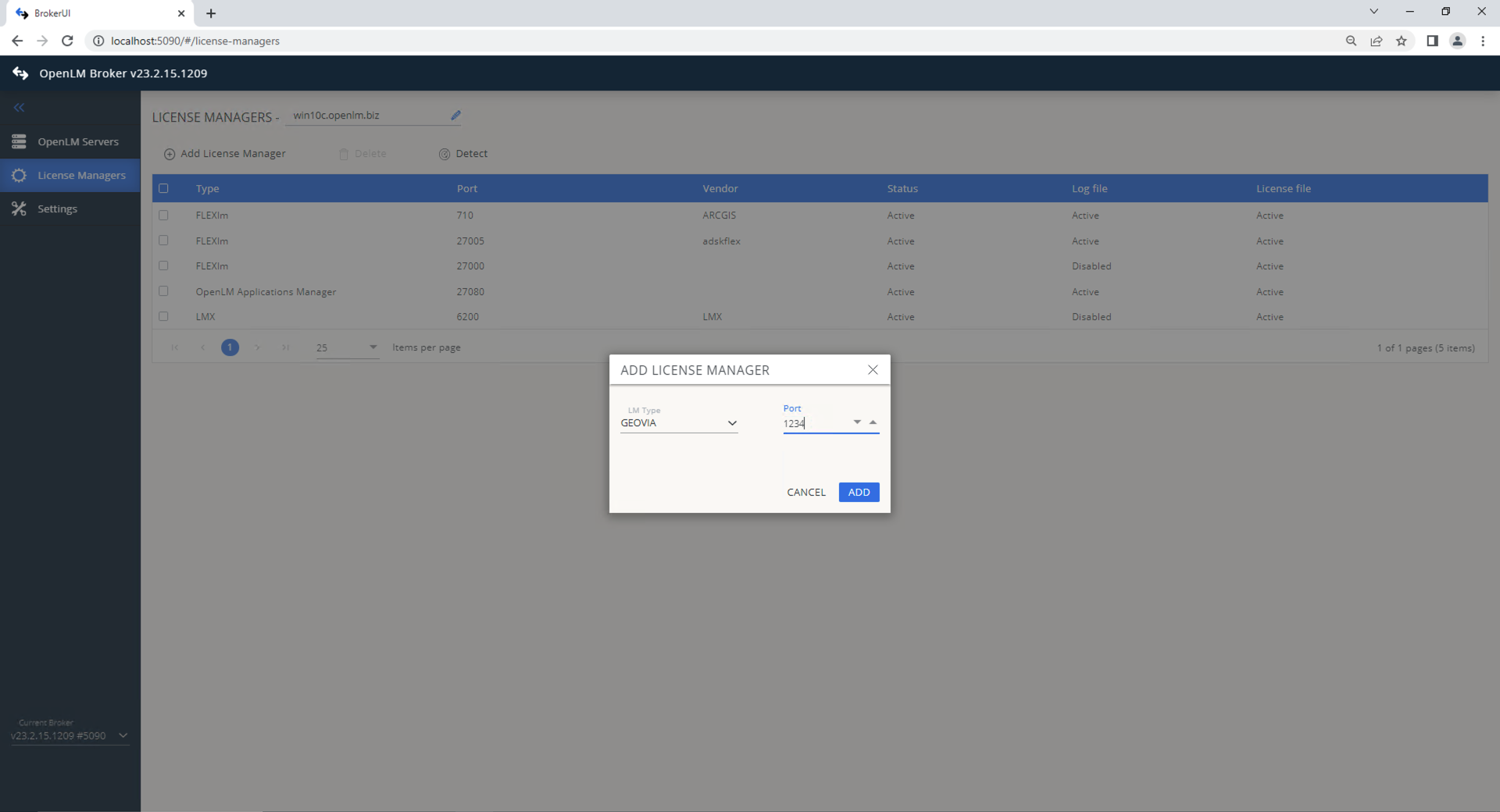
- Under Commands, set the path to
NetworkLicenceManager.exe. - Under Vendors, add Dassault Systèmes or any descriptive name.
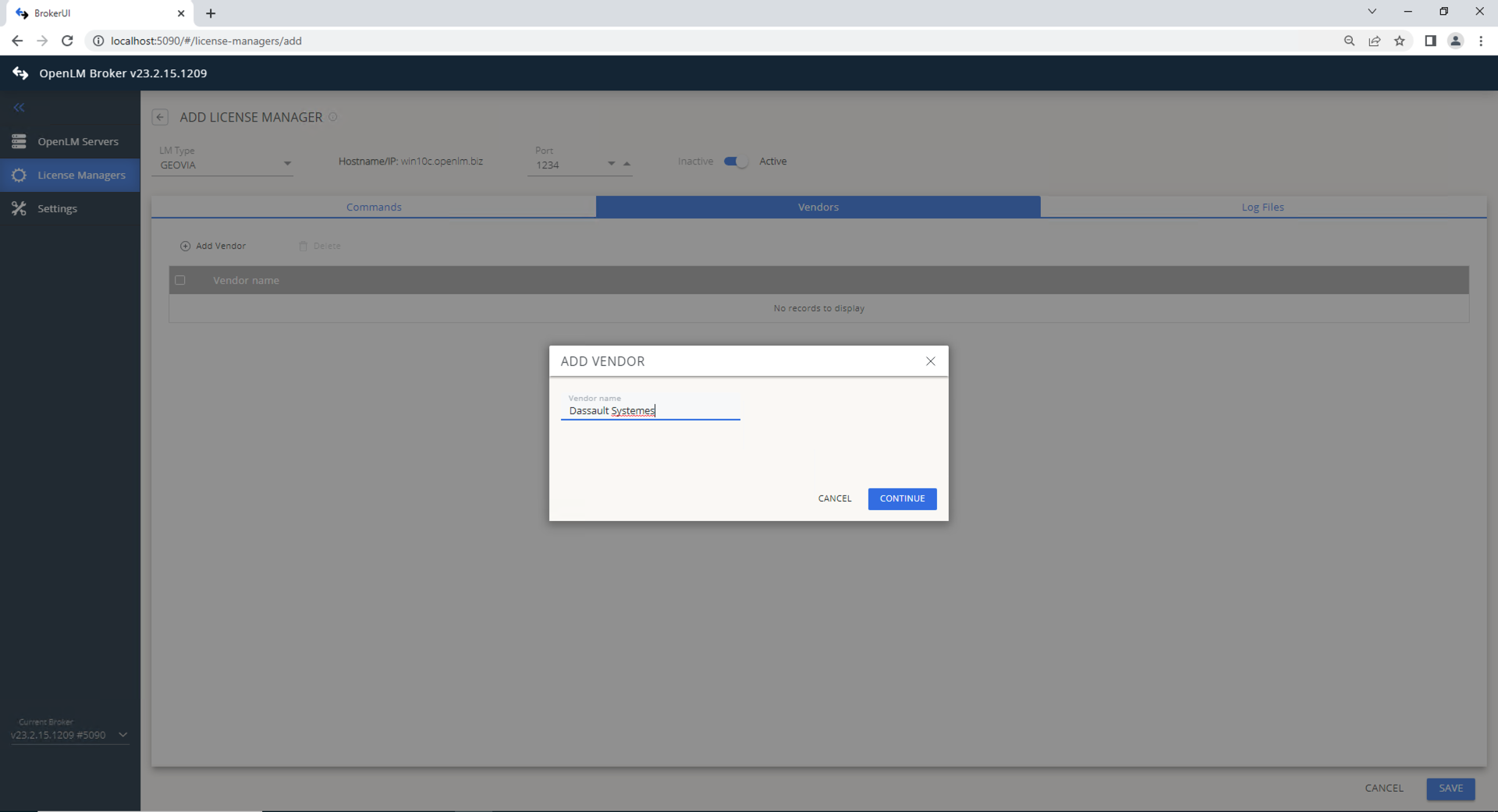
- Save and restart Broker.
Configuring OpenLM Server
Automatic configuration (EasyAdmin)
If Broker is correctly configured, it will send data to Server. Approve it in EasyAdmin:
- Open EasyAdmin (
http://<OpenLM Server>:5015or through Windows Start → OpenLM → EasyAdmin). - In License Manager Servers, find the server under Pending approval.

- Edit the pending server → update the Display name if needed → select Approve.

At this point, GEOVIA License Manager is added to OpenLM Server.

Manual configuration (EasyAdmin)
If automatic approval fails:
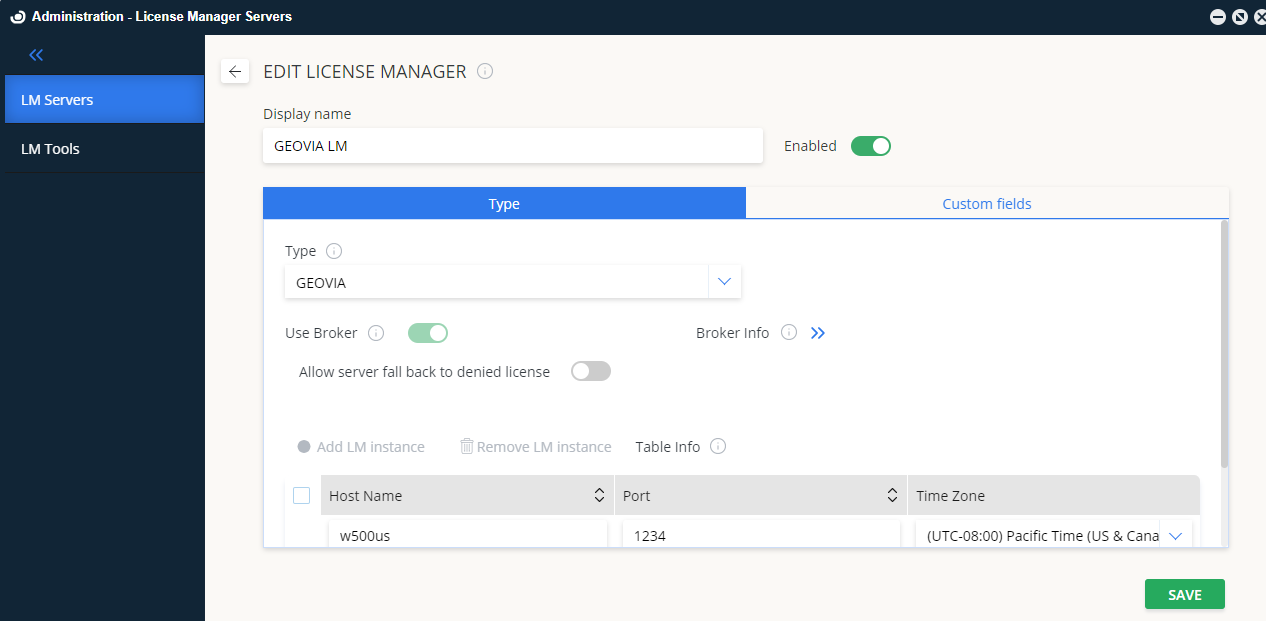
- Go to Administration → License Manager Servers → Add LM.
- From Type, select GEOVIA.
- Add a Display name and optional description.
- Set the Time Zone to match the server.
- Enter the Hostname and Port (must match Broker settings).
- Use Broker: activated.
- Select Save.
Verifying monitoring
To confirm GEOVIA monitoring:
- Open EasyAdmin → Start → Widgets → License Manager Servers.
- Verify that GEOVIA appears in the server list.
- Status indicator shows green when connected.

Note: It may take up to 3 minutes for a new connection to display as active.