L3Harris
Follow these steps to configure OpenLM to monitor license usage and retrieve statistics from the L3Harris License Manager.
Requirements
Before starting, make sure you have:
- An OpenLM SLMC account or OpenLM Server v24 or higher installed on a machine in your organization
- OpenLM Broker v24.4.5 or higher installed on the same machine as the L3Harris License Manager
Monitoring capabilities
| Feature | Resolution | License totals | License usage | Denials | Borrowing | Expiration date | Redundancy |
|---|---|---|---|---|---|---|---|
| Support | By second | ✔ | ❌ | ❌ | ❌ | ❌ | ❌ |
The Broker allows buffered communication and allows remote start/stop of the license manager service.
OpenLM Broker configuration
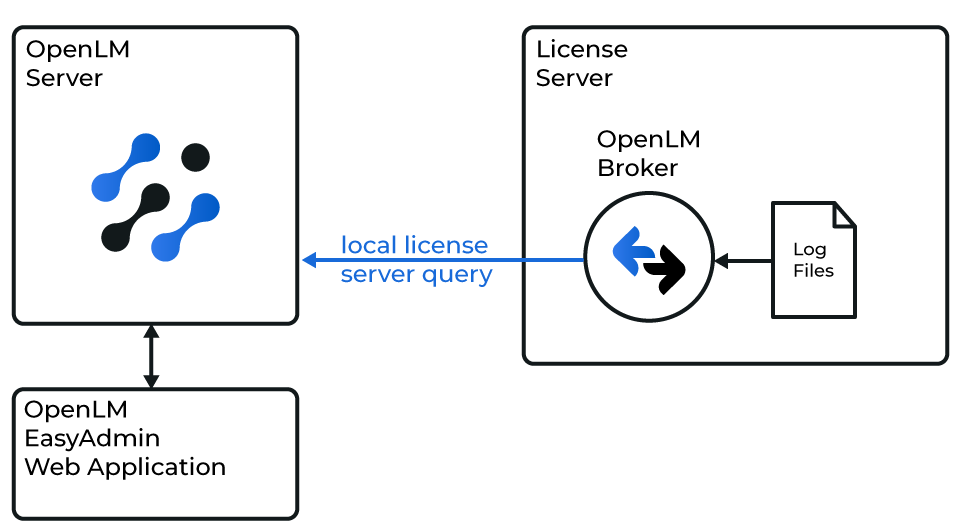
Diagram of how OpenLM interfaces with L3Harris
note
OpenLM Broker must already be installed and configured to report to OpenLM before proceeding.
- Open the Broker web UI at
http://localhost:5090(or5091,5092if the default port is in use). - Go to License Managers → Add License Manager.
- From the drop-down, select L3Harris and enter a port number.
The port number is not used for data capture but is required for licensing purposes. - Select Add.
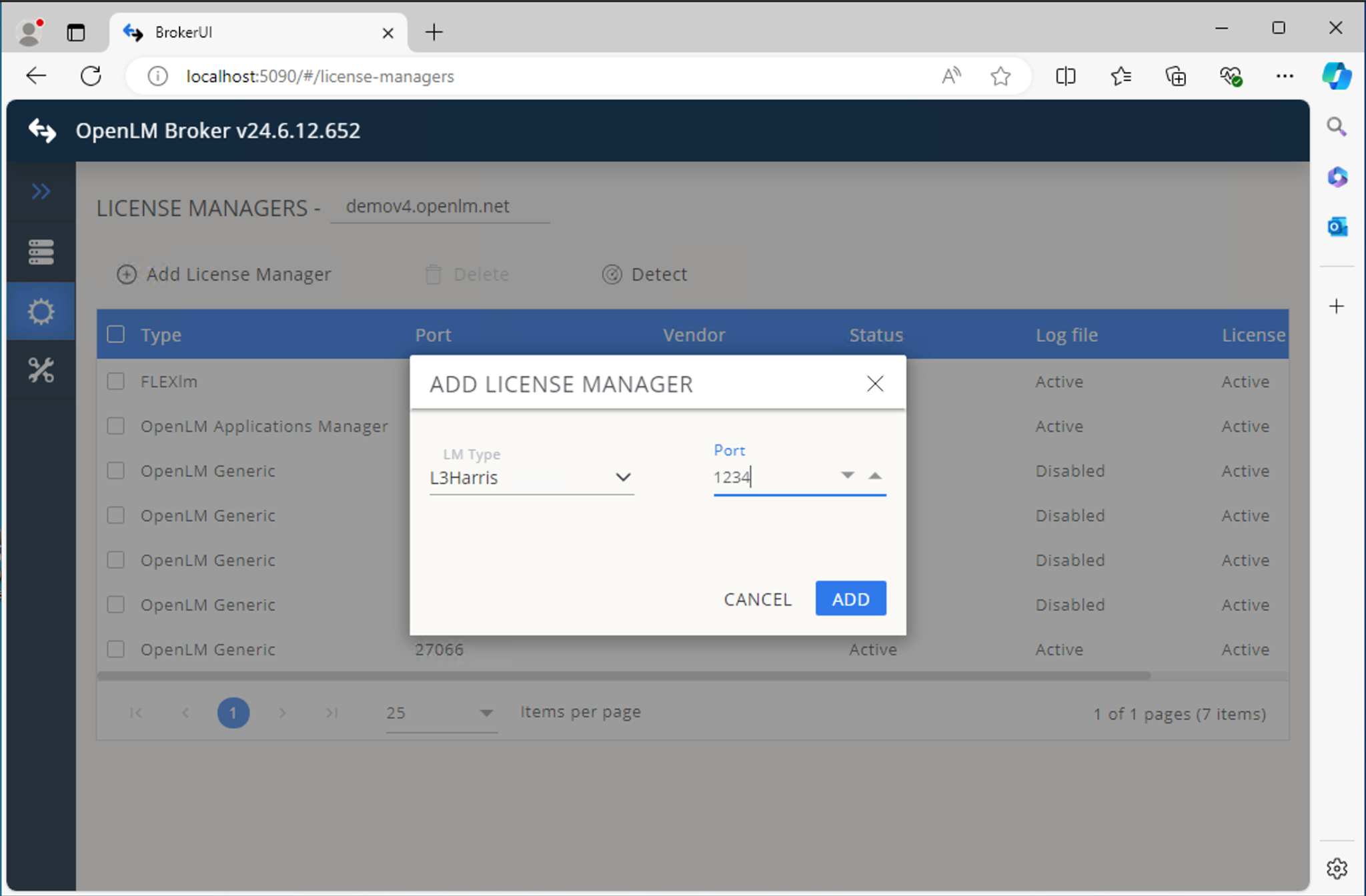
- In the Commands tab, browse to the folder containing the L3Harris log file and select Apply.
- In the Executable path field, specify the executable path on the L3Harris license server.
- Go to Vendors and set the vendor name.
- Go to Log Files → Add Log File and configure:
- Log type – Usage Log
- Log name (descriptive) – any name to identify the log
- Log path – browse to the L3Harris logs folder
- Vendor – vendor defined in the Vendors tab
- Set data size limit (KB) – default
100 - Read file every (sec) – default
10 - Watch file by pattern – Off
- Encoding –
windows-152
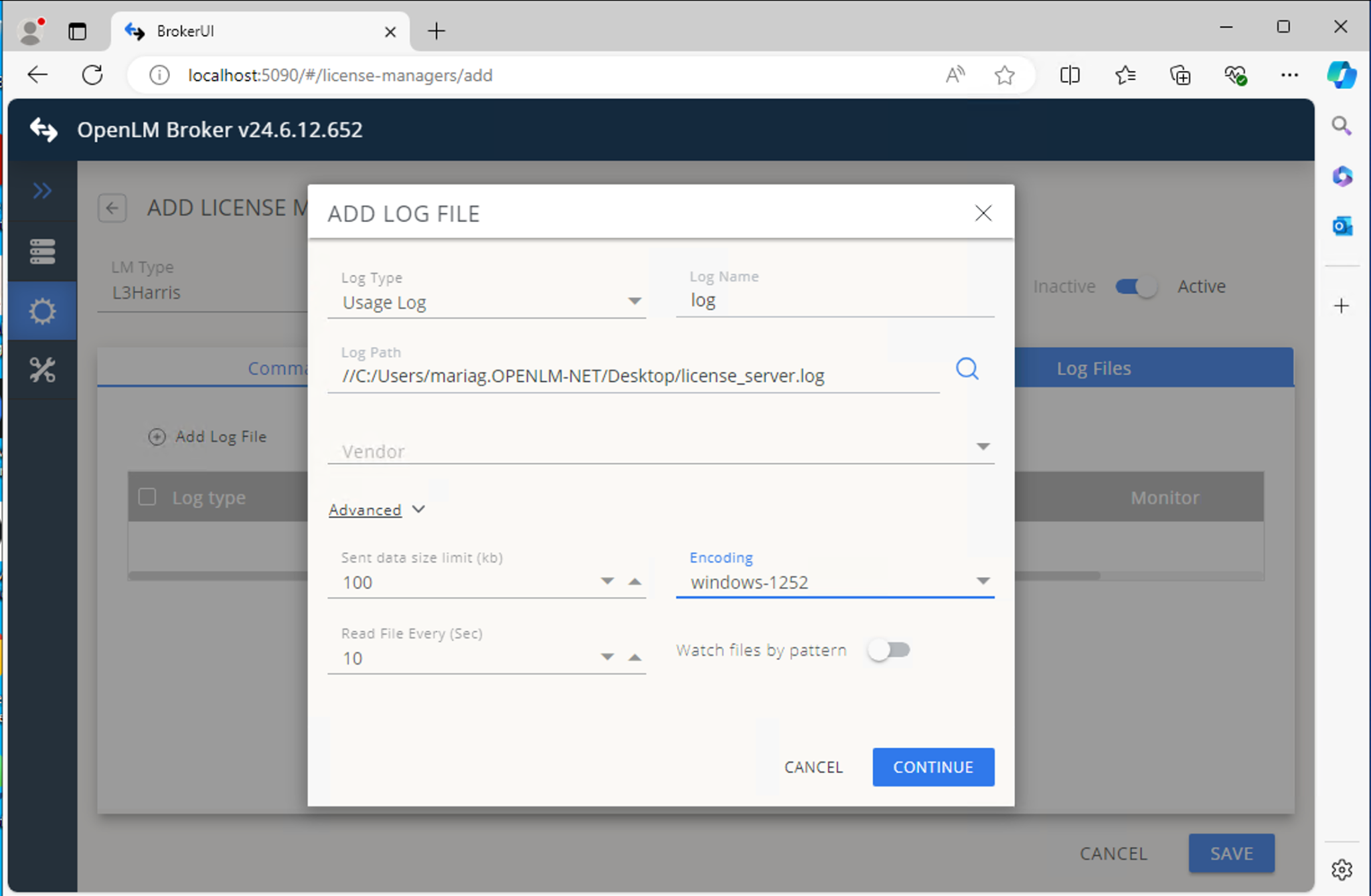
- Select Continue and then Save.
OpenLM Server configuration
Automatic configuration through EasyAdmin
- Open EasyAdmin at
http://<OpenLM-Server-IP>:5015/or through Windows Start → OpenLM → OpenLM EasyAdmin User Interface. - In License Manager Servers, select the Servers pending approval icon.
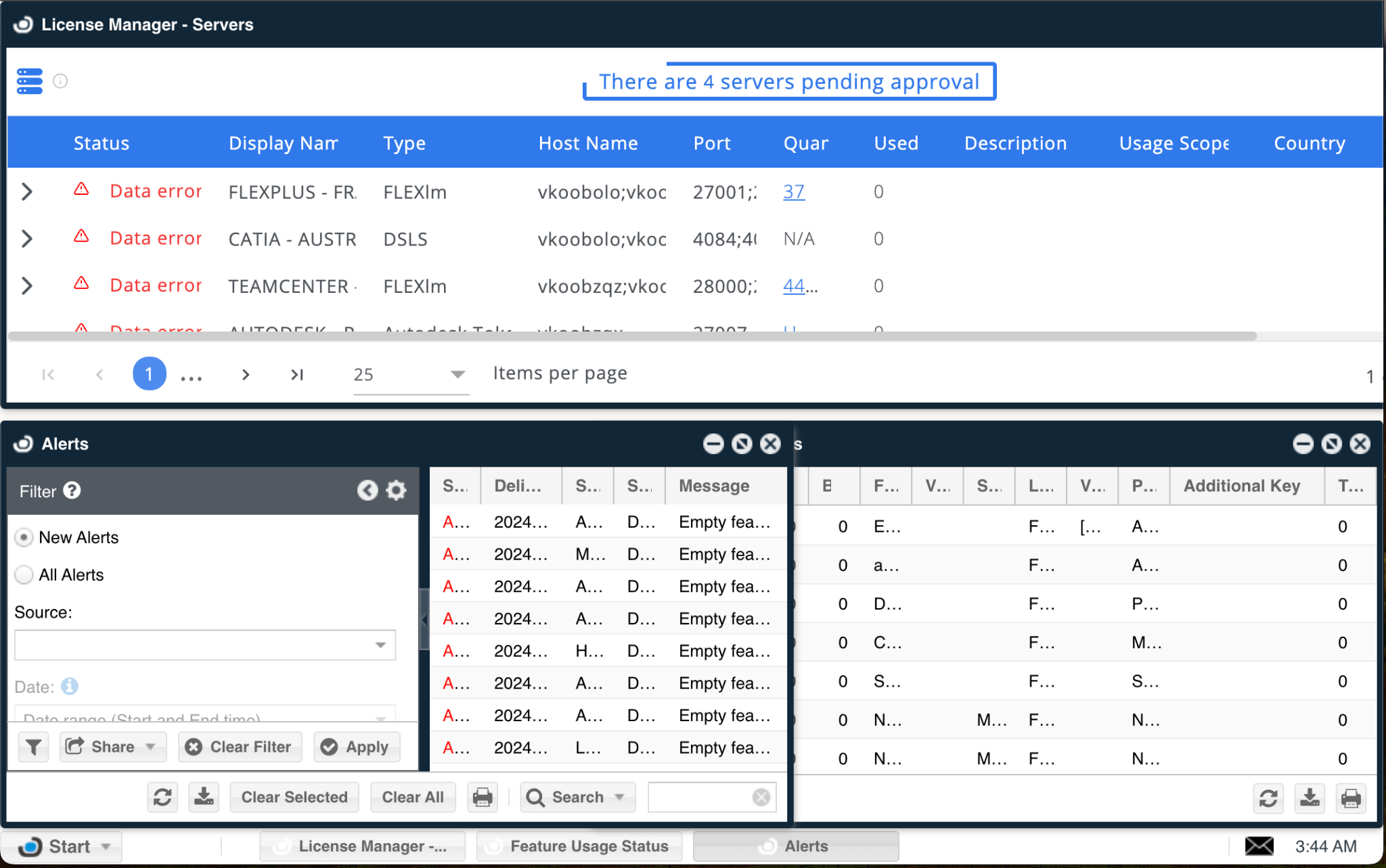
- Select the L3Harris entry, verify details, and select Approve.
Once approved, the L3Harris License Manager will appear in the list and will start reporting after a short processing period.
Verify your configuration
- Open EasyAdmin.
- Go to Start → Widgets → License Servers.
- Confirm the L3Harris License Manager appears with a green status circle.
note
New connections may take up to 3 minutes to display as active.