Sentinel HASP
Scope
OpenLM supports monitoring for a wide and growing variety of license managers.
This guide describes how to configure OpenLM to interface with Sentinel HASP, monitor license usage, and obtain license statistics.
OpenLM supports Sentinel HASP versions 5.0 and higher. Versions 4 and below are not supported.
Requirements
To query Sentinel HASP, ensure:
- OpenLM Server is installed on a machine in your organization.
- OpenLM Broker is installed on the same machine as the Sentinel HASP license manager (recommended for full monitoring capabilities).
Monitoring capabilities
The following monitoring capabilities are available for Sentinel HASP through OpenLM Broker:
- Denials reporting: Yes
- Report resolution: By minute
- Borrowed license reporting: No
- Expiration date reporting: No
- Multiple server redundancy support: No
- Token license support: No
Option 1: OpenLM Server only
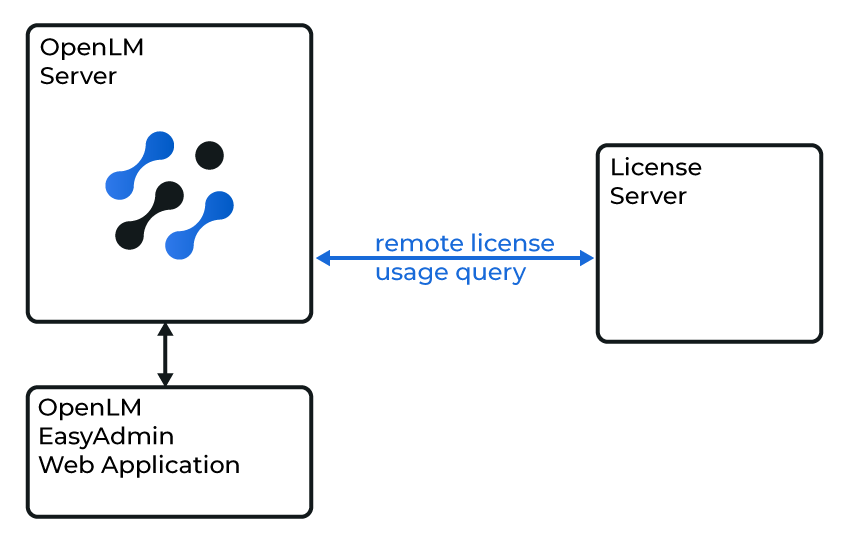
Diagram: OpenLM Server querying Sentinel HASP directly
In this option, OpenLM Server queries Sentinel HASP remotely.
Limitation: Only license totals and usage are available (no denials, logs, or advanced data).
Adding a Sentinel HASP server
- Open the EasyAdmin interface.
- Navigate to Start → Administration → License Manager Servers.
- Click Add LM.
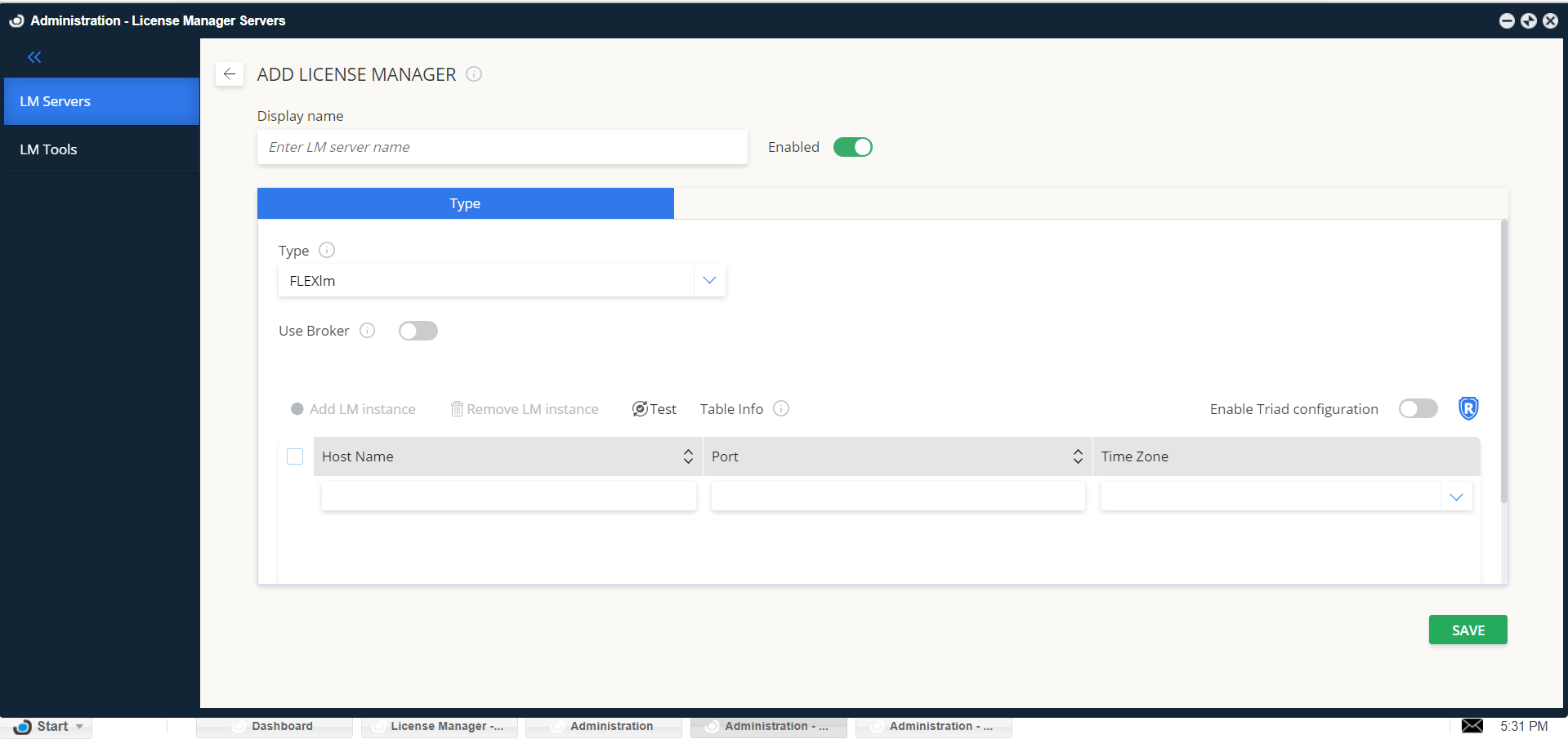
- Enter a descriptive Display name.
- From Type, select HASP.
- Enter the Hostname and Port (default: 1947).
- Set the Time Zone for the license server’s location.
- Enable Triad configuration: Off (not supported).
- Use Broker:
- Off (default) – Server queries HASP directly.
- On – Requires Broker (see Option 2).
- (Optional) Enter a Vendor name to distinguish reports.
- Click Save.
OpenLM Server should now be able to display Sentinel HASP usage in EasyAdmin.
Option 2: OpenLM Broker
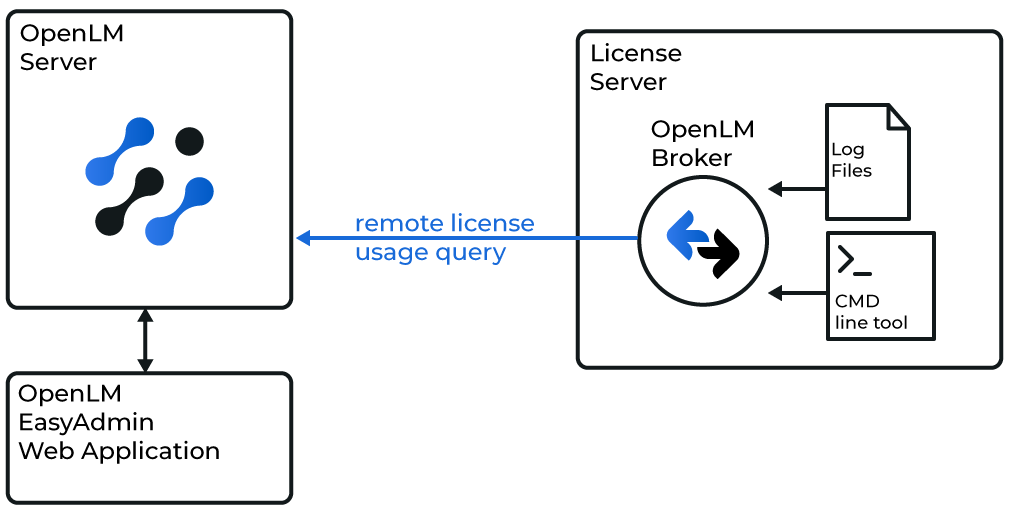
Diagram: OpenLM Broker querying Sentinel HASP locally
This method uses OpenLM Broker installed on the HASP server to query through command-line utilities and usage logs.
Recommended: Provides full monitoring, including denials and log-based data.
Configuring Broker (manual setup)
- In Broker, click Add Port and enter the HASP server port (default: 5093).
- Set LM Type to Sentinel HASP License Manager.
- Under Commands, browse to the folder containing Sentinel HASP command-line utilities. Click Update.
- (Windows only) If HASP runs as a service, activate Use Service and enter
Sentinel HASP License Manager. - Click Apply.
- Under data_inquiry, click Execute and confirm valid output.
- Right-click Log Files → Add Log File.
- Set Type = Other, then browse to the HASP usage log file.
- Click Apply and Restart Broker.
Configuring OpenLM Server (EasyAdmin)
- Open EasyAdmin → Start → Widgets → License Manager – Servers.
- Go to Servers pending approval.
- Double-click the HASP server with status = Pending.
- Enter a display name (for example, HASP).
- Activate the toggle and click Approve.
Remote access settings
If OpenLM Server is not on the same machine as Sentinel HASP:
- Open port 1947 on the firewall.
- In the Sentinel Admin Control Center (ACC), under Basic Settings, enable Allow Remote Access to ACC.
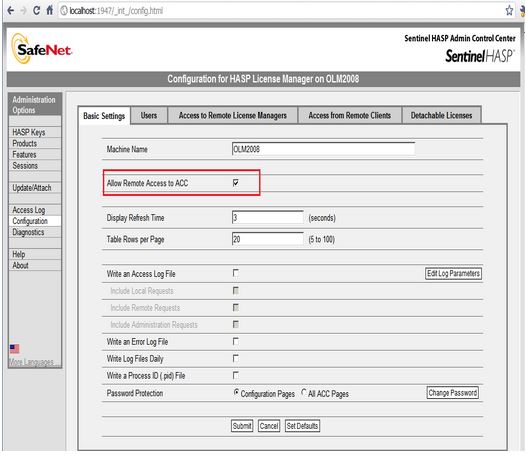
Enable remote access in Sentinel Admin Control Center