OpenLM SLM and Identity Service installation on Linux using RPM, DEB, and TAR Packages
This document describes the steps required to install the OpenLM SLM and Identity Service in a Linux machine using RPM, DEB, and TAR packages
Requirements
Linux Package Dependencies:
SLM: systemd, redhat-lsb, libgdiplus, dotnet core, powershell core
Identity Service: systemd, dotnet core, powershell core
Software as Putty and WinSCP software are the prerequisites for the OpenLM SLM installation. These are Windows-only tools and are needed to interact with the Linux machine from the Windows machine. You can use any tool apart from Putty / WinSCP that can open a console and copy a file to a Linux machine. Protocols: Putty (SSH protocol), WinSCP (SCP protocol).
Connect to a Linux machine using PuTTY
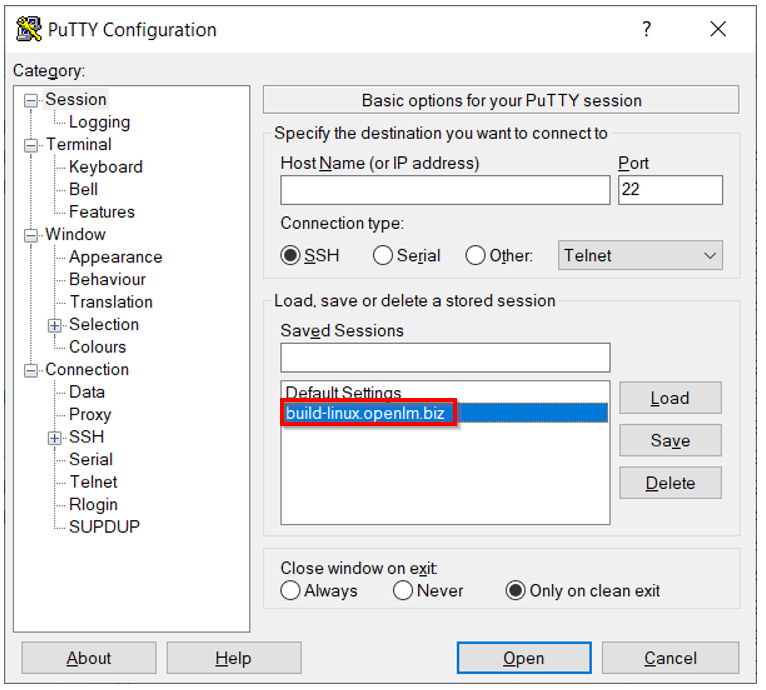
To connect to a Linux machine using Putty, add the Linux machine address in the Putty session window. Enter the hostname and IP address of the Linux machine to connect to. Select the Open button after entering the required details.
Connect to the Linux machine using your login credentials, enter your system password:
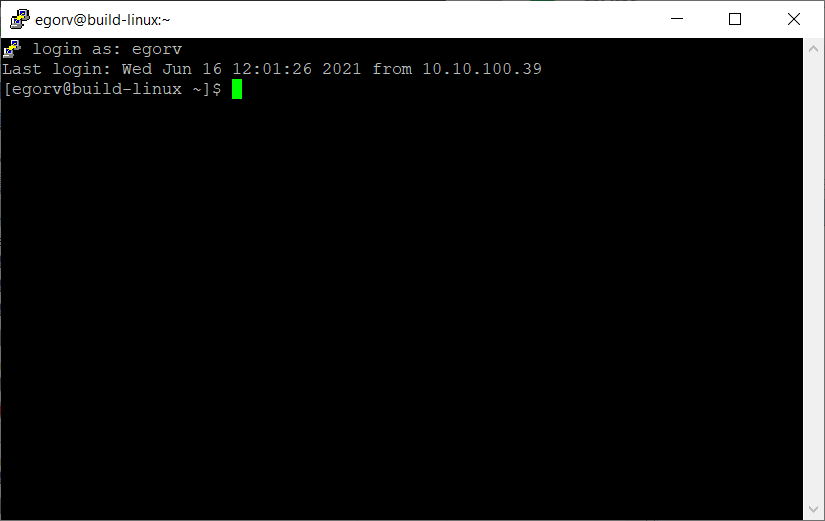
For RPM: Type the below-mentioned command to check if you have any OpenLM applications installed:
sudo rpm -qa | grep openlm
In case no information is returned that means no OpenLM applications are installed.
For DEB: Type the below-mentioned command to check if you have any OpenLM applications installed:
sudo apt list -installed | grep openlm
For Tar.Gz: Type the below-mentioned command to check if you have any OpenLM applications installed:
sudo ps -aux | grep openlm
OR
ls /etc/systemd/system
OR
ls /opt
In case no relevant information is returned that means no OpenLM applications are installed.
Note: In case you encounter a display glitch with the putty console, open the CMD windows and use the below command:
ssh [user]@[IP|Hostname]
Installing the OpenLM SLM using RPM
To install the OpenLM SLM:
-
Download the RPM installation file on your machine (for example, in the Downloads folder).
-
Open WinSCP and connect it to the Linux machine.
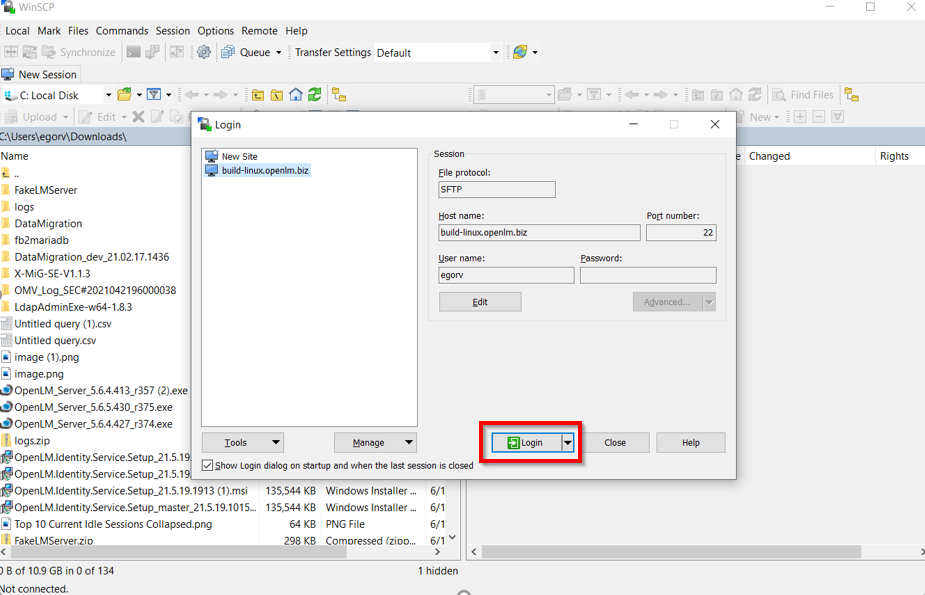
- Login using your login credentials, and drag and drop the downloaded RPM file from your machine to the Linux machine.
Note: There are some dependencies included in the RPM package. To install all these dependencies automatically, use the below-mentioned command if your distribution include yum:
sudo yum install [RPMFILE]
Otherwise, after the copying process is complete, return to Putty and run the below-mentioned command:
sudo rpm -i [RPMFILE]
(for example, sudo rpm -i openlm_server-21.6.9-937.x86_64.rpm)
Note: To check the dependencies with RPM, use the commands:
rpm -qp [RPMFILE] -provides
rpm -qp [RPMFILE] -requires
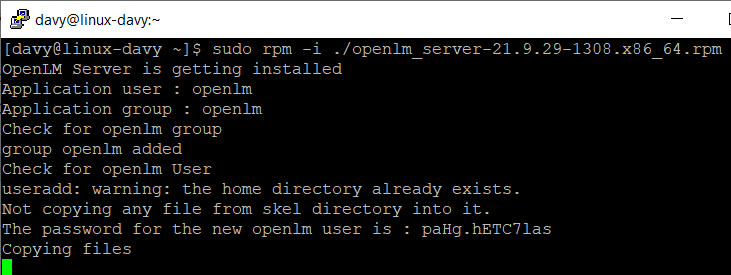
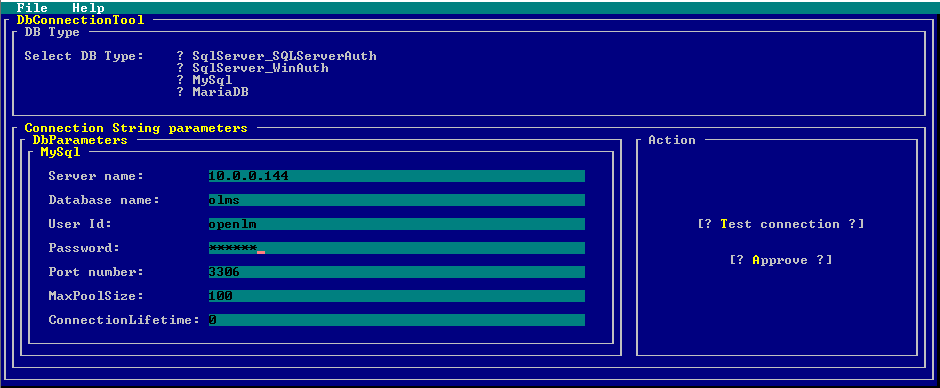
- When the window with database configuration opens, create a new empty database in your preferred database provider.
Note: The following databases are compatible: MS SQL Server, MySQL, MariaDB.
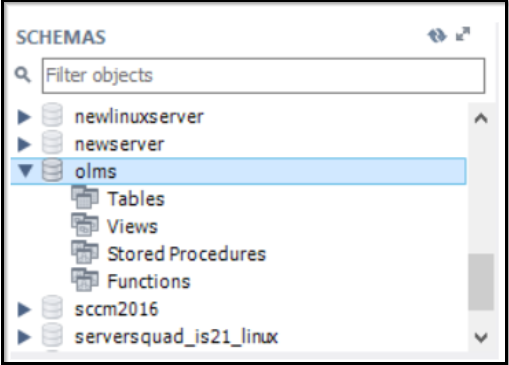
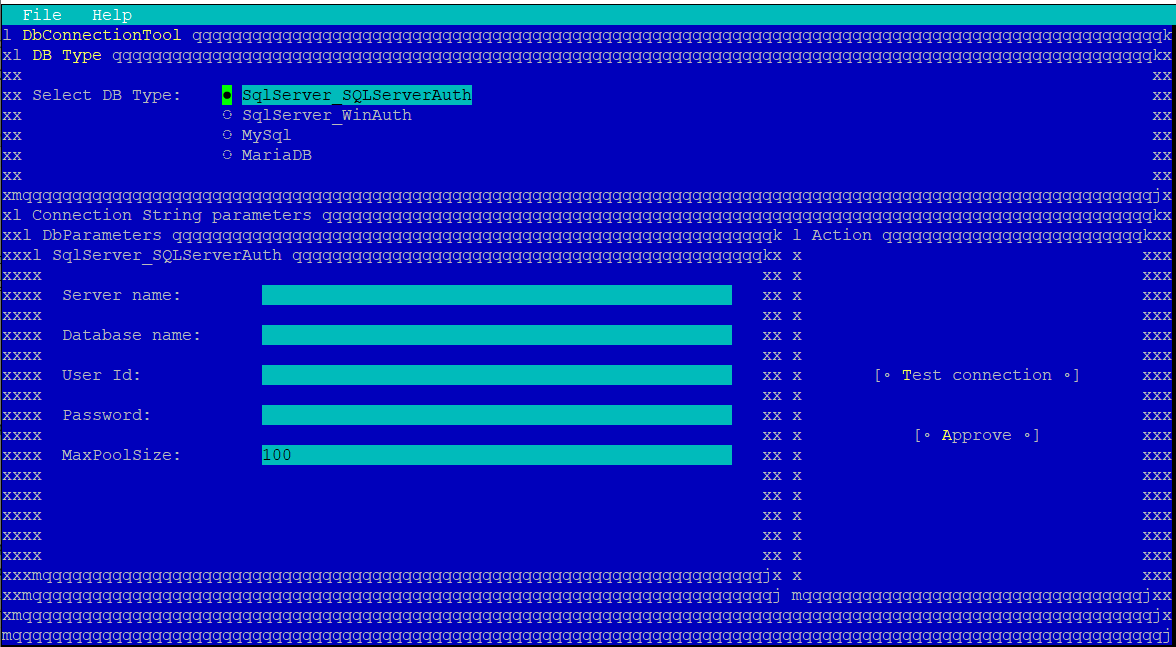
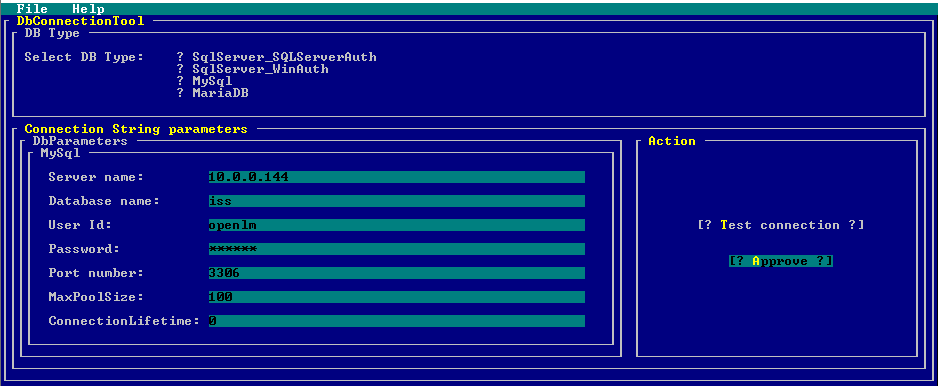
Provide the server name, database name, and user credentials (User ID and Password), select Test Connection and Approve button.
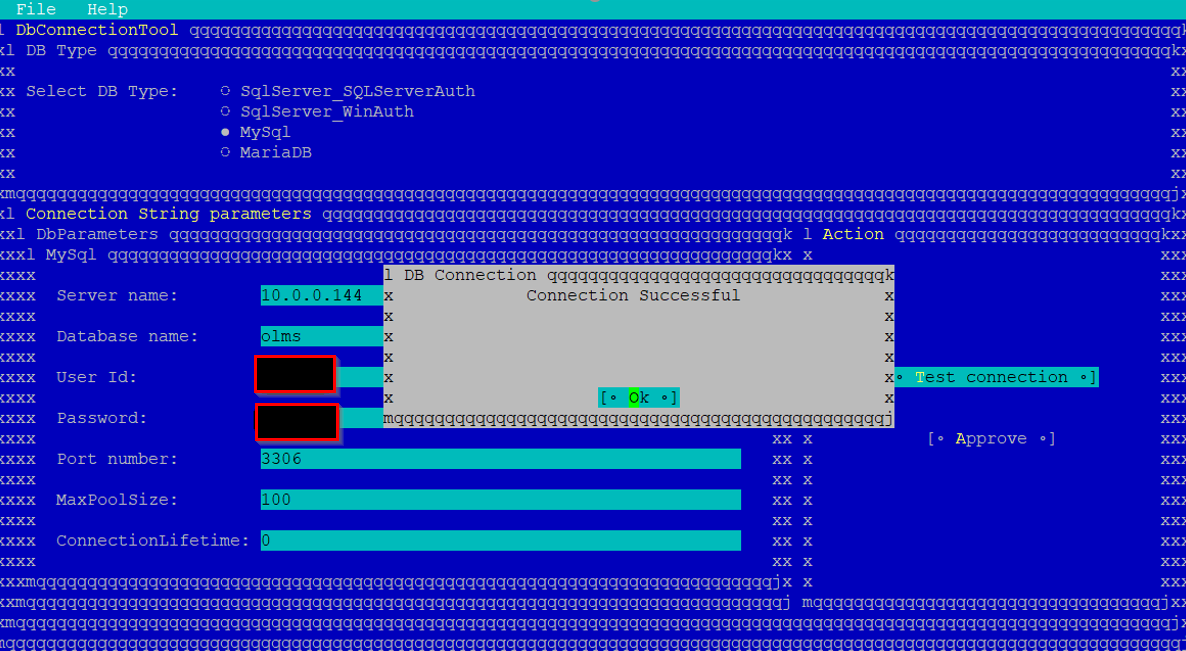

This message confirms that the installation process is done.
- Add the license to your OpenLM SLM.
Direct cp command into /opt/openlm/license folder.

OR
In Putty, go to the OpenLM folder using this command: cd /opt/openlm
Go to WinSCP, and drag and drop the license file from your machine to the Linux machine to the /opt/openlm/license folder.
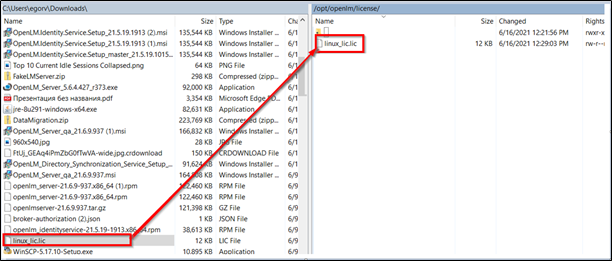
Restart the OpenLM service to apply the license. Run the below-mentioned command to restart the OpenLM service:
sudo service openlm restart
OR
sudo systemctl restart openlm
OpenLM installation is now completed. The OpenLM SLM on the Linux Machine is available through the link: http://[IP|Hostname]:5015 in the browser.
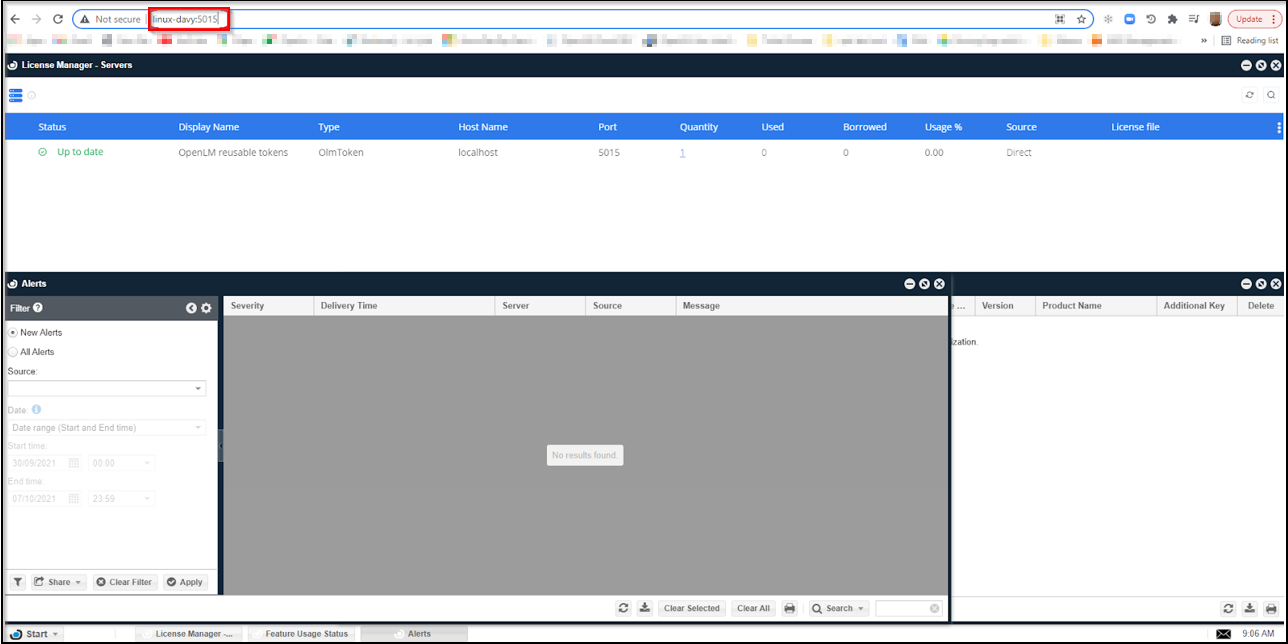
Installing the Identity Service using RPM
To install Identity Service:
- Copy Identity Service RPM file. Move it to the Linux machine through WinSCP and install it.

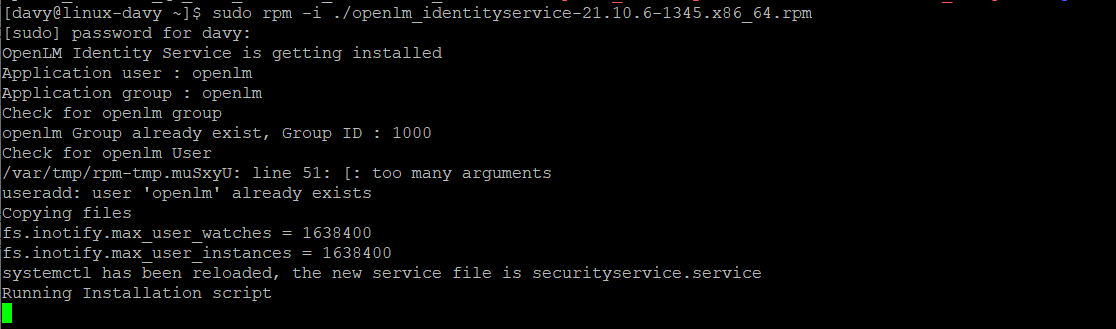
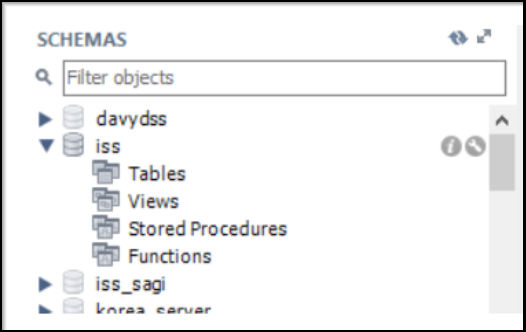
- Create a new database and indicate this database during the Identity Service installation.
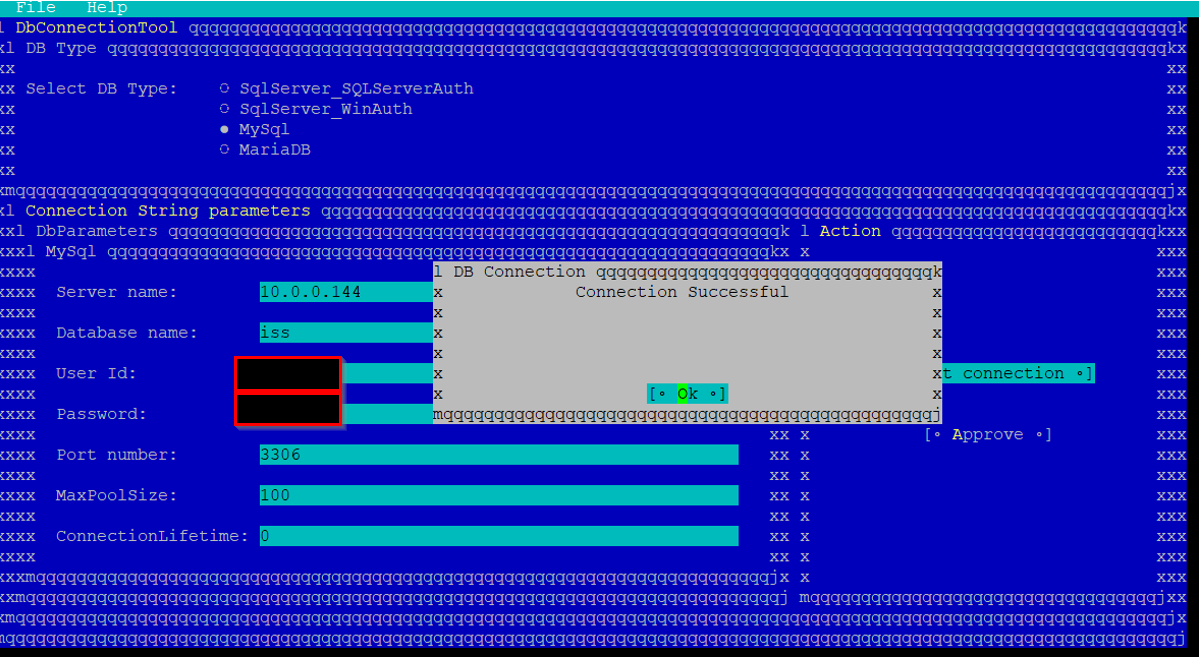
- Select the Identity Service port (default 5000, press enter).
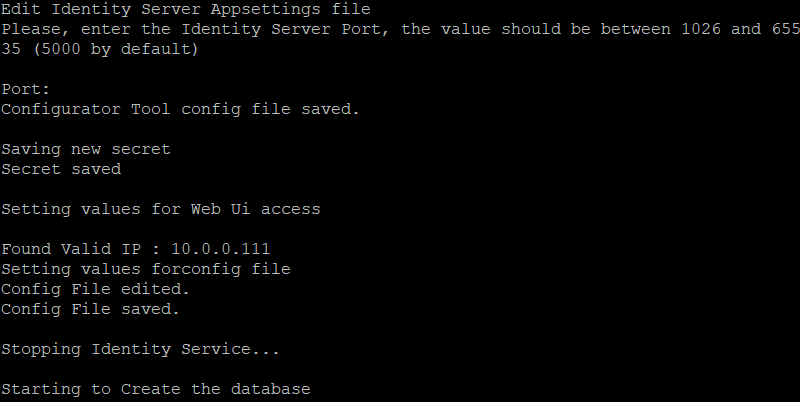
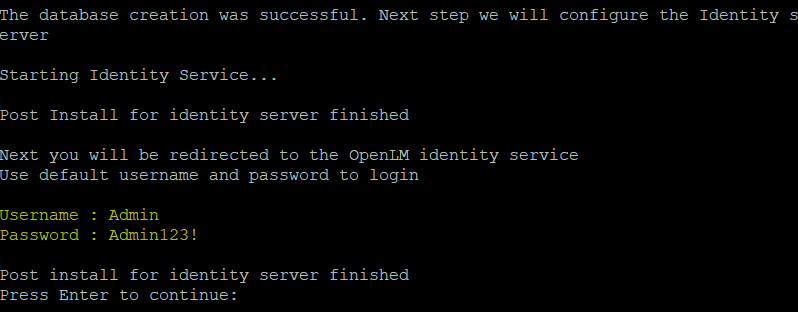
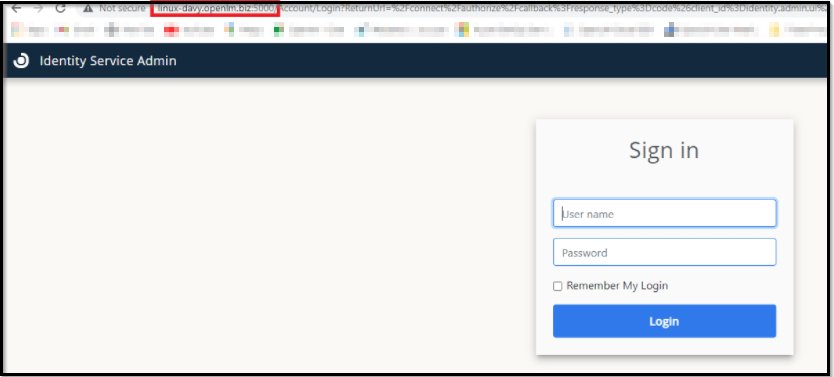
- Open Identity Service through the link: http://[FQDN]:5000. Here, FQDN means Fully Qualified Domain Name.
Connect it to the OpenLM SLM.
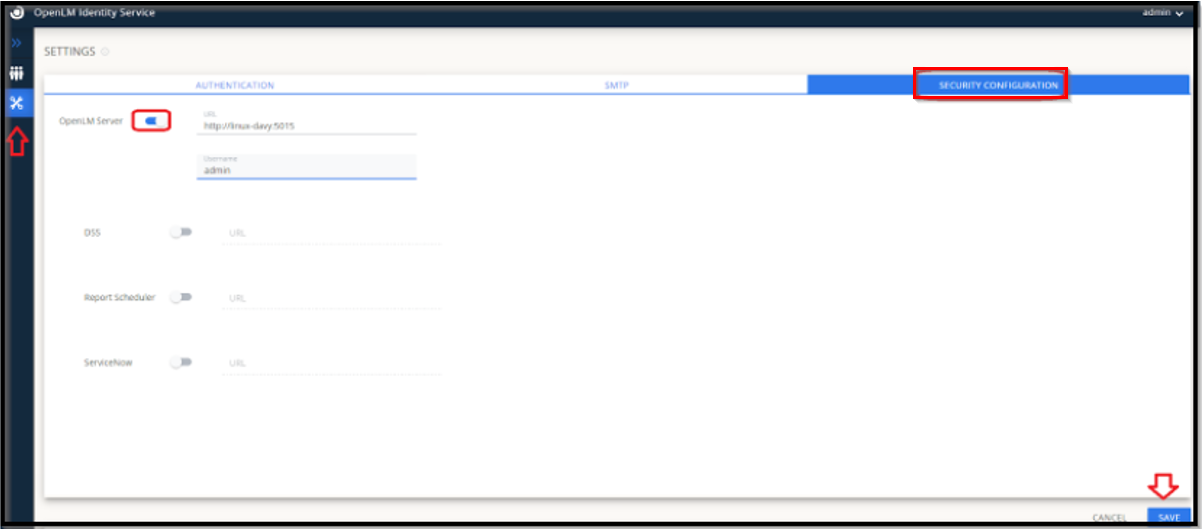
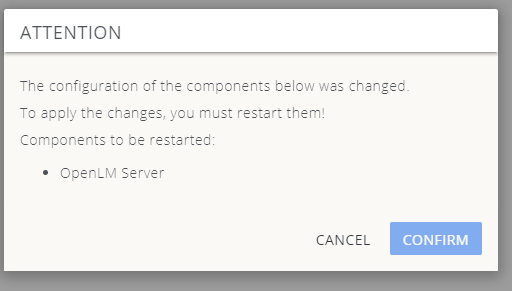
Run the below-mentioned command to restart the OpenLM service (the account should exist in the OpenLM SLM):
sudo service openlm restart
OR
sudo systemctl restart openlm
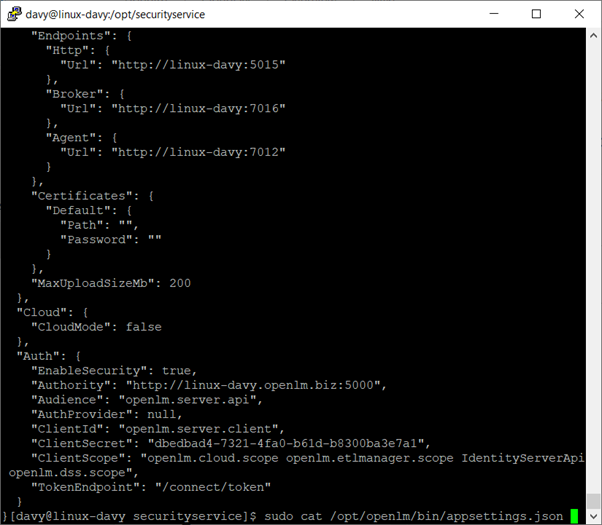
OpenLM SLM appsettings.json: To check that the configuration is fine, use the command:
cat /opt/openlm/bin/appsettings.json
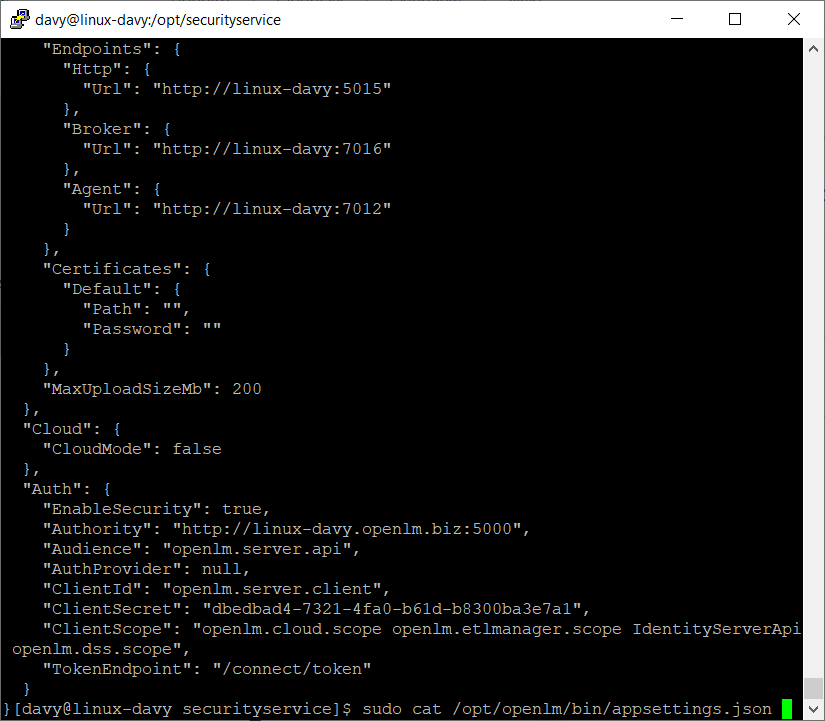
The Client Secret and Authority field should be filled with the EnableSecurity field as True.
Useful RPM-specific Linux sudo commands
To Install the RPM:
sudo rpm -i [RPMFILE]
OR
sudo yum install [RPMFILE]
To Upgrade the RPM:
sudo rpm -U [RPMFILE]
OR
sudo yum update [RPMFILE]
To Uninstall:
To check installed OpenLM items: sudo rpm -qa | grep openlm
To uninstall one of the installed items: sudo rpm -e [name]
To Repair:
sudo rpm -i -replacepkgs [PackageNAme]
OpenLM SLM:
sudo cp [YourLicenseFile] /opt/openlm/license/
Restart Service
sudo service openlm restart
Optional Tool Server:
DB Configuration:
sudo pwsh /opt/openlm/tools/postinstall/start-serverdbconfiguration.ps1
All DB Upgrade:
sudo pwsh /opt/openlm/tools/postinstall/start-alldbupgradeapi.ps1
Optional Tool Identity Service:
DB Configuration:
sudo /opt/securityservice/tools/postinstall/start-identitydbconfiguration.ps1
Installing OpenLM SLM using DEB
-
Copy the Debian Package to your server.
-
Use apt binaries to install it. Run the below-mentioned command:
- sudo apt install ./[DebName]

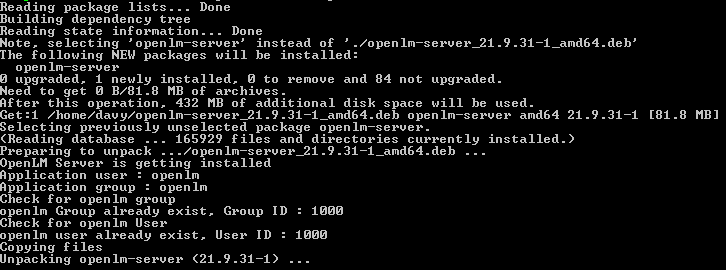
- Configure the database access.

The following lines files will appear:

- Check that the OpenLM service is running. Command mentioned below:
-sudo service openlm status

- Copy the license file to /opt/openlm/license. Command mentioned below:
- sudo cp [LicenseFileName] /opt/openlm/license/[LicenseFileName]
- Connect to OpenLM SLM Interface:
Link: http://[hostname]:5015 in a web browser. Here, hostname is the hostname of the server where the OpenLM SLM is installed.
Installing the Identity Service using DEB
-
Copy Debian (DEB) package to your server.
-
Use apt binaries to install it. Run the below-mentioned command.
- sudo apt install ./[DebName]

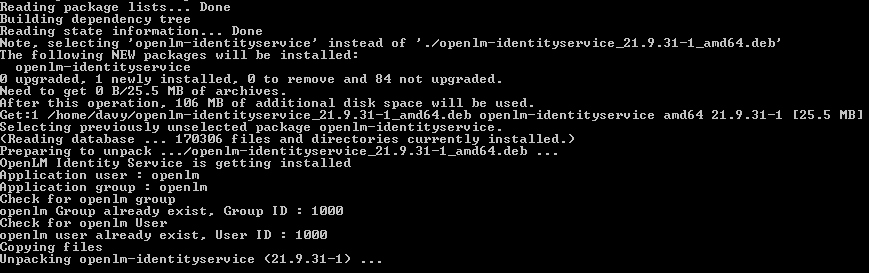
- Configure the database access.
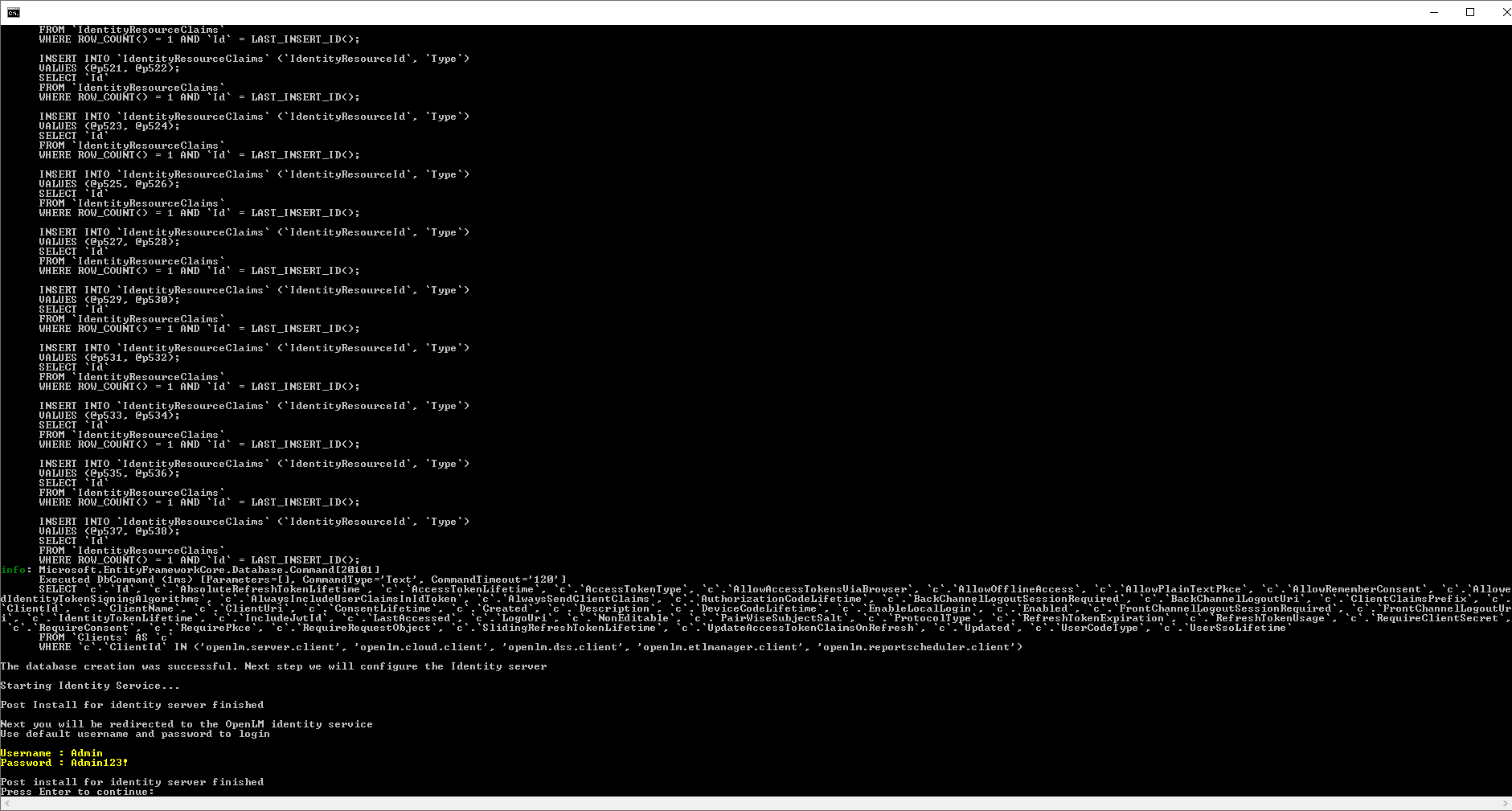
- Select the Identity server port (5000 by default, press enter).

Database created:
- Connect to the Identity Web Browser with:
http://[FQDN]:[Port].Here, FQDN means Fully Qualified Domain Name.
Note: In case a blank page appears, it means the correct FQDN is not used.
Useful DEB-specific Linux commands
To install and upgrade the Debian package and its configuration files from your system, run the command: sudo apt install ./[DEBNAME] (same command line to be used for upgrade).
To remove the Debian package and its configuration files from your system, run the command: Sudo apt purge [DEBNAME]
Installing the OpenLM SLM using TAR
To install OpenLM SLM:
-
Download TAR installation file on your machine (for example, in the Downloads folder).
-
Open WinSCP and connect it to Linux machine.
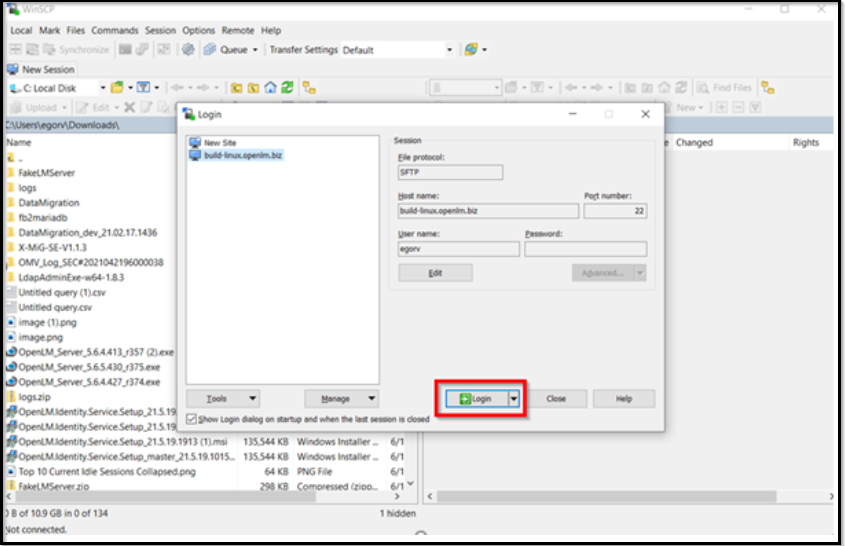
-
Login using your login credentials, and drag and drop the downloaded TAR file from your machine to the Linux machine.
-
After the copying process is complete, return to Putty and run the below-mentioned commands:
sudo tar -xvf [TARname]
OR
sudo tar -xvf [TARname] -C [destination]
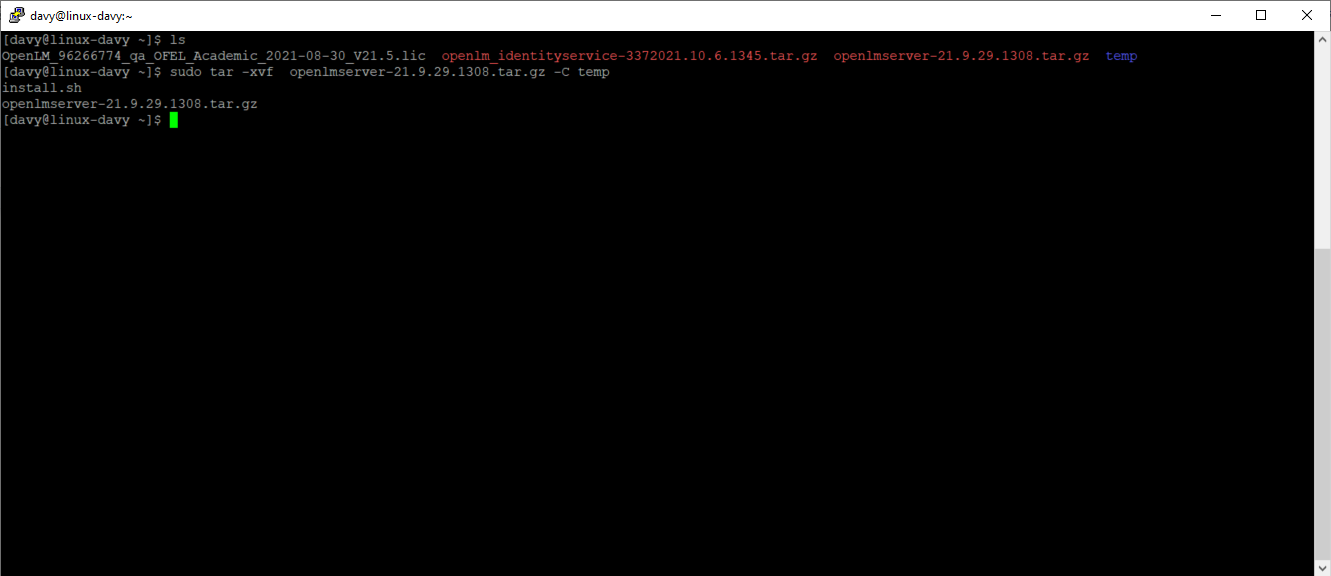
cd [destination]
sudo /bin/bash ./installer.sh
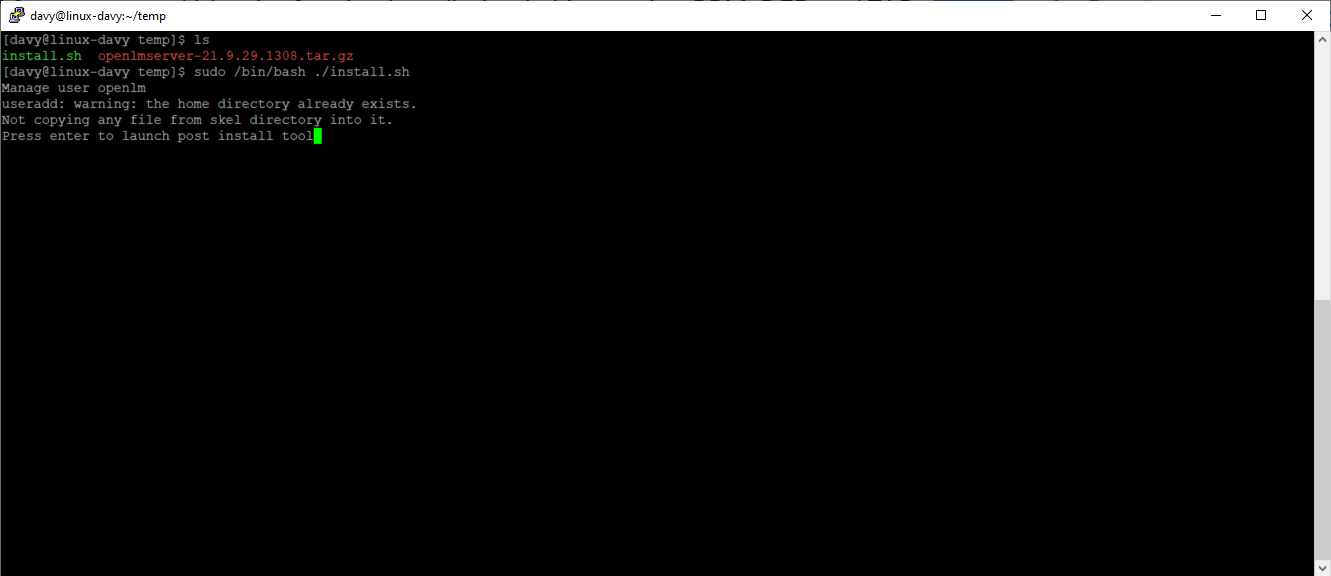
- When the window with database configuration opens, create a new empty database in your preferred database provider.
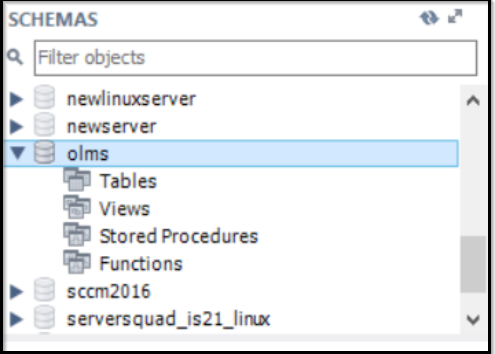
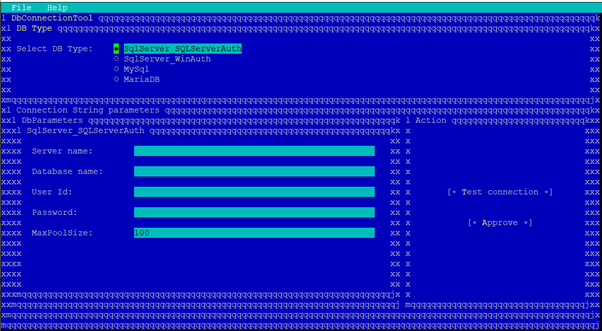
Indicate the created database in Putty, select Test Connection and Approve button.
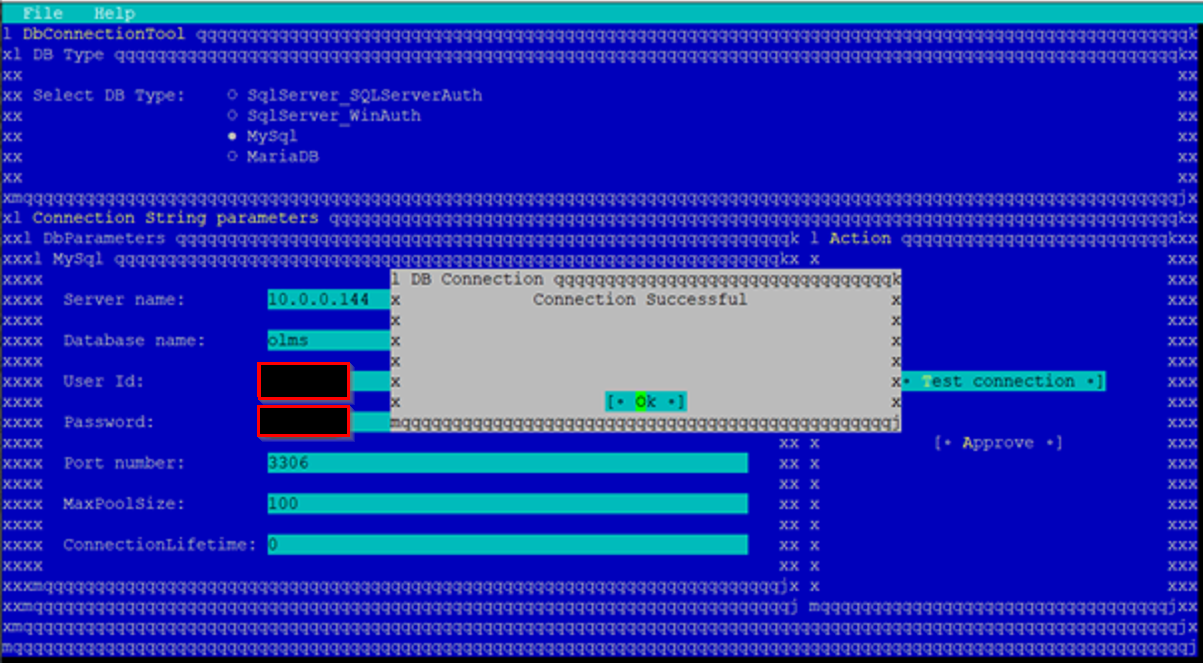
The following lines file will appear:

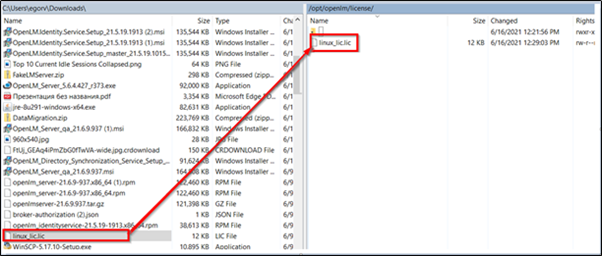
- Add the license to your OpenLM SLM.

OR
In Putty, go to OpenLM folder using this command: cd /opt/openlm
Go to WinSCP, and drag and drop the license file from your machine to the Linux machine to the /opt/openlm/license folder.
Restart the OpenLM service to apply the license. Run the below-mentioned command to restart the OpenLM service:
sudo service openlm restart
OR
sudo systemctl restart openlm
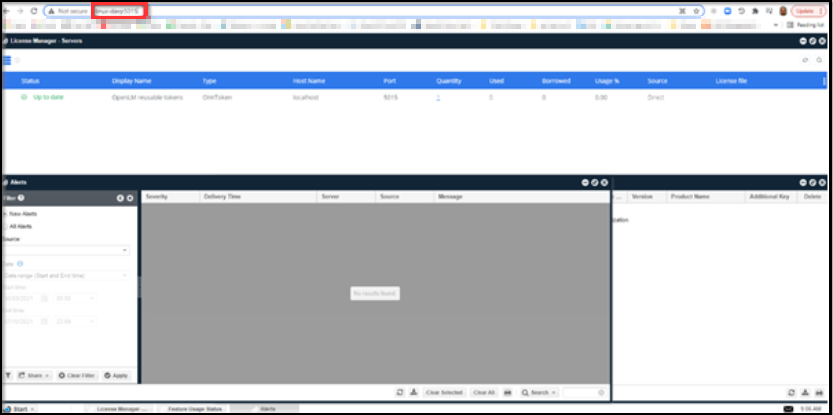
The OpenLM installation is now completed. The OpenLM SLM on the Linux Machine is available through the link: http://[IP|Hostname]:5015 in the browser.
Installing the Identity Service using TAR
To install the Identity Service:
- Copy the Identity Service TAR file. Move it to the Linux machine through WinSCP and install it.
Run the below-mentioned commands:
sudo tar -xvf [TARname]
OR
sudo tar -xvf [TARname] -C [destination]
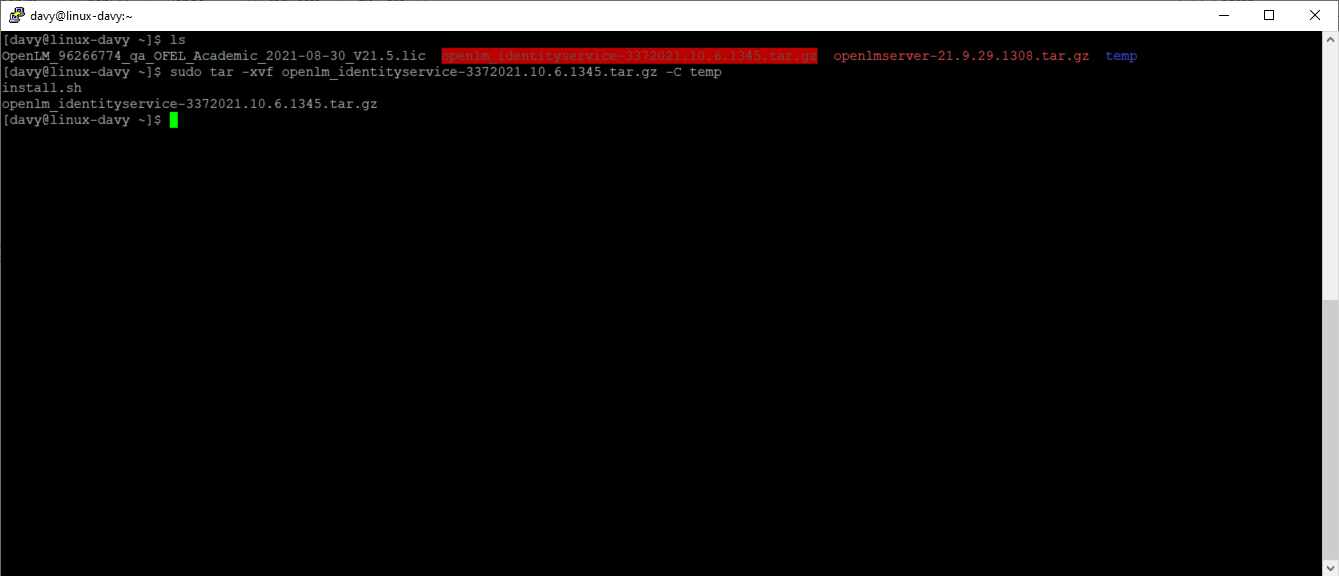
cd [destination]
sudo /bin/bash ./installer.sh

- Create a new database and indicate this database during the Identity Service installation.
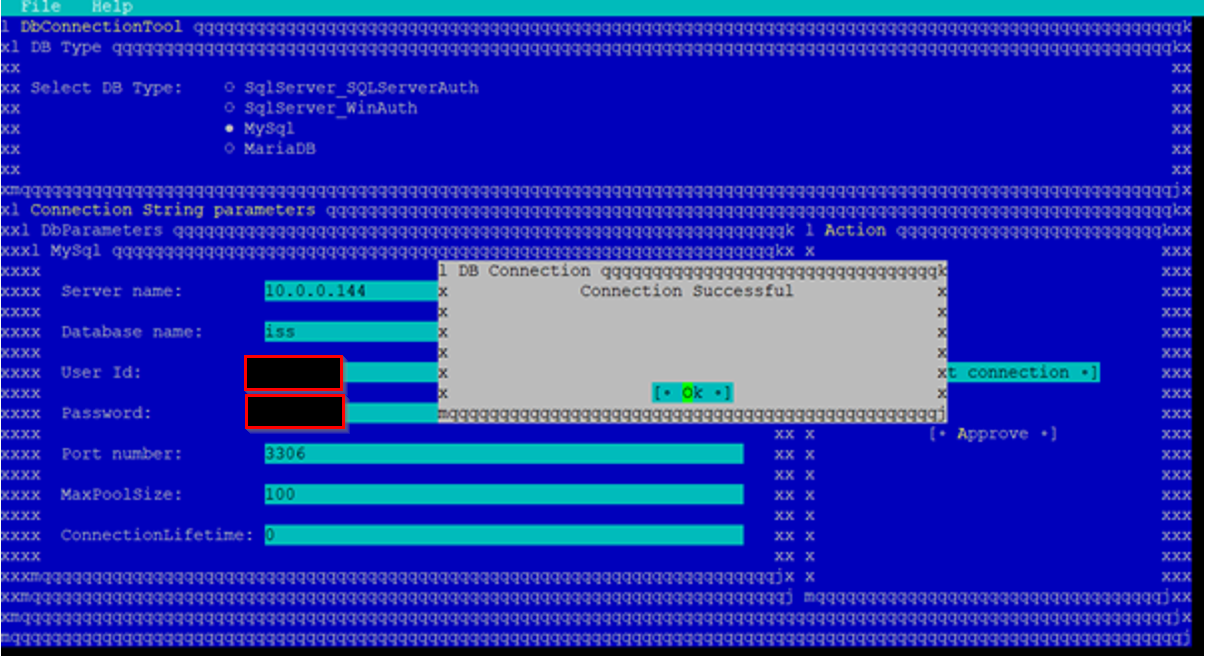
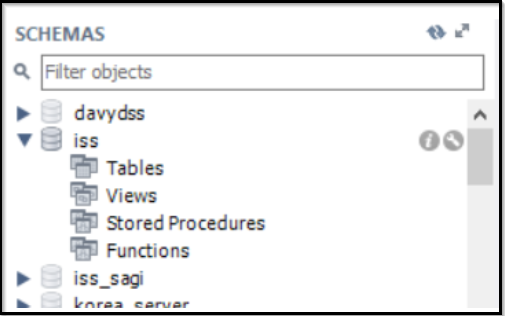
- Select the identity server port (default 5000, press enter).
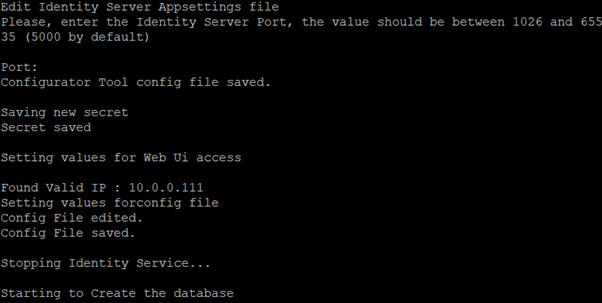
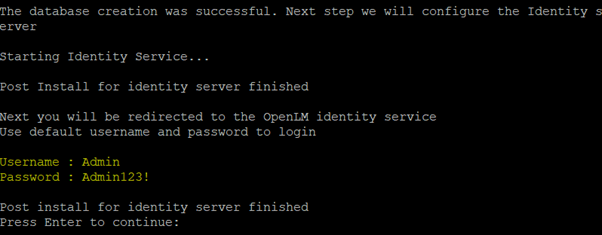
- Open Identity Service through the link: http://[FQDN]:5000. Here, FQDN means Fully Qualified Domain Name.
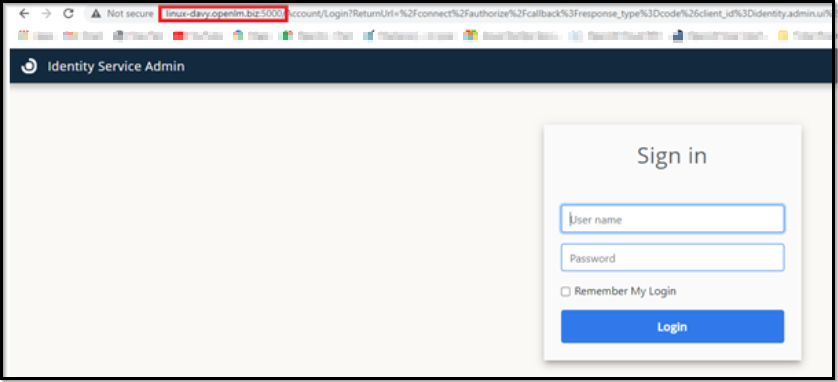
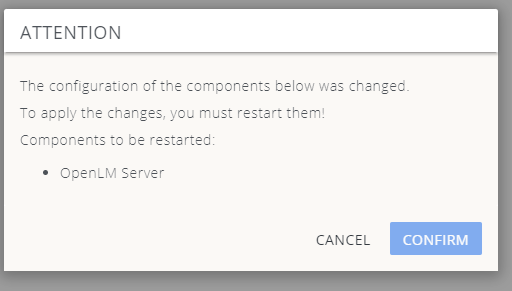
Connect it to the OpenLM SLM. Run the below-mentioned command to restart the OpenLM service (the account should exist in OpenLM SLM):
sudo service openlm restart
OR
sudo systemctl restart openlm
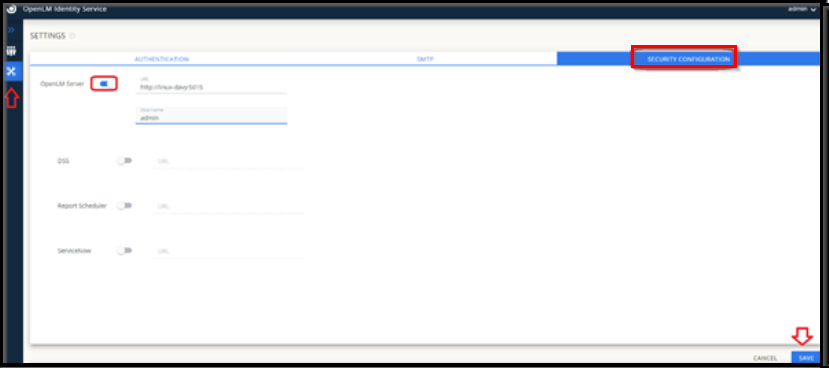
Use the following command as shown in the screen below to check that the "Auth" section is filled by the connection process above in the OpenLM config file.
Useful TAR-specific Linux commands
tar -xvf [Tarfile] -C [DestinationFolder]: In this command, -xvf means extraction with force overwrite and verbose mode. -C defines a custom extraction path.
sudo /bin/bash ./install.sh: This command opens a bash process running the installer.sh script.
sudo ps -aux | grep openlm: To list the processes that are currently opened and filter the one containing the OpenLM pattern.
Acronyms
FQDN - Fully Qualified Domain Name