OpenLM Reporting Hub upgrade
Notes
- While upgrading the ETL version make sure to rename or remove the old folder.
- The installation should be done in an empty folder. When overwriting an existing folder it could keep some files that were deleted in the later releases and this may lead to broken functionalities.
- Keep the existing kettle.properties file before upgrading the ETL.
- For newer releases, we may add new parameters to the kettle.properties file.
- If you replace a new empty configuration with an existing one it also may break the functionality if a new file has a different set of parameters.
How to upgrade Reporting Hub
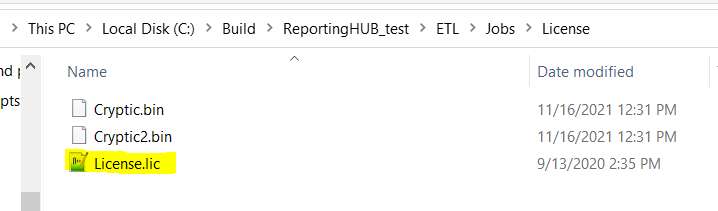
- Go to the current installation path of the Reporting Hub and copy a backup of the license file found in "C:...ETLJobsLicense".
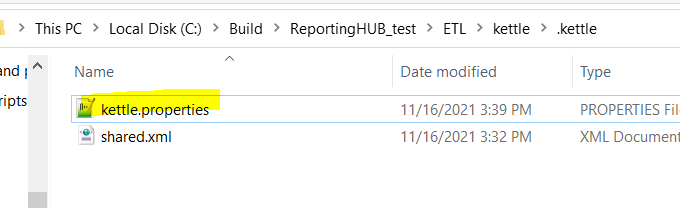
- Copy a backup of the kettle file found in "C:...ETLJobsLicense", it holds database connection details and ETL preferences.
3**. Download** the latest version of RH from https://www.openlm.com/download/ReportingHub/Latest

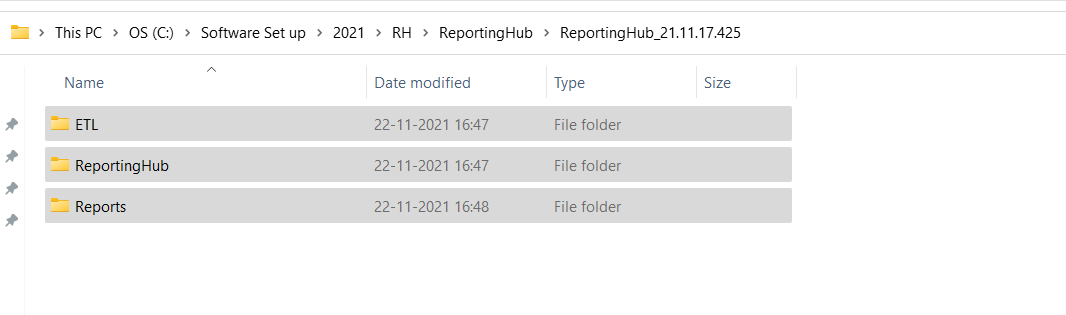
4**. Unzip and replace** the current ETL folder with the downloaded one.
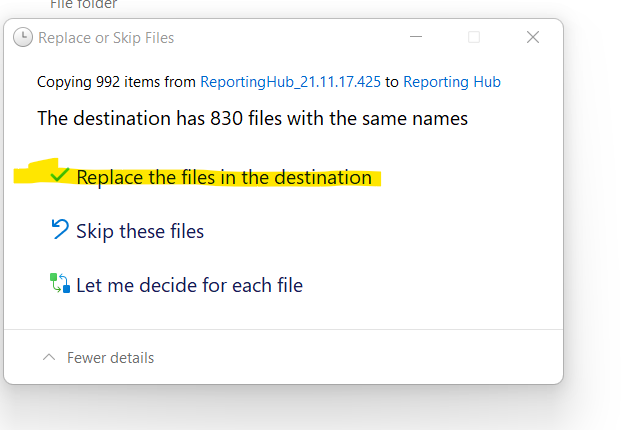
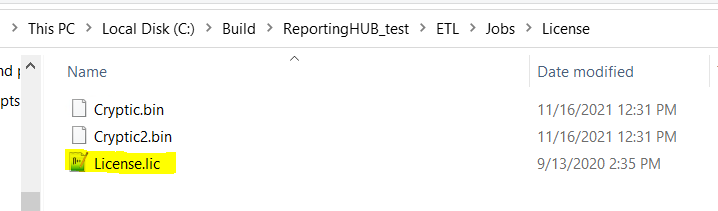
- Paste the license file you saved back to the folder "C:...ETLJobsLicense".
- From the original kettle.properties file, copy the following:
a. Source Database (Note: FireBird entry has been removed as it is no longer supported).

b. Cross-check the Reporting database entries.

c. Destination database if using it (MSSQL or MySQL)

d. Fill in the SMTP server details from the original Kettle.properties file.

e. Fill in the entries of License params.

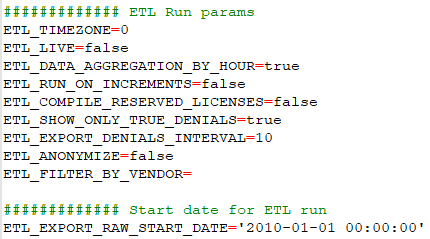
f. Fill in the correct ETL flagging**:
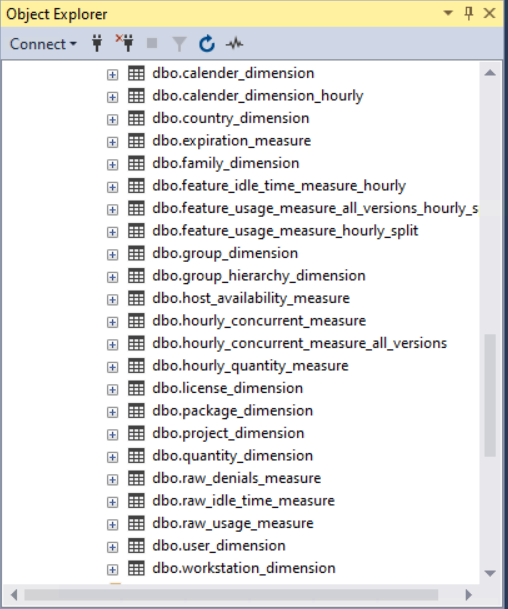
- Applicable only if using MySQL or MS SQL Server as the destination database: Delete all the tables in the destination Reporting Hub MySQL / MSSQL database, the schema will be recreated
- Set the variable "ETL_RUN_ON_INCREMENTS" to be "false" and save the kettle file.

- Run the ETL using the "Run_ETL.bat" file, which will delete the old DB schema and recreate it.
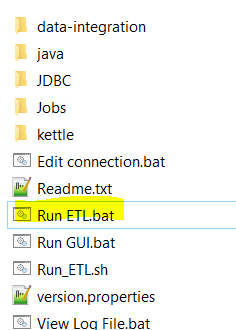
- Once the run is finished, set the variable "ETL_RUN_ON_INCREMENTS" to be "true" and save the kettle file.

**
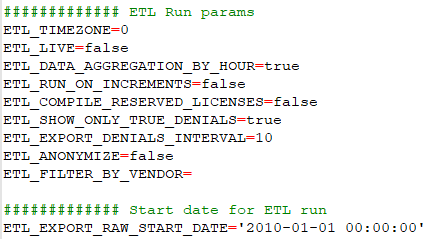
Kettle file ETL flagging map
-
- ETL_DATA_AGGREGATION_BY_HOUR (true/false)
- Select if the data will get aggregated to a daily or an hourly resolution.
- ETL_RUN_ON_INCREMENTS (true/false)
- The ETL can do an incremental run or recreate the whole database each time.
- ETL_COMPILE_RESERVED_LICENSES (true/false)
- Show reserved licenses like they are used licenses, even if no one is using the reserved license.
- ETL_SHOW_ONLY_TRUE_DENIALS (true/false)
- Filter out any false denials or select to show them
- ETL_EXPORT_DENIALS_INTERVAL (Whole Number)
- Aggregate close denials into a single denial event. The number represents the period you wish to aggregate denials by (0 means no aggregation of denials).
- ETL_ANONYMIZE (true/false)
- Allows for personal information like usernames and group names to be anonymized in case high-security measures are required.
- ETL_FILTER_BY_VENDOR (text list separated by ",")
- Filter only the vendors you are interested in (empty means selecting all vendors.)
- ETL_EXPORT_RAW_START_DATE='2010-01-01 00:00:00′
- Selects data starting from a chosen date.
- ETL_DATA_AGGREGATION_BY_HOUR (true/false)