Cleanup Manager module
Cleanup Manager runs a background process that removes all entities from the OpenLM database deleting unwanted information. Such entities include groups and users that do not work in the organization or don't use engineering licenses anymore.
Cleanup Manager also allows the removal of irrelevant usage data (history). You can select a time range to purge old information from the database.
Starting Cleanup Manager
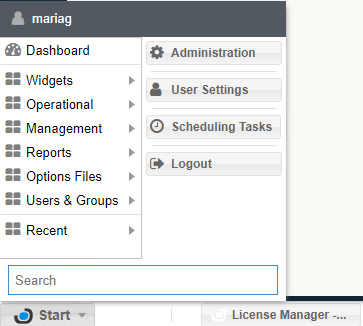
To open the cleanup tool, select the OpenLM User Interface Start button and then Administration:
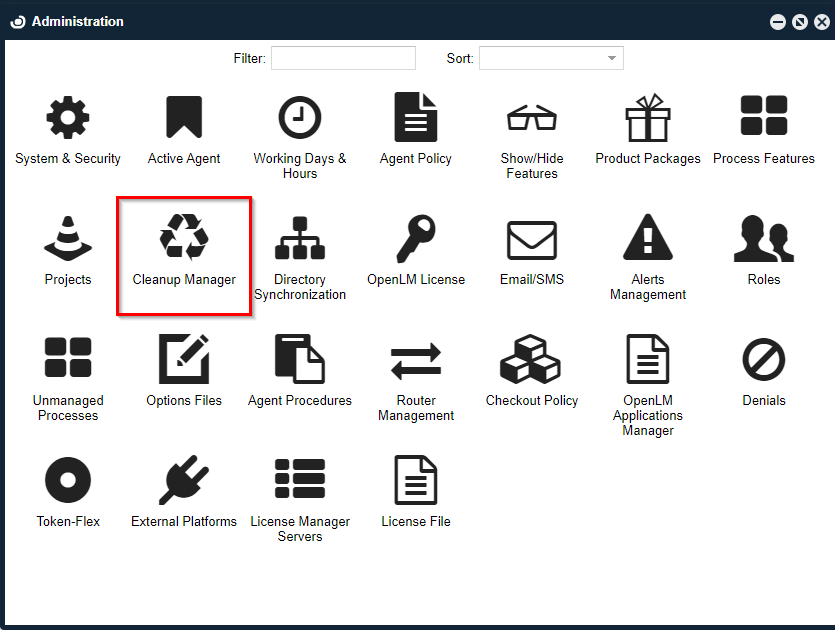
Then select on the Cleanup Manager icon:
The cleanup Manager window will open with the following settings:
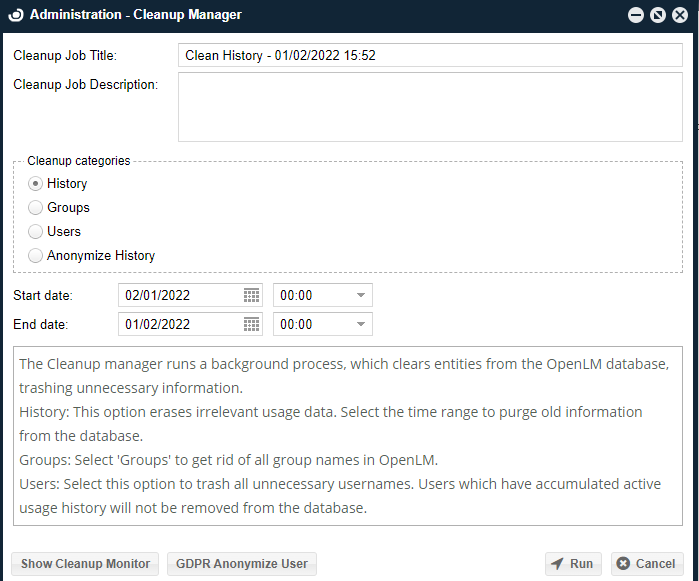
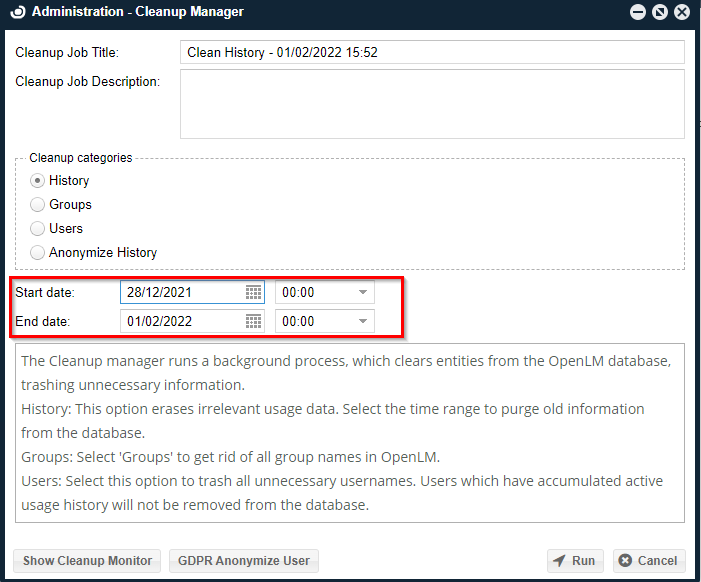
History: This option erases irrelevant usage data. Select a time range to purge old information from the database.
Groups: Select 'Groups' to remove all group names that have not accumulated history usage in OpenLM.
Users: Select this option to delete all unnecessary users that have not accumulated history usage in OpenLM. Users who have accumulated active usage history will not be removed from the database.
Cleaning history
Make sure to have a backup of your data before cleaning the history to avoid its accidental loss.
To clean up the history of irrelevant data usage select a time range to delete old information using Start date/time and End date/time:
After you select the Run button Cleanup Monitor will open a pop-up window to assure the intended action is performed consciously. Select Yes to proceed or Cancel to Discard.
 If Yes was selected, a new window displaying cleanup results which can be cleared (Clear button), refreshed (Refresh button ), or exported (Export button):

Cleaning groups
To clean up groups go to Cleanup Manager and select the Groups radio button:
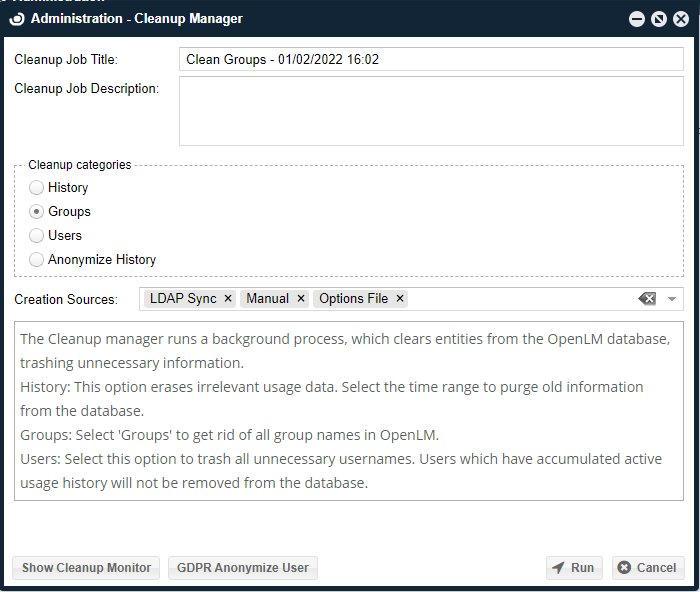
In the Creation Sources dropdown menu select:
-
[All] to select groups from all creation sources.
-
LDAP Sync for groups created in the LDAP Sync application.
-
Manual to select groups that were created manually in OpenLM User Interface.
-
Options File to cleanup groups from the Options File.
Select the Run button to start the cleanup. A confirmation window will appear:
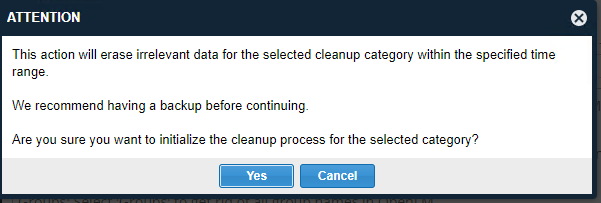
Select Yes to confirm the initialization of the cleanup process.
Cleanup Monitor window will open showing removal results:

To delete cleanup results check removed groups (1) and select the Clear button (2):

Cleaning users
To clean up users go to Cleanup Manager and select the Users radio button:
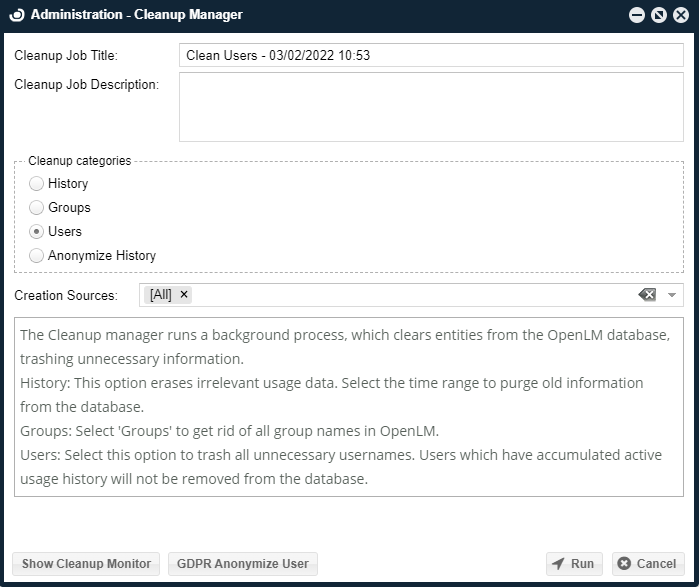 Select the following Creation Sources for Users from the drop-down menu:
[All] - users from all creation sources will be selected
License Usage - deletes users who were detected by OpenLM when they checked out a license.
LDAP Sync - deletes users that were synchronized from the Active Directory/eDirectory/Apache DS and any other directory compatible with LDAP protocol
Manual - deletes users that were added manually in the OpenLM User Interface.
Options File - deletes users that were created from the options file.
Agent - deletes users that were added by the OpenLM Agent.
Router - deletes users that were added by the OpenLM Router.
Anonymize history user option
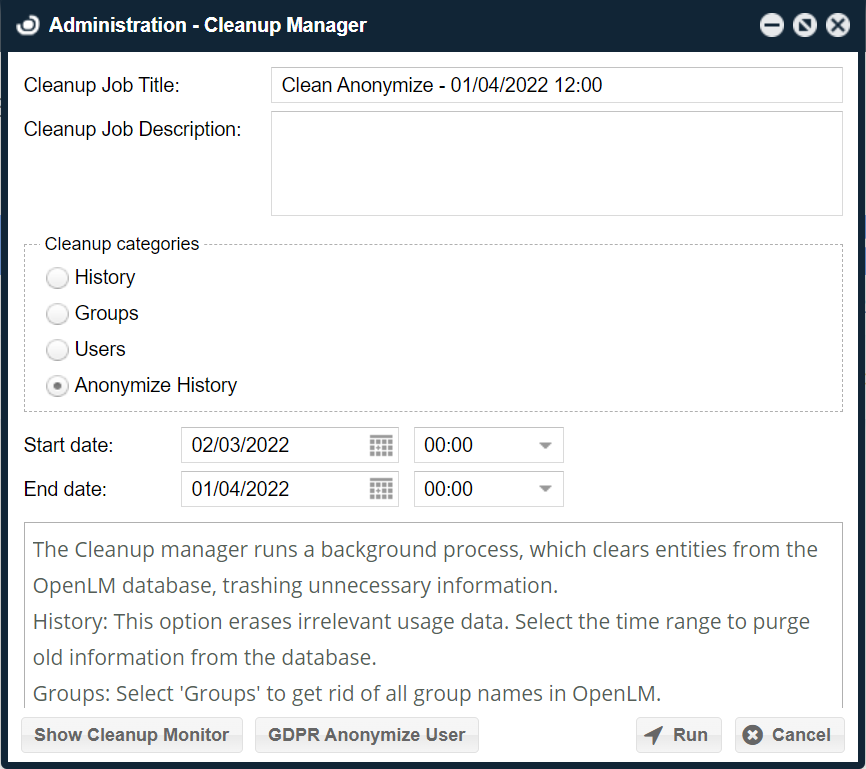
To anonymize the history of all the users for the selected period of time, go to Cleanup Manager and select the Anonimyze Users radio button. Select a start date and an end date then select Run:
GDPR anonymize user option
If you need to anonymize specific users and hide personal information, the GDPR Anonymize User option offers this possibility. Not just username is changed but also Username, First, Last, Display Name, Phone, and Email are replaced with the value of GDPR_XXXXXXXX. Select the GDPR Anonymize User button to start:

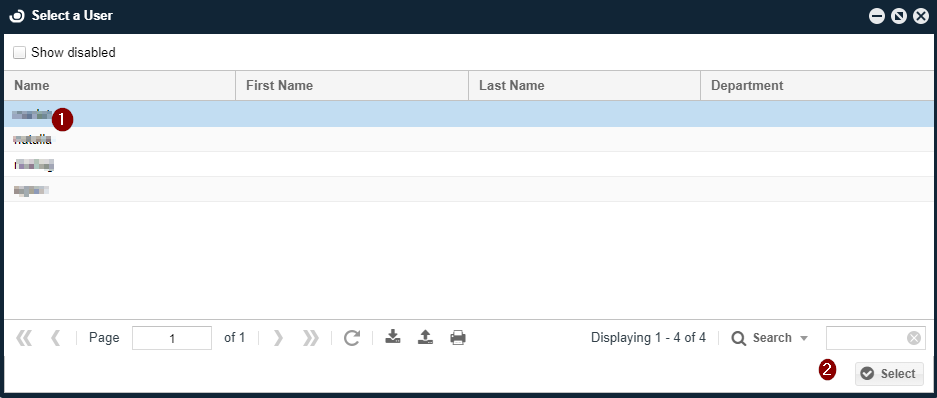
Select a user to anonymize (1) and then select the Select button (2):
Note the User ID under which the user will be known and select the Run Anonymization button to continue:

Select Yes to confirm in the Confirmation window:

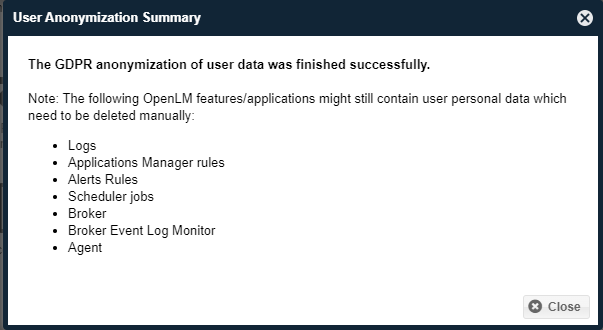
Read the message in the User Anonymization Summary window and note that OpenLM applications/features might still contain personal data of users that will need to be deleted manually.