First steps
This guide walks you through registration, onboarding, and component setup, customer responsibilities, and prerequisites for OpenLM Platform.
Prerequisites
Before you start setting up OpenLM Platform on Cloud, make sure you have the following:
OpenLM Platform on Cloud account
- You need an active and registered OpenLM Platform account.
Infrastructure for on-premise components
- Physical or virtual servers and user workstations to install the following:
- OpenLM Broker
- Workstation Agent
- Directory Synchronization Agent (DSA)
- Supported operating systems:
- Broker, Workstation Agent and DSA: Windows 10+, Windows Server 2016+, Ubuntu, or RHEL
Internet and network access
- Reliable internet access to connect your on-premise components to the OpenLM Platform
- Avoid restrictive firewalls or proxy issues
- Network access from:
- OpenLM Broker to your license manager servers
- DSA to your local LDAP directories or to cloud directories (e.g., Azure AD)
Software license manager knowledge
- Know what types of license managers you use (e.g., FlexNet, IBM LUM, Sentinel RMS)
- Understand how they are configured
Network and security readiness
- Be familiar with basic network setup, firewall rules, and secure communication practices
Register for OpenLM
Follow these steps to register for OpenLM:
Go to the registration page
- Visit the OpenLM website.
- Under the OpenLM Platform section, click Register now.
Choose a registration method
You can register in one of two ways:
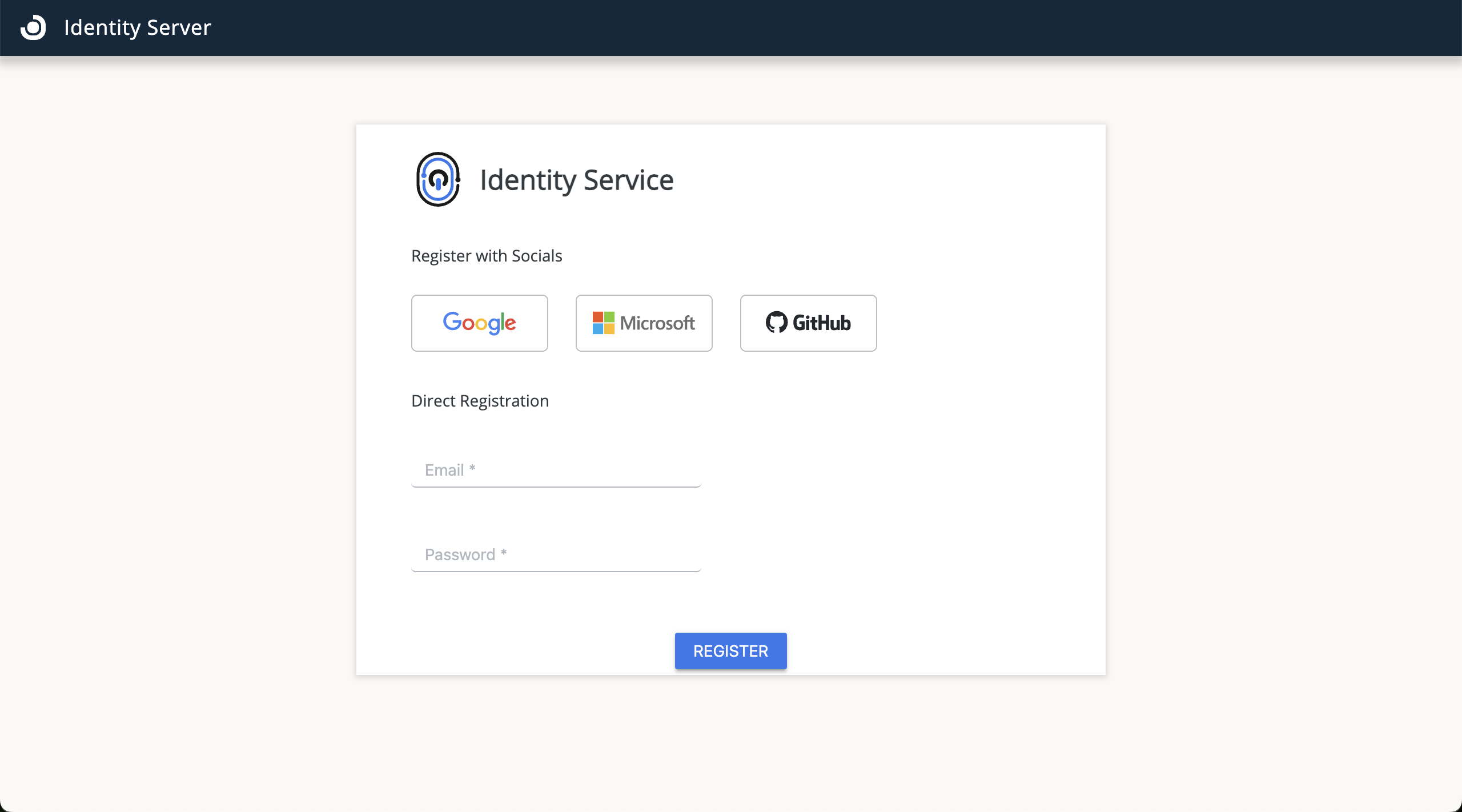
-
Social login (Google, Microsoft, or GitHub):
- Select your provider.
- Authenticate using the provider's login page.
- After authentication, you are redirected to the OpenLM homepage and onboarding guide.
-
Direct registration:
- Enter your username and create a password.
- Click Register.
- After registration, click Login to access the system.
- You are redirected to the OpenLM homepage and onboarding guide.
Onboarding checklist
Set up the OpenLM components
OpenLM uses 3 components to collect data from different environments:
- Broker
- Workstation Agent
- Directory Synchronization Agent (DSA)
Each component runs on a different machine, depending on the data it needs to access:
- Broker: Runs on the license server and collects data from license managers.
- Workstation Agent: Runs on end-user machines to collect activity data for monitoring and automation.
- Directory Synchronization Agent (DSA): Runs on a machine with directory access and syncs user and group data from local or cloud directories.
Before you install any component, you must authorize it. Use the Identity Service to generate an authorization file for each component you plan to deploy. The file is a JSON object that confirms the component is trusted and allowed to connect to the OpenLM system.
For instructions, see Authorization in Identity Service.
You need these files during installation, so make sure to generate them in advance.