Set Workstation Agent elevation during installation
Note: Applicable to Workstation Agent v25.12.11.1628 and above.
OpenLM Workstation Agent can be configured to ask for elevated privileges (Administrator rights) when running under a user that has them or to run under the standard user context (non-elevated). This configuration is determined during installation through the installer property RUN_AS_ELEVATED or by modifying the settings.json file post-installation.
Configuration
With installer
-
Using the installer UI:
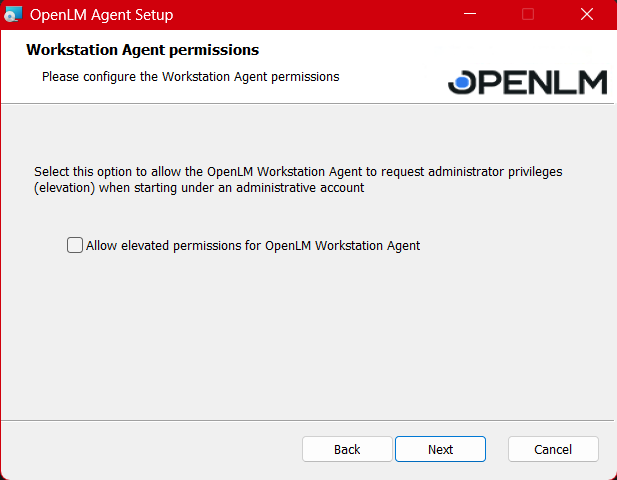
- Parameter:
RUN_AS_ELEVATED=true/false - Example:
- Parameter:
msiexec/i "MSIPATH" AUTHORIZATION_TYPE="1" AUTHORIZATION_FILE_PATH="JSONFILEPATH" SERVER_ADDRESS=OpenLMServerFQDN SERVER_PORT=5015 USE_ENDUSERS_SERVICES=true ENDUSERS_SERVICES_ADDRESS=OpenLMServerFQDN ENDUSERS_SERVICES_PORT=53555 USE_APP_MANAGER=true APPMANAGER_ADDRESS=OpenLMServerFQDN APPMANAGER_PORT=27080 INSTALL_ARCGIS="1" INSTALL_AUTOCAD="1" INSTALL_MATLAB="1" INSTALL_SOLIDWORKS="1" INSTALL_ARCGISPRO="1" RUN_AS_ELEVATED=false /q
When unspecified, RUN_AS_ELEVATED defaults to true.
Silent installation: first-run behavior
When performing a silent installation with runAsElevated=false, the Workstation Agent is configured not to prompt for elevated permissions. The Workstation Agent's initial run behavior depends on the deployment method:
- Installation through elevated command prompt (installer run manually as admin, for example, through
msiexec):- First run: launches immediately with Elevated (Admin) privileges for this session only.
- Subsequent runs: after a reboot, re-login, or manual restart, it reverts to Non-Elevated as configured.
- Installation through SCCM (System Account):
- First run: the Workstation Agent does not automatically start under the current user account immediately after installation.
- Subsequent runs: starts automatically the next time the user logs in (or manually launches it), running as a Non-Elevated process.
There is no UAC prompt in either case.
Via configuration file (settings.json)
You can toggle elevation in the Workstation Agent installation directory through permissions.runAsElevated.
- Key:
permissions -> runAsElevated - Value:
true(allow the Agent to request elevation) orfalse(run as standard user)
Example configuration:
{
  "process": {
    "processSyncInterval": 2000,
    "trackingMs": 30000
  },
  "permissions": {
    "runAsElevated": true
  },
  "security": {
    "enabled": false
  }
}
Feature availability by privilege level
The functionality of the Workstation Agent depends on the combination of the Workstation Agent's privilege level and the target application's privilege level.
| Workstation Agent state | Target application state | Feature support |
|---|---|---|
| Elevated | Any (Elevated or Non-Elevated) | Full support |
| Non-Elevated | Non-Elevated | Full support |
| Non-Elevated | Elevated | Partial support (see details below) |
Limitations: Non-Elevated Agent versus Elevated process
When a Non-Elevated Workstation Agent interacts with an Elevated process, access to some process information is restricted:
- Command line argument parsing: command-line arguments cannot be read. Impact: Application Manager rules that rely on specific start arguments will not trigger.
- Process suspension: cannot suspend the process, and minimizing the window before suspension is not supported.
- WM extensions: Catia, Harmony, Kingdom, Petra.
Supported features (Non-Elevated Workstation Agent versus Elevated process)
- Web monitoring
- Dongle monitoring
- Process management, including:
- Resource monitoring: CPU usage, I/O usage, user usage.
- Idle time tracking: process idle time and user-specific idle time.
- Process path: executable location is available.
- Release by extension
- Process termination: through Workstation Agent procedure or Applications Manager.
- Screenshots of the monitored process (when activated)