Broker Hub
Overview
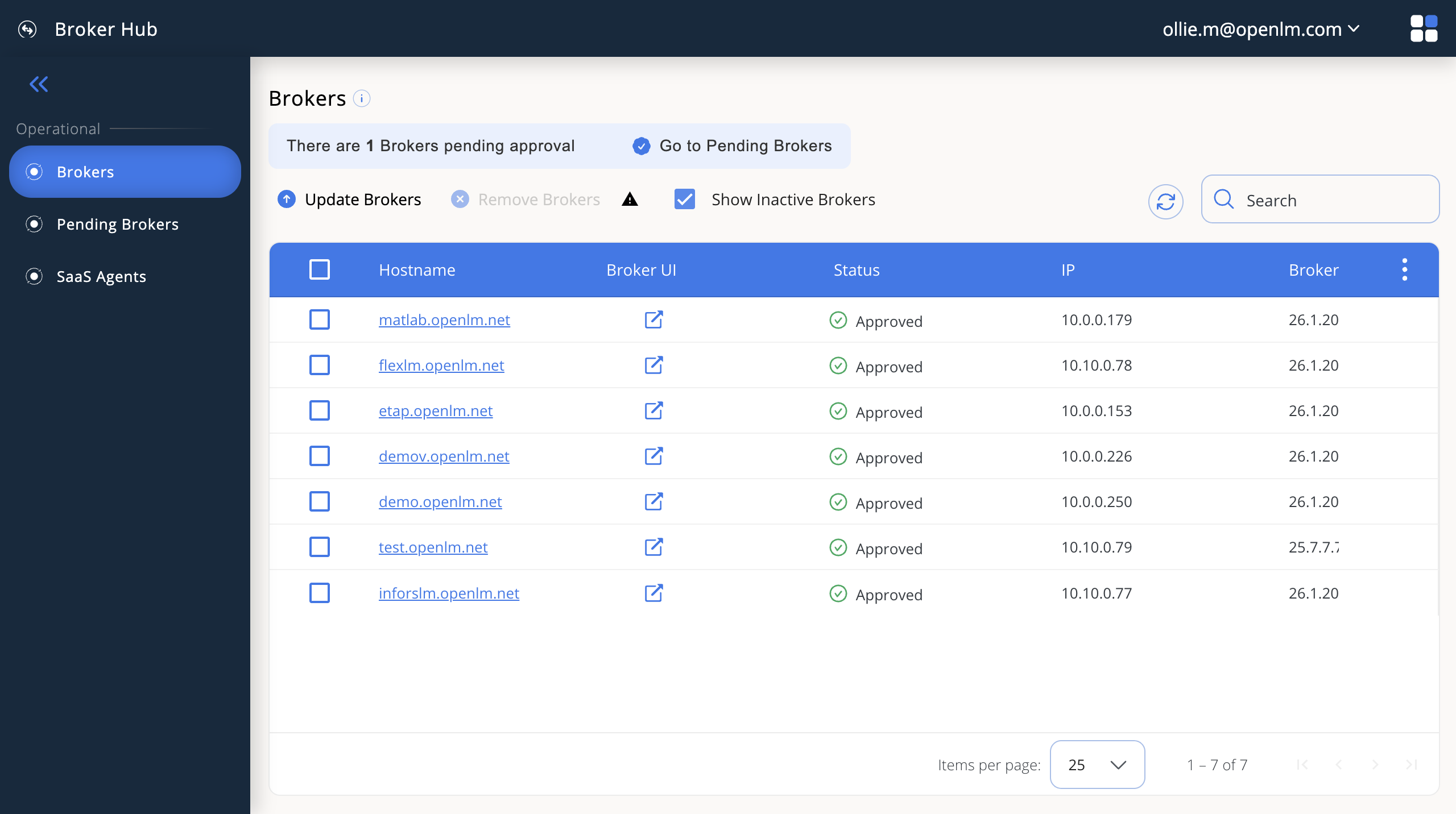
The Broker Hub provides a central interface to view, approve or reject and mass upgrade Brokers installed on license servers. Brokers first report data here, before sending it further for processing.
Prerequisites
Before Brokers appear in the Broker Hub, you must install them on your license servers.
Prepare a Broker authorization file
Generate a new authorization file
Install a Broker
Import the authorization file
After installation, import the previously generated authorization file:
- In the Broker UI, upload the authorization file.
- Select Continue.
Initial setup
The broker automatically detects license managers installed on the license server and checks connectivity.
When detection completes:
- Review detected license managers.
- Open OpenLM UI to approve the Broker and start monitoring.
The Broker Console will show that the OpenLM Server status is Active.
Approve Brokers in Broker Hub
Post Broker installation:
- Open the Broker Hub from Home navigation.
- Locate the new Broker entry marked as Pending Approval.
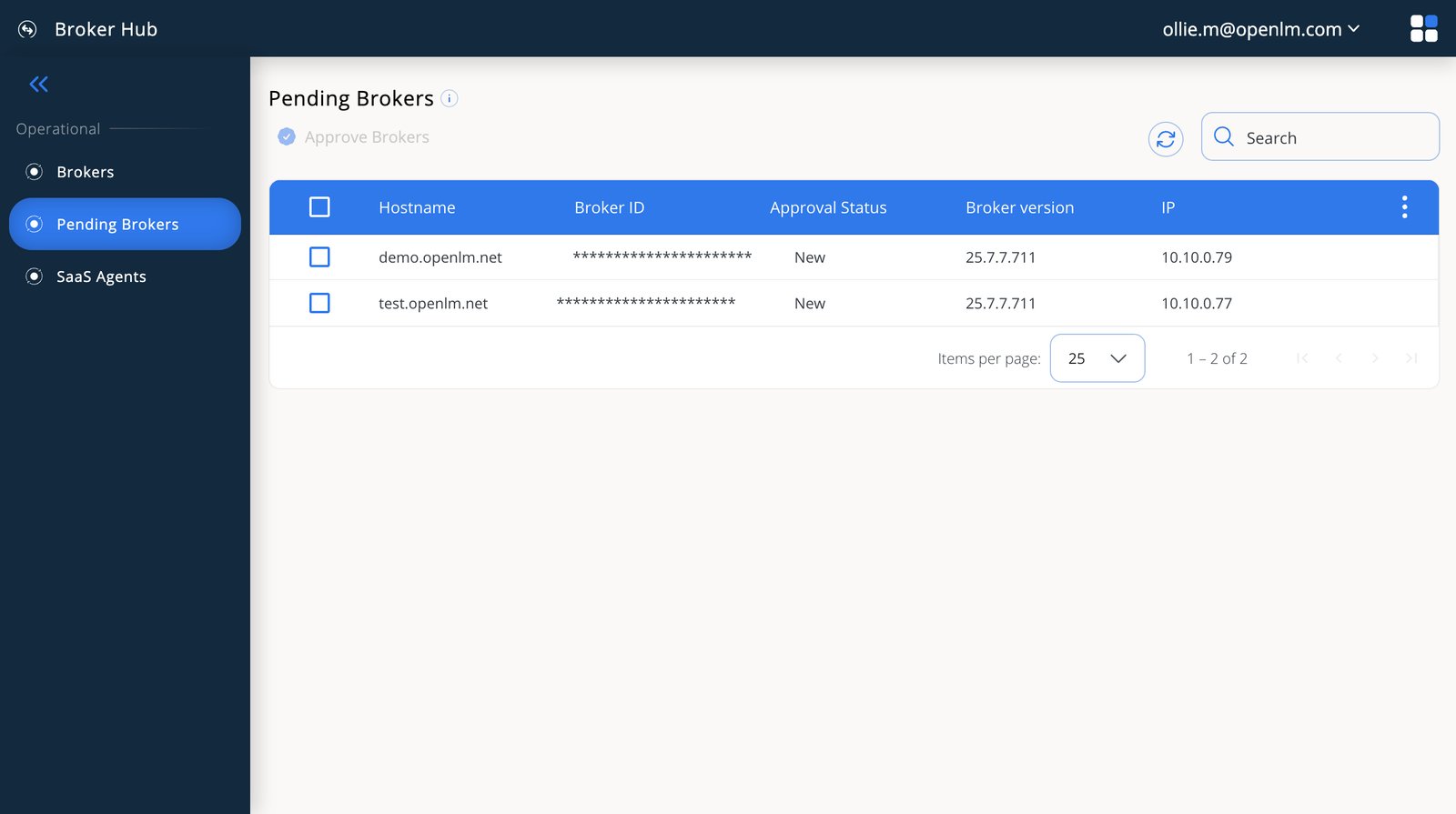
- Select Broker(s) to approve.
- In the prompt, select the Broker and select Approve.
After approving the Broker, corresponding license manager entries appear under Pending Servers. Review and approve or deny servers as needed.