Agents Hub
Agents Hub manages and orchestrates connected Workstation Agents. Configure Workstation Agent settings, manage Personal Dashboard, and handle monitoring of websites accessed by users.
Prerequisites
- Agent Activity Manager: Install and connect at least one Workstation Agent.
Manage discovered websites
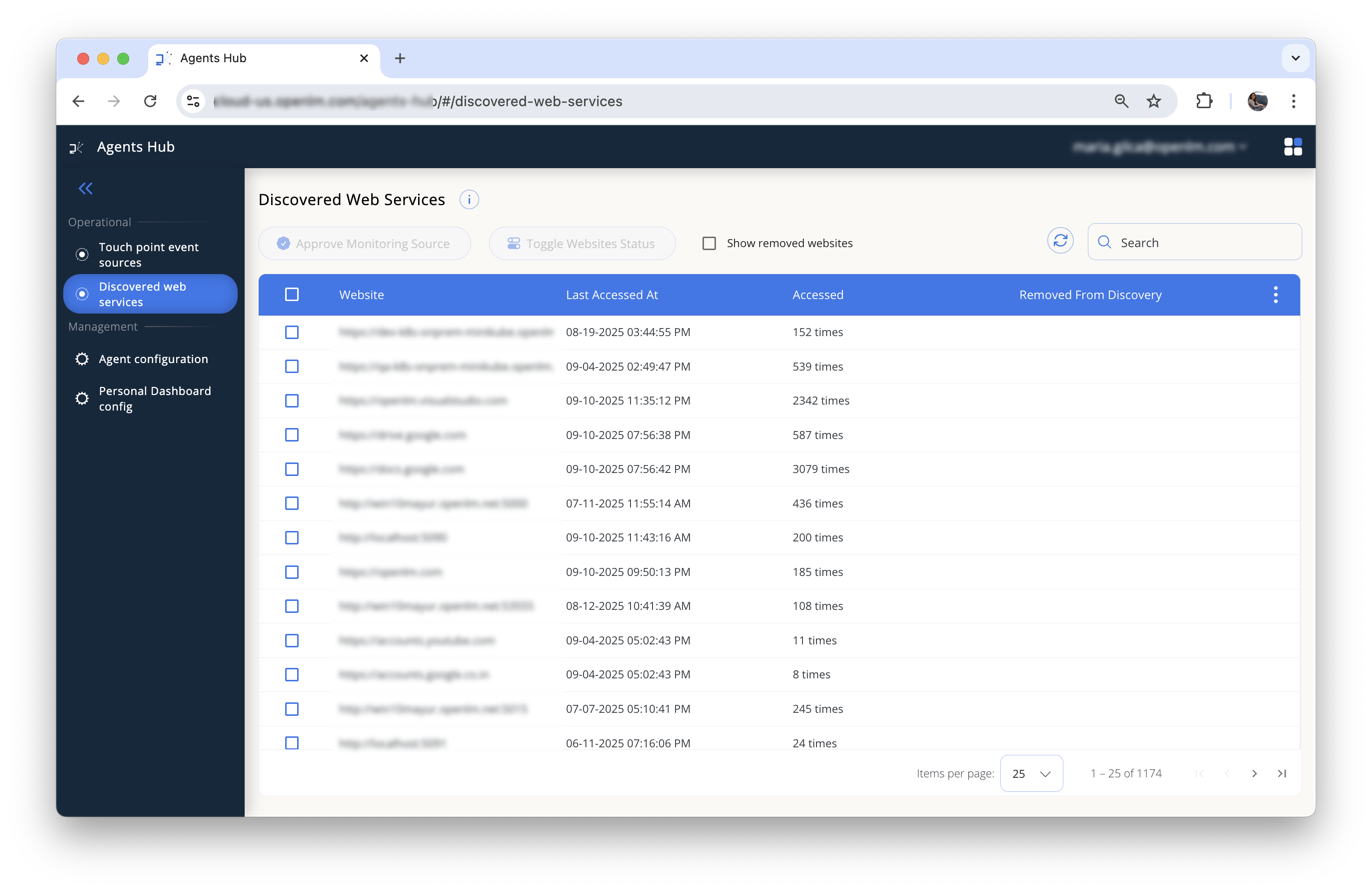
Agents Hub automatically discovers websites users access. In Discovered web services , you can:
- Approve discovered websites for monitoring (these appear in Touch Points Events service).
- Toggle off (deny) discovered websites to exclude these from monitoring.
You can also manually add websites (including specific subdirectories) to track access frequency.
Workstation Agent configuration
Configure the following settings within the Agents Hub:
General
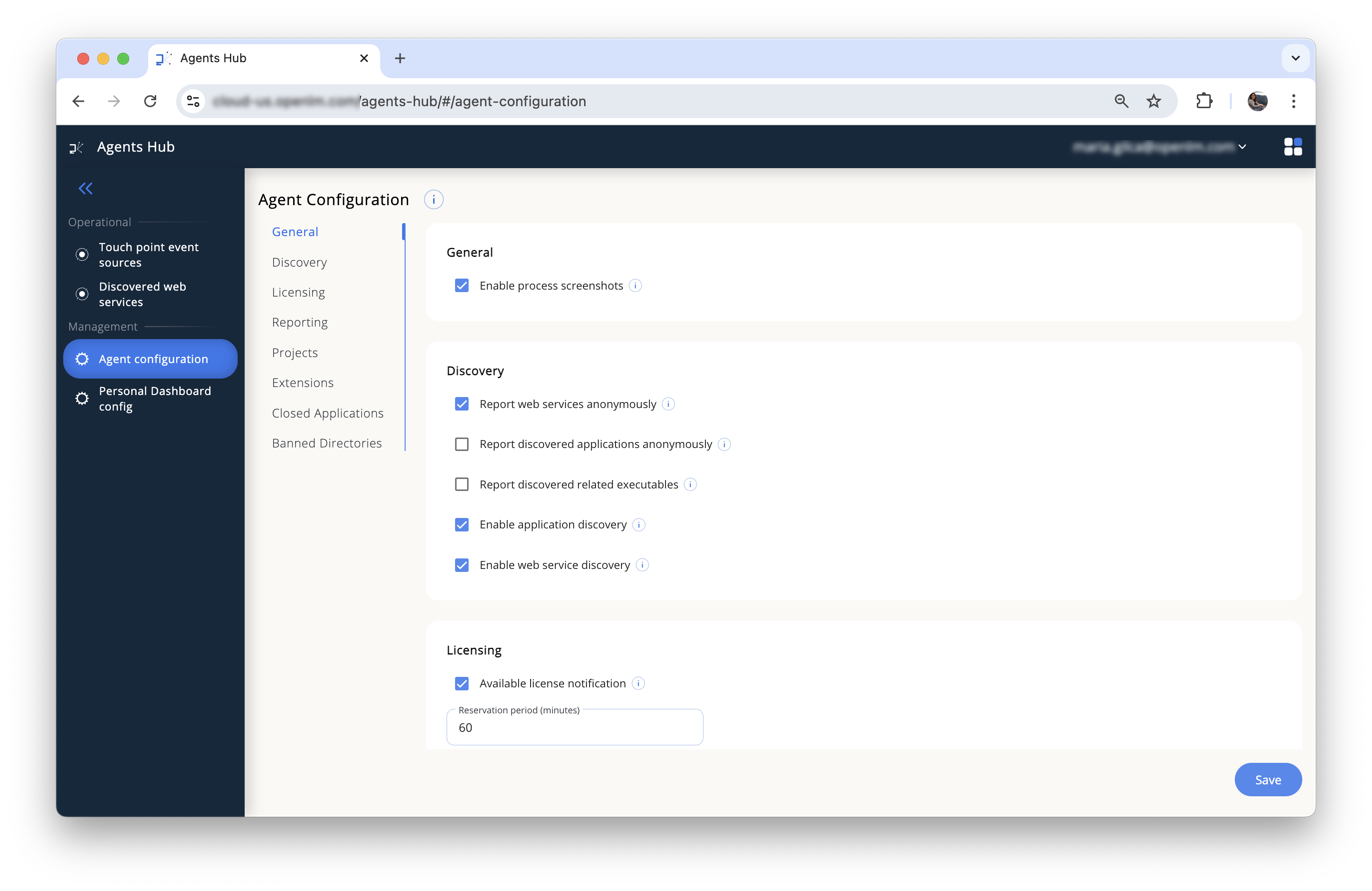
- Enable process screenshots: Allow Workstation Agent to periodically capture screenshots of monitored processes. View the screenshots in Personal Dashboard under Recently Closed page.
Discovery settings
- Report web services anonymously: When activated, Web Service Discovery detects accessed domains without capturing user identifiers (e.g., username, host machine), ensuring anonymized data reporting.
- Report discovered applications anonymously: When activated, Application Discovery identifies installed applications without collecting user-specific data—such as usernames or host machines—ensuring anonymized reporting.
- Report discovered related executables: When activated, Workstation Agent sends
.exefiles found in the installation paths of discovered applications during the application discovery process.
This might generate a large volume of data. Activate this option only if you need a detailed inventory of software installed on machines running the Workstation Agent.
- Activate application discovery: Lets you discover applications installed on machines running the Workstation Agent. The discovered applications appear in the Software Asset Management product. Discovery may take several minutes.
Enable web service discovery: Enables discovery of web services accessed by Browser and Workstation Agents. Discovered services appear on the Discovered Web Services page.
Licensing
- Available license notification: When activated, notifies end users if a denied license becomes available during the reservation period.
For example, if a user is denied a license at 12:00 PM and the reservation period is set to 60 minutes, they’ll be notified only if the license becomes available before 1:00 PM.
Reporting settings
- Normalize reported workstation names: Converts all reported workstation names to lowercase.
- Normalize reported usernames: When activated, converts all usernames reported by the Workstation Agent to lowercase.
On Unix-like systems, usernames are case-sensitive. Activating this option might cause inconsistencies or access issues.
Projects settings
- Default Closed Projects Location: If the Workstation Agent uses an extension to close an unsaved project, the project is saved to this folder using a default file name.
- Overwrite Existing Projects: Allows overwriting project files when saving.
- Force Project Selection: When activated, if no project is selected, the Workstation Agent prompts the user to select one by opening the Personal Dashboard – Projects page in a new browser window. Until a project is selected, the Workstation Agent terminates any new processes started after its launch.
Extensions (ArcGIS only)
-
Show extensions list at software startup: When using the OpenLM ArcGIS extension, the extension list window opens at ArcMap startup. You can then select which extensions to use for the session.
-
Turn off license extensions at shutdown: Works best when Show extensions list at software startup is enabled. Deactivates all licensed ArcMap extensions when the application shuts down, so you can choselectose only the relevant extensions at the next startup.
-
Turn off custom extensions: Deactivates third-party ArcMap extensions on shutdown.
-
Application's behavior when extension passes usage threshold: Select to either turn off the extension or shut down ArcMap when idle usage thresholds are exceeded.
-
Actively shut any open applications down at: Specify a time to automatically shut down supported applications.
-
Closed Applications: List executables (e.g., ArcCatalog.exe) that will not save data upon closure.
-
Banned Directories: List directories to exclude from automatic project saving.
Continue to Personal Dashboard configuration.