Process Manager
Overview
Process Manager monitors application processes through the Workstation Agent installed on end-user machines. It lets you track application usage, measure Actual Usage, monitor specific features, and analyze DLL activity.
DLL monitoring helps distinguish specific functions within applications. You can manage licenses by tracking usage and automating license release based on user inactivity (License Harvesting).
What you can do
- Monitor and differentiate usage: Track applications and their specific functions.
- License management: Track license usage and manage license availability proactively.
- License Harvesting: Automatically close idle applications to free licenses.
Prerequisites
Before configuring Process Manager, ensure:
- Activate Process Manager: Activate it in Products.
- Agent Activity Manager: Install Workstation Agent on all target machines.
- Brokers Hub and License Servers*: Ensure you have Brokers and License Managers configured.
Setting up Procedures
- Open Process Manager.
- Go to the Procedures tab.
- Select Add Procedure.
- Click Add agent step
- Select a method:
- Agent Kill (Close)
- Agent Save & Close
- Agent Suspend
- Name your procedure and save.
Processes configuration
- Open the Process Manager.
- Network floating licenses (extensions) for specific applications are pre-listed.
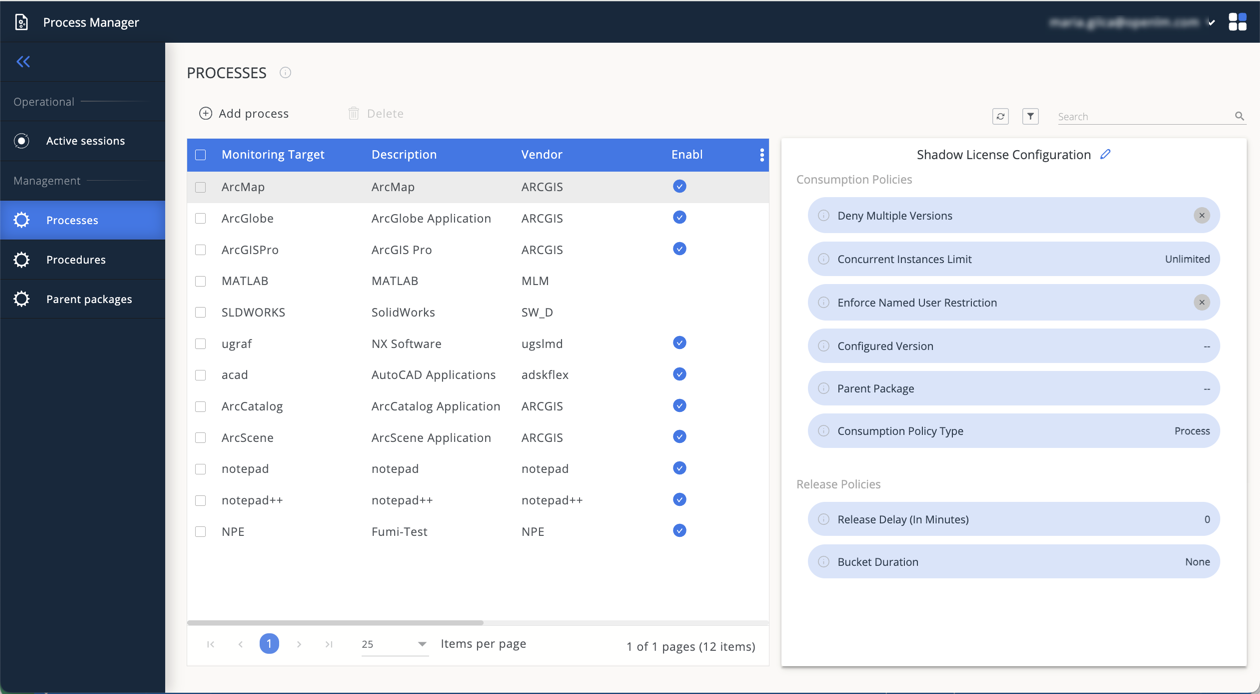
- To modify settings, select the pencil icon next to a process:
- Name: Enter the exact executable name (case-sensitive).
- Description: Provide details for easy reference.
- Vendor: Specify the vendor.
- Activate Process managed by License Server if applicable.
Add a new process
General
Monitoring target - To track a process, enter the process name here. For file or folder tracking, specify the directory to monitor.
Description Vendor Tracking type:
- Process - track by process name.
- File - track a process launch from a specific file.
- Directory - monitor all process launches within a directory.
Process managed by a license server - Toggle on to allow attaching license features to this process.
Process release
Configure the license release settings in the License Release tab:
- Make sure the toggle is on to activate this feature.
- Process release method: Select None, Suspension or Procedure.
- Automatic process release: Activate or deactivate automated process release.
- Thresholds:
- Release Licenses after usage rate (%): Set usage level to initiate license release.
- Minimal idle time for process release: Define inactivity period to start license release (minimum 3 minutes, varies by application).
Ensure to set thresholds appropriately to avoid premature license release.
- Track process idle/active periods: Monitor user inactivity periods.
- Report as idle after (minutes): Set interval to initiate idle tracking.
Idle time traking is charged 50 tokens.
Advanced settings
Activate system resource monitoring to determine software inactivity:
- Set thresholds for:
- User Usage %
- Processor Usage %
- I/O operations/sec
- Default is 2%.
- The system marks the application as active if it exceeds any threshold, otherwise as idle.
Adjust thresholds based on actual usage patterns (sample from 2-3 Workstation Agents).
Shadow licenses
Use shadow licenses to apply license-style controls to apps that don’t use a vendor license manager. You can cap concurrent use, restrict by user or workstation, and control when usage is released.
Where to configure
Go to Processes → Add process or Edit process → Shadow licenses.
Tip: Configure at the process level. Parent packages let multiple processes share the same pool.
Consumption policies
Set how OpenLM counts and limits usage.
-
Deny multiple versions
Block all versions except the Configured version you specify. -
Enforce named-user restriction
Prevent the same user from running the app on multiple workstations at once. -
Consumption policy type
Choose the scope that consumes one unit:- Process — each running process.
- Workstation — one per machine, regardless of process count.
- User at workstation — one per user on a specific machine.
-
Unlimited concurrent instances
- On by default. Turn off to set Concurrent instances limit.
- Use
-1for no limit.
-
Parent packages (optional)
Link the process to a Parent package to draw from a shared pool.
OpenLM denies access if either the process limit or the parent limit is reached.
Policies apply globally for processes monitored by an online Workstation Agent. For offline agents, only the Consumption policy type applies, evaluated per agent.
Release policies
Decide when OpenLM frees a consumed unit after the app closes. OpenLM uses whichever occurs later: the Release delay or the Bucket duration.
-
Release delay (minutes)
Holds usage for a grace period. If the user reopens the app before the delay ends, the same session continues. -
Bucket duration
Aligns release to a time bucket:- DAY — release at midnight.
- HOUR — release at the start of the next hour.
- NONE — release immediately (still respects Release delay).
Examples
- App closes at 14:50, Release delay = 20 → held until 15:10 if Bucket duration = NONE.
- App closes at 14:05, Release delay = 10, Bucket duration = HOUR → released at 15:00 (bucket is later than 14:15).
Best practices
- Match scope to behavior:
Use Workstation for tools that spawn helper processes. Use User at workstation for shared machines. - Protect named-user terms:
Enable Enforce named-user restriction to mirror contract rules. - Stabilize short restarts:
Set a small Release delay to avoid churn when apps close and reopen during updates. - Pool related tools:
Use Parent packages for suites that should share a common cap.
What you can achieve
- Enforce compliance with named-user and concurrency terms.
- Control access by process, workstation, or user.
- Reduce cost by tracking usage for purchase and renewal decisions.
- Improve availability by tuning release timing so licenses return to the pool when users finish a job.
Adding features and DLLs
- Select the arrow icon to include specific features and DLLs.
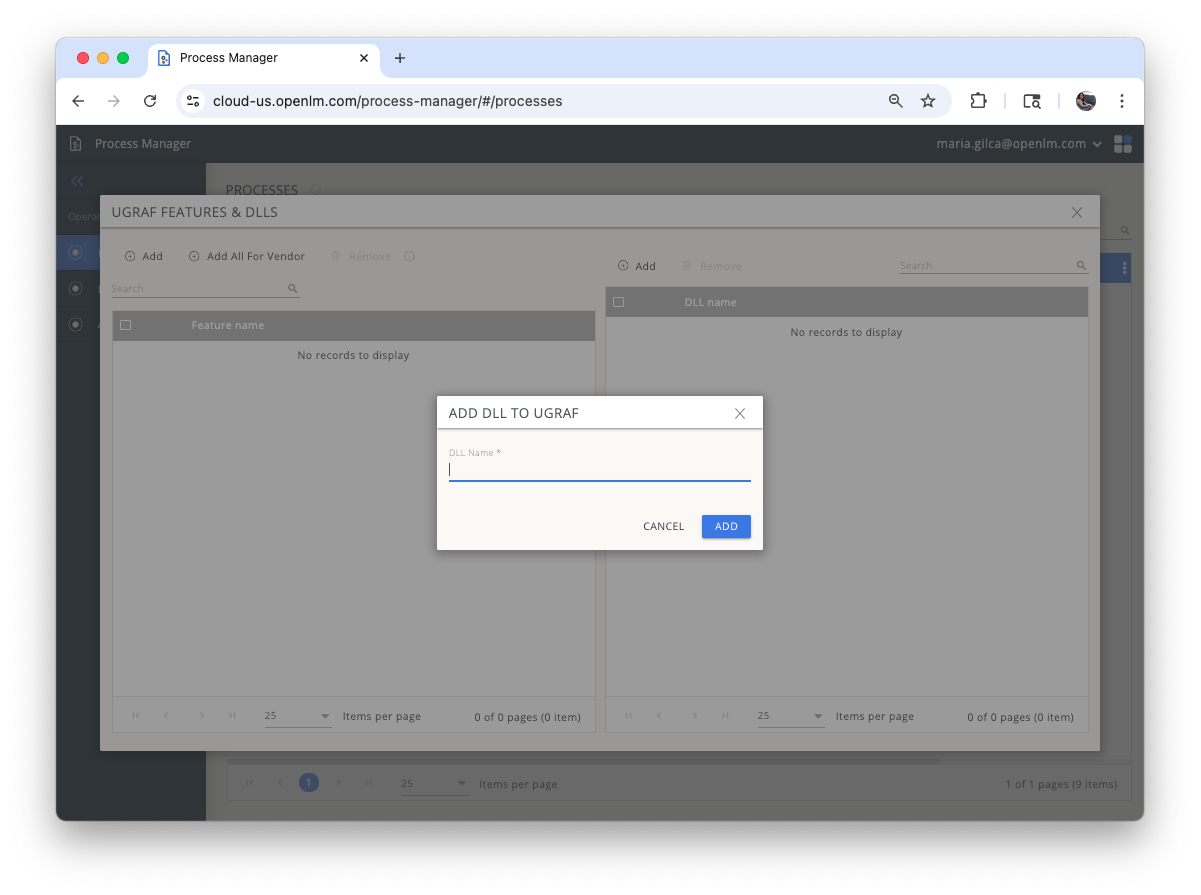
- Use tools like Microsoft Process Explorer for tracking DLLs.
Monitoring reports
Network floating license usage:
- Currently Consumed License (See Usage) - includes idle time.
- License Activity Report (See Usage) - excludes idle time.
- Active Processes (See Process Manager).
- Process Sessions (See Process Session).
- Detailed Reports through BI Tool.
Standalone application usage:
- Active Processes (Process Manager microservice).
- Process Sessions (Process Session microservice).
Usage service does not display standalone application usage.
License Harvesting options
- Options
- Process Release Exclusion
- None: Only monitor application idle time.
- Extension:
- Specify folders to save work through Agents Hub.
- Resume work through Personal Dashboard.
- Suspension:
- Freeze applications.
- Resume through Personal Dashboard.
- Procedure:
- Agent Save & Close: Automatically save and close applications. Specify identifiers for certain applications (for example ArcGIS Pro, MATLAB).
- Agent Suspend: Freeze applications. Resume through Personal Dashboard.
- Agent Kill: Force-close applications without saving. Applications restart empty upon resumption.
Use Agent Kill with caution as it might result in data loss.
Overview
Process Release Exclusion lets you exempt specific users or groups from automatic license harvesting (process release) while keeping idle-time monitoring active for everyone. You can apply exclusions permanently or within a scheduled time window.
This is useful when certain users run long, resource-intensive tasks — such as simulations, rendering, or data analysis — where the application appears idle (no mouse or keyboard input) but is still performing critical work. Without an exclusion, the system would release the license after the configured idle threshold, terminating the process and potentially losing hours of work.
Your organization uses MATLAB with a 5-minute idle release rule. Most employees benefit from this — idle licenses return to the pool quickly. However, an engineer running an overnight simulation would have their session terminated because the mouse is inactive, even though the computation is still running. With Process Release Exclusion, you can exempt that engineer (or their group) so their work is protected — either permanently or on a schedule (for example, Monday 08:00–15:00).
Before you begin
- You have access to the Process Manager UI.
- The consumption policy type in the Shadow Licenses tab is not set to Workstation. Enabling user or group exclusions is incompatible with the Workstation consumption policy type.
Configure user or group exclusions
- In Process Manager, open the Process Release tab.
- Scroll to Advanced settings and turn on Enable user/group exclusions.
- Add at least one user or group:
- Select Add user and choose one or more users from the searchable list.
- Select Add group and choose one or more groups from the searchable list.
- Click the + icon next to the selected user or group to add it to the exclusions list. Selecting a name alone does not add it — you must click + for it to appear in the list.
- Select the X next to a name to remove it.
- To restrict the exclusion to specific hours, continue with Schedule exclusions (optional).
- Select Save.
Schedule exclusions (optional)
By default, exclusions apply at all times. To limit them to a recurring window:
- Turn on Enable time framed user/group exclusions.
- Set the start time and end time in
HH:MMformat. - Select the days of the week when the exclusion is active.
- Select Save.
Use scheduled exclusions when you know in advance when critical workloads run — for example, overnight batch jobs or weekly simulation windows. Outside the scheduled hours, normal release rules apply automatically.
How it works
- All users: The Workstation Agent continues to monitor idle time and report it. License harvesting rules apply as configured.
- Excluded users/groups: Process Manager suppresses the idle-above-threshold signal to License Harvester for the monitored processes. The license is not released, even if the application exceeds the idle threshold.
- With a schedule: The exclusion activates only during the selected days and time window. Outside the window, normal release rules apply.
- Without a schedule: The exclusion is active at all times.
Rules and limits
- At least one user or one group is required when exclusions are enabled.
- When scheduled exclusions are enabled, both start and end times are required, and the end time must be later than the start time.
Troubleshooting
| Issue | Resolution |
|---|---|
| Cannot enable user/group exclusions | Check the Shadow Licenses tab and make sure the consumption policy type is not set to Workstation. |
| Cannot save changes | Verify that at least one user or group has been added using the + button. |