URL Monitoring with OpenLM
Prerequisites:
- OpenLM SLM or SLMC;
- OpenLM Workstation Agent v21 or higher, installed on the end-users' workstations (Windows/Linux); or Browser Agent (it monitors URLs only);
- Supported browsers: Chromium-based Google Chrome, Edge, Vivaldi, Opera, Brave; Firefox;
What is Cloud Services Monitoring
More and more applications are moving to the web, thus the need to have the possibility to monitor Cloud Services is arising.
OpenLM has developed a new capability to monitor Cloud Services/web-based applications. The reports our users can get will list the amount of time each user has utilized the service. Based on this data the user can get the following benefits:
| Case | Action | Benefit |
|---|---|---|
| The user is not using the service but has an allocated license | Remove allocation from the license | Save unused licenses |
| The user has an allocated license but only uses it for minutes during the whole month | Understand what is the actual usage and conceiver alternatives | Save licenses that are not fully utilized |
How to configure URL Monitoring:
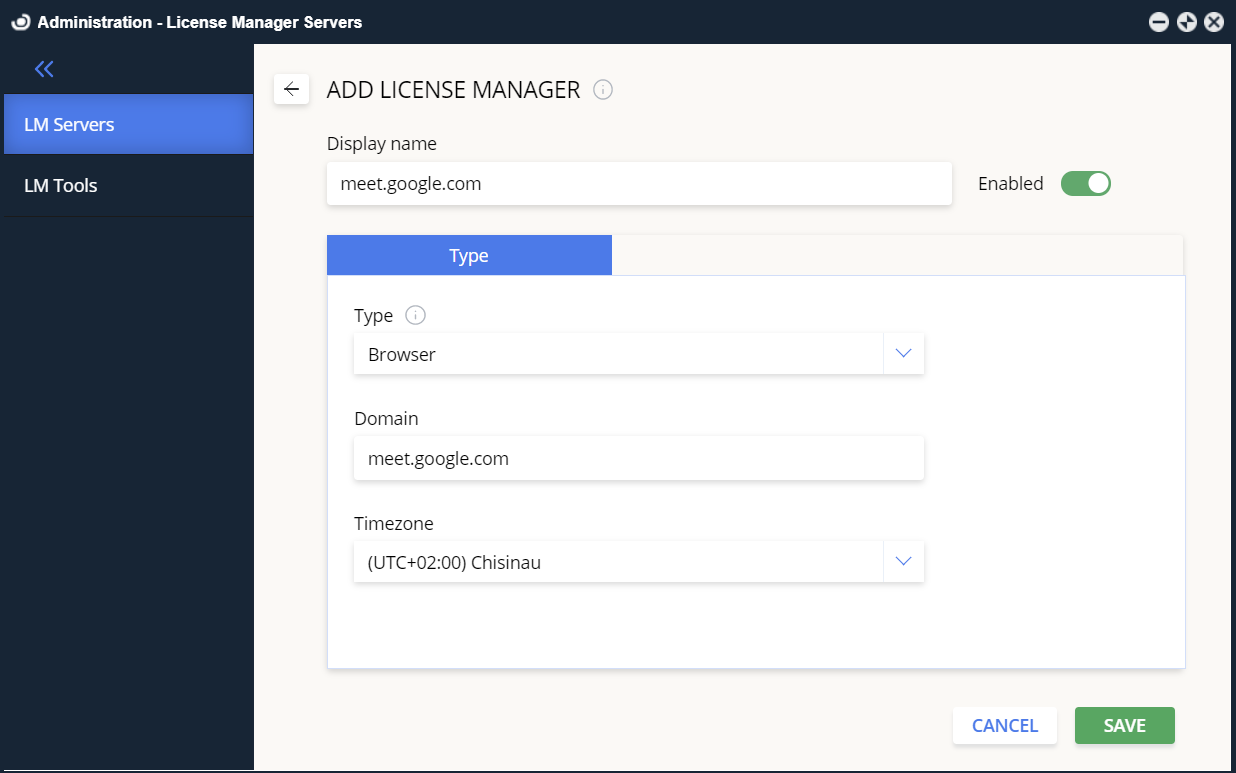
- Go to EasyAdmin User Interface→ Start→ Administration→ License Manager -Servers. The list with all LM will be displayed.
- Click Add License Manager.
- Type in a descriptive title.
- Select the type: Browser.
- Type in the URL address you want to monitor in the Domain field.
- Select the time zone.
- Click Save.
By default, The Workstation Agent will report every hour to OpenLM SLM unique cross-browser sessions matching the given URLs.
Results
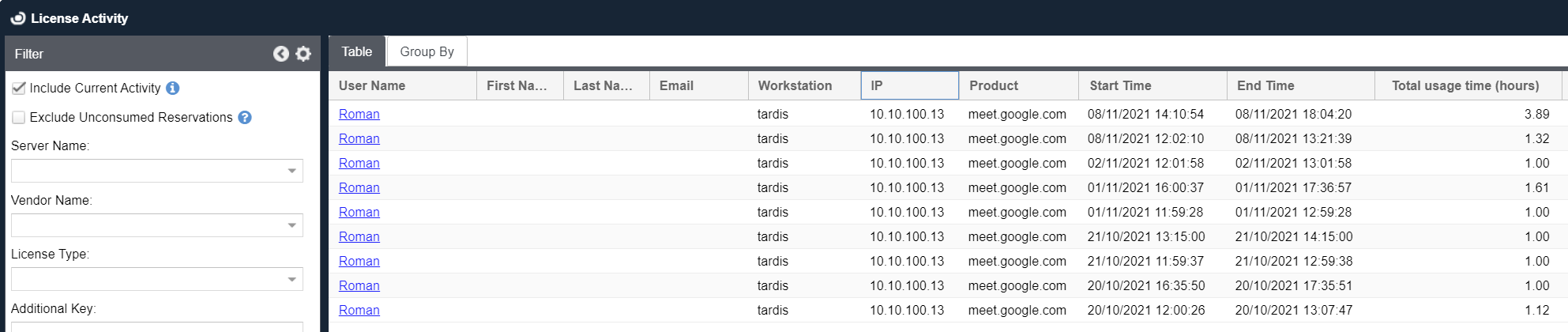
You can check the results, as reported by Agents, in the License Activity Report:
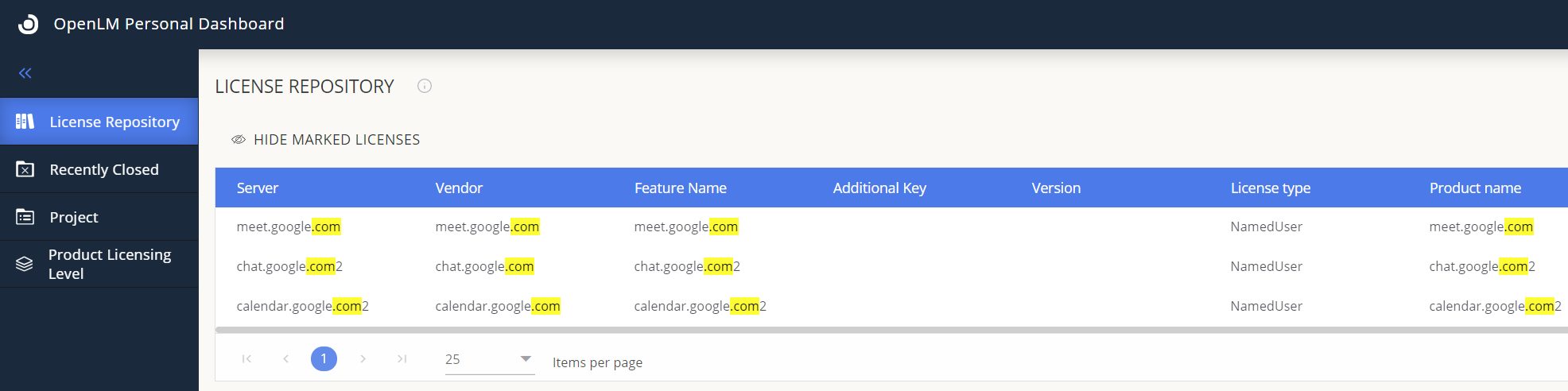
Monitored addresses are visible to end-users in the Personal Dashboard: