Directory Synchronization Service (DSS)
- Standard DSS
- Global Catalog
Prerequisites
- Install DSA on at least one machine in your network.
- Generate an authorization file to allow the DSA to authenticate with the Identity Service.
- After installation, use the Agent Manager to approve the newly installed Agent(s) and complete the setup.
Usage
Accessing DSS from UI
Access DSS from the navigation menu at the top-left corner.
- Select the navigation menu and search for Directory Sync.
Agent Manager
On the Agent Manager tab, you can view all Directory Sync Agents (DSAs) managed by DSS.
Approve a new agent
All newly installed DSAs must be approved before becoming operational.
To approve an agent:
-
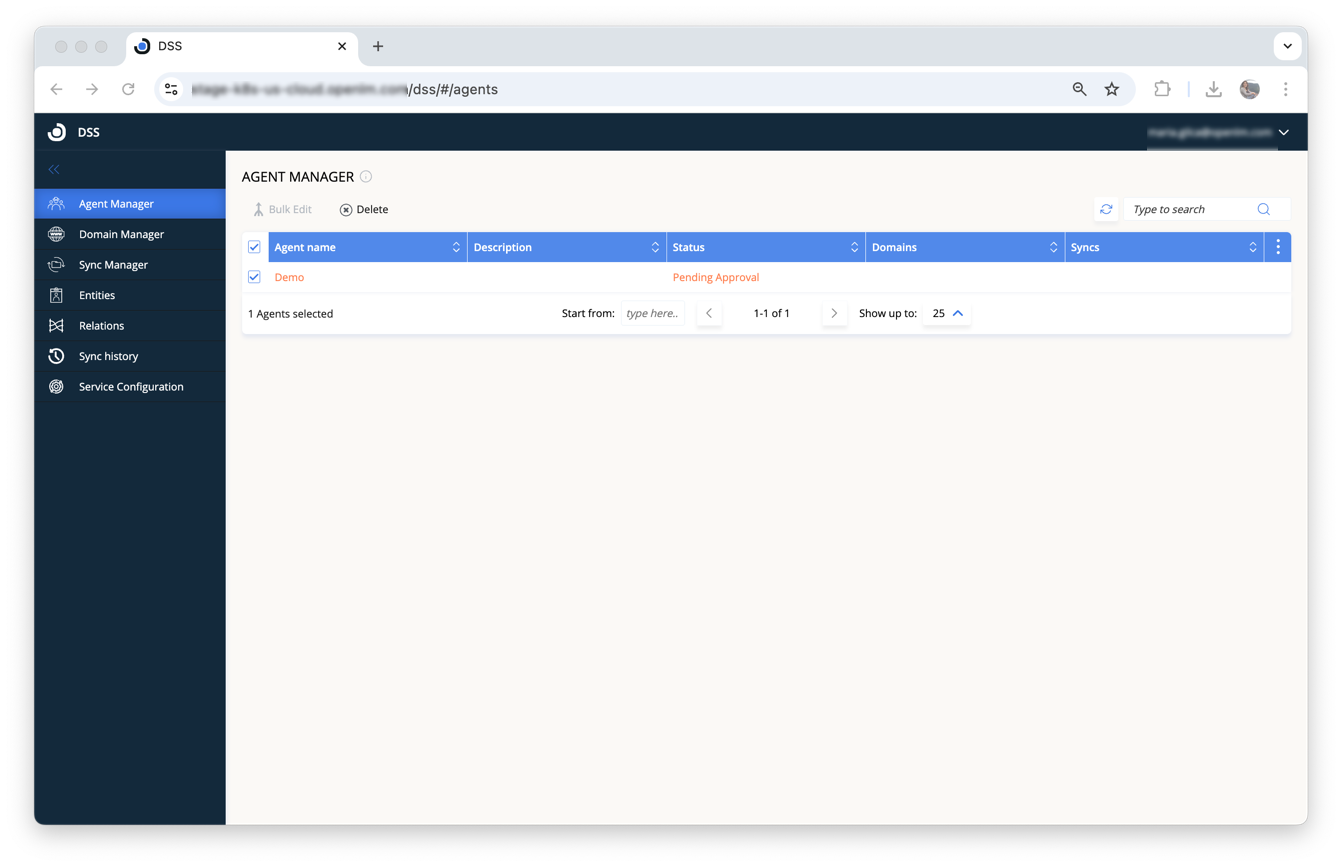
Open the Agent Manager tab.
-
Double-click the agent marked Pending approval (or select the Edit Agent icon).
-
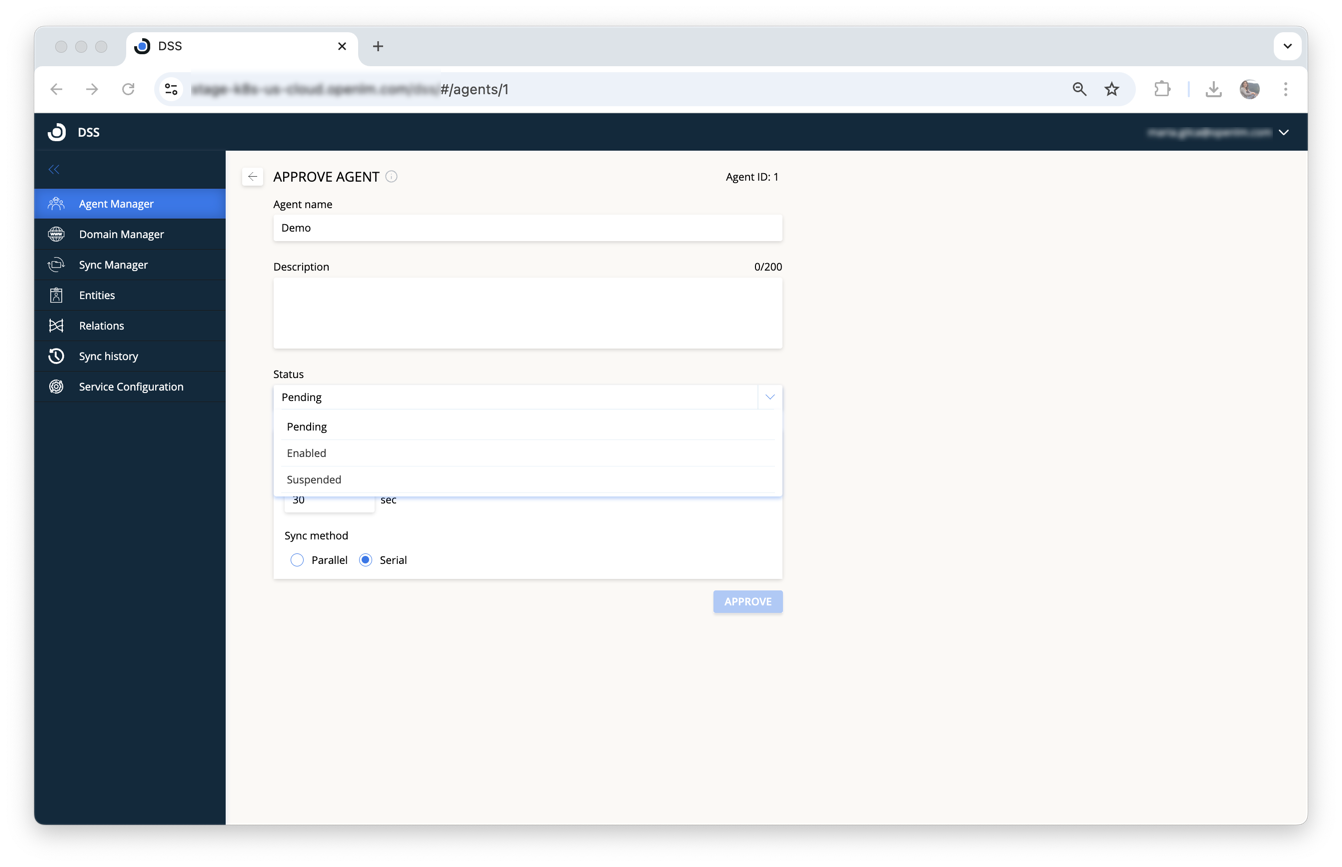
In the Approve Agent window, set the Status to Enabled, then select Approve.
Edit an Agent's properties
To edit agent details:
- Double-click the agent row (or select Edit Agent icon), then open Advanced Settings.
- Adjust required fields:
- Agent Name: Unique agent identifier.
- Description (optional): Notes for identification.
- Status:
- Enabled: Agent operational.
- Suspended: Sync paused until re-enabled.
- Agent request interval: Frequency (in seconds) agent checks for sync jobs (range: 5-600 seconds).
- Sync method:
- Parallel: Runs multiple syncs concurrently.
- Serial: Runs syncs sequentially (FIFO).
- Select Save Changes.
Edit agent properties in bulk
To bulk edit Agent properties:
- Select multiple agents by checking boxes.
- Click Bulk Edit to open the editor.
- Adjust properties (as above), then click Save.
Delete an Agent
To delete agents:
- Check boxes for agents to delete, then click Delete.
Domain Manager
On the Domain Manager tab, configure the domains for synchronization with OpenLM.
Supported directory types:
- Active Directory / AWS
- EDirectory
- ApacheDS
- Microsoft Entra ID
- Google CDS
- Okta Directory
- NIS Directory
Add a new sync domain
To add a domain:
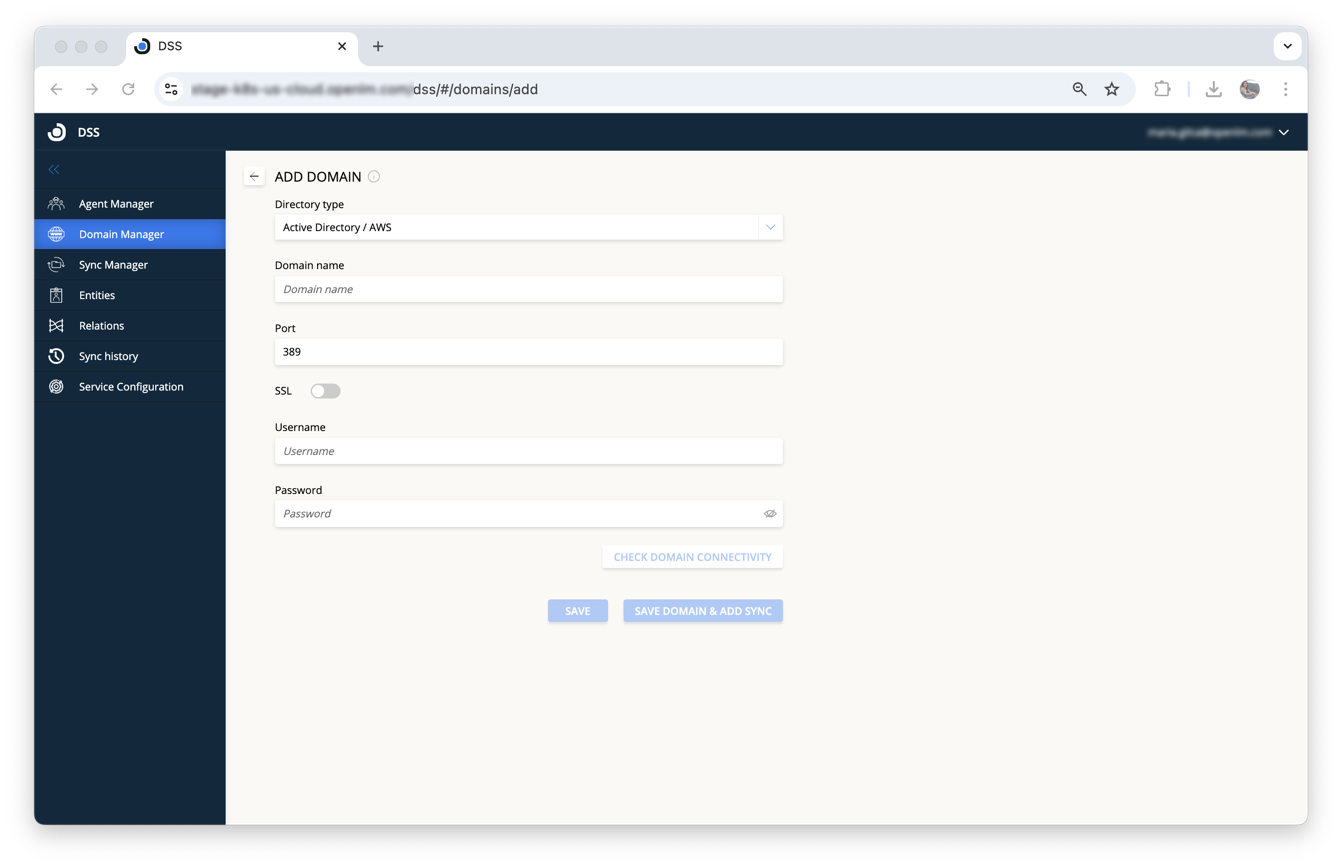
- Click Add Domain.
- Fill in domain details:
- Domain type: Active Directory, eDirectory, ApacheDS, AzureAD, or Google CDS.
- Domain name: Hostname/IP of domain controller.
- Port: Domain controller port.
- SSL: Enable for encrypted connection.
- Username/Password: Admin credentials (read access required).
- For Azure: Domain Name, Client ID, Client Secret, Tenant ID.
- For AzureAD synchronization, consult this link.
- For Google CDS synchronization, consult this link.
- Click Check domain connectivity, select the testing agent, and verify connectivity (up to 2 mins).
- Click Save or Save Domain & Add Sync.
Delete a domain
- Select domains, click Delete, confirm deletion.
Note: Associated sync definitions must be deleted.
Sync Manager
On the Sync Manager tab, configure synchronization definitions for selected domains.
Add a new sync definition
- Click Add Sync.
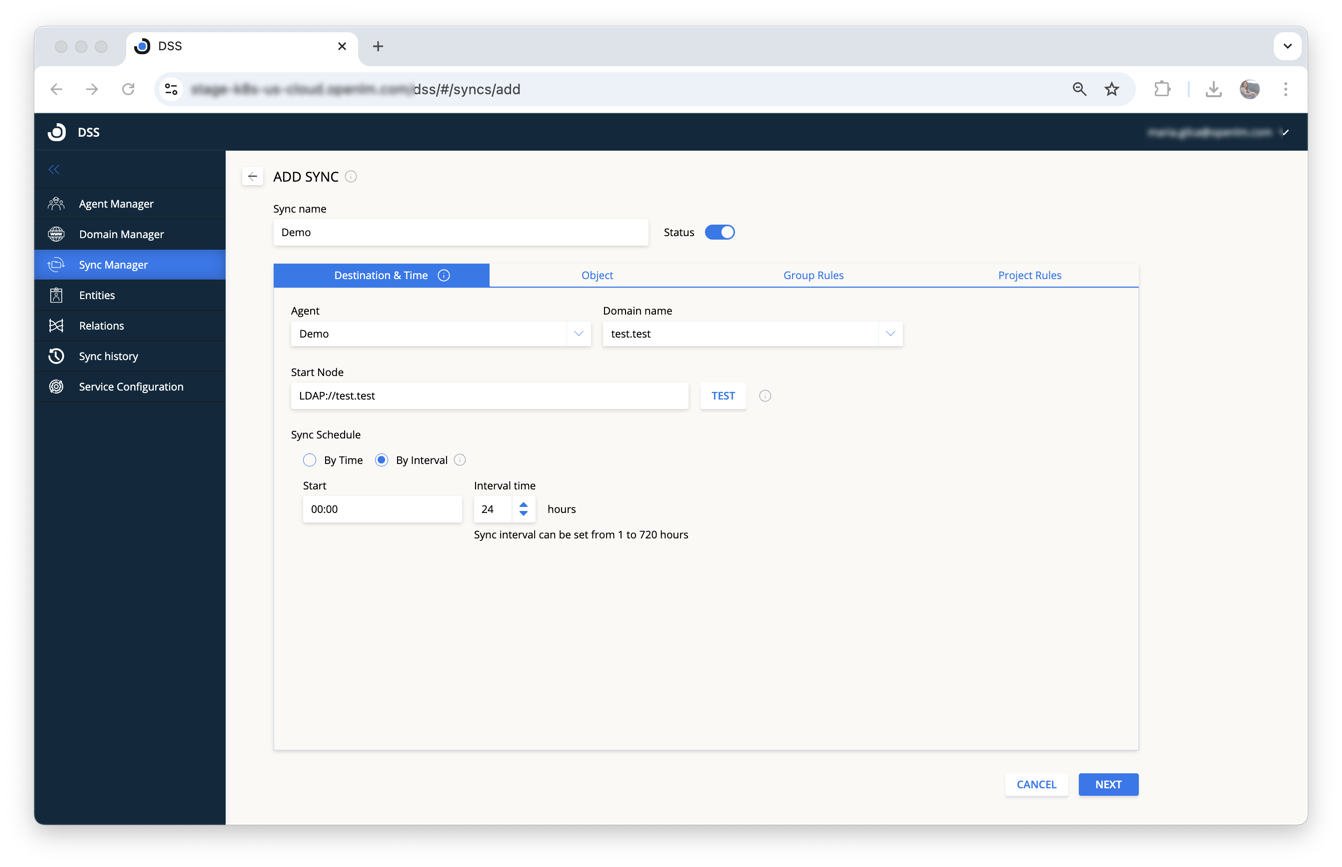
- Fill in sync definition details:
- Sync Name: Unique name for the sync definition.
- Status: Toggle on or off the sync.
Destination & Time tab
- Agent: Choose executing Agent.
- Domain name: Domain to sync from.
- Start node: LDAP path node for sync starting point.
Examples:
LDAP://10.0.0.153/OU=OU_AB,DC=testdev1domain,DC=openlm,DC=biz LDAP://server2008r2ldap.openlm.biz/CN=SecGroup,DC=openlm,DC=com
- Sync schedule:
- By time: Set specific days/times.
- By interval: Define intervals (1-720 hrs).
Object tab
- Sync object type:
- Users (can limit to OpenLM monitored users).
- Computers (Azure AD supports Users only).
- Sync attribute: Directory attribute (e.g., cn, sAMAccountName, userPrincipalName).
- Membership filter: Sync all objects or only those in specific groups/OUs.
- Search depth: Limit depth of sync.
- Sync Attributes: Either sync all attributes or select a custom list. If you activate this option, only the selected attributes will be retrieved from LDAP and sent to external systems such as Users and Groups (UGS) service.
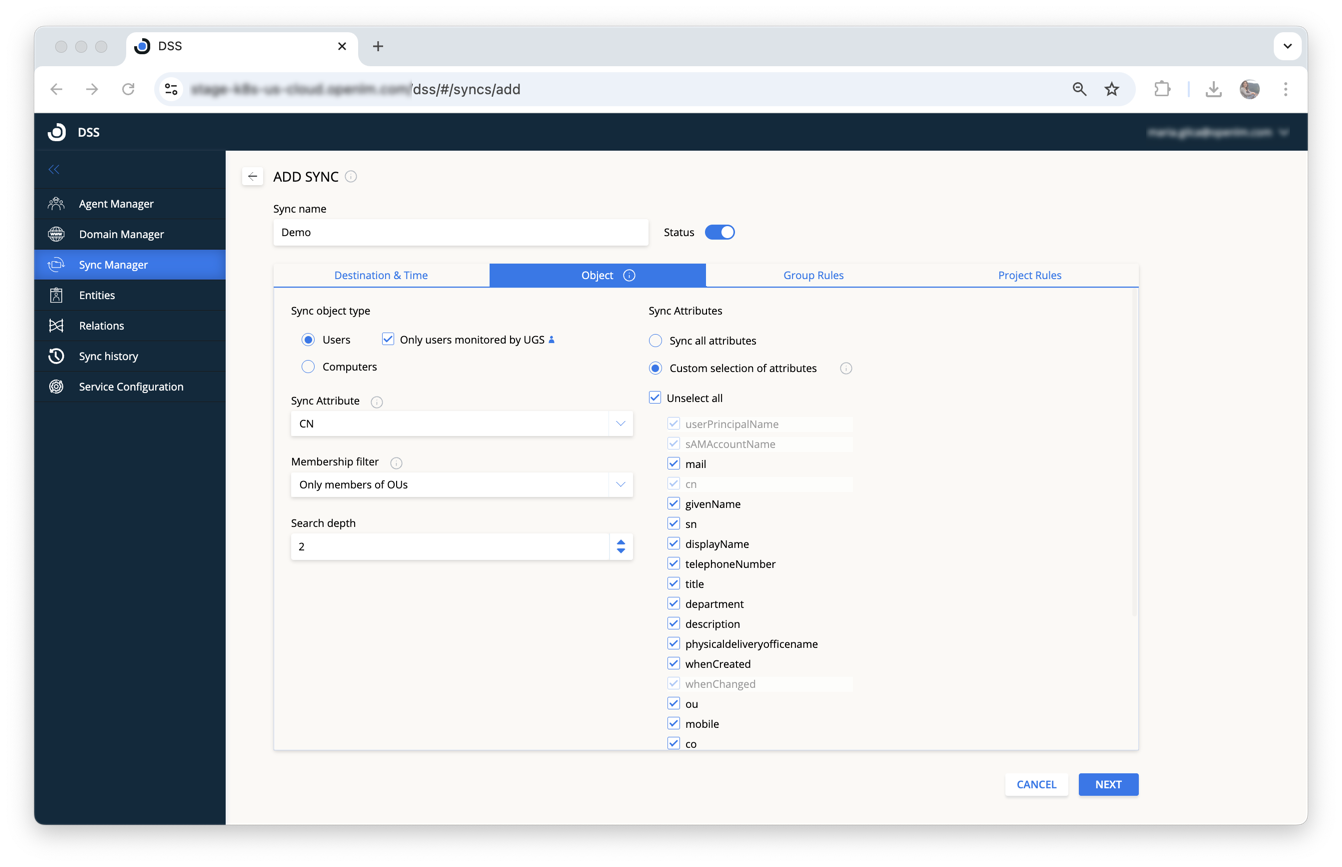
If DSS is still integrated with the OpenLM Server, be aware that the server clears all user properties—except Mobile Phone, Email, and Country—before updating data via LDAP sync.
As a result, any non-mandatory attributes you deselect in the DSS sync settings will be wiped during synchronization and left empty in OpenLM.
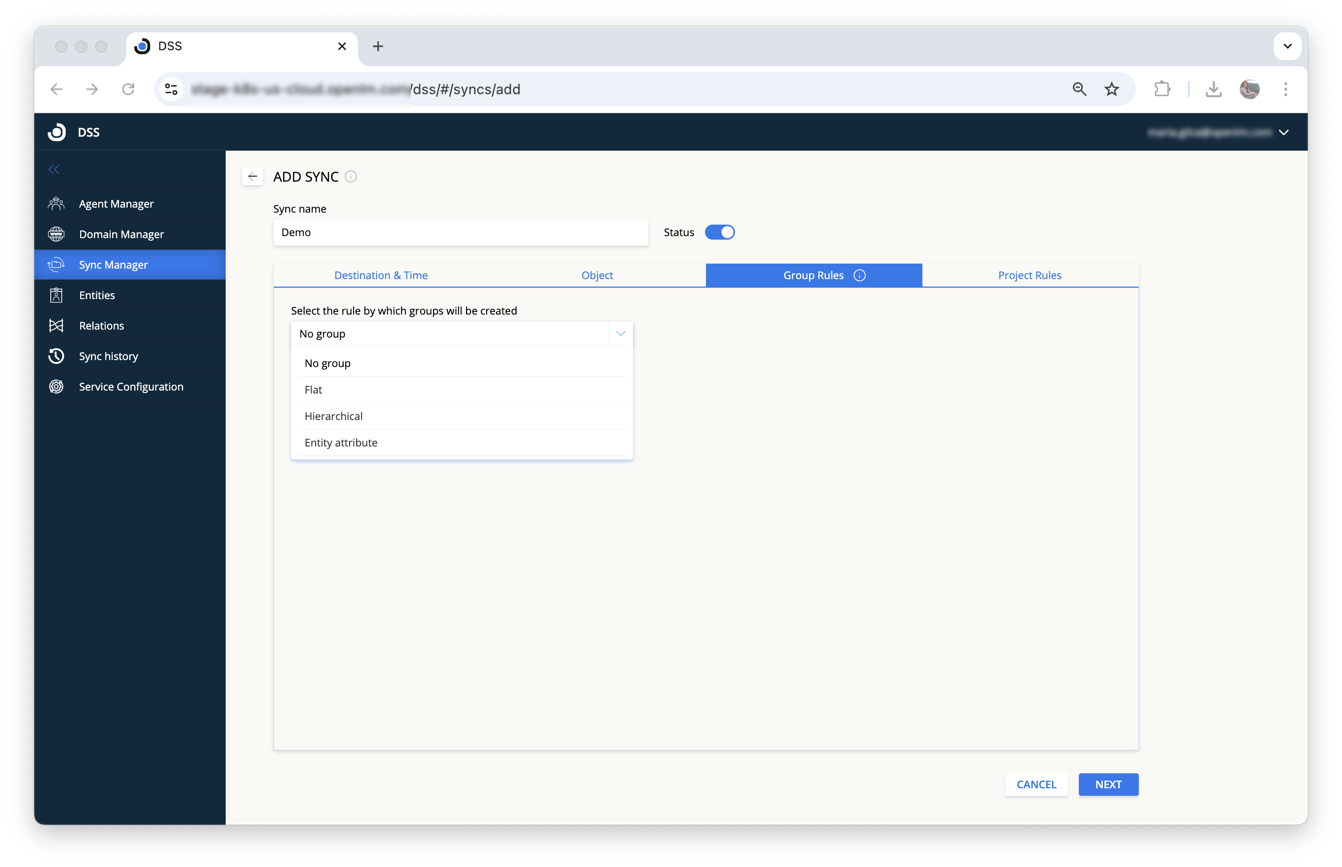
Group Rules tab
Set group synchronization rules:
- No groups: All objects assigned to default group.
- Flat: All objects assigned to one group.
- Hierarchical: Create groups according to directory hierarchy (OUs, Security groups, Distribution groups).
- Entity attribute: Create groups based on specified attributes.
- Include start node: Include or exclude the start node from sync.
- Set as default group: Overrides default group assignment for reporting.
ApacheDS note: ApacheDS groups synchronize differently due to specific object classes and member definitions. Details here.
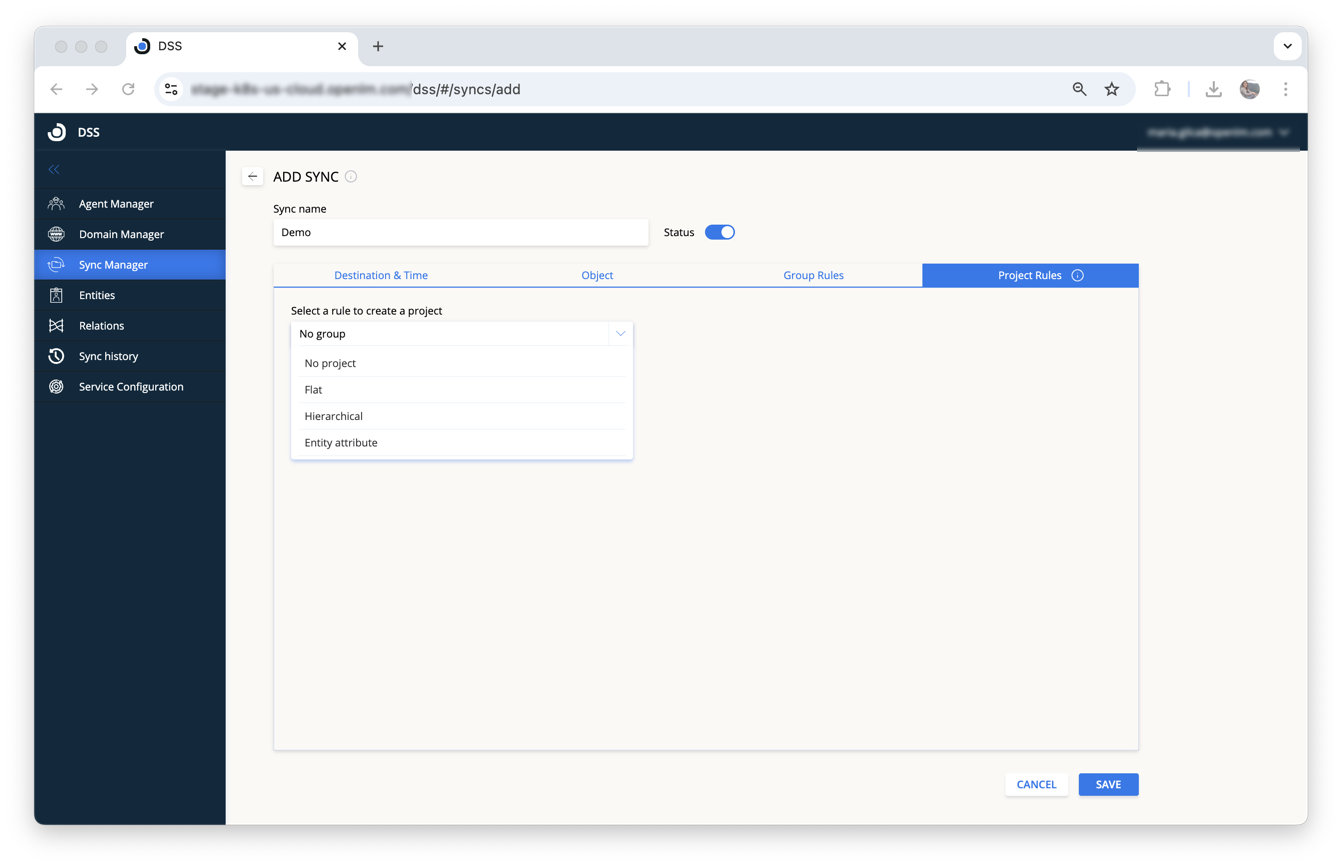
Project Rules tab
Similar configuration as Group Rules, applied to projects:
- No project, Flat, Hierarchical, or attribute-based rules.
- Set as default project: Overrides default project assignment.
Manually trigger synchronization
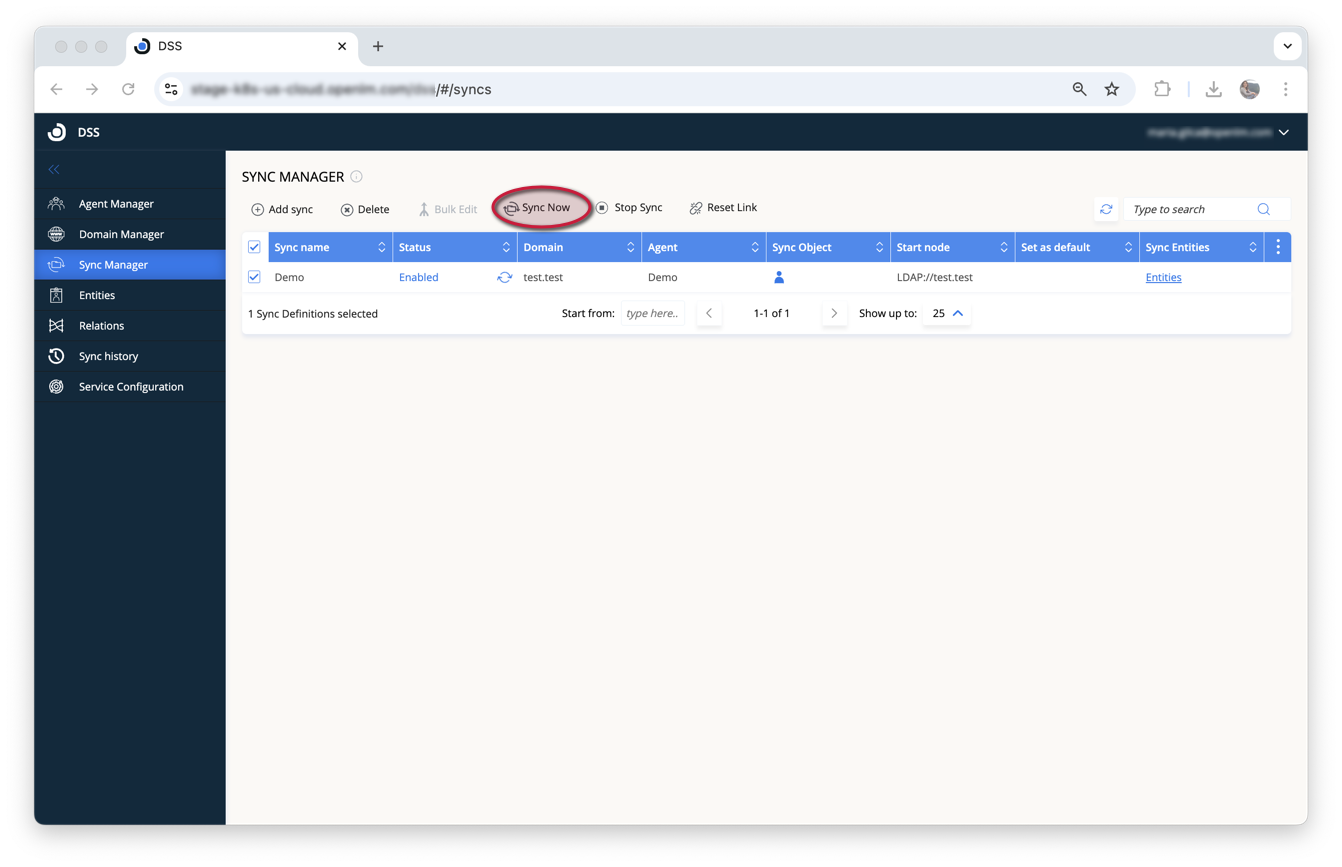
- Select sync definitions and click the sync icon to manually trigger sync.
Reset entity-relationship data
- Select definitions and click the reset icon to clear relationship data without affecting user data.
Stop Sync button
- Use Stop Sync if synchronization is stuck (e.g., in "Update OpenLM DB").
Delete a sync definition
- Select sync definitions, click Delete, and confirm deletion.
Note: Running synchronizations can't be deleted.
Entities tab
View entities created by DSS sync:
- ID, entity name, type, last sync definition, and sync time.
- Filter and export entity data.
- Ignore entities from future synchronizations.
- Manually synchronize entities individually.
- View entity relationships.
Relations tab
View entity relations, including agents, domains, associated syncs, parent entities, and last sync date.
- Ignore entities for specific sync definitions.
Service Configuration tab
- Delete all entities from DSS database.
- Entities are regenerated during the next sync.
Note: This does not affect users/groups in the main database.
Directory Sync with Global Catalog
The Global Catalog is a central repository in a multi domain Active Directory (AD) forest. It enables Directory Sync to retrieve essential information and structural data about users across domains. It includes general attributes about all objects within the forest.
Key benefits
- Supports forest-wide searches across multiple domains
- Improves query performance for common attributes
- Simplifies access to multi domain environments
Limitations
- Contains only a subset of object attributes
- Might not include detailed user properties
Because the Global Catalog doesn't include all user attributes, use caution when syncing. Some data might be missing.
For example, the following attributes were not synced using the GC:// protocol in Directory Sync Service (DSS):
titledepartmentmobilephysicalDeliveryOfficeName
These attributes were successfully synced when using the LDAP:// protocol for the same entity.
Configure Global Catalog in DSS
-
Add the domain with the correct port:
- Port
3268for non SSL connections - Port
3269for SSL connections
- Port
-
Set the start node:
- When creating a new sync, set the
startnodeto use theGCprotocol instead ofLDAP
- When creating a new sync, set the