IBM LUM
OpenLM は FlexLM や DSLS など、幅広い ライセンスマネージャー の監視に対応しています。
本ガイドでは、IBM LUM を OpenLM と連携させ、ライセンス使用状況、拒否、統計情報を監視する方法を説明します。
設定方法
IBM LUM ライセンスサーバーを問い合わせる方法は 3 通りあります:
- 方法 1: 最小構成 — IBM LUM と同じマシンに OpenLM Server をインストール。最も簡単ですが Broker の利点は使えません。
- 方法 2: 別マシンに OpenLM Server と IBM LUM クライアントをインストールし、Server がクライアント経由で問い合わせる。
- 方法 3: IBM LUM ライセンスサーバーに OpenLM Broker をインストール。Broker がローカルで問い合わせ、Server に送信します。拒否レポートなどの高度な機能が使えるため 推奨 です。
方法 1: OpenLM Server で IBM LUM を問い合わせ
設定手順:
-
EasyAdmin で Administration → License Manager Servers に移動します。
-
LM Tools タブを開きます。
-
LM Type から LUM を選択します。
-
i4blt.exeを OpenLM Server のインストールフォルダにコピーします:- 既定パス:
C:\Program Files\OpenLM\OpenLM Server\LM
- 既定パス:
-
設定にフルパスを入力して Save をクリックします。
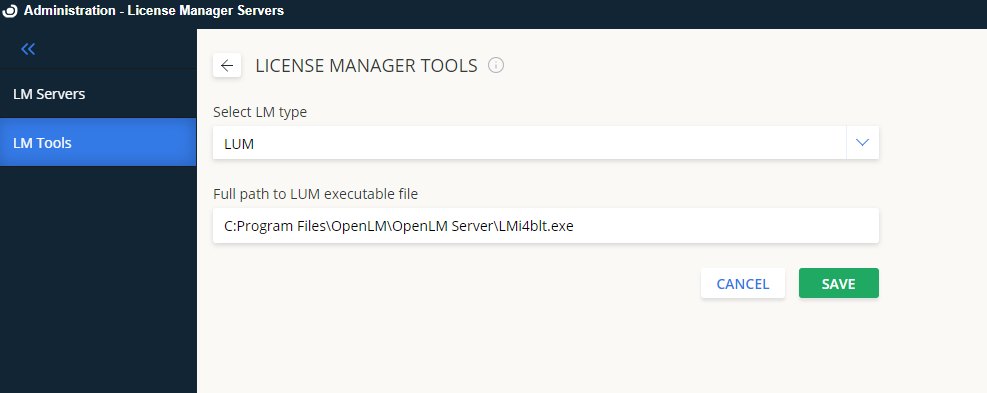
IBM LUM サーバーの追加
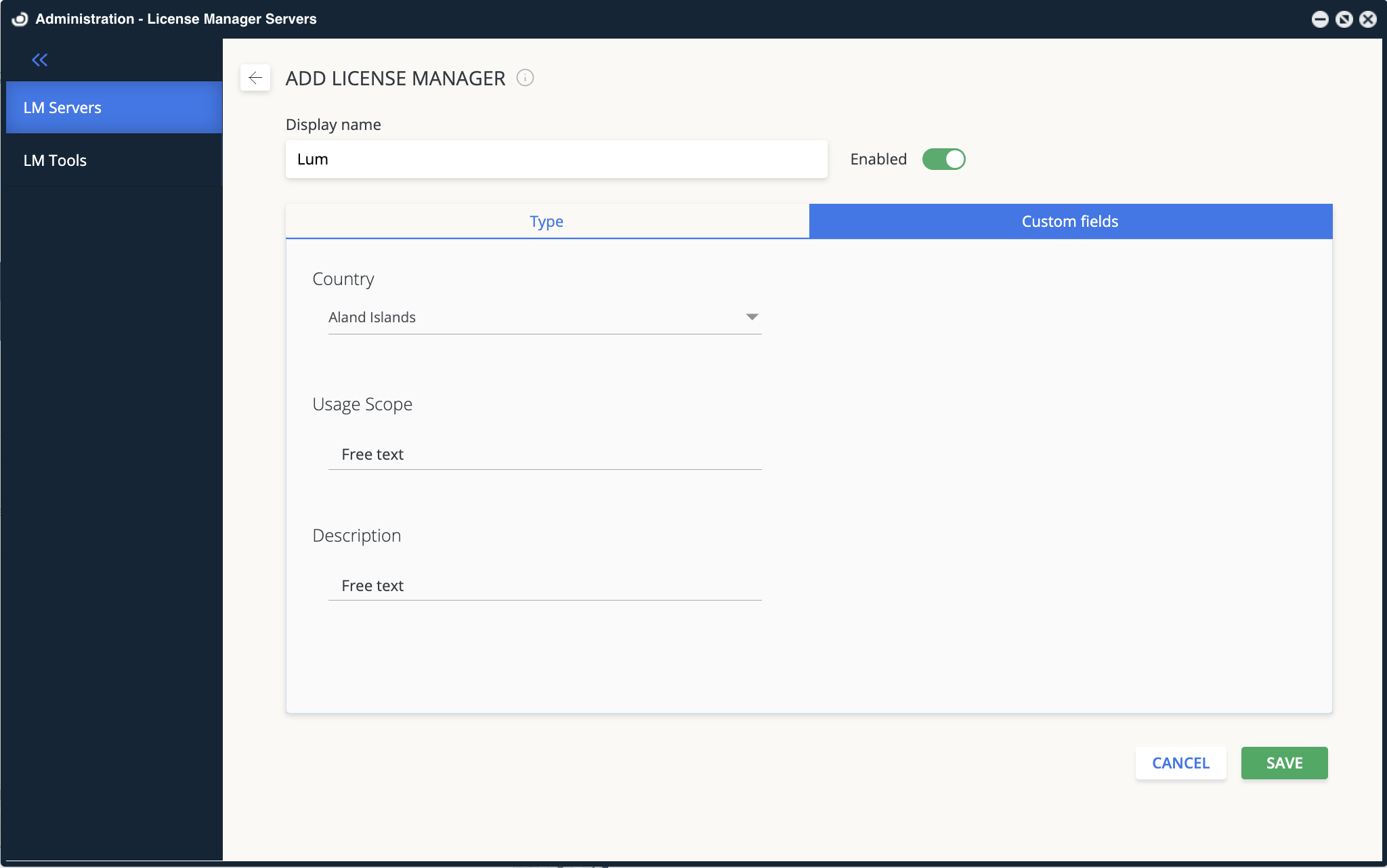
- License Servers で Add LM をクリックします。
- Description にわかりやすい名前(例:
IBM LUM license server)を入力します。 - Type から LUM を選択します。
- Hostname を入力します(例:
ibm_lum_server)。 - Port を入力します(既定: 1515)。
- 正しい Time Zone を設定します。
- Enable HAL configuration: High Availability Licensing (HAL) を使用する場合はチェックします。
クラスタメンバーを取得するコマンド例:
i4blt -H s -N "clusterName"
-
Use Broker トグルを設定します:
- Off(既定): Server が直接問い合わせます。
- On: Server が Broker を使用します。
-
(任意)Custom fields に国、範囲、説明などを追加します。
-
Save をクリックします。
方法 2 と 3: OpenLM を別マシンにインストール
- 方法 2: Server が LUM クライアント経由で IBM LUM をリモート問い合わせ。
- 方法 3(推奨): ライセンスサーバーに Broker をインストールし、ローカルで問い合わせて送信。
Broker を使うメリット
- 堅牢性: ネットワーク障害時にデータをバッファリング。
- 柔軟性: 設定 UI を提供。
- レポート: ライセンス拒否情報を収集。
方法 2: LUM クライアントを使用する Server
設定手順:
- OpenLM Server マシンに IIS がインストールされていることを確認します。
- OpenLM Server マシンに IBM LUM クライアント をインストールします。
- IBM LUM ライセンスサーバーに OpenLM Server を参照登録します。
- インストール後、
i4ls.iniファイルをコピーします:
- Windows Vista 以降:
C:\Users\<User>\AppData\Local\VirtualStore\ProgramData\IBM\LUM→ C:\ProgramData\IBM\LUM
- Vista より前:
C:\Documents and Settings\All Users\Application Data\IBM\LUM→ C:\Users\All Users\IBM\LUM
ホスト名ではなく IP を使う場合は # を先頭に付けます。DNS ドメインが異なる場合に有用です。
方法 3: OpenLM Broker を使用
Broker がライセンス使用状況をローカルで問い合わせ、OpenLM Server に送信します。Java JRE が必要で、Windows と UNIX/Linux サーバーの両方で動作します。
OpenLM Server の設定
方法 1 と同様ですが、Use Broker をオンにします。
OpenLM Broker の設定
- 最新の Broker をダウンロードしてインストールします。
- Broker を設定します:
- Add Port: Server 側で設定したポート(既定: 1515)を入力します。
- OpenLM Server のホスト名とポート(既定: 5015)を入力します。
- Vendor name を設定します(例:
CATIADBS)。
- status と data inquiry コマンドを設定します。
<fullpath>はi4blt.exeの実パスに置き換えます。
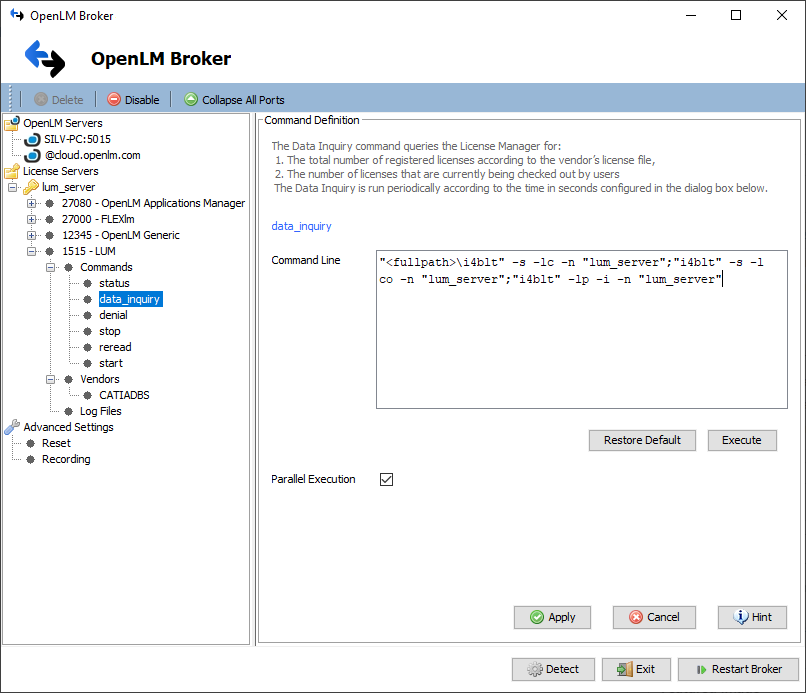
HAL 用 Broker 設定
HAL を有効にしている場合は、クラスタ内の全サーバーを含めます:
-
Status コマンド:
i4blt -H s -N "clusterName" -
Data inquiry コマンド:
i4blt -s -lc -n "server1 server2 server3"i4blt -s -lco -n "server1 server2 server3"i4blt -lp -i -n "server1 server2 server3"
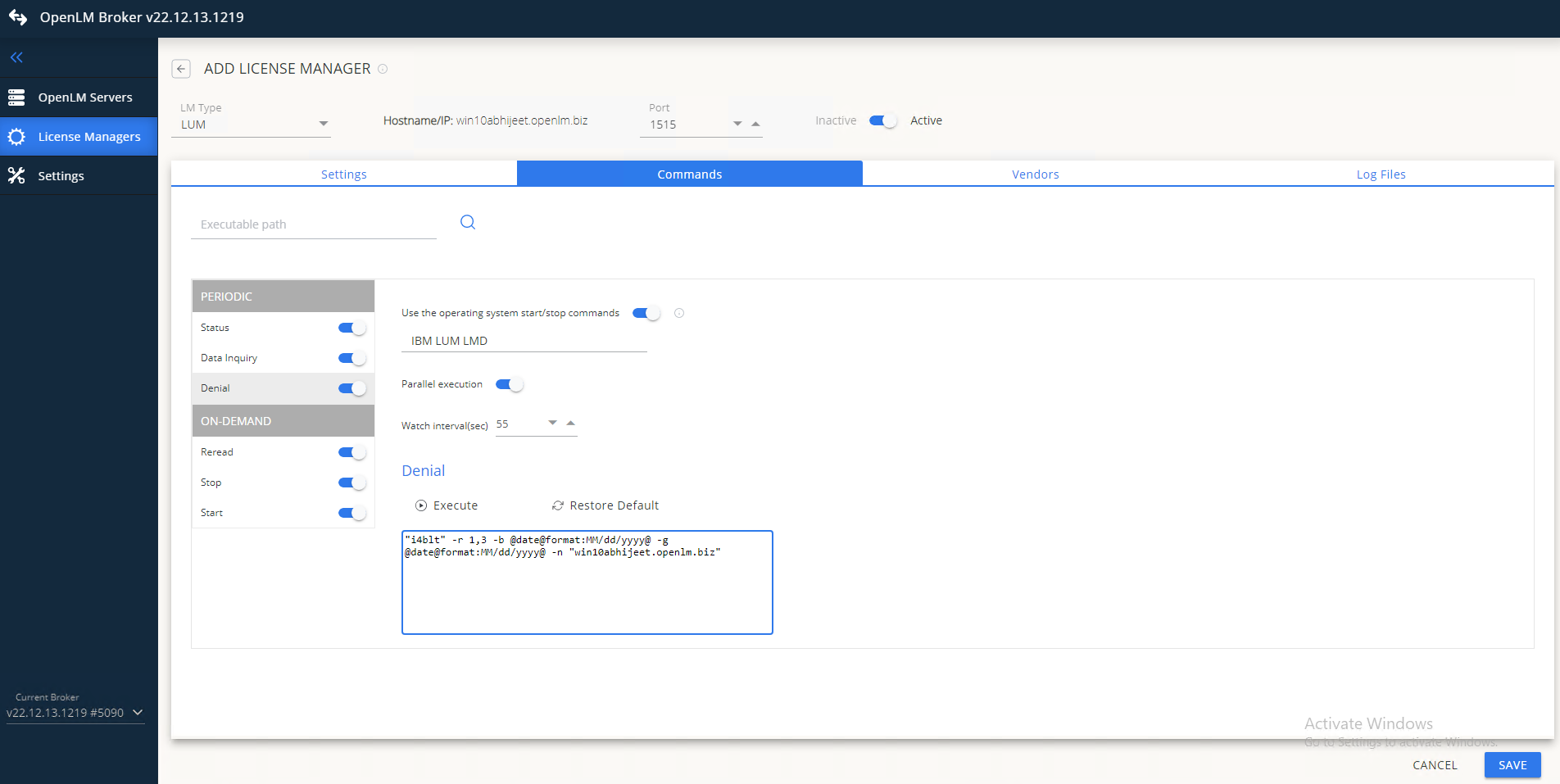
Web UI で Broker を設定
- Broker Web UI を開きます:
http://localhost:5090/ - License Managers → Add License Manager に移動します。
- LUM を選択し、ポート(既定: 1515)を入力して Add をクリックします。
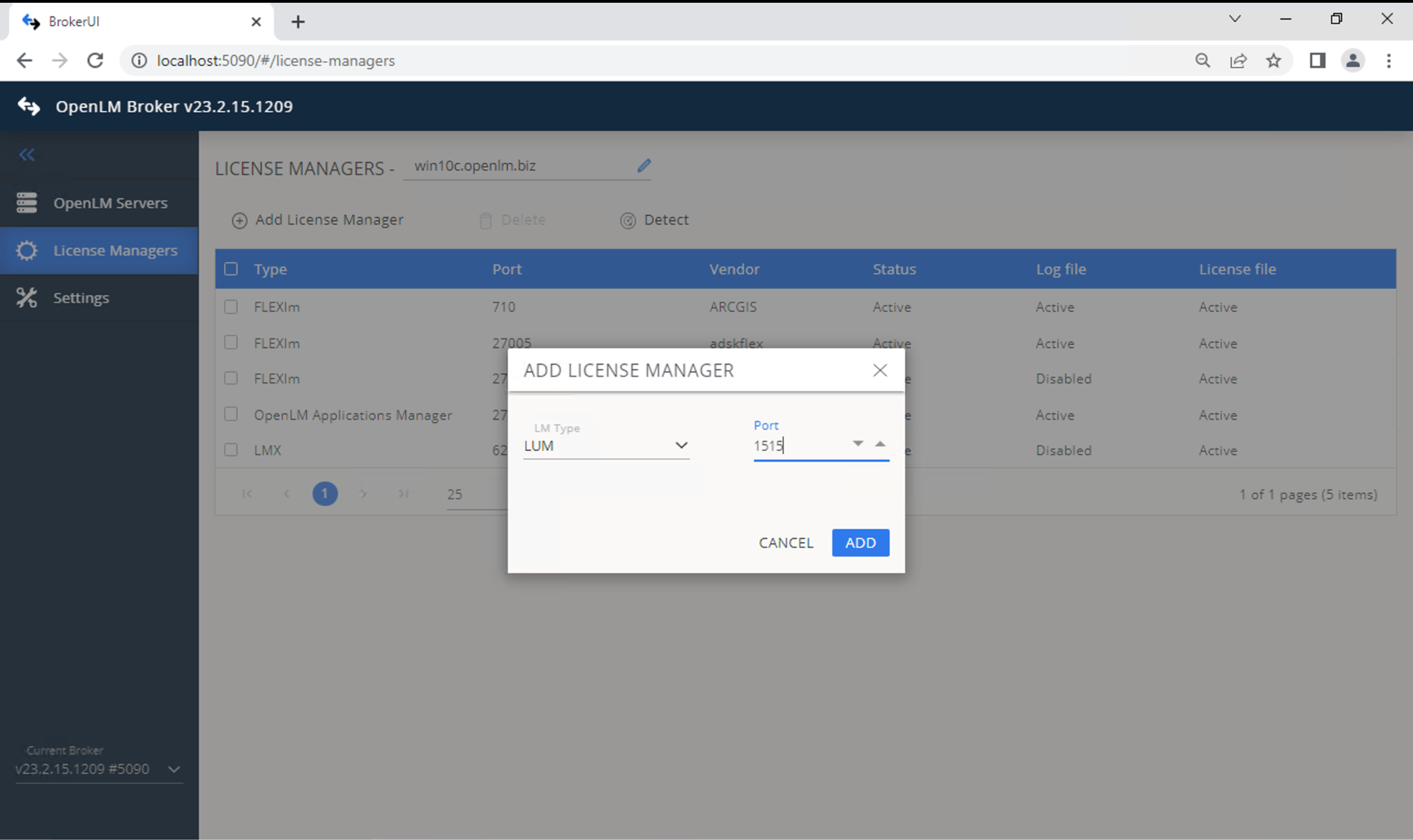
- Cluster トグルを設定します:
- Off: 単一サーバー。
- On: HAL 用(上記参照)。
- Commands で
i4blt.exeのパスを設定します。 - Vendors で正しい名前を設定します。
- Save をクリックします。
EasyAdmin で IBM LUM を確認
- EasyAdmin を開きます。
- Start → Widgets → License Servers に移動します。
- 一覧に IBM LUM が表示されることを確認します。
- 緑色の丸アイコン は接続が有効であることを示します。
IBM LUM の拒否レポート
拒否は EasyAdmin → Start → Reports → Denials に表示されます。
拒否は true denial filtering の対象であり、拒否されたユーザーが後でライセンスを取得していないことを確認するため、短い遅延が発生します。
これで IBM LUM の監視設定は完了です。